ആമുഖം
This manual provides comprehensive instructions for the setup, operation, and maintenance of your ROCCAT Burst Core Gaming Mouse. Designed for performance and precision, the Burst Core features an extreme lightweight design, an 8,500 DPI optical sensor, and durable construction. Please read this manual thoroughly to ensure optimal use and longevity of your device.
ഉൽപ്പന്നം കഴിഞ്ഞുview
The ROCCAT Burst Core is an extreme lightweight optical gaming mouse engineered for core performance. It features a symmetrical ergonomic shape, a solid honeycomb shell, and ROCCAT's Titan Switch Optical technology.
- Symmetrical Ergonomic Shape: Crafted for comfort and performance.
- ഭാരം കുറഞ്ഞ ഡിസൈൻ: Weighs only 68g due to its solid honeycomb shell.
- Titan Switch Optical: Provides a mechanical feel with optical speed for rapid, precise clicks.
- PTFE മൗസ് കാലുകൾ: Ensures exceptional glide across various surfaces.
- 8,500 DPI ഒപ്റ്റിക്കൽ സെൻസർ: Based on the PixArt PMW3330 sensor for high precision tracking.

ചിത്രം 1: മുൻ-വലത് view of the ROCCAT Burst Core Gaming Mouse, showcasing അതിന്റെ എർഗണോമിക് ഡിസൈനും സ്ക്രോൾ വീലും.
സജ്ജമാക്കുക
1. മൗസ് ബന്ധിപ്പിക്കൽ
- നിങ്ങളുടെ കമ്പ്യൂട്ടറിൽ ലഭ്യമായ USB പോർട്ട് കണ്ടെത്തുക.
- Plug the USB connector of the ROCCAT Burst Core mouse into the USB port.
- Your operating system (Windows 7, Windows XP, Linux, or newer versions) should automatically detect and install the necessary drivers.
2. Software Installation (ROCCAT Swarm)
For advanced customization options, including DPI control, button assignments, scroll speed, click speed, and RGB lighting effects, it is recommended to install the ROCCAT Swarm software.
- Visit the official ROCCAT webസൈറ്റ് (www.roccat.com/pages/swarm) to download the latest version of ROCCAT Swarm.
- ഇൻസ്റ്റാളേഷൻ പൂർത്തിയാക്കാൻ ഓൺ-സ്ക്രീൻ നിർദ്ദേശങ്ങൾ പാലിക്കുക.
- Once installed, launch ROCCAT Swarm to configure your mouse settings.

ചിത്രം 2: മുകളിൽ view of the ROCCAT Burst Core, highlighting the main buttons, scroll wheel, and DPI button.
പ്രവർത്തന നിർദ്ദേശങ്ങൾ
അടിസ്ഥാന പ്രവർത്തനങ്ങൾ
- ഇടത് ക്ലിക്ക്: പ്രാഥമിക പ്രവർത്തനം, തിരഞ്ഞെടുപ്പ്.
- വലത് ക്ലിക്കിൽ: Secondary action, context menu.
- സ്ക്രോൾ വീൽ: Scroll up/down, middle click for universal scrolling or assigned function.
- DPI ബട്ടൺ: Cycles through preset DPI (Dots Per Inch) sensitivity levels. Default settings can be customized via ROCCAT Swarm.
- സൈഡ് ബട്ടണുകൾ: Typically assigned as 'Forward' and 'Back' in web ബ്രൗസറുകളും file explorers. Customizable via ROCCAT Swarm.
Advanced Customization with ROCCAT Swarm
The ROCCAT Swarm software allows you to personalize your mouse experience.
- DPI ക്രമീകരണങ്ങൾ: Adjust DPI steps and values to match your preference.
- ബട്ടൺ അസൈൻമെന്റ്: Reassign functions to any of the mouse buttons, including macros.
- പോളിംഗ് നിരക്ക്: Configure the mouse's reporting rate to the computer.
- RGB ലൈറ്റിംഗ്: Customize the illumination effects and colors of the scroll wheel.
- പ്രൊഫfiles: ഒന്നിലധികം പ്രൊഫഷണലുകളെ സൃഷ്ടിച്ച് സംരക്ഷിക്കുകfileവ്യത്യസ്ത ഗെയിമുകൾക്കോ ആപ്ലിക്കേഷനുകൾക്കോ വേണ്ടിയുള്ളത്.
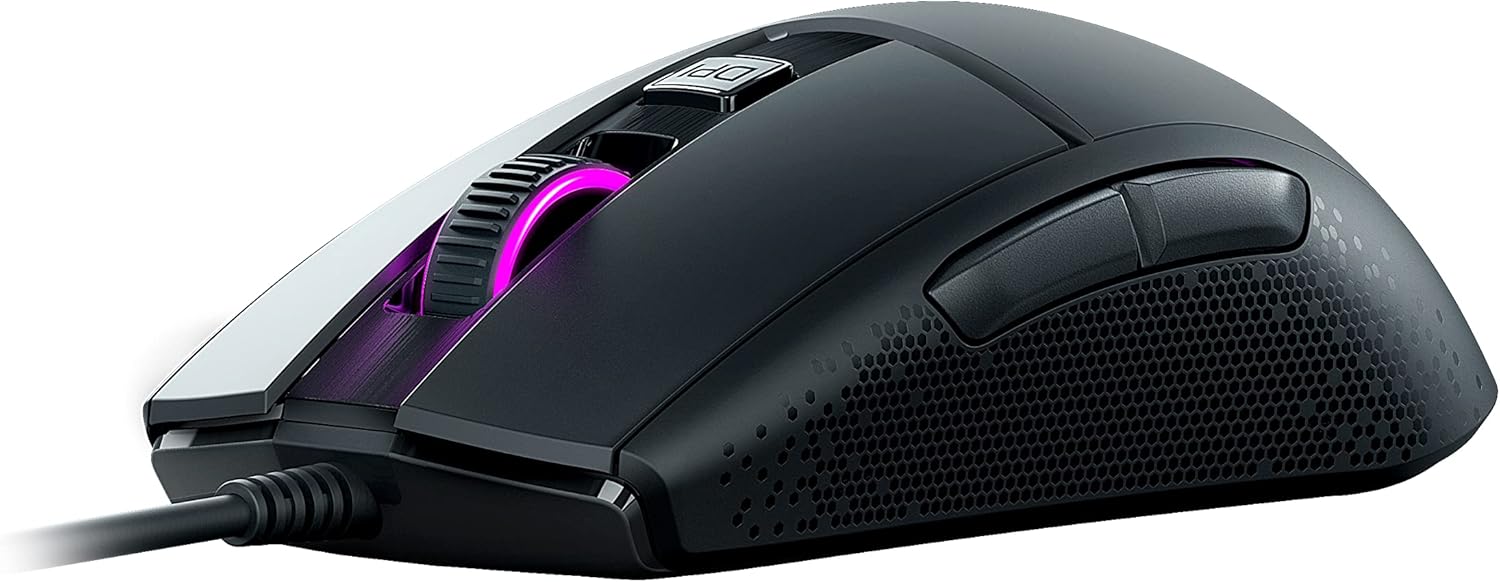
ചിത്രം 3: വശം view of the ROCCAT Burst Core, illustrating the textured hexagonal pattern for enhanced grip.
മെയിൻ്റനൻസ്
നിങ്ങളുടെ മൗസ് വൃത്തിയാക്കുന്നു
- വൃത്തിയാക്കുന്നതിനുമുമ്പ് നിങ്ങളുടെ കമ്പ്യൂട്ടറിൽ നിന്ന് മൗസ് വിച്ഛേദിക്കുക.
- മൃദുവായ, ലിൻ്റ് രഹിത തുണി ഉപയോഗിക്കുകampവെള്ളം അല്ലെങ്കിൽ മൃദുവായ ക്ലീനിംഗ് ലായനി ഉപയോഗിച്ചാണ്.
- കഠിനമായ രാസവസ്തുക്കൾ, അബ്രസീവ് ക്ലീനറുകൾ, അല്ലെങ്കിൽ ലായകങ്ങൾ എന്നിവ ഉപയോഗിക്കുന്നത് ഒഴിവാക്കുക.
- Gently wipe the surface of the mouse. For the optical sensor, use a cotton swab to carefully remove any dust or debris.
- Ensure the mouse is completely dry before reconnecting it to your computer.
സംഭരണം
Store the mouse in a cool, dry place away from direct sunlight and extreme temperatures. Avoid placing heavy objects on the mouse or its cable.
ട്രബിൾഷൂട്ടിംഗ്
| പ്രശ്നം | സാധ്യമായ കാരണം | പരിഹാരം |
|---|---|---|
| മൗസ് പ്രതികരിക്കുന്നില്ല |
|
|
| കൃത്യമല്ലാത്ത ട്രാക്കിംഗ് അല്ലെങ്കിൽ കഴ്സർ കാലതാമസം |
|
|
| ബട്ടണുകൾ പ്രവർത്തിക്കുന്നില്ല |
|
|

ചിത്രം 4: വിശദമായത് view of the ROCCAT Titan Switch Optical mechanism, illustrating its internal components.
സ്പെസിഫിക്കേഷനുകൾ
| ബ്രാൻഡ് | റോക്കാറ്റ് |
| മോഡൽ നമ്പർ | ROC-11-750 |
| കണക്റ്റിവിറ്റി ടെക്നോളജി | USB |
| മൂവ്മെന്റ് ഡിറ്റക്ഷൻ ടെക്നോളജി | Optical (PixArt PMW3330 based) |
| പരമാവധി ഡിപിഐ | 8,500 ഡിപിഐ |
| ഇനത്തിൻ്റെ ഭാരം | 68 ഗ്രാം (2.4 ഔൺസ്) |
| ഉൽപ്പന്ന അളവുകൾ (LxWxH) | 0.63 x 6.69 x 5.28 ഇഞ്ച് |
| നിറം | കറുപ്പ് |
| ഹാർഡ്വെയർ പ്ലാറ്റ്ഫോം | PC |
| ഓപ്പറേറ്റിംഗ് സിസ്റ്റം അനുയോജ്യത | Windows 7, Windows XP, Linux (and newer versions) |
| പ്രത്യേക സവിശേഷതകൾ | Ergonomic Design, Lightweight, Titan Switch Optical, PTFE Mouse Feet |
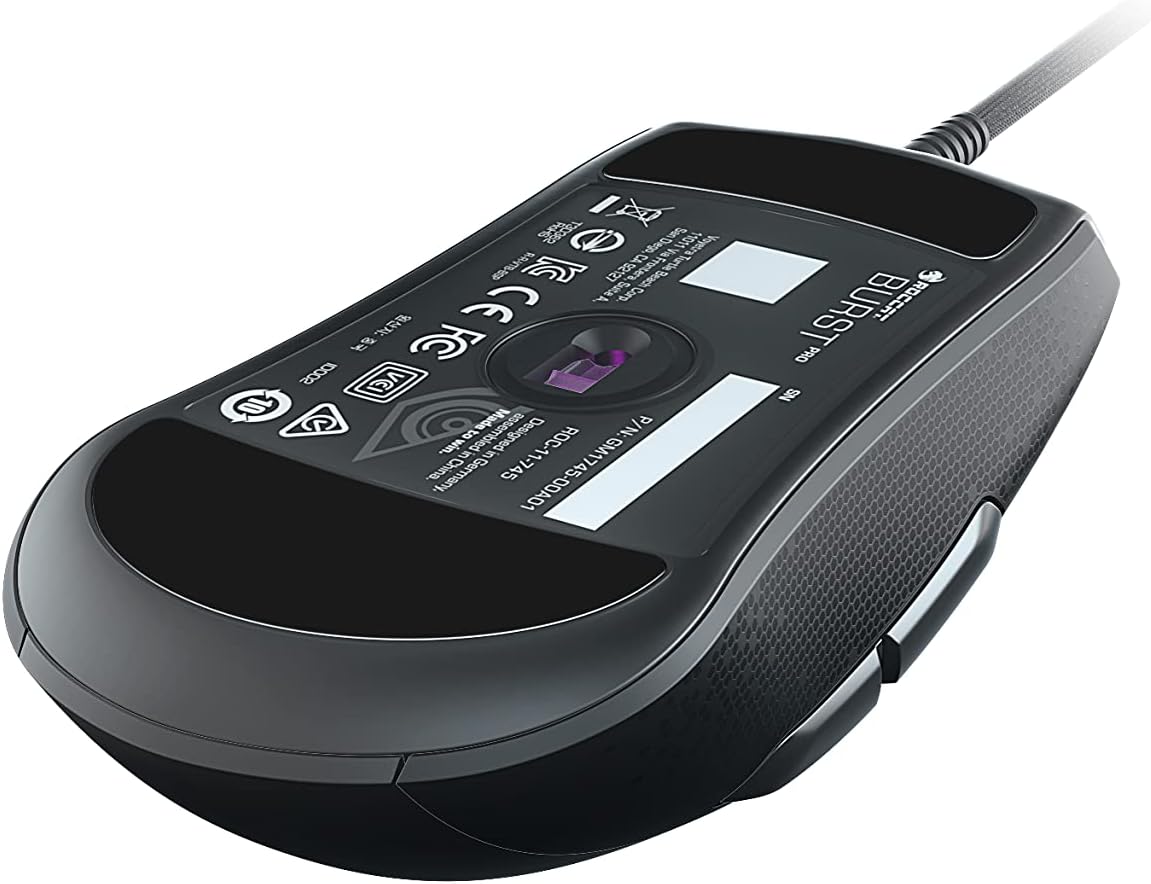
ചിത്രം 5: താഴെ view of the ROCCAT Burst Core Gaming Mouse, displaying the model number and regulatory certifications.
വാറൻ്റിയും പിന്തുണയും
വാറൻ്റി വിവരങ്ങൾ
ROCCAT products typically come with a manufacturer's warranty. Please refer to the warranty card included with your product or visit the official ROCCAT webനിങ്ങളുടെ പ്രദേശത്തിന് പ്രത്യേകമായുള്ള വിശദമായ വാറന്റി നിബന്ധനകൾക്കും വ്യവസ്ഥകൾക്കും സൈറ്റ് സന്ദർശിക്കുക. വാറന്റി ക്ലെയിമുകൾക്കായി നിങ്ങളുടെ വാങ്ങിയതിന്റെ തെളിവ് സൂക്ഷിക്കുക.
ഉപഭോക്തൃ പിന്തുണ
For technical assistance, troubleshooting, or product inquiries, please contact ROCCAT customer support.
- Webസൈറ്റ്: Visit the official ROCCAT support page at support.roccat.com for FAQs, drivers, and contact options.
- ഓൺലൈൻ ഉറവിടങ്ങൾ: Check for updated drivers and firmware on the ROCCAT webഒപ്റ്റിമൽ പ്രകടനം ഉറപ്പാക്കാൻ സൈറ്റ്.
സുരക്ഷാ വിവരങ്ങൾ
- ഉപകരണത്തെ തീവ്രമായ താപനില, ഈർപ്പം അല്ലെങ്കിൽ ദ്രാവകങ്ങൾ എന്നിവയിലേക്ക് തുറന്നുകാട്ടരുത്.
- ഉപകരണം ഡിസ്അസംബ്ലിംഗ് ചെയ്യാനോ പരിഷ്ക്കരിക്കാനോ ശ്രമിക്കരുത്. ഇത് വാറന്റി അസാധുവാക്കും.
- കുട്ടികളിൽ നിന്നും വളർത്തുമൃഗങ്ങളിൽ നിന്നും ഉപകരണം അകറ്റി നിർത്തുക.
- Dispose of the device according to local environmental regulations.


