1. ആമുഖം
The DTEN ME is an all-in-one 27-inch personal video collaboration device designed for home and office environments. It integrates a high-definition camera, a microphone array, and speakers, providing a comprehensive solution for video meetings, phone calls, interactive whiteboarding, and annotation. This device is optimized for the Zoom for Home experience, offering a streamlined and clutter-free workspace.

Image: The DTEN ME device showcasing its primary Zoom for Home interface, including scheduled meetings and quick access buttons for various collaboration functions.
വീഡിയോ: ഒരു ഓവർview of the DTEN ME device, highlighting its features and capabilities as a personal collaboration tool for Zoom for Home. This video demonstrates its use for video meetings, phone calls, interactive whiteboarding, and its ability to replace multiple desktop peripherals.
2. സജ്ജീകരണം
Setting up your DTEN ME device is designed to be straightforward. Follow these steps to get started:
- ഉപകരണം അൺപാക്ക് ചെയ്യുക: Carefully remove the DTEN ME from its packaging.
- ഉപകരണത്തിൻ്റെ സ്ഥാനം: Place the device on a stable, flat surface such as a desk or table. Ensure adequate ventilation around the unit.
- പവർ ബന്ധിപ്പിക്കുക: Plug the power adapter into the DTEN ME and then into a wall outlet. The device will power on automatically.
- നെറ്റ്വർക്ക് കണക്ഷൻ: Connect an Ethernet cable to the network port on the DTEN ME for a stable internet connection. Alternatively, you can configure Wi-Fi during the initial setup process on the device screen.
- പ്രാരംഭ കോൺഫിഗറേഷൻ: Follow the on-screen prompts to complete the initial setup, including connecting to your Zoom account.
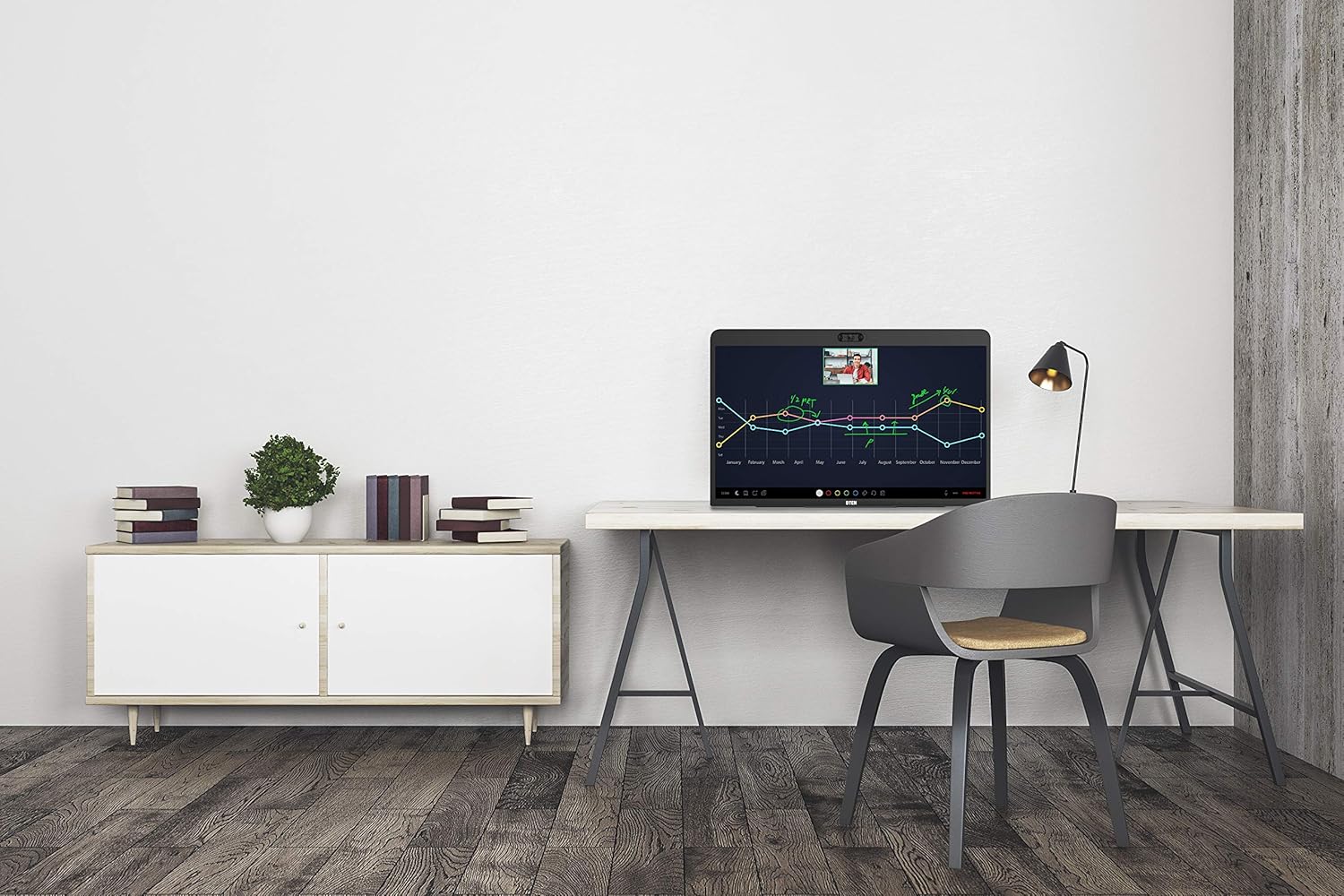
Image: The DTEN ME device positioned on a desk, illustrating a typical setup in a workspace. This highlights its compact design and integration into a professional environment.
3. പ്രവർത്തന നിർദ്ദേശങ്ങൾ
The DTEN ME offers intuitive touch controls for various collaboration functions:
- Starting a Zoom Meeting: From the home screen, tap the 'Meet' or 'Join' button to quickly start or enter a Zoom meeting.
- ഫോൺ കോളുകൾ ചെയ്യുന്നു: Use the 'Phone' option to place calls directly from the device.
- Interactive Whiteboarding: Select the 'Whiteboard' icon to access a digital canvas for drawing, writing, and brainstorming.
- ഉള്ളടക്കം പങ്കിടുന്നു: Utilize the 'Share Content' feature to display documents, presentations, or other media from a connected device.
- വ്യാഖ്യാനം: During meetings or whiteboarding sessions, use the touch screen to annotate directly on shared content or the whiteboard in real-time.
- Using as a Second Monitor: Connect your computer to the DTEN ME via the appropriate video input port (e.g., HDMI, USB-C) to extend your desktop and use it as an additional display.

Image: A user engaging with the DTEN ME's interactive display, demonstrating its use for reviewing and discussing visual data during a collaboration session.
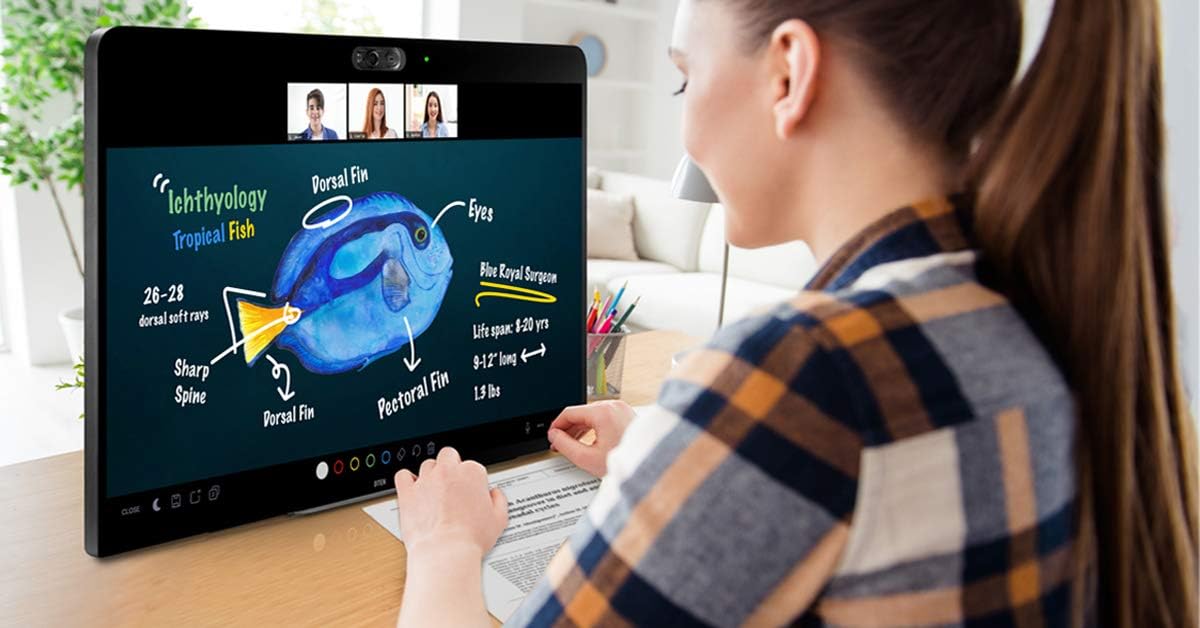
Image: A user actively utilizing the DTEN ME's digital whiteboarding feature, drawing and writing on the screen to explain ideas, enhancing interactive communication.
4. പരിപാലനം
To ensure the longevity and optimal performance of your DTEN ME device, follow these maintenance guidelines:
- സ്ക്രീൻ വൃത്തിയാക്കൽ: ഇലക്ട്രോണിക് സ്ക്രീനുകൾക്കായി പ്രത്യേകം രൂപകൽപ്പന ചെയ്ത മൃദുവായ, ലിന്റ് രഹിത തുണി ഉപയോഗിക്കുക. D.ampen the cloth slightly with water or a screen-safe cleaning solution. Avoid harsh chemicals or abrasive materials.
- സി വൃത്തിയാക്കൽasing: പുറംഭാഗം തുടയ്ക്കുക casinമൃദുവായതും ഉണങ്ങിയതുമായ തുണി ഉപയോഗിച്ച് ഗ്രാം.
- സോഫ്റ്റ്വെയർ അപ്ഡേറ്റുകൾ: Regularly check for and install software updates to ensure you have the latest features, security patches, and performance improvements. These updates are typically managed through the device's settings or Zoom for Home interface.
- വെൻ്റിലേഷൻ: Ensure that the ventilation openings on the device are not blocked to prevent overheating.
5. പ്രശ്നപരിഹാരം
If you encounter issues with your DTEN ME, refer to the following common troubleshooting steps:
- ശക്തിയില്ല: Ensure the power cable is securely connected to both the device and a working power outlet. Try a different outlet if necessary.
- ഇൻ്റർനെറ്റ് കണക്ഷൻ ഇല്ല: Verify your Ethernet cable connection or check your Wi-Fi settings. Restart your router if other devices are also experiencing network issues.
- Camera/Microphone Issues: Check privacy settings within the Zoom for Home application to ensure the camera and microphone are enabled. Restart the device.
- സ്ക്രീൻ ഡിസ്പ്ലേ പ്രശ്നങ്ങൾ: If the screen is blank or distorted, try restarting the device. If using it as a second monitor, ensure the video input cable is properly connected and the correct input source is selected.
- പ്രതികരിക്കാത്ത ടച്ച്സ്ക്രീൻ: Restart the device. If the issue persists, ensure the screen is clean and free of obstructions.
For persistent issues not resolved by these steps, please contact DTEN customer support.
6 സ്പെസിഫിക്കേഷനുകൾ
| ഫീച്ചർ | വിശദാംശങ്ങൾ |
|---|---|
| ഉൽപ്പന്ന അളവുകൾ | 8.27 x 14.96 x 19.29 ഇഞ്ച് |
| ഇനത്തിൻ്റെ ഭാരം | 20.1 പൗണ്ട് |
| നിർമ്മാതാവ് | DTEN |
| ഇനം മോഡൽ നമ്പർ | DBA0027EA |
| സ്റ്റാൻഡിംഗ് സ്ക്രീൻ ഡിസ്പ്ലേ വലുപ്പം | 27 ഇഞ്ച് |
| വീക്ഷണാനുപാതം | 16:9 |
| റെസലൂഷൻ | 1920 x 1080 (HD) |
| മൊത്തം USB പോർട്ടുകൾ | 1 |
| സ്ക്രീൻ ഉപരിതല വിവരണം | തിളങ്ങുന്ന |
7. വാറൻ്റിയും പിന്തുണയും
For detailed warranty information regarding your DTEN ME device, please refer to the documentation provided with your purchase or visit the official DTEN website. Warranty terms and conditions, including coverage period and service procedures, are subject to the manufacturer's policies.
If you require technical assistance, troubleshooting beyond this manual, or have questions about your device, please contact DTEN customer support directly. Contact information can typically be found on the DTEN webസൈറ്റിലോ നിങ്ങളുടെ ഉൽപ്പന്ന പാക്കേജിംഗിലോ.


