ആമുഖം
This manual provides essential information for setting up, operating, maintaining, and troubleshooting your Fujitsu ESPRIMO D586/M desktop personal computer. Please read this manual thoroughly before using the product to ensure proper and safe operation.
1. സജ്ജീകരണ ഗൈഡ്
1.1 അൺപാക്കിംഗും പരിശോധനയും
Carefully remove all components from the packaging. Verify that all listed accessories are present. Inspect the desktop PC and accessories for any signs of physical damage. If any damage is found, contact your vendor immediately.
- Fujitsu ESPRIMO D586/M Desktop PC
- പവർ കേബിൾ
- Stand (for vertical orientation)
- DisplayPort to Analog VGA (D-SUB) Conversion Cable
1.2 പെരിഫറലുകൾ ബന്ധിപ്പിക്കുന്നു
Before powering on the system, connect all necessary peripherals such as the monitor, keyboard, and mouse.
- മോണിറ്റർ ബന്ധിപ്പിക്കുക: Use the DisplayPort or DVI-D output on the back of the PC to connect your monitor. If your monitor only supports VGA, use the provided DisplayPort to Analog VGA (D-SUB) conversion cable.
- കീബോർഡും മൗസും ബന്ധിപ്പിക്കുക: Connect your USB keyboard and mouse to any available USB ports (USB 3.0 on front/back, USB 2.0 on back). PS/2 ports are also available for compatible keyboards and mice.
- നെറ്റ്വർക്കിലേക്ക് കണക്റ്റ് ചെയ്യുക: Connect an Ethernet cable to the RJ-45 LAN port on the back for wired network access.
- ഓഡിയോ ഉപകരണങ്ങൾ ബന്ധിപ്പിക്കുക: Use the audio input/output jacks on the back for speakers, headphones, or a microphone.

ചിത്രം 1: മുൻഭാഗം view of the Fujitsu ESPRIMO D586/M Desktop PC. Shows the power button, optical drive, and front USB ports.

ചിത്രം 2: പിൻഭാഗം view of the Fujitsu ESPRIMO D586/M Desktop PC. Displays various ports including power, video outputs (DisplayPort, DVI-D), USB ports, LAN, and audio jacks.
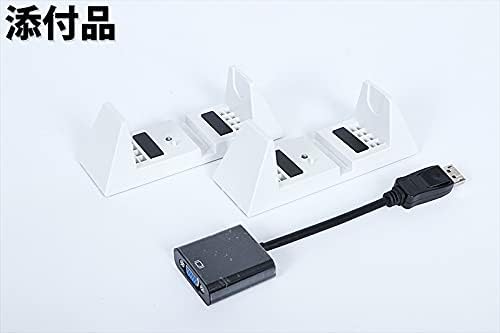
Figure 3: Included accessories: Two white stands for vertical placement of the PC, and a black DisplayPort to Analog VGA (D-SUB) conversion cable.

Figure 4: Included power cable. Note: The actual color and shape of the power cable may vary.
1.3 പവർ ചെയ്യുന്നു
Once all peripherals are connected, plug the power cable into the PC's power input and then into a wall outlet. Press the power button located on the front of the PC to turn it on. The system will boot into Windows 10 Pro 64-bit.
2. പ്രവർത്തന നിർദ്ദേശങ്ങൾ
2.1 Windows 10 Pro Operating System
Your Fujitsu ESPRIMO D586/M comes pre-installed with Windows 10 Pro 64-bit. This operating system provides a familiar and secure environment for your computing needs. For detailed information on using Windows 10, please refer to Microsoft's official documentation or support resources.
2.2 ഒപ്റ്റിക്കൽ ഡ്രൈവ് ഉപയോഗം
The desktop PC is equipped with a DVD Super Multi Drive. To use the optical drive:
- Press the eject button on the drive bezel to open the disc tray.
- Place a CD or DVD onto the tray with the label side facing up.
- ട്രേ ഷട്ട് ക്ലിക്ക് ചെയ്യുന്നതുവരെ ഡ്രൈവിലേക്ക് പതുക്കെ തള്ളുക.
- ഓപ്പറേറ്റിംഗ് സിസ്റ്റം സാധാരണയായി ഡിസ്ക് കണ്ടെത്തി നിങ്ങളോട് നടപടി ആവശ്യപ്പെടും.
2.3 Shutting Down the PC
To properly shut down your PC, click the Start button in Windows, then select Power > Shut down. Avoid powering off the system directly by holding the power button, as this can lead to data loss or system corruption.
3. പരിപാലനം
3.1 വൃത്തിയാക്കൽ
Regular cleaning helps maintain the performance and longevity of your PC. Use a soft, lint-free cloth to wipe down the exterior. For dust accumulation in vents, use compressed air. Ensure the PC is powered off and unplugged before cleaning.
3.2 സോഫ്റ്റ്വെയർ അപ്ഡേറ്റുകൾ
Keep your Windows operating system and drivers updated to ensure optimal performance and security. Windows Update can be accessed via Settings > Update & Security > Windows Update.
3.3 ഡാറ്റ ബാക്കപ്പ്
സിസ്റ്റം തകരാറിലായാൽ ഡാറ്റ നഷ്ടപ്പെടുന്നത് തടയാൻ നിങ്ങളുടെ പ്രധാനപ്പെട്ട ഡാറ്റ ഒരു ബാഹ്യ ഡ്രൈവിലേക്കോ ക്ലൗഡ് സ്റ്റോറേജിലേക്കോ പതിവായി ബാക്കപ്പ് ചെയ്യുക.
4. പ്രശ്നപരിഹാരം
This section addresses common issues you might encounter. For more complex problems, please refer to the warranty and support information.
| പ്രശ്നം | സാധ്യമായ കാരണം | പരിഹാരം |
|---|---|---|
| പിസി പവർ ഓൺ ചെയ്യുന്നില്ല. | Power cable not connected, power outlet issue, faulty power supply. | പവർ കേബിൾ സുരക്ഷിതമായി ബന്ധിപ്പിച്ചിട്ടുണ്ടെന്ന് ഉറപ്പാക്കുക. മറ്റൊരു പവർ ഔട്ട്ലെറ്റ് പരീക്ഷിക്കുക. |
| മോണിറ്ററിൽ ഡിസ്പ്ലേ ഇല്ല. | Monitor not connected, incorrect input selected on monitor, faulty cable. | Check monitor cable connections. Ensure monitor is on and set to correct input. Try a different cable. |
| Operating system does not load. | Corrupted OS files, hardware issue. | Restart the PC. If the issue persists, consider using the recovery options (recovery drive can be created from USB memory). |
| മന്ദഗതിയിലുള്ള പ്രകടനം. | Too many programs running, low disk space, outdated drivers. | Close unnecessary programs. Free up disk space. Update Windows and drivers. |
5 സ്പെസിഫിക്കേഷനുകൾ
Detailed technical specifications for the Fujitsu ESPRIMO D586/M (FMVD21001).

Figure 5: Table summarizing key product specifications.
| ഫീച്ചർ | വിശദാംശങ്ങൾ |
|---|---|
| ബ്രാൻഡ് | ഫുജിത്സു |
| മോഡലിൻ്റെ പേര് | ESPRIMO D586/P (FMVD21001) |
| ഓപ്പറേറ്റിംഗ് സിസ്റ്റം | വിൻഡോസ് 10 പ്രോ 64-ബിറ്റ് |
| സിപിയു ബ്രാൻഡ് | ഇൻ്റൽ |
| സിപിയു തരം | കോർ i5-6500 |
| സിപിയു വേഗത | 3.2 GHz (up to 3.6 GHz with Turbo Boost) |
| റാം ശേഷി | 8 GB (DIMM) |
| പരമാവധി മെമ്മറി ശേഷി | 32 ജിബി |
| സംഭരണ ശേഷി | 500 GB HDD (Serial ATA) |
| ഗ്രാഫിക്സ് ആക്സിലറേറ്റർ | Intel HD Graphics 530 (Shared VRAM) |
| ഒപ്റ്റിക്കൽ ഡ്രൈവ് തരം | DVD Super Multi Drive |
| ഉൽപ്പന്ന അളവുകൾ (W x H x D) | ഏകദേശം 8.9 x 33.8 x 33.2 സെ.മീ (3.5 x 13.3 x 13.1 ഇഞ്ച്) |
| ഉൽപ്പന്ന ഭാരം | ഏകദേശം 5.9 കി.ഗ്രാം (13 പൗണ്ട്) |
| USB പോർട്ടുകൾ | USB 3.0 (Front x2, Rear x4), USB 2.0 (Rear x2) |
| വീഡിയോ ഔട്ട്പുട്ട് പോർട്ടുകൾ | DisplayPort x1, DVI-D x1 |
| ഓഡിയോ പോർട്ടുകൾ | Microphone x1, Headphone x1, Stereo Mini (Rear x2) |
| ലാൻ | RJ-45 x1 |
| PS/2 Ports | Keyboard/Mouse x1 |
6. വാറൻ്റിയും പിന്തുണയും
This product is a used item. The warranty period is subject to the terms provided by the selling store. Please refer to the specific warranty information provided at the time of purchase.
- Recovery of operating systems other than the one installed by the selling store is not guaranteed.
- A recovery drive can be created on a USB memory stick for Windows 10 Pro 64-bit.
- Office software and recovery media are not included with this product.
For technical support or warranty claims, please contact the seller directly. Their contact information should be available on your purchase receipt or order details.


