1. ആമുഖം
This manual provides essential information for the proper setup, operation, and maintenance of your Cuifati USB PC Camera 4K Webcam. Please read this guide thoroughly to ensure optimal performance and longevity of your device.
The Cuifati USB PC Camera is designed for various applications including network teaching, video conferencing, remote work, and live streaming. It features a 4K pixel sensor with 2560 x 1440 resolution, a built-in microphone, and auto-focus capabilities for clear and smooth video communication.
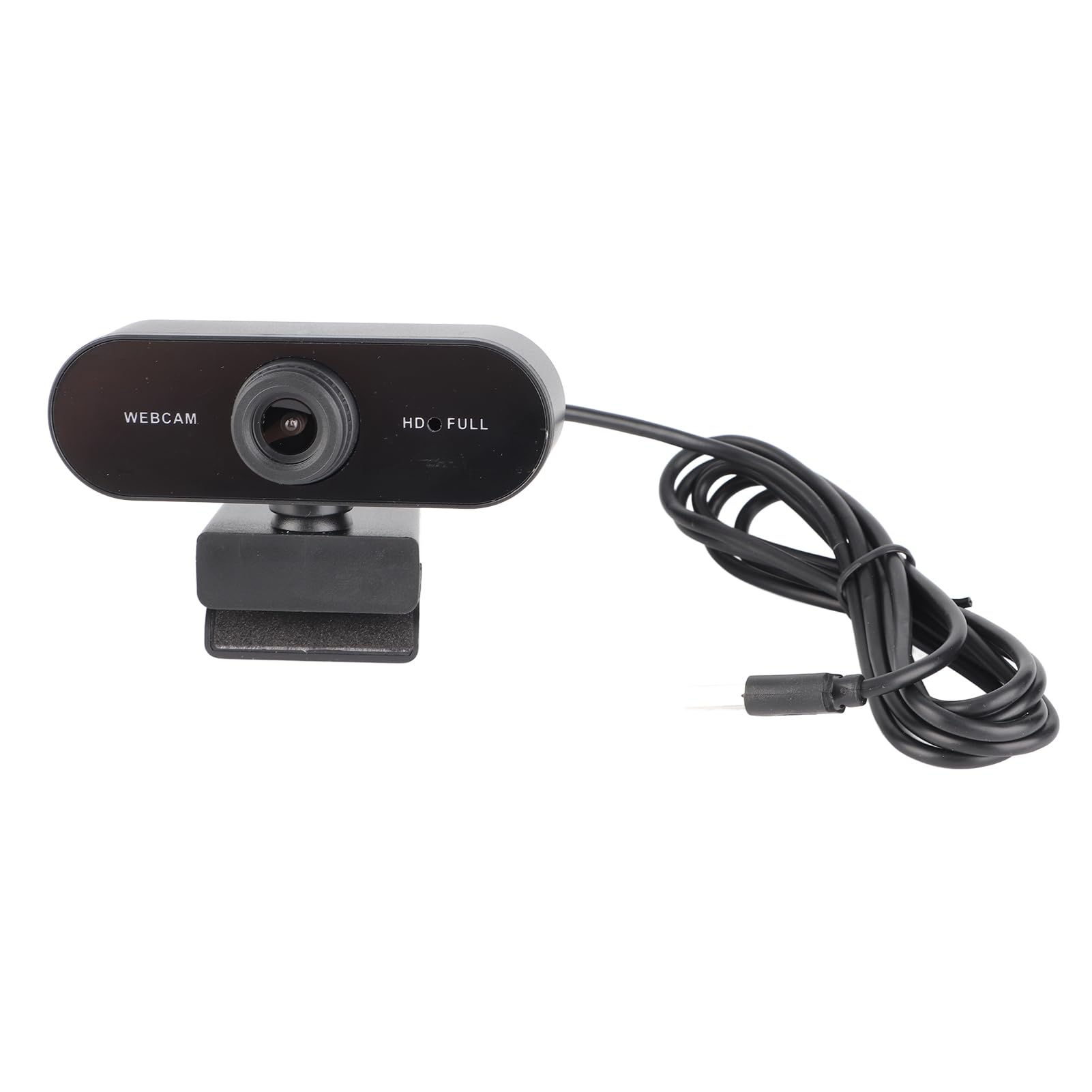
ചിത്രം 1: മുൻഭാഗം view of the Cuifati USB PC Camera 4K Webക്യാം
2. സജ്ജീകരണം
The Cuifati USB PC Camera is a plug-and-play device, requiring no driver installation for most operating systems. Follow these simple steps to set up your webക്യാം:
- സ്ഥാനനിർണ്ണയം Webക്യാം: സ്ഥാപിക്കുക webനിങ്ങളുടെ മോണിറ്ററിന്റെയോ ലാപ്ടോപ്പ് സ്ക്രീനിന്റെയോ പരന്ന പ്രതലത്തിന്റെയോ മുകളിൽ ക്യാം സ്ഥാപിക്കുക. ക്രമീകരിക്കാവുന്ന ക്ലിപ്പ് സുരക്ഷിതമായി മൗണ്ടുചെയ്യാൻ അനുവദിക്കുന്നു.
- നിങ്ങളുടെ കമ്പ്യൂട്ടറിലേക്ക് കണക്റ്റുചെയ്യുന്നു: എന്നതിൽ നിന്ന് സംയോജിത USB 2.0 കേബിൾ ബന്ധിപ്പിക്കുക webcam to an available USB port on your desktop or laptop. The device will be automatically recognized by your operating system.
- ഓപ്ഷണൽ ട്രൈപോഡ് മൗണ്ട്: For alternative positioning, the webcam features a standard tripod mounting thread on its base.

ചിത്രം 2: Webcam securely mounted on a laptop screen.

Figure 3: USB cable connection to a computer.
3. പ്രവർത്തന നിർദ്ദേശങ്ങൾ
Once connected, your Cuifati USB PC Camera is ready for use with most video conferencing and streaming applications.
- ഓട്ടോ ഫോക്കസ്: ദി webcam features an auto-focus function, ensuring your image remains clear and sharp without manual adjustment within its focusing range of 90cm.
- ബിൽറ്റ്-ഇൻ മൈക്രോഫോൺ: The integrated microphone provides clear audio capture for your calls and recordings.
- 360-ഡിഗ്രി റൊട്ടേഷൻ: ദി webcam's clip allows for 360-degree rotation, providing flexibility to adjust your viewആവശ്യാനുസരണം ആംഗിൾ.
- Low Light Correction: The camera is equipped with automatic low-light correction to optimize video quality in dimly lit environments.
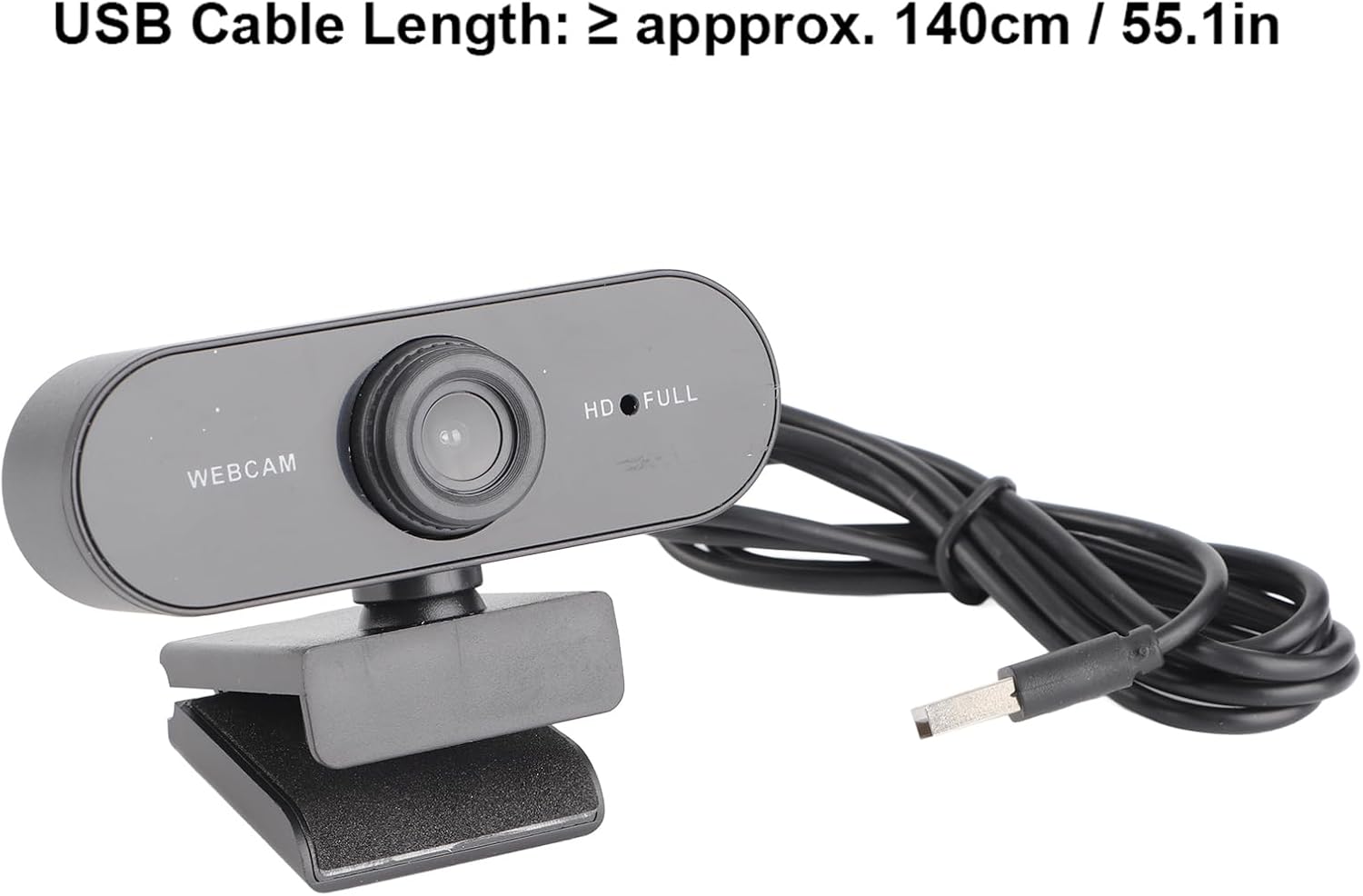
ചിത്രം 4: Webcam demonstrating 360-degree rotation.
4. പരിപാലനം
നിങ്ങളുടെ ദീർഘായുസ്സും ഒപ്റ്റിമൽ പ്രകടനവും ഉറപ്പാക്കാൻ webcam, ഈ പരിപാലന മാർഗ്ഗനിർദ്ദേശങ്ങൾ പാലിക്കുക:
- വൃത്തിയാക്കൽ: മൃദുവായതും ലിന്റ് രഹിതവുമായ തുണി ഉപയോഗിച്ച് ലെൻസ് സൌമ്യമായി തുടയ്ക്കുക. ലെൻസിൽ പോറൽ വീഴ്ത്താൻ സാധ്യതയുള്ള കഠിനമായ രാസവസ്തുക്കളോ ഉരച്ചിലുകളോ ഉപയോഗിക്കുന്നത് ഒഴിവാക്കുക.
- കേബിൾ കെയർ: The USB cable is non-removable. Handle it with care to prevent damage. Avoid sharp bends or excessive pulling.
- സംഭരണം: ഉപയോഗത്തിലില്ലാത്തപ്പോൾ, സംഭരിക്കുക webഉയർന്ന താപനിലയിൽ നിന്നും നേരിട്ടുള്ള സൂര്യപ്രകാശത്തിൽ നിന്നും മാറി വൃത്തിയുള്ളതും വരണ്ടതുമായ സ്ഥലത്ത് ക്യാം വയ്ക്കുക.
5. പ്രശ്നപരിഹാരം
If you encounter any issues with your Cuifati USB PC Camera, refer to the following troubleshooting tips:
- Poor Picture Quality / Greenish Tinge: Ensure adequate lighting in your environment. While the camera has low-light correction, sufficient ambient light is crucial for best results. Check your software settings for any color balance or exposure adjustments.
- Focus Issues / Zoomed-in Image: The camera features auto-focus. Ensure you are within the optimal focusing range (90cm). If using third-party software, check if there are any digital zoom settings enabled that might be causing the image to appear too close or distorted.
- Unstable Mount / Loose Swivel: ഉറപ്പാക്കുക webcam is securely clipped to your monitor or laptop. If using a tripod, confirm it is stable. If the swivel mechanism feels loose after extended use, ensure it is properly tightened if adjustable, or consider alternative mounting solutions.
- Webക്യാമറ കണ്ടെത്തിയില്ല: Try plugging the USB cable into a different USB port on your computer. Restart your computer. Ensure your operating system is up to date.
- മൈക്രോഫോൺ പ്രവർത്തിക്കുന്നില്ല: ഉറപ്പാക്കാൻ നിങ്ങളുടെ കമ്പ്യൂട്ടറിന്റെ ശബ്ദ ക്രമീകരണങ്ങൾ പരിശോധിക്കുക webcam's microphone is selected as the input device. Verify that the microphone is not muted in your operating system or video conferencing application.
6 സ്പെസിഫിക്കേഷനുകൾ
| ഫീച്ചർ | വിവരണം |
|---|---|
| ബ്രാൻഡ് | ക്യൂഫാറ്റി |
| മോഡലിൻ്റെ പേര് | USB PC Camera |
| ഭാഗം നമ്പർ | Cuifatixf34cvewom-11 |
| പിക്സലുകൾ | 4K |
| റെസലൂഷൻ | 2560 x 1440 (2K Full HD) |
| ലെൻസ് തരം | HD ലെൻസ് |
| സെൻസർ തരം | CMOS |
| വീഡിയോ ഫോർമാറ്റ് | AVI, MJPG, YUY2, H264 |
| ഫ്രെയിം റേറ്റ് | 30FPS |
| ഡ്രൈവ് തരം | Plug-and-play drive (no driver required) |
| USB കേബിൾ ദൈർഘ്യം | ≥ approx. 140cm / 55.1in |
| മൈക്രോഫോൺ | അന്തർനിർമ്മിത മൈക്രോഫോൺ |
| ഫോട്ടോ ഫോർമാറ്റ് | ബിഎംപി, ജെപിജി |
| ഇൻ്റർഫേസ് തരം | USB2.0 |
| ഫോക്കസിംഗ് റേഞ്ച് | 90 സെ.മീ |
| Flashing Control | 50Hz |
| അനുയോജ്യമായ ഉപകരണങ്ങൾ | ലാപ്ടോപ്പ്, പേഴ്സണൽ കമ്പ്യൂട്ടർ |
| പിന്തുണയ്ക്കുന്ന OS | For 2000 / XP / XP2 / Vista / / / / OS X / Linux and other operating systems. |
7. വാറൻ്റിയും പിന്തുണയും
This product comes with a standard manufacturer's warranty. Please refer to the warranty card included in your package for specific terms and conditions. For technical support or further assistance, please contact Cuifati customer service through your retailer or the official brand webസൈറ്റ്.


