1. ആമുഖം
This manual provides detailed instructions for the setup, operation, and maintenance of your Newskill Arakne Elite Wireless Gaming Mouse. Designed for versatility, the Arakne Elite offers both wired and 2.4GHz wireless connectivity, customizable RGB lighting, and an ambidextrous design to suit various user preferences. Please read this manual thoroughly to ensure optimal performance and longevity of your device.
2. പാക്കേജ് ഉള്ളടക്കം
നിങ്ങളുടെ ഉൽപ്പന്ന പാക്കേജിംഗിൽ എല്ലാ ഇനങ്ങളും ഉണ്ടെന്ന് ഉറപ്പാക്കുക:
- Newskill Arakne Elite Wireless Gaming Mouse
- 2.4GHz USB നാനോ റിസീവർ
- USB-C Panacord Cable (1.75m)
- Additional Modular Side Buttons (if included)
- Additional Modular Top Cover (if included)
3. ഉൽപ്പന്നം കഴിഞ്ഞുview
The Newskill Arakne Elite mouse features a robust design with several key components for enhanced gaming performance and customization.

ചിത്രം 3.1: മുകളിൽ view of the Newskill Arakne Elite mouse, highlighting the scroll wheel and logo with active RGB lighting.
3.1. പ്രധാന ഘടകങ്ങൾ
- ഇടത്/വലത് ക്ലിക്ക് ബട്ടണുകൾ: Standard mouse buttons with durable HUANO mechanical switches.
- സ്ക്രോൾ വീൽ: Functions as a scroll input and a clickable button. Features RGB lighting.
- DPI സൈക്കിൾ ബട്ടൺ: Located behind the scroll wheel, used to cycle through DPI settings.
- സൈഡ് ബട്ടണുകൾ: Modular and magnetic, allowing for easy customization and assignment of quick commands.
- Modular Top Cover: Interchangeable cover that allows for a traditional or honeycomb-style aesthetic.
- യുഎസ്ബി-സി പോർട്ട്: Located at the front for wired connection and charging.
- 2.4GHz USB നാനോ റിസീവർ: For wireless connectivity, typically stored within the mouse.
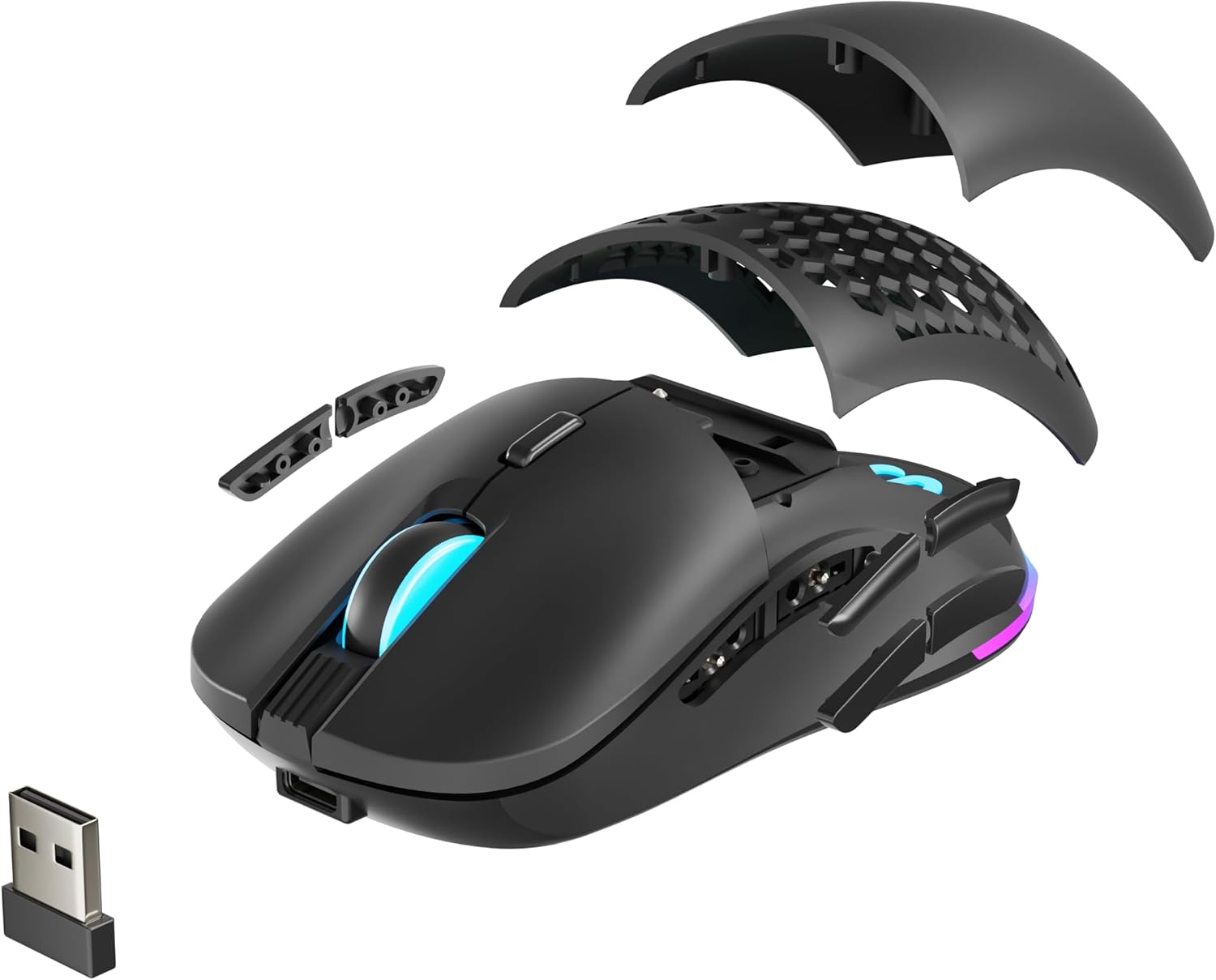
ചിത്രം 3.2: പൊട്ടിത്തെറിച്ചു view illustrating the modular top cover, interchangeable side buttons, and the USB Nano Receiver.

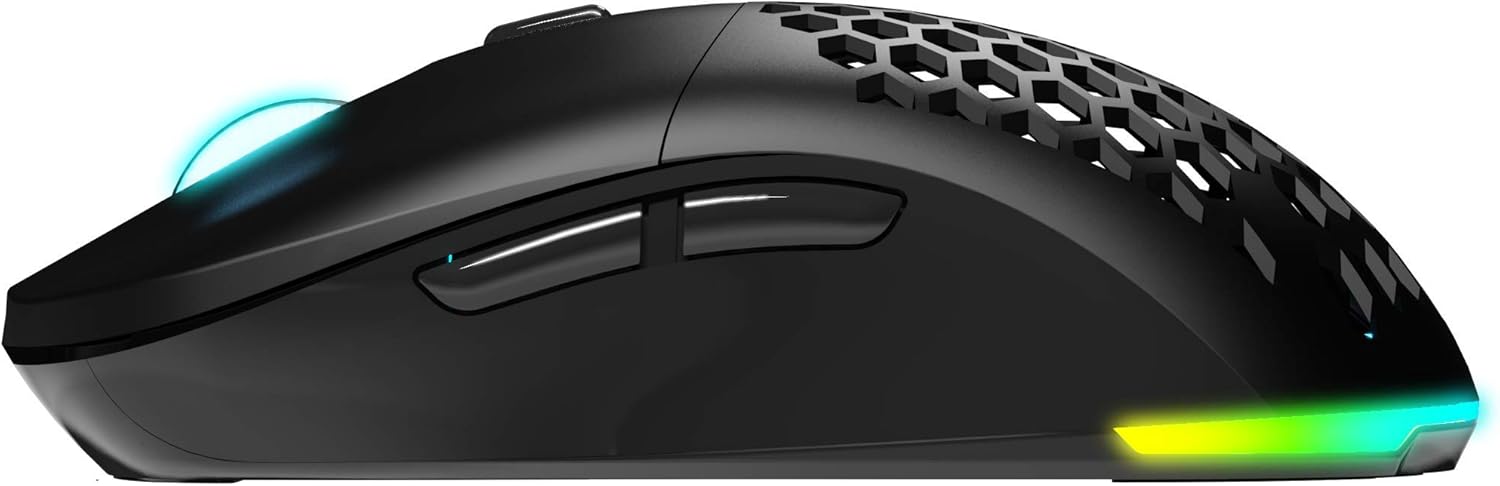
ചിത്രം 3.3: വശം view of the mouse, highlighting the ergonomic design and the position of the modular side buttons.
4. സജ്ജീകരണം
4.1. മൗസ് ചാർജ് ചെയ്യുന്നു
Before initial use, it is recommended to fully charge the mouse. Connect the supplied USB-C Panacord cable to the mouse's USB-C port and the other end to an available USB port on your computer or a USB wall adapter. The RGB lighting may indicate charging status.
ചിത്രം 4.1: ഫ്രണ്ട് view of the mouse, illustrating the USB-C port for charging and wired connection.
4.2. Wireless Connection (2.4GHz)
- Locate the 2.4GHz USB Nano Receiver. It is often stored in a compartment on the underside of the mouse.
- നിങ്ങളുടെ കമ്പ്യൂട്ടറിൽ ലഭ്യമായ ഒരു USB പോർട്ടിലേക്ക് USB നാനോ റിസീവർ പ്ലഗ് ചെയ്യുക.
- താഴെയുള്ള പവർ സ്വിച്ച് ഉപയോഗിച്ച് മൗസ് ഓണാക്കുക.
- Your computer should automatically detect the mouse. If not, ensure the receiver is securely plugged in and the mouse is powered on.
4.3. വയർഡ് കണക്ഷൻ
To use the mouse in wired mode, simply connect the USB-C Panacord cable from the mouse to a USB port on your computer. The mouse will function immediately and will also charge its internal battery.
4.4. സോഫ്റ്റ്വെയർ ഇൻസ്റ്റാളേഷൻ
For full customization of DPI settings, button assignments, and RGB lighting, download the official Newskill Arakne Elite software from the official Newskill webസൈറ്റ്. ഇൻസ്റ്റാളേഷനായി ഓൺ-സ്ക്രീൻ നിർദ്ദേശങ്ങൾ പാലിക്കുക.
5. പ്രവർത്തന നിർദ്ദേശങ്ങൾ
5.1. ഡിപിഐ ക്രമീകരണം
The Arakne Elite mouse offers up to 16,000 DPI, configurable in six levels. Use the DPI cycle button (located behind the scroll wheel) to switch between preset DPI levels. The default levels are typically 800, 1600, 2400, 3600, 5000, and 16000 DPI. These levels can be customized further using the Newskill software.
5.2. Button Programming
The mouse features 9 programmable buttons. Utilize the official Newskill software to assign custom functions, macros, or shortcuts to these buttons, tailoring them to your specific gaming or productivity needs.
5.3. RGB ലൈറ്റിംഗ് ഇഷ്ടാനുസൃതമാക്കൽ
The Arakne Elite includes customizable RGB backlighting. Through the Newskill software, you can select from various lighting effects, colors, and brightness levels to personalize your mouse's appearance.

ചിത്രം 5.1: The Newskill Arakne Elite mouse displaying its customizable RGB lighting effects.
5.4. Modular Design
The mouse features modular side buttons and a modular top cover. These components are magnetic and can be easily removed and replaced. This allows users to switch between different button layouts or aesthetic styles (e.g., traditional solid cover or honeycomb pattern) without tools.
6. പരിപാലനം
6.1. വൃത്തിയാക്കൽ
- വൃത്തിയാക്കുന്നതിനുമുമ്പ് നിങ്ങളുടെ കമ്പ്യൂട്ടറിൽ നിന്ന് മൗസ് വിച്ഛേദിക്കുക.
- മൗസിന്റെ ഉപരിതലം തുടയ്ക്കാൻ മൃദുവായതും ഉണങ്ങിയതുമായ ഒരു തുണി ഉപയോഗിക്കുക.
- കഠിനമായ അഴുക്കിന്, ചെറുതായി dampതുണിയിൽ വെള്ളം അല്ലെങ്കിൽ നേരിയ ക്ലീനിംഗ് ലായനി ഉപയോഗിക്കുക. കഠിനമായ രാസവസ്തുക്കൾ ഒഴിവാക്കുക.
- Use compressed air to clear dust from crevices and around buttons.
6.2. ബാറ്ററി പരിചരണം
- ബാറ്ററിയുടെ ആയുസ്സ് വർദ്ധിപ്പിക്കുന്നതിന് ഇടയ്ക്കിടെ പൂർണ്ണമായും ഡിസ്ചാർജ് ചെയ്യുന്നത് ഒഴിവാക്കുക.
- ദീർഘനേരം ഉപയോഗിക്കാത്തപ്പോൾ തണുത്തതും വരണ്ടതുമായ സ്ഥലത്ത് മൗസ് സൂക്ഷിക്കുക.
- If the mouse will not be used for a long time, charge it to about 50% before storage.
7. പ്രശ്നപരിഹാരം
7.1. മൗസ് പ്രതികരിക്കുന്നില്ല
- വയർലെസ് മോഡ്: Ensure the USB Nano Receiver is securely plugged into a working USB port. Check if the mouse is powered on and sufficiently charged. Try a different USB port.
- വയർഡ് മോഡ്: Ensure the USB-C cable is securely connected to both the mouse and the computer. Try a different USB port or cable.
- സോഫ്റ്റ്വെയർ: If using the software, ensure it is up-to-date and not conflicting with other drivers.
7.2. ഡിപിഐ മാറുന്നില്ല
- നിങ്ങൾ ശരിയായ DPI സൈക്കിൾ ബട്ടൺ അമർത്തുന്നുണ്ടെന്ന് ഉറപ്പാക്കുക.
- Check the Newskill software to verify DPI settings and ensure they are applied correctly.
7.3. RGB ലൈറ്റിംഗ് പ്രവർത്തിക്കുന്നില്ല.
- Verify that the RGB lighting is enabled in the Newskill software.
- മൗസ് ശരിയായി ബന്ധിപ്പിച്ചിട്ടുണ്ടെന്നും പവർ നൽകുന്നുണ്ടെന്നും ഉറപ്പാക്കുക.
7.4. Intermittent Wireless Connection
- Ensure the USB Nano Receiver is not obstructed and is within close proximity to the mouse.
- Avoid placing the receiver near other wireless devices that may cause interference (e.g., Wi-Fi routers, other 2.4GHz devices).
- Ensure the mouse battery is adequately charged.
8 സ്പെസിഫിക്കേഷനുകൾ
| ഫീച്ചർ | വിശദാംശങ്ങൾ |
|---|---|
| മോഡലിൻ്റെ പേര് | ARAKNE Elite |
| ഇനം മോഡൽ നമ്പർ | 342803 |
| കണക്റ്റിവിറ്റി | Wired (USB-C), Wireless (2.4GHz low latency) |
| സെൻസർ | PIXART PMW-3335 Optical Sensor |
| DPI പ്രമേയം | 800/1600/2400/3600/5000/16000 DPI (Configurable) |
| പരമാവധി ആക്സിലറേഷൻ | 40G |
| മോഷൻ ഡിറ്റക്ഷൻ സ്പീഡ് | 400 ഐ.പി.എസ് |
| പോളിംഗ് നിരക്ക് | 1000 Hz |
| സ്വിച്ചുകൾ | HUANO Mechanical Switches (50 Million Clicks Lifespan) |
| ബട്ടണുകൾ | 9 Programmable Buttons (including modular side buttons) |
| ഡിസൈൻ | Ambidextrous, Modular Side Buttons and Top Cover |
| കേബിൾ തരം | 1.75m Panacord USB-C (Removable) |
| അളവുകൾ (LxWxH) | 125 x 64 x 42 മിമി |
| ഭാരം | 95 ഗ്രാം |
| ഓപ്പറേറ്റിംഗ് സിസ്റ്റം അനുയോജ്യത | ലിനക്സ്, വിൻഡോസ് 7, വിൻഡോസ് എക്സ്പി (കൂടാതെ പുതിയ വിൻഡോസ് പതിപ്പുകളും) |
9. വാറൻ്റിയും പിന്തുണയും
For warranty information, technical support, software downloads, and frequently asked questions, please visit the official Newskill webസൈറ്റ്. വാറന്റി ക്ലെയിമുകൾക്കായി നിങ്ങളുടെ വാങ്ങലിന്റെ തെളിവ് സൂക്ഷിക്കുക.
ഉദ്യോഗസ്ഥൻ Webസൈറ്റ്: www.newskillgaming.com


