1. ആമുഖം
This manual provides comprehensive instructions for the setup, operation, and maintenance of your LG 27UK670-B 27-inch UHD (3840 x 2160) IPS Display. This monitor is designed to deliver a high-quality visual experience with its sRGB 99% Color Gamut, HDR10 support, and a 3-Side Virtually Borderless Design. It also offers flexible connectivity including USB Type-C with 40W Power Delivery and an adjustable stand for ergonomic comfort.

ചിത്രം 1: മുൻഭാഗം view of the LG 27UK670-B monitor.
2. പാക്കേജ് ഉള്ളടക്കം
സജ്ജീകരണവുമായി മുന്നോട്ടുപോകുന്നതിനുമുമ്പ് എല്ലാ ഇനങ്ങളും പാക്കേജിൽ ഉണ്ടെന്ന് ഉറപ്പാക്കുക.
- Monitor Display Panel
- മോണിറ്റർ സ്റ്റാൻഡ് (ബേസും കഴുത്തും)
- പവർ കോർഡ്
- യുഎസ്ബി ടൈപ്പ്-സി കേബിൾ
- HDMI കേബിൾ
- ഡിസ്പ്ലേ പോർട്ട് കേബിൾ
- ഉപയോക്തൃ മാനുവൽ (ഈ പ്രമാണം)
3. സജ്ജീകരണം
3.1 സ്റ്റാൻഡ് കൂട്ടിച്ചേർക്കൽ
- പോറലുകൾ ഉണ്ടാകാതിരിക്കാൻ മോണിറ്റർ ഡിസ്പ്ലേ പാനൽ മൃദുവായതും വൃത്തിയുള്ളതുമായ ഒരു പ്രതലത്തിൽ ശ്രദ്ധാപൂർവ്വം മുഖം താഴേക്ക് വയ്ക്കുക.
- Attach the stand neck to the back of the monitor panel. Ensure it clicks securely into place.
- സ്റ്റാൻഡ് ബേസ് സ്റ്റാൻഡ് നെക്കുമായി ബന്ധിപ്പിക്കുക. അത് ഉറപ്പിക്കാൻ ബേസിന്റെ അടിയിലുള്ള സ്ക്രൂ മുറുക്കുക.
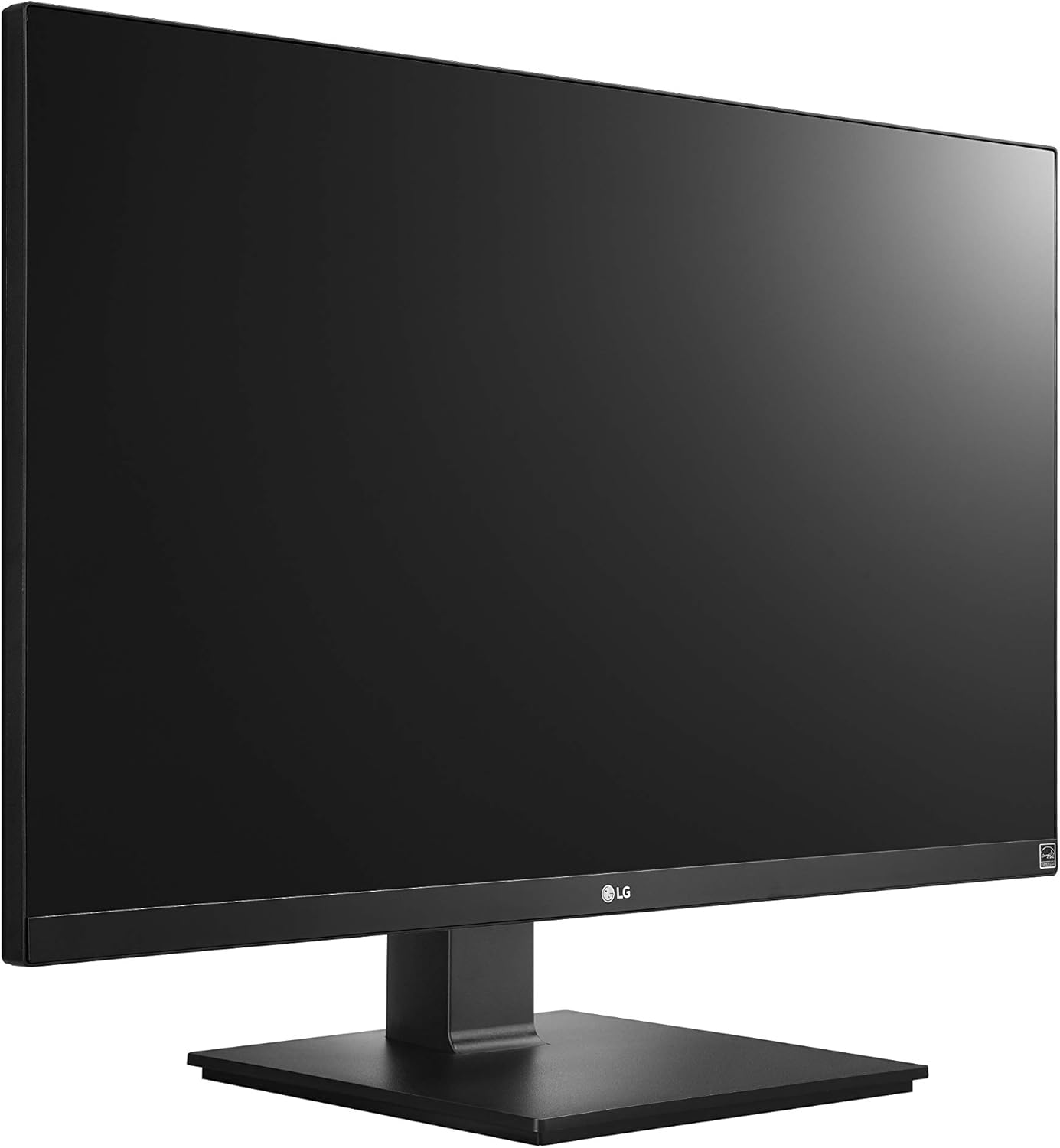
Figure 2: Assembled LG 27UK670-B monitor.
3.2 ഒരു കമ്പ്യൂട്ടറിലേക്ക് ബന്ധിപ്പിക്കുന്നു
The LG 27UK670-B monitor offers multiple connectivity options.
- USB ടൈപ്പ്-സി കണക്ഷൻ: Connect one end of the USB Type-C cable to the USB-C port on the monitor and the other end to your computer's USB-C port. This connection supports video, data transfer, and power delivery (up to 40W) to your connected device.
- HDMI കണക്ഷൻ: Use an HDMI cable to connect the monitor to your computer's HDMI output.
- ഡിസ്പ്ലേ പോർട്ട് കണക്ഷൻ: Use a DisplayPort cable to connect the monitor to your computer's DisplayPort output.
- പവർ കണക്ഷൻ: പവർ കോർഡ് മോണിറ്ററിന്റെ പവർ ഇൻപുട്ടിലേക്കും പിന്നീട് ഒരു വാൾ ഔട്ട്ലെറ്റിലേക്കും ബന്ധിപ്പിക്കുക.

ചിത്രം 3: പിൻഭാഗം view പോർട്ട് കണക്ഷനുകളുള്ള മോണിറ്ററിന്റെ.
3.3 സ്റ്റാൻഡ് ക്രമീകരിക്കൽ
മോണിറ്റർ സ്റ്റാൻഡ് വിവിധ എർഗണോമിക് ക്രമീകരണങ്ങൾ അനുവദിക്കുന്നു:
- ഉയരം ക്രമീകരിക്കൽ: നിങ്ങൾക്ക് ആവശ്യമുള്ളത് ലഭിക്കാൻ മോണിറ്റർ സൌമ്യമായി മുകളിലേക്കോ താഴേക്കോ തള്ളുകയോ വലിക്കുകയോ ചെയ്യുക. viewing ഉയരം.
- ടിൽറ്റ് അഡ്ജസ്റ്റ്മെന്റ്: Tilt the monitor screen forward or backward to optimize your viewing ആംഗിൾ.
- പിവറ്റ് അഡ്ജസ്റ്റ്മെന്റ്: ലാൻഡ്സ്കേപ്പ്, പോർട്രെയ്റ്റ് ഓറിയന്റേഷനുകൾക്കിടയിൽ മാറാൻ മോണിറ്റർ 90 ഡിഗ്രി തിരിക്കുക.
- സ്വിവൽ അഡ്ജസ്റ്റ്മെന്റ്: Rotate the monitor left or right on its base to share your screen or adjust your viewസ്ഥാനം.
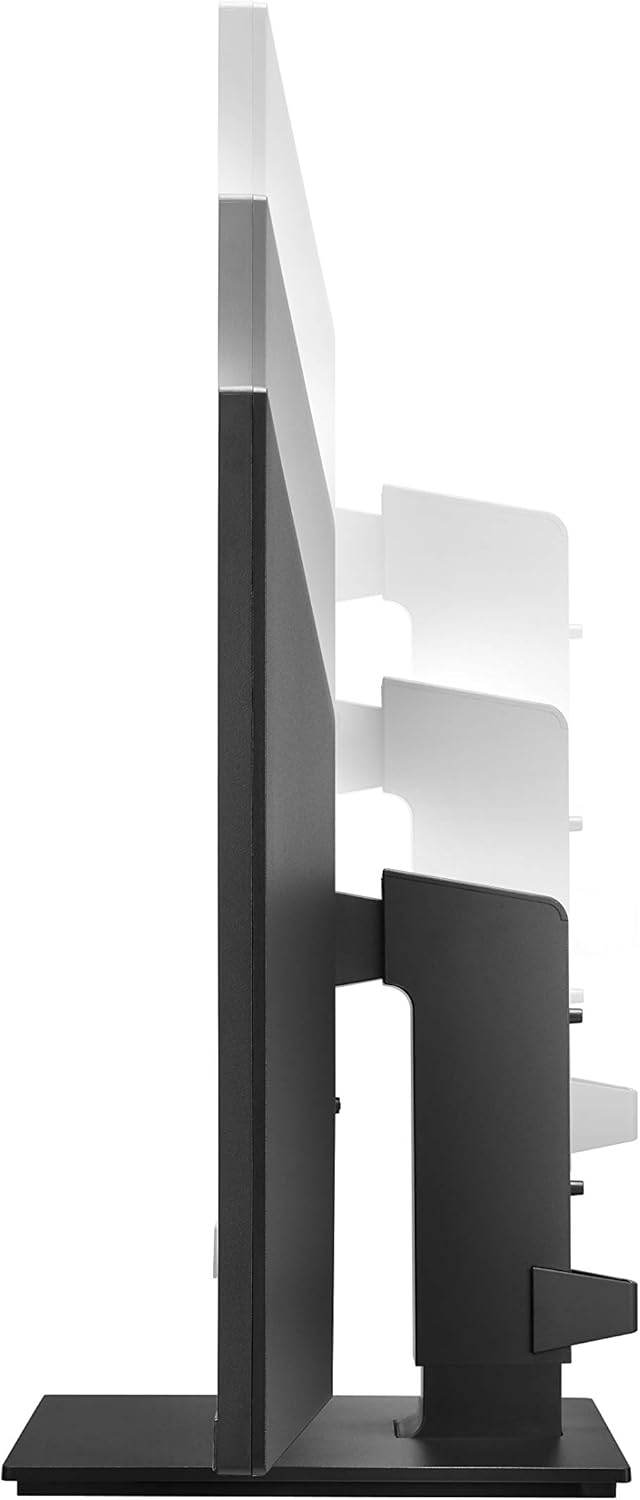
Figure 4: Monitor height adjustment.

Figure 5: Monitor in portrait orientation (pivot feature).
4. മോണിറ്റർ പ്രവർത്തിപ്പിക്കുക
4.1 പവർ ഓൺ/ഓഫ്
Press the power button, usually located on the bottom center or rear of the monitor, to turn the display on or off.
4.2 ഓൺ-സ്ക്രീൻ ഡിസ്പ്ലേ (OSD) മെനു
The OSD menu allows you to adjust various display settings. Access it by pressing the joystick button (often located on the bottom center of the monitor). Navigate through the menu using the joystick to control brightness, contrast, color modes, input selection, and other advanced features.
4.3 പ്രധാന സവിശേഷതകൾ
- UHD (3840 x 2160) Resolution: Provides sharp, detailed images.
- IPS ഡിസ്പ്ലേ: വിശാലമായ ഓഫറുകൾ viewആംഗിളുകളും സ്ഥിരമായ വർണ്ണ പുനർനിർമ്മാണവും.
- sRGB 99% കളർ ഗാമറ്റ്: Ensures accurate and vibrant colors, suitable for creative professionals.
- HDR10: Enhances dynamic range for brighter whites and deeper blacks.
- എഎംഡി ഫ്രീസിങ്ക് ടെക്നോളജി: Reduces screen tearing and stuttering for smoother gaming and video playback.
5. പരിപാലനം
5.1 മോണിറ്റർ വൃത്തിയാക്കുന്നു
- വൃത്തിയാക്കുന്നതിന് മുമ്പ് എല്ലായ്പ്പോഴും മോണിറ്റർ ഓഫ് ചെയ്ത് പവർ കോർഡ് അഴിക്കുക.
- മൃദുവായ, ലിൻ്റ് രഹിത തുണി ഉപയോഗിക്കുകampവെള്ളം അല്ലെങ്കിൽ ഒരു പ്രത്യേക സ്ക്രീൻ ക്ലീനർ ഉപയോഗിച്ച് നനയ്ക്കുക.
- ക്ലീനർ നേരിട്ട് സ്ക്രീനിൽ സ്പ്രേ ചെയ്യരുത്. ആദ്യം അത് തുണിയിൽ പുരട്ടുക.
- സ്ക്രീൻ പ്രതലത്തിന് കേടുവരുത്തുമെന്നതിനാൽ അബ്രാസീവ് ക്ലീനറുകൾ, മെഴുക് അല്ലെങ്കിൽ ലായകങ്ങൾ ഉപയോഗിക്കുന്നത് ഒഴിവാക്കുക.
5.2 പൊതു പരിചരണം
- നേരിട്ടുള്ള സൂര്യപ്രകാശം, താപ സ്രോതസ്സുകൾ, അമിതമായ പൊടി എന്നിവയിൽ നിന്ന് മോണിറ്ററിനെ അകറ്റി നിർത്തുക.
- അമിതമായി ചൂടാകുന്നത് തടയാൻ മോണിറ്ററിന് ചുറ്റും ശരിയായ വായുസഞ്ചാരം ഉറപ്പാക്കുക.
- മോണിറ്ററിലോ അതിന്റെ കേബിളുകളിലോ ഭാരമുള്ള വസ്തുക്കൾ വയ്ക്കുന്നത് ഒഴിവാക്കുക.
6. പ്രശ്നപരിഹാരം
നിങ്ങളുടെ മോണിറ്ററിൽ പ്രശ്നങ്ങൾ നേരിടുകയാണെങ്കിൽ, ഇനിപ്പറയുന്ന പൊതുവായ പ്രശ്നങ്ങളും പരിഹാരങ്ങളും പരിശോധിക്കുക:
- ശക്തിയില്ല:
- മോണിറ്ററിലേക്കും പ്രവർത്തിക്കുന്ന ഒരു ഇലക്ട്രിക്കൽ ഔട്ട്ലെറ്റിലേക്കും പവർ കോർഡ് സുരക്ഷിതമായി ബന്ധിപ്പിച്ചിട്ടുണ്ടെന്ന് ഉറപ്പാക്കുക.
- Check if the power button on the monitor is pressed.
- സിഗ്നൽ ഇല്ല/ശൂന്യമായ സ്ക്രീൻ:
- Verify that the video cable (USB-C, HDMI, or DisplayPort) is securely connected to both the monitor and your computer.
- മോണിറ്ററിന്റെ OSD മെനുവിൽ ശരിയായ ഇൻപുട്ട് ഉറവിടം തിരഞ്ഞെടുത്തിട്ടുണ്ടെന്ന് ഉറപ്പാക്കുക.
- നിങ്ങളുടെ കമ്പ്യൂട്ടർ ഓൺ ആണോ എന്നും സ്ലീപ്പ് മോഡിലല്ല എന്നും പരിശോധിക്കുക.
- Image Quality Issues (e.g., blurry, distorted):
- മോണിറ്ററിന്റെ നേറ്റീവ് റെസല്യൂഷനുമായി (3840 x 2160) പൊരുത്തപ്പെടുന്നതിന് നിങ്ങളുടെ കമ്പ്യൂട്ടറിലെ റെസല്യൂഷൻ ക്രമീകരണങ്ങൾ ക്രമീകരിക്കുക.
- Reset the monitor's display settings to factory defaults via the OSD menu.
- വീഡിയോ കേബിളിന് കേടുപാടുകൾ സംഭവിച്ചിട്ടില്ലെന്ന് ഉറപ്പാക്കുക.
For further assistance, please consult the official LG support webസൈറ്റ് അല്ലെങ്കിൽ ഉപഭോക്തൃ സേവനവുമായി ബന്ധപ്പെടുക.
7 സ്പെസിഫിക്കേഷനുകൾ
| ഫീച്ചർ | വിശദാംശങ്ങൾ |
|---|---|
| ബ്രാൻഡ് | LG |
| മോഡൽ നമ്പർ | 27UK670-B |
| സ്ക്രീൻ വലിപ്പം | 27 ഇഞ്ച് |
| റെസലൂഷൻ | UHD (3840 x 2160) |
| പാനൽ തരം | ഐ.പി.എസ് |
| വർണ്ണ ഗാമറ്റ് | sRGB 99% |
| HDR പിന്തുണ | HDR10 |
| കണക്റ്റിവിറ്റി | USB Type-C (with 40W PD), 2x HDMI, DisplayPort, 2x USB 3.0, 3x USB 2.0 |
| നിലപാട് ക്രമീകരണം | ചരിവ്, ഉയരം, പിവറ്റ്, സ്വിവൽ |
| ഇനത്തിൻ്റെ ഭാരം | 15.4 പൗണ്ട് |
| ഉൽപ്പന്ന അളവുകൾ (LxWxH) | 24.1 x 9.9 x 20.4 ഇഞ്ച് |
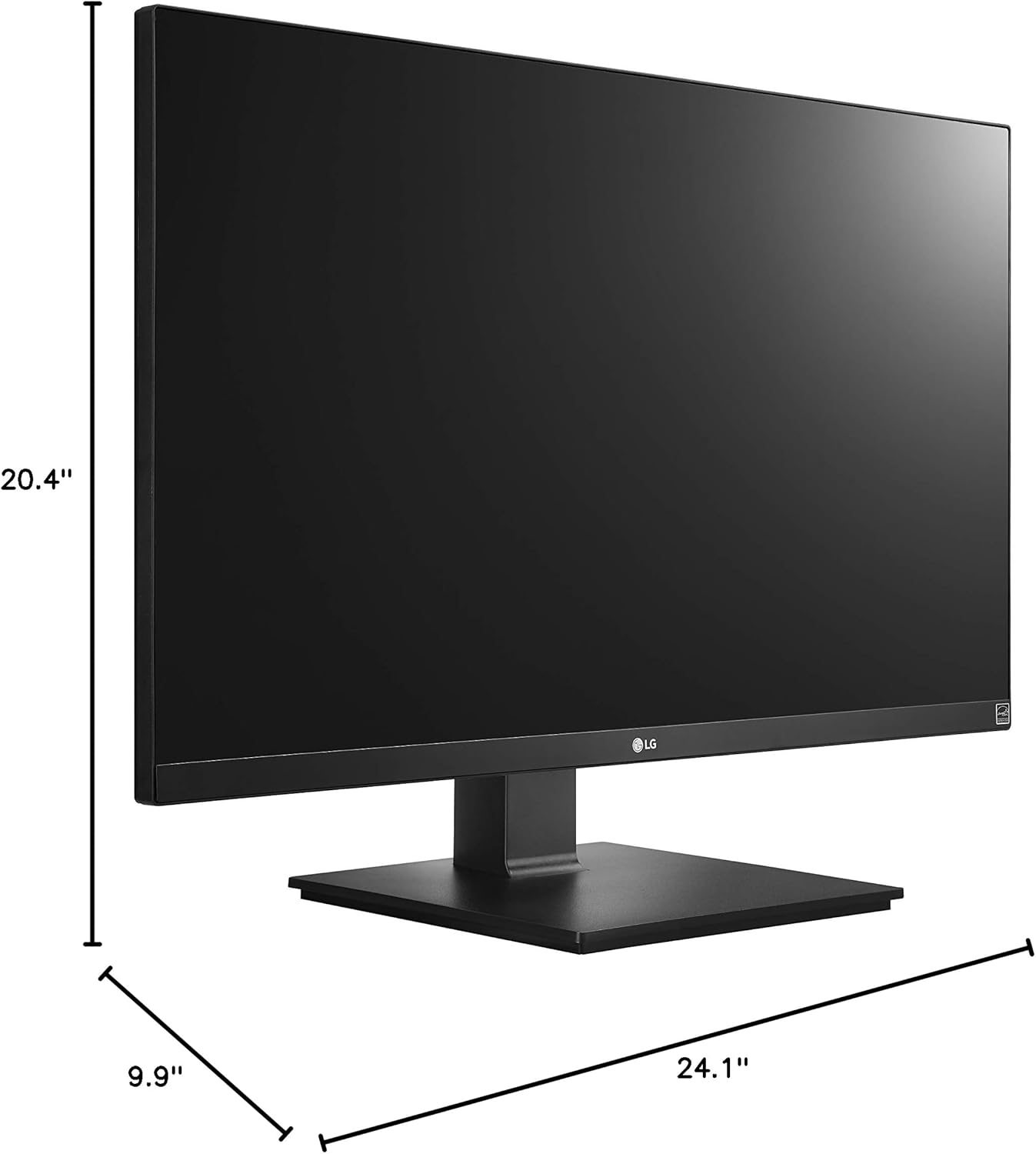
ചിത്രം 6: മോണിറ്റർ അളവുകൾ.
8. വാറൻ്റിയും പിന്തുണയും
Your LG 27UK670-B monitor is covered by a manufacturer's warranty. For detailed information regarding warranty terms, conditions, and registration, please refer to the warranty card included in your product packaging or visit the official LG Electronics webസൈറ്റ്.
For technical support, service inquiries, or to download the latest drivers and software, please visit the LG support portal or contact LG customer service directly.
ഓൺലൈൻ പിന്തുണ: www.lg.com/us/support