ആമുഖം
This manual provides essential information for setting up, operating, and maintaining your Amazon Fire TV 50-inch 4-Series 4K UHD Smart TV. Please read these instructions carefully before use to ensure proper functionality and safety.

ചിത്രം: മുൻഭാഗം view of the Amazon Fire TV 4-Series, displaying the Fire TV logo on screen.
എന്താണ് ഉൾപ്പെടുത്തിയിരിക്കുന്നത്
പാക്കേജിംഗിൽ എല്ലാ ഘടകങ്ങളും ഉണ്ടെന്ന് ഉറപ്പാക്കുക:
- Fire TV 4-Series 50-inch Smart TV
- അലക്സ വോയ്സ് റിമോട്ട് മെച്ചപ്പെടുത്തി
- പവർ കോർഡ്
- 2 AAA ബാറ്ററികൾ
- 4 screws for TV stand
- ടിവി സ്റ്റാൻഡ് (2 കാലുകൾ)
- ദ്രുത ആരംഭ ഗൈഡ്

Image: All components included in the box: Fire TV 4-Series, TV legs, power cord, 4 screws, 2 AAA batteries, and Alexa Voice Remote.
സജ്ജമാക്കുക
1. Attaching the TV Stand Legs
Carefully place the TV screen-down on a soft, clean surface to prevent damage. Align the TV stand legs with the designated slots on the bottom of the TV. Secure each leg using the provided screws.
2. പവർ ബന്ധിപ്പിക്കുന്നു
Connect the power cord to the TV's power input, then plug the other end into a wall outlet. Do not power on the TV yet.
3. ബാഹ്യ ഉപകരണങ്ങൾ ബന്ധിപ്പിക്കുന്നു
The Fire TV 4-Series includes multiple ports for external devices:
- HDMI പോർട്ടുകൾ: 3 HDMI 2.0 ports and 1 HDMI 2.1 port with eARC for connecting gaming consoles, cable boxes, soundbars, and other audio/video equipment.
- ഇഥർനെറ്റ് പോർട്ട്: വയർഡ് ഇന്റർനെറ്റ് കണക്ഷന് വേണ്ടി.
- USB പോർട്ട്: യുഎസ്ബി ഉപകരണങ്ങൾ ബന്ധിപ്പിക്കുന്നതിന്.
- ഡിജിറ്റൽ ഒപ്റ്റിക്കൽ ഓഡിയോ ഔട്ട്പുട്ട്: ബാഹ്യ ഓഡിയോ സിസ്റ്റങ്ങളുമായി ബന്ധിപ്പിക്കുന്നതിന്.
- കേബിൾ/ആന്റിന ഇൻപുട്ട്: ഒരു ആന്റിന അല്ലെങ്കിൽ കേബിൾ ടിവി ബന്ധിപ്പിക്കുന്നതിന്.

ചിത്രം: ക്ലോസ്-അപ്പ് view of the TV's side ports, including Ethernet, multiple HDMI inputs (one with eARC), Cable/Antenna, USB, IR Emitter, Headphone, and Optical audio output.
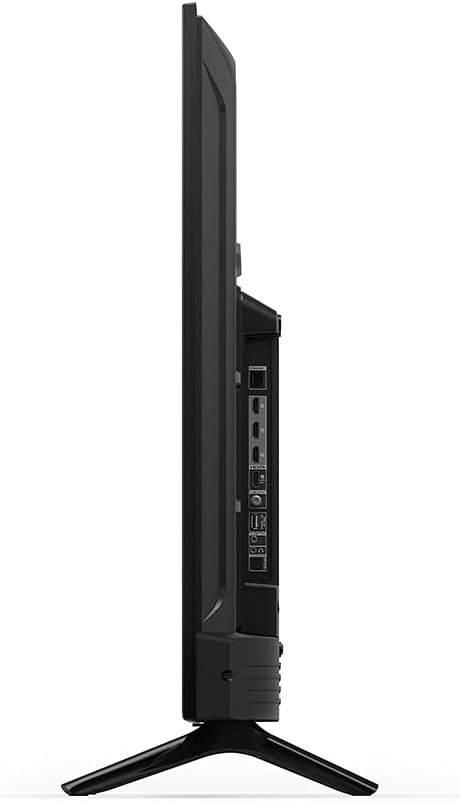
ചിത്രം: സൈഡ് പ്രോfile of the Fire TV 4-Series, showing the arrangement of various input/output ports.

ചിത്രം: പിൻഭാഗം view of the Fire TV 4-Series, showing the mounting points and general back panel design.
4. Initial Setup and Software Updates
After connecting all necessary cables, power on the TV. Follow the on-screen instructions to:
- നിങ്ങളുടെ ഭാഷ തിരഞ്ഞെടുക്കുക.
- Connect to your Wi-Fi network or use the Ethernet connection.
- നിങ്ങളുടെ Amazon അക്കൗണ്ട് ഉപയോഗിച്ച് സൈൻ ഇൻ ചെയ്യുക.
- The TV will automatically check for and install software updates. This process may take some time and involve multiple restarts. Ensure the TV remains powered during updates.
നിങ്ങളുടെ ഫയർ ടിവി പ്രവർത്തിപ്പിക്കുന്നു
അലക്സ വോയ്സ് റിമോട്ട് മെച്ചപ്പെടുത്തി
The included Alexa Voice Remote Enhanced allows for easy navigation and voice control. Insert the 2 AAA batteries into the remote. Press and hold the voice button to speak commands to Alexa. You can ask Alexa to find content, launch apps, control playback, check weather, and more.
The remote can also control certain functions (power, volume) on compatible IR-enabled devices like soundbars and A/V receivers. Note that some functions may not be available on all devices.
ഫയർ ടിവി OS നാവിഗേറ്റ് ചെയ്യുന്നു
The Fire TV OS provides a user-friendly interface for accessing content. Use the remote's navigation pad to browse the home screen, apps, and settings. The home screen displays recommended content, recently used apps, and various categories.
സ്ട്രീമിംഗ് ഉള്ളടക്കം
Access a wide range of streaming services by downloading apps from the Appstore. Subscriptions may be required for certain services. The TV supports vivid 4K Ultra HD, HDR 10, and HLG for a clearer and more vibrant picture.

Image: A screenshot of the Fire TV interface displaying logos for popular streaming services such as Prime Video, Apple TV, Disney+, Max, and YouTube.
ഓഡിയോ ക്രമീകരണങ്ങൾ
The TV supports Dolby Digital Plus with passthrough of Dolby-encoded audio. You can adjust audio settings in the TV's menu to optimize sound output for your environment or external audio systems.
മെയിൻ്റനൻസ്
ജനറൽ കെയർ
- Clean the screen with a soft, dry, lint-free cloth. Do not use liquid cleaners or sprays directly on the screen.
- Wipe the TV's frame and stand with a soft, damp തുണി.
- അമിതമായി ചൂടാകുന്നത് തടയാൻ ടിവിക്ക് ചുറ്റും ശരിയായ വായുസഞ്ചാരം ഉറപ്പാക്കുക.
- ടിവി നേരിട്ട് സൂര്യപ്രകാശം ഏൽക്കുകയോ, തീവ്രമായ താപനിലയിൽ എത്തുകയോ, ഉയർന്ന ആർദ്രത ഏൽക്കുകയോ ചെയ്യുന്നത് ഒഴിവാക്കുക.
സോഫ്റ്റ്വെയർ അപ്ഡേറ്റുകൾ
Your Fire TV automatically receives software security updates. It is important to allow these updates to install to ensure optimal performance and security. Do not unplug the TV during an update process.
ട്രബിൾഷൂട്ടിംഗ്
നിങ്ങളുടെ ഫയർ ടിവിയിൽ പ്രശ്നങ്ങൾ നേരിടുകയാണെങ്കിൽ, ഇനിപ്പറയുന്ന പൊതുവായ പരിഹാരങ്ങൾ പരിശോധിക്കുക:
വൈദ്യുതിയില്ല / ചിത്രം ഇല്ല
- Ensure the power cord is securely connected to both the TV and a working power outlet.
- മറ്റൊരു ഉപകരണം പ്ലഗ് ഇൻ ചെയ്ത് പവർ ഔട്ട്ലെറ്റ് പ്രവർത്തനക്ഷമമാണോ എന്ന് പരിശോധിക്കുക.
- Press the power button on the remote or the TV itself.
Poor Picture Quality / Washed Out Colors
- Verify that the input source is set to the correct HDMI port.
- Check the resolution settings of your external device and the TV.
- ടിവിയുടെ മെനുവിൽ ചിത്ര ക്രമീകരണങ്ങൾ (തെളിച്ചം, ദൃശ്യതീവ്രത, നിറം) ക്രമീകരിക്കുക.
- Ensure HDR settings are correctly configured for your content and external devices. Sometimes turning off HDR on both the TV and the source device can improve picture quality if not properly supported.
- അതല്ല viewing angles can affect picture quality. For optimal viewടിവിയുടെ മുന്നിൽ നേരെ സ്ഥാനം പിടിക്കുക.
ശബ്ദമില്ല / വികലമായ ഓഡിയോ
- ടിവിയുടെ വോളിയം ലെവൽ പരിശോധിച്ച് അത് നിശബ്ദമാക്കിയിട്ടില്ലെന്ന് ഉറപ്പാക്കുക.
- If using external audio equipment (soundbar, receiver), ensure it is powered on and correctly connected.
- Verify the audio output settings on the TV (e.g., internal speakers, optical out, HDMI eARC).
- If audio cuts out during transitions, this might be an app-specific issue. Try restarting the app or the TV.
റിമോട്ട് കൺട്രോൾ പ്രശ്നങ്ങൾ
- Replace the AAA batteries in the Alexa Voice Remote Enhanced.
- റിമോട്ടിനും ടിവിക്കും ഇടയിൽ തടസ്സങ്ങളൊന്നുമില്ലെന്ന് ഉറപ്പാക്കുക.
- If the remote is unresponsive, try re-pairing it with the TV (refer to the Quick Start Guide for specific instructions).
Connectivity Problems (Wi-Fi / Ethernet)
- നിങ്ങളുടെ വൈഫൈ റൂട്ടറും മോഡവും പുനരാരംഭിക്കുക.
- ടിവി നിങ്ങളുടെ വൈ-ഫൈ നെറ്റ്വർക്കിന്റെ പരിധിയിലാണെന്ന് ഉറപ്പാക്കുക.
- If using Ethernet, check the cable connection.
- കണക്ഷൻ പുനഃസ്ഥാപിക്കാൻ ടിവിയുടെ നെറ്റ്വർക്ക് ക്രമീകരണങ്ങളിലേക്ക് പോകുക.
App Installation / Performance Issues
- Ensure your internet connection is stable and fast enough for downloads.
- Restart the Fire TV. Sometimes app installation issues resolve after a restart.
- Clear the cache for the Appstore or the problematic app in the TV's settings.
സ്പെസിഫിക്കേഷനുകൾ
| മോഡൽ നമ്പർ | 4K50N400A |
| സ്ക്രീൻ വലിപ്പം | 50 ഇഞ്ച് (49.5 ഇഞ്ച് viewകഴിയും) |
| റെസലൂഷൻ | 3840 x 2160 (4K UHD) |
| High Dynamic Range (HDR) Format | എച്ച്ഡിആർ 10, എച്ച്എൽജി |
| ബാക്ക്ലൈറ്റ് തരം | നേരിട്ടുള്ള എൽ.ഇ.ഡി |
| പുതുക്കിയ നിരക്ക് | 60 Hz |
| HDMI പോർട്ടുകൾ | 3 HDMI 2.0 + 1 HDMI 2.1 eARC ഉള്ളവ |
| ഇഥർനെറ്റ് | 1 ഇഥർനെറ്റ് പോർട്ട് |
| USB | 1 യുഎസ്ബി പോർട്ട് |
| ഓഡിയോ പിന്തുണ | ഡോൾബി-എൻകോഡഡ് ഓഡിയോയുടെ പാസ്ത്രൂ ഉള്ള ഡോൾബി ഡിജിറ്റൽ പ്ലസ് |
| ഓഡിയോ പവർ | 8W + 8W |
| ഓപ്പറേറ്റിംഗ് സിസ്റ്റം | ഫയർ ടിവി ഒഎസ് |
| ഉൽപ്പന്ന വലുപ്പം (സ്റ്റാൻഡ് ഇല്ലാതെ) | 44.2” x 25.6” x 3.5” |
| ഭാരം (സ്റ്റാൻഡ് ഇല്ലാതെ) | 20.6 പൗണ്ട് |
| VESA വാൾ മൗണ്ട് സ്റ്റാൻഡേർഡ് | 300 mm x 300 mm |
| കണക്റ്റിവിറ്റി | Wi-Fi അല്ലെങ്കിൽ ഇഥർനെറ്റ് |
| Alexa Voice Remote Enhanced (Included) | Bluetooth 5.0, 2 AAA batteries (included) |
പ്രവേശനക്ഷമത സവിശേഷതകൾ
The Fire TV 4-Series includes features to assist users with various needs:
- ശബ്ദംView സ്ക്രീൻ റീഡർ: അന്ധരോ കാഴ്ച വൈകല്യമുള്ളവരോ ആയ ഉപയോക്താക്കൾക്ക് മിക്ക ഫയർ ടിവി സവിശേഷതകളിലേക്കും ആക്സസ് പ്രാപ്തമാക്കുന്നു.
- സ്ക്രീൻ മാഗ്നിഫയർ: ഉപയോക്താക്കളെ സൂം ഇൻ ചെയ്യാനും സൂം ഔട്ട് ചെയ്യാനും സ്ക്രീനിന് ചുറ്റും പാൻ ചെയ്യാനും അനുവദിക്കുന്നു.
- ടെക്സ്റ്റ് ബാനർ: ഓൺ-സ്ക്രീൻ ടെക്സ്റ്റിനെ ഒതുക്കമുള്ളതും ഇഷ്ടാനുസൃതമാക്കാവുന്നതുമായ ഒരു ബാനറായി ഏകീകരിക്കുന്നു.
- അടഞ്ഞ അടിക്കുറിപ്പ്: പിന്തുണയ്ക്കുന്നിടത്ത് വീഡിയോകൾക്കും ടിവി ഷോകൾക്കും ലഭ്യമാണ്.
- ഓഡിയോ വിവരണം: സ്ക്രീനിലെ പ്രവർത്തനങ്ങൾ, മുഖഭാവങ്ങൾ, രംഗ മാറ്റങ്ങൾ എന്നിവയുടെ വാക്കാലുള്ള വിവരണങ്ങൾ നൽകുന്നു (ഉള്ളടക്കത്തിനനുസരിച്ച് ലഭ്യത വ്യത്യാസപ്പെടുന്നു).
- Bluetooth Hearing Aids/Devices: തിരഞ്ഞെടുത്ത അനുയോജ്യമായ ബ്ലൂടൂത്ത് ഹിയറിംഗ് എയ്ഡുകൾക്കും സ്വകാര്യ ശ്രവണ അനുഭവത്തിനായി ഉപകരണങ്ങൾക്കും ഓഡിയോ സ്ട്രീമിംഗ് പിന്തുണയ്ക്കുന്നു. അനുയോജ്യമായ ബ്ലൂടൂത്ത് ഹെഡ്ഫോണുകളും ഉപയോഗിക്കാം.
Note: "Hearing aids" refers to compatible Bluetooth hearing devices such as traditional hearing aids, cochlear implants, and bone conduction hearing devices. Captions and audio descriptions are not available for all content.
വാറൻ്റിയും പിന്തുണയും
വാറൻ്റി
Your Fire TV 4-Series comes with a 1-year limited warranty and service. Optional 3-Year and 4-Year Extended Warranty plans are available for U.S. customers and are sold separately. Use of Fire TV is subject to the terms found ഇവിടെ.
പിന്തുണ
For more information, you can explore the User Manual available online. For device-specific information regarding software security updates, visit നിങ്ങളുടെ ഉള്ളടക്കവും ഉപകരണങ്ങളും നിയന്ത്രിക്കുക.


