1. ആമുഖം
Welcome to the user manual for your new Q Link Wireless Serrano 3 Smartphone. This guide provides essential information on setting up, operating, maintaining, and troubleshooting your device. Please read this manual thoroughly to ensure optimal performance and longevity of your smartphone.

ചിത്രം 1: മുന്നിലും പിന്നിലും view of the Serrano 3 Smartphone.
2. ബോക്സിൽ എന്താണുള്ളത്?
Upon unboxing your Serrano 3 Smartphone, please verify that all the following items are included:
- Serrano 3 Smartphone
- സ്ക്രീൻ പ്രൊട്ടക്ടർ
- ചാർജിംഗ് കേബിൾ (USB)
- പവർ അഡാപ്റ്റർ
- ദ്രുത ആരംഭ ഗൈഡ്

Figure 2: Serrano 3 Smartphone and accessories within its packaging.
3. സജ്ജീകരണം
3.1 ഉപകരണം ചാർജ് ചെയ്യുന്നു
Before first use, fully charge your Serrano 3 Smartphone. Connect the charging cable to the phone's charging port and the power adapter to a wall outlet. The battery indicator on the screen will show charging progress.
3.2. Inserting SIM Card and SD Card
To insert your SIM card (for cellular service) and an optional microSD card (for expanded storage):
- ഫോണിന്റെ വശത്ത് സിം/എസ്ഡി കാർഡ് ട്രേ കണ്ടെത്തുക.
- ട്രേ തുറക്കാൻ നൽകിയിരിക്കുന്ന സിം എജക്റ്റർ ഉപകരണം ഉപയോഗിക്കുക.
- Place your SIM card(s) and microSD card into their respective slots, ensuring correct orientation.
- ട്രേ അതിന്റെ സ്ഥാനത്ത് ക്ലിക്കായി വരുന്നത് വരെ ഫോണിലേക്ക് പതുക്കെ തിരികെ തള്ളുക.
3.3. പവർ ഓൺ/ഓഫ്
- പവർ ഓണാക്കാൻ: Press and hold the Power button (usually on the right side) until the Q Link Wireless logo appears.
- പവർ ഓഫ് ചെയ്യാൻ: പവർ ഓപ്ഷൻ മെനു ദൃശ്യമാകുന്നതുവരെ പവർ ബട്ടൺ അമർത്തിപ്പിടിക്കുക. "പവർ ഓഫ്" തിരഞ്ഞെടുത്ത് സ്ഥിരീകരിക്കുക.
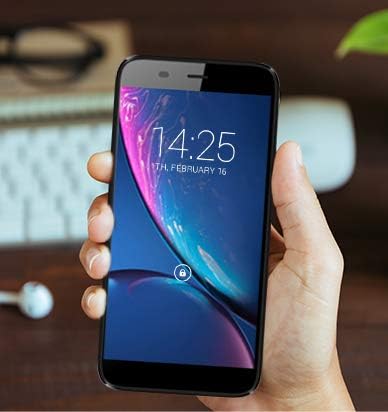
Figure 3: The Serrano 3 Smartphone being held, demonstrating its size and display.
4. നിങ്ങളുടെ ഉപകരണം പ്രവർത്തിപ്പിക്കുന്നു
4.1. നാവിഗേഷൻ
The Serrano 3 features a responsive touchscreen for all interactions. Use gestures such as tapping, swiping, pinching, and spreading to navigate menus, open applications, and control content.
4.2. കോളുകൾ ചെയ്യുക, സന്ദേശങ്ങൾ അയയ്ക്കുക
Access the Phone app to make calls by dialing numbers or selecting contacts. Use the Messages app to send and receive SMS/MMS messages. Ensure your SIM card is properly inserted and activated for cellular services.
4.3. Wi-Fi-ലേക്ക് ബന്ധിപ്പിക്കുന്നു
ഒരു Wi-Fi നെറ്റ്വർക്കിലേക്ക് കണക്റ്റുചെയ്യാൻ:
- പോകുക ക്രമീകരണങ്ങൾ > നെറ്റ്വർക്കും ഇൻ്റർനെറ്റും > വൈഫൈ.
- വൈഫൈ ഓണാക്കുക.
- ലിസ്റ്റിൽ നിന്ന് നിങ്ങൾക്ക് ആവശ്യമുള്ള നെറ്റ്വർക്ക് തിരഞ്ഞെടുത്ത് ആവശ്യപ്പെടുകയാണെങ്കിൽ പാസ്വേഡ് നൽകുക.
4.4. ക്യാമറ ഉപയോഗം
The Serrano 3 is equipped with a 2MP front camera and a 5MP rear camera. Open the Camera app to capture photos and videos. Tap the screen to focus and press the shutter button to take a picture.
5. പരിപാലനം
Proper care will extend the life of your Serrano 3 Smartphone:
- വൃത്തിയാക്കൽ: സ്ക്രീനും ബോഡിയും വൃത്തിയാക്കാൻ മൃദുവായ, ലിന്റ് രഹിത തുണി ഉപയോഗിക്കുക. ഉരച്ചിലുകളുള്ള വസ്തുക്കളോ കഠിനമായ രാസവസ്തുക്കളോ ഒഴിവാക്കുക.
- ജല പ്രതിരോധം: ഈ ഉപകരണം ജല പ്രതിരോധശേഷിയുള്ളതല്ല. ദ്രാവകങ്ങളുമായി സമ്പർക്കം പുലർത്തുന്നത് ഒഴിവാക്കുക.
- താപനില: ഉപകരണം തീവ്രമായ താപനിലയിൽ (ചൂടോ തണുപ്പോ) തുറന്നുകാട്ടരുത്.
- ബാറ്ററി കെയർ: Avoid fully discharging the battery frequently. Charge the device regularly.
- സോഫ്റ്റ്വെയർ അപ്ഡേറ്റുകൾ: മികച്ച പ്രകടനവും സുരക്ഷയും ഉറപ്പാക്കാൻ നിങ്ങളുടെ ഉപകരണത്തിന്റെ സോഫ്റ്റ്വെയർ അപ്ഡേറ്റ് ചെയ്ത് സൂക്ഷിക്കുക.
6. പ്രശ്നപരിഹാരം
If you encounter issues with your Serrano 3 Smartphone, refer to the table below for common problems and their solutions.
| പ്രശ്നം | സാധ്യമായ പരിഹാരം |
|---|---|
| ഉപകരണം പവർ ഓണാക്കുന്നില്ല. | ബാറ്ററി ചാർജ്ജ് ചെയ്തിട്ടുണ്ടെന്ന് ഉറപ്പാക്കുക. വീണ്ടും പവർ ഓൺ ചെയ്യാൻ ശ്രമിക്കുന്നതിന് മുമ്പ് ഒരു ചാർജറുമായി കണക്റ്റ് ചെയ്ത് കുറച്ച് മിനിറ്റ് കാത്തിരിക്കുക. |
| സ്ക്രീൻ പ്രതികരിക്കുന്നില്ല. | Restart the device by holding the Power button. If unresponsive, force restart by holding Power button for 10-15 seconds. |
| Wi-Fi-ലേക്ക് കണക്റ്റ് ചെയ്യാൻ കഴിയില്ല. | Check Wi-Fi settings, ensure Wi-Fi is enabled, and re-enter the password. Restart your Wi-Fi router. |
| മോശം കോൾ നിലവാരം അല്ലെങ്കിൽ സിഗ്നൽ ഇല്ല. | Check SIM card insertion. Move to an area with better network coverage. Contact your service provider. |
| Device is stuck in a boot loop or shows "corrupt" message. | This indicates a potential software or hardware issue. Try a factory reset (consult online resources for your specific model's reset procedure, as it may vary). If the issue persists, contact customer support for further assistance. |
7 സ്പെസിഫിക്കേഷനുകൾ
Key technical specifications for the Q Link Wireless Serrano 3 Smartphone:
| ഫീച്ചർ | വിശദാംശങ്ങൾ |
|---|---|
| മോഡലിൻ്റെ പേര് | Q Link Wireless Connecting America Serrano 3 |
| ഇനം മോഡൽ നമ്പർ | Serrano H6 |
| ഓപ്പറേറ്റിംഗ് സിസ്റ്റം | ആൻഡ്രോയിഡ് ഗോ |
| സ്ക്രീൻ വലിപ്പം | 5.5 ഇഞ്ച് |
| റെസലൂഷൻ | 566 x 319 |
| റാം | 2 ജിബി |
| മെമ്മറി സ്റ്റോറേജ് കപ്പാസിറ്റി | 16 ജിബി |
| പിൻ ക്യാമറ | 5 എം.പി |
| മുൻ ക്യാമറ | 2 എം.പി |
| ബാറ്ററി ശേഷി | 2200 മില്ലിampമണിക്കൂർ (mAh) |
| ചാർജിംഗ് സമയം | 2 മണിക്കൂർ |
| ഉൽപ്പന്ന അളവുകൾ | 6 x 2.48 x 0.42 ഇഞ്ച് |
| ഇനത്തിൻ്റെ ഭാരം | 3.53 ഔൺസ് (100 ഗ്രാം) |
| നിറം | കറുപ്പ് |
| വയർലെസ് കമ്മ്യൂണിക്കേഷൻ ടെക്നോളജീസ് | സെല്ലുലാർ (4G LTE) |
| കണക്റ്റിവിറ്റി ടെക്നോളജികൾ | വൈ-ഫൈ, ജിപിഎസ് |
| ഓഡിയോ ജാക്ക് | 3.5 മി.മീ |
8. വാറൻ്റിയും പിന്തുണയും
Q Link Wireless provides support for its products. For specific warranty details, please refer to the documentation included with your purchase or visit the official Q Link Wireless webസൈറ്റ്.
തിരികെ നൽകൽ നയം: This product typically has a 30-day return policy for refund or replacement, subject to the retailer's terms and conditions.
For technical assistance or further inquiries, please contact Q Link Wireless customer support through their official channels.


