വാങ്ങിയതിന് നന്ദി.asing the Trust Wireless Mouse. This manual provides detailed instructions for setting up, operating, maintaining, and troubleshooting your new wireless mouse. Please read this manual thoroughly before using the product to ensure optimal performance and longevity.
ചിത്രം 1.1: മുകളിൽ view of the Trust Wireless Mouse, showcasing അതിന്റെ എർഗണോമിക് ഡിസൈനും ബട്ടൺ ലേഔട്ടും.
2 സുരക്ഷാ വിവരങ്ങൾ
ഉപകരണത്തിന് കേടുപാടുകൾ സംഭവിക്കാതിരിക്കാനോ സ്വയം പരിക്കേൽക്കാതിരിക്കാനോ ഇനിപ്പറയുന്ന സുരക്ഷാ മാർഗ്ഗനിർദ്ദേശങ്ങൾ പാലിക്കുക:
Do not expose the mouse to water or excessive moisture.
ശക്തമായ ആഘാതങ്ങൾക്ക് മൗസ് വീഴ്ത്തുകയോ വിധേയമാക്കുകയോ ചെയ്യരുത്.
Do not attempt to disassemble or repair the mouse yourself. Refer to qualified service personnel.
പ്രാദേശിക നിയന്ത്രണങ്ങൾ അനുസരിച്ച് ബാറ്ററികൾ നീക്കം ചെയ്യുക.
3. പാക്കേജ് ഉള്ളടക്കം
പാക്കേജിൽ എല്ലാ ഇനങ്ങളും ഉണ്ടെന്ന് ഉറപ്പാക്കുക:
1x Trust Wireless Comfort Mouse
1x USB മൈക്രോ റിസീവർ
1x AA ബാറ്ററി
1x ഉപയോക്തൃ മാനുവൽ (ഈ പ്രമാണം)
Image 3.1: The retail packaging of the Trust Wireless Mouse, showing the mouse and included accessories.
നൽകിയിരിക്കുന്ന AA ബാറ്ററി ഇടുക, പോസിറ്റീവ് (+) ഉം നെഗറ്റീവ് (-) ടെർമിനലുകളും കമ്പാർട്ടുമെന്റിനുള്ളിലെ അടയാളപ്പെടുത്തലുകളുമായി ശരിയായി വിന്യസിക്കുന്നുണ്ടെന്ന് ഉറപ്പാക്കുക.
Image 4.1: Underside of the mouse with the battery compartment open, showing the insertion of an AA battery.
ചിത്രം 4.2: താഴെ view of the Trust Wireless Mouse, illustrating the battery compartment and the storage slot for the USB micro receiver.
4.2. Connecting the USB Micro Receiver
Locate the USB micro receiver, which is typically stored inside the mouse's battery compartment for transport.
Remove the USB micro receiver from its storage slot.
Plug the USB micro receiver into an available USB port on your computer (laptop or PC).
The mouse should automatically connect to your computer. No additional drivers are typically required for Windows 10, 8, 7, or Mac OS X 10.15 (Catalina) or higher.
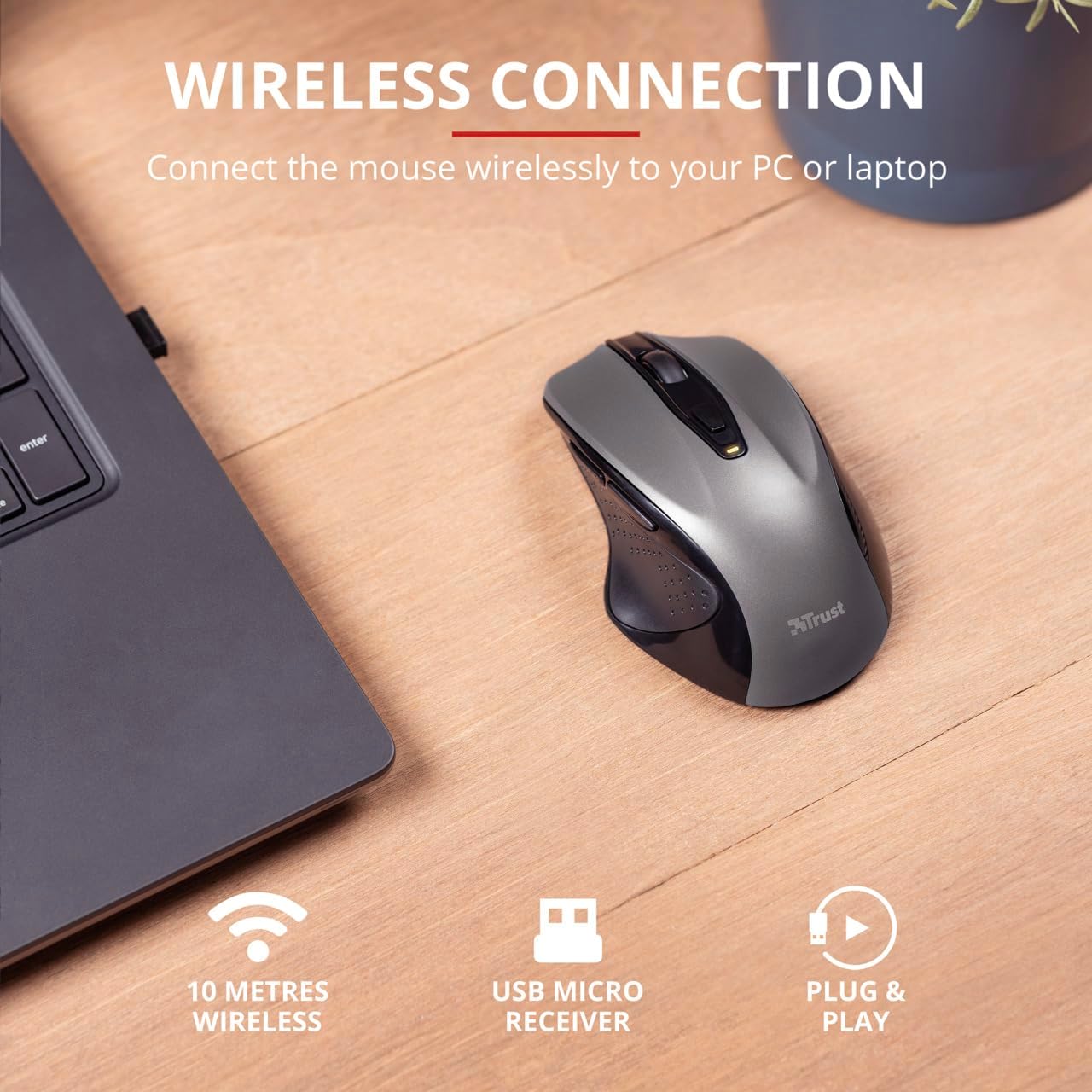
Image 4.3: The Trust Wireless Mouse positioned next to a laptop, demonstrating the wireless connection via the USB micro receiver plugged into the laptop's USB port.
5. മൗസ് പ്രവർത്തിപ്പിക്കൽ
5.1. അടിസ്ഥാന പ്രവർത്തനങ്ങൾ
ഇടത് ക്ലിക്ക്: Primary button for selecting items and interacting with software.
വലത് ക്ലിക്കിൽ: സന്ദർഭ മെനുകൾക്കും അധിക ഓപ്ഷനുകൾക്കുമുള്ള സെക്കൻഡറി ബട്ടൺ.
സ്ക്രോൾ വീൽ: Roll up or down to scroll through documents and web pages. Press the scroll wheel for middle-click functionality.
5.2. ഡിപിഐ ക്രമീകരണം
The Trust Wireless Mouse features an adjustable DPI (Dots Per Inch) setting, allowing you to control the cursor speed. There are 5 different speeds available: 800, 1200, 1600, 1800, and 2200 DPI.
Locate the DPI button, usually positioned behind the scroll wheel.
ലഭ്യമായ DPI ക്രമീകരണങ്ങളിലൂടെ സൈക്കിൾ ചെയ്യാൻ DPI ബട്ടൺ അമർത്തുക.
An LED indicator on the mouse will briefly show the current DPI setting.
ചിത്രം 5.1: വശം view of the Trust Wireless Mouse highlighting its comfortable shape, thumb rest with extra grip, and the adjustable speed (DPI) feature.
5.3. Thumb Buttons
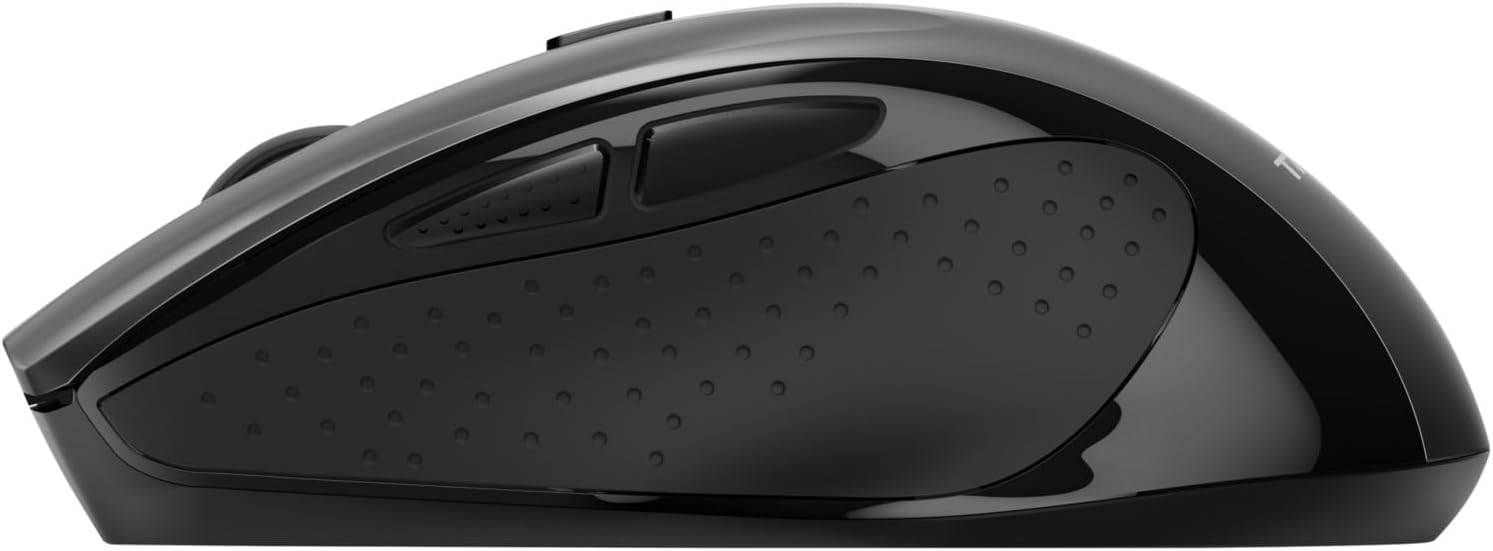
The mouse is equipped with two conveniently placed thumb buttons (forward and backward) on the left side. These buttons facilitate easy navigation, such as browsing through files അല്ലെങ്കിൽ web പേജുകൾ.
അമർത്തുക മുന്നോട്ട് button to move to the next page or item.
അമർത്തുക പിന്നോട്ട് button to return to the previous page or item.
ചിത്രം 5.2: വശം view of the Trust Wireless Mouse, clearly showing the placement of the two thumb buttons for forward and backward navigation.
Note: Functionality of side buttons may vary between operating systems.
5.4. Power Saving Features
To conserve battery life, the mouse includes a power-saving mode and an on/off switch.
ഓൺ/ഓഫ് സ്വിച്ച്: Located on the underside of the mouse. Turn the mouse off when not in use for extended periods to maximize battery life.
ബാറ്ററി LED സൂചകം: An LED indicator will light up when the battery level is low, signaling that it's time to replace the AA battery.
6. പരിപാലനം
6.1. വൃത്തിയാക്കൽ
To maintain optimal performance, clean your mouse regularly:
മൗസിന്റെ ഉപരിതലം തുടയ്ക്കാൻ മൃദുവായതും ഉണങ്ങിയതുമായ ഒരു തുണി ഉപയോഗിക്കുക.
കഠിനമായ അഴുക്കിന്, ചെറുതായി dampതുണിയിൽ വെള്ളം അല്ലെങ്കിൽ നേരിയ ക്ലീനിംഗ് ലായനി ഉപയോഗിക്കുക. കഠിനമായ രാസവസ്തുക്കൾ ഒഴിവാക്കുക.
Do not allow liquids to enter the mouse's internal components.
6.2. ബാറ്ററി മാറ്റിസ്ഥാപിക്കൽ
When the battery indicator lights up, replace the AA battery promptly to ensure uninterrupted use. Refer to section 4.1 for battery installation instructions.
7. പ്രശ്നപരിഹാരം
പ്രശ്നം
സാധ്യമായ കാരണം
പരിഹാരം
മൗസ് പ്രതികരിക്കുന്നില്ല.
ബാറ്ററി കുറവോ ഡെഡ് ബാറ്ററിയോ.
AA ബാറ്ററി മാറ്റിസ്ഥാപിക്കുക.
മൗസ് പ്രതികരിക്കുന്നില്ല.
യുഎസ്ബി റിസീവർ ശരിയായി ബന്ധിപ്പിച്ചിട്ടില്ല.
Ensure the USB receiver is firmly plugged into a working USB port. Try a different USB port.
മൗസ് പ്രതികരിക്കുന്നില്ല.
മൗസ് ഓഫ് ചെയ്തു.
Turn on the mouse using the on/off switch on the underside.
കഴ്സർ ചലനം ക്രമരഹിതമോ മന്ദഗതിയിലുള്ളതോ ആണ്.
Low DPI setting.
Press the DPI button to increase cursor speed.
കഴ്സർ ചലനം ക്രമരഹിതമോ മന്ദഗതിയിലുള്ളതോ ആണ്.
Dirty sensor or unsuitable surface.
Clean the optical sensor on the underside of the mouse. Use the mouse on a clean, non-reflective surface.
വയർലെസ് കണക്ഷൻ പ്രശ്നങ്ങൾ.
Interference or distance from receiver.
Ensure the mouse is within 10 meters of the receiver. Remove any large metal objects between the mouse and receiver.
8 സ്പെസിഫിക്കേഷനുകൾ
ഫീച്ചർ
വിശദാംശങ്ങൾ
മോഡൽ നമ്പർ
24115
കണക്റ്റിവിറ്റി
Wireless (RF 2.4GHz)
വയർലെസ് ശ്രേണി
10 മീറ്റർ
ഡിപിഐ ക്രമീകരണങ്ങൾ
800, 1200, 1600, 1800, 2200 DPI (adjustable)
ബട്ടണുകളുടെ എണ്ണം
6 (Left, Right, Mid, Forward, Backward, DPI loop)
സെൻസർ തരം
ഒപ്റ്റിക്കൽ
എർഗണോമിക്സ്
Ergonomic design with thumb rest and rubber inlay
പവർ ഉറവിടം
1x AA ബാറ്ററി (ഉൾപ്പെടുത്തിയിരിക്കുന്നു)
അളവുകൾ (L x W x H)
113 mm x 74 mm x 41 mm (4.45 x 2.91 x 0.04 ഇഞ്ച്)
ഭാരം
100 ഗ്രാം (2.65 ഔൺസ്)
അനുയോജ്യമായ ഓപ്പറേറ്റിംഗ് സിസ്റ്റങ്ങൾ
Windows 10, 8, 7; Mac OS X 10.15 (Catalina) or higher
9. വാറൻ്റിയും പിന്തുണയും
The Trust Wireless Mouse comes with a 1 വർഷത്തെ വാറൻ്റി വാങ്ങിയ തീയതി മുതൽ. സാധാരണ ഉപയോഗത്തിലുള്ള മെറ്റീരിയലുകളിലെയും വർക്ക്മാൻഷിപ്പുകളിലെയും വൈകല്യങ്ങൾ ഈ വാറന്റി ഉൾക്കൊള്ളുന്നു.
വാറൻ്റി ഉൾപ്പെടുന്നില്ല:
അപകടം, ദുരുപയോഗം, ദുരുപയോഗം, വെള്ളപ്പൊക്കം, തീ, ഭൂകമ്പം അല്ലെങ്കിൽ മറ്റ് ബാഹ്യ കാരണങ്ങളാൽ ഉണ്ടാകുന്ന നാശനഷ്ടങ്ങൾ.
Damage caused by operating the product outside the permitted or intended uses described by Trust.
Damage caused by service (including upgrades and expansions) performed by anyone who is not a representative of Trust or a Trust Authorized Service Provider.
For technical support or warranty claims, please visit the official Trust website or contact their customer service department. Refer to the product packaging or Trust's official webഏറ്റവും കാലികമായ ബന്ധപ്പെടാനുള്ള വിവരങ്ങൾക്കായി സൈറ്റ്.
Trust BAYO+ Multidevice Ergonomic Wireless Mouse User Guide Comprehensive user guide for the Trust BAYO+ multidevice ergonomic wireless mouse, covering setup, USB-A and Bluetooth connectivity, charging, and DPI sensitivity adjustments for optimal performance.
ഫൈഡ വയർഡ് കംഫർട്ട് മൗസ് ഉപയോക്തൃ ഗൈഡിനെ വിശ്വസിക്കുക ട്രസ്റ്റ് ഫൈഡയുടെ സുഖപ്രദമായ വയർഡ് മൗസിനായുള്ള ഉപയോക്തൃ ഗൈഡ്, ഒപ്റ്റിമൽ ഉപയോഗത്തിനായി സജ്ജീകരണം, കണക്ഷൻ, അടിസ്ഥാന പ്രവർത്തനം എന്നിവ വിശദമായി പ്രതിപാദിക്കുന്നു.
Trust Mydo Wireless Silent Click Mouse User Guide Comprehensive user guide for the Trust Mydo Wireless Silent Click Mouse, covering setup, features, and support. Learn how to connect and use your silent mouse for efficient computing.
Trust PUCK Wireless Mouse User Guide Comprehensive user guide for the Trust PUCK wireless mouse, detailing setup, connectivity via USB receiver and Bluetooth, and LED indicator status.