1. ആമുഖം
വാങ്ങിയതിന് നന്ദി.asing the CHiQ 32P625Q 32-inch QHD IPS LED Monitor. This manual provides essential information for the safe and efficient operation of your new monitor. Please read this manual thoroughly before use and retain it for future reference.
സുരക്ഷാ വിവരങ്ങൾ
- തീപിടുത്തമോ ഷോക്കോ മൂലമുള്ള അപകടങ്ങൾ ഒഴിവാക്കാൻ മോണിറ്ററിനെ മഴയിലോ ഈർപ്പത്തിലോ തുറന്നുവെക്കരുത്.
- മോണിറ്റർ തുറക്കരുത് casing. ഉള്ളിൽ ഉപയോക്തൃ-സേവനയോഗ്യമായ ഭാഗങ്ങളൊന്നുമില്ല. എല്ലാ സേവനങ്ങളും യോഗ്യതയുള്ള ഉദ്യോഗസ്ഥർക്ക് റഫർ ചെയ്യുക.
- വീഴാതിരിക്കാൻ മോണിറ്റർ ഒരു സ്ഥിരതയുള്ളതും പരന്നതുമായ പ്രതലത്തിൽ വയ്ക്കുക.
- മോണിറ്ററിന് ചുറ്റും ശരിയായ വായുസഞ്ചാരം ഉറപ്പാക്കുക. വായുസഞ്ചാര ദ്വാരങ്ങൾ അടയ്ക്കരുത്.
- മോണിറ്ററിനൊപ്പം നൽകിയിരിക്കുന്ന പവർ അഡാപ്റ്റർ മാത്രം ഉപയോഗിക്കുക.
- ഇടിമിന്നൽ ഉണ്ടാകുമ്പോഴോ ദീർഘനേരം ഉപയോഗിക്കാതിരിക്കുമ്പോഴോ പവർ ഔട്ട്ലെറ്റിൽ നിന്ന് മോണിറ്റർ ഊരിമാറ്റുക.
2. പാക്കേജ് ഉള്ളടക്കം
നിങ്ങളുടെ പാക്കേജിൽ എല്ലാ ഇനങ്ങളും ഉണ്ടെന്ന് ഉറപ്പാക്കുക:
- CHiQ 32P625Q 32-inch QHD IPS LED Monitor
- മോണിറ്റർ സ്റ്റാൻഡ് (ബേസും കഴുത്തും)
- പവർ അഡാപ്റ്റർ
- HDMI കേബിൾ
- ഉപയോക്തൃ മാനുവൽ (ഈ പ്രമാണം)
3. ഉൽപ്പന്നം കഴിഞ്ഞുview
മോണിറ്റർ ഫ്രണ്ട് View
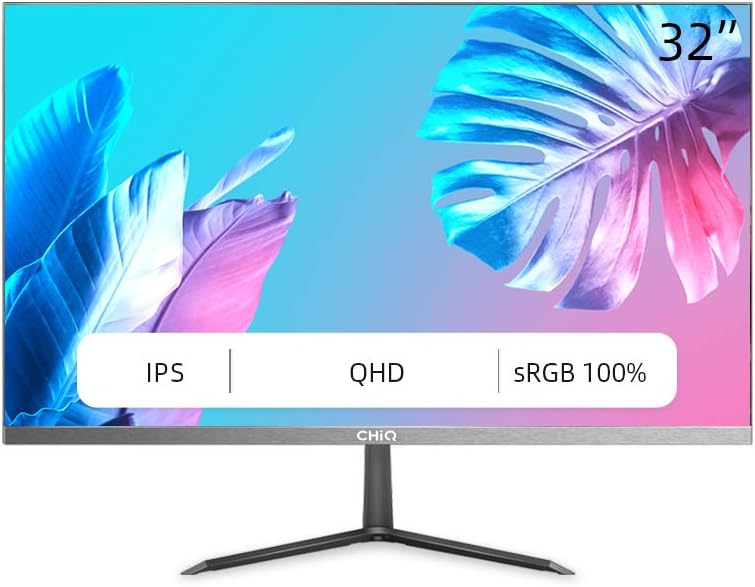
ചിത്രം 3.1: ഫ്രണ്ട് view of the CHiQ 32P625Q monitor, showcasing its 32-inch IPS QHD display with sRGB 100% color coverage and ultra-thin bezels.
Monitor Rear and Side Views (Illustrative)

ചിത്രം 3.2: വശം view of the CHiQ 32P625Q monitor, highlighting its slim profile and metal stand design.

ചിത്രം 3.3: Close-up illustrating the 6.9mm super slim design and frameless metal bezel of the monitor.
നിയന്ത്രണ ബട്ടണുകളും പോർട്ടുകളും
The monitor features intuitive control buttons, typically located on the rear or bottom right side, and various input ports on the rear panel.
- പവർ ബട്ടൺ: മോണിറ്റർ ഓണാക്കുകയോ ഓഫാക്കുകയോ ചെയ്യുന്നു.
- OSD Menu Buttons: Navigate and select options within the On-Screen Display menu.
- HDMI പോർട്ട്(കൾ): Connect to devices using an HDMI cable.
- DP (DisplayPort) Port: Connect to devices using a DisplayPort cable.
- VGA പോർട്ട്: Connect to older devices using a VGA cable.
- Audio Out (Headphone Jack): ഹെഡ്ഫോണുകളോ ബാഹ്യ സ്പീക്കറുകളോ ബന്ധിപ്പിക്കുക.
- ഡിസി പവർ ഇൻപുട്ട്: പവർ അഡാപ്റ്റർ ബന്ധിപ്പിക്കുക.
4. സജ്ജീകരണം
4.1 സ്റ്റാൻഡ് കൂട്ടിച്ചേർക്കൽ
- മോണിറ്റർ അതിന്റെ പാക്കേജിംഗിൽ നിന്ന് ശ്രദ്ധാപൂർവ്വം നീക്കം ചെയ്യുക, മൃദുവായ പ്രതലത്തിൽ അതിനെ സംരക്ഷിച്ചു നിർത്തുക.
- മോണിറ്റർ പാനലിലേക്ക് സ്റ്റാൻഡ് നെക്ക് ഘടിപ്പിക്കുക.
- Attach the stand base to the stand neck and secure it with the provided screws.
- കൂട്ടിച്ചേർത്ത മോണിറ്റർ ഒരു സ്ഥിരതയുള്ള, പരന്ന മേശയിൽ വയ്ക്കുക.

ചിത്രം 4.1: Illustration of the monitor's minimalist design, including the metal stand, frameless design, and ultra-slim profile (6.9 മിമി).
4.2 വെസ മൗണ്ടിംഗ്
The CHiQ 32P625Q monitor is VESA compatible, allowing it to be mounted on a wall or an articulating arm (sold separately). Ensure your VESA mount is compatible with the monitor's VESA pattern (typically 100x100mm, though specific details should be confirmed with the product's physical specifications or packaging).
- Remove the stand from the monitor if it is already attached.
- Follow the instructions provided with your VESA mount to attach it to the monitor and then to your desired surface.
4.3 ഉപകരണങ്ങളിലേക്ക് ബന്ധിപ്പിക്കുന്നു
ഉചിതമായ കേബിളുകൾ ഉപയോഗിച്ച് നിങ്ങളുടെ കമ്പ്യൂട്ടറോ മറ്റ് ഉപകരണങ്ങളോ മോണിറ്ററുമായി ബന്ധിപ്പിക്കുക.
- എച്ച്ഡിഎംഐ: Connect one end of the HDMI cable to the HDMI port on your computer/device and the other end to an HDMI port on the monitor.
- ഡിസ്പ്ലേ പോർട്ട് (ഡിപി): Connect one end of the DP cable to the DP port on your computer/device and the other end to the DP port on the monitor.
- വി.ജി.എ: Connect one end of the VGA cable to the VGA port on your computer/device and the other end to the VGA port on the monitor.
- ഓഡിയോ Outട്ട്: നിങ്ങൾക്ക് എക്സ്റ്റേണൽ സ്പീക്കറുകളോ ഹെഡ്ഫോണുകളോ ഉപയോഗിക്കാൻ താൽപ്പര്യമുണ്ടെങ്കിൽ, മോണിറ്ററിലെ 3.5mm ഓഡിയോ ഔട്ട് ജാക്കുമായി അവയെ ബന്ധിപ്പിക്കുക.
4.4 പവർ കണക്ഷൻ
- Connect the power adapter cable to the DC power input port on the monitor.
- പവർ അഡാപ്റ്റർ ഒരു പവർ ഔട്ട്ലെറ്റിൽ പ്ലഗ് ചെയ്യുക.
5. മോണിറ്റർ പ്രവർത്തിപ്പിക്കുക
5.1 പവർ ഓൺ/ഓഫ്
Press the power button on the monitor to turn it on or off. The power indicator light will illuminate when the monitor is on.
5.2 OSD മെനു നാവിഗേഷൻ
The On-Screen Display (OSD) menu allows you to adjust various monitor settings. Use the control buttons (usually located on the rear or bottom right) to navigate the menu.
- Press a menu button to open the OSD menu.
- Use the navigation buttons (up/down/left/right or joystick) to move through menu options.
- Press the select/enter button to confirm a selection or enter a sub-menu.
- OSD മെനു അടയ്ക്കാൻ എക്സിറ്റ് ബട്ടൺ അമർത്തുക.
5.3 ചിത്ര ക്രമീകരണങ്ങൾ
ഒപ്റ്റിമലിനായി ഡിസ്പ്ലേ സവിശേഷതകൾ ക്രമീകരിക്കുക viewing.
- തെളിച്ചം: Adjust the overall luminance of the screen.
- ദൃശ്യതീവ്രത: Adjust the difference between light and dark areas.
- വർണ്ണ താപനില: Select predefined color temperature modes (e.g., Warm, Cool, User) or adjust RGB values manually.
- ലോ ബ്ലൂ ലൈറ്റ് മോഡ്: Reduces blue light emission to minimize eye strain, especially during prolonged use.
- ഫ്ലിക്കർ-ഫ്രീ ടെക്നോളജി: This monitor incorporates flicker-free technology to reduce eye fatigue.
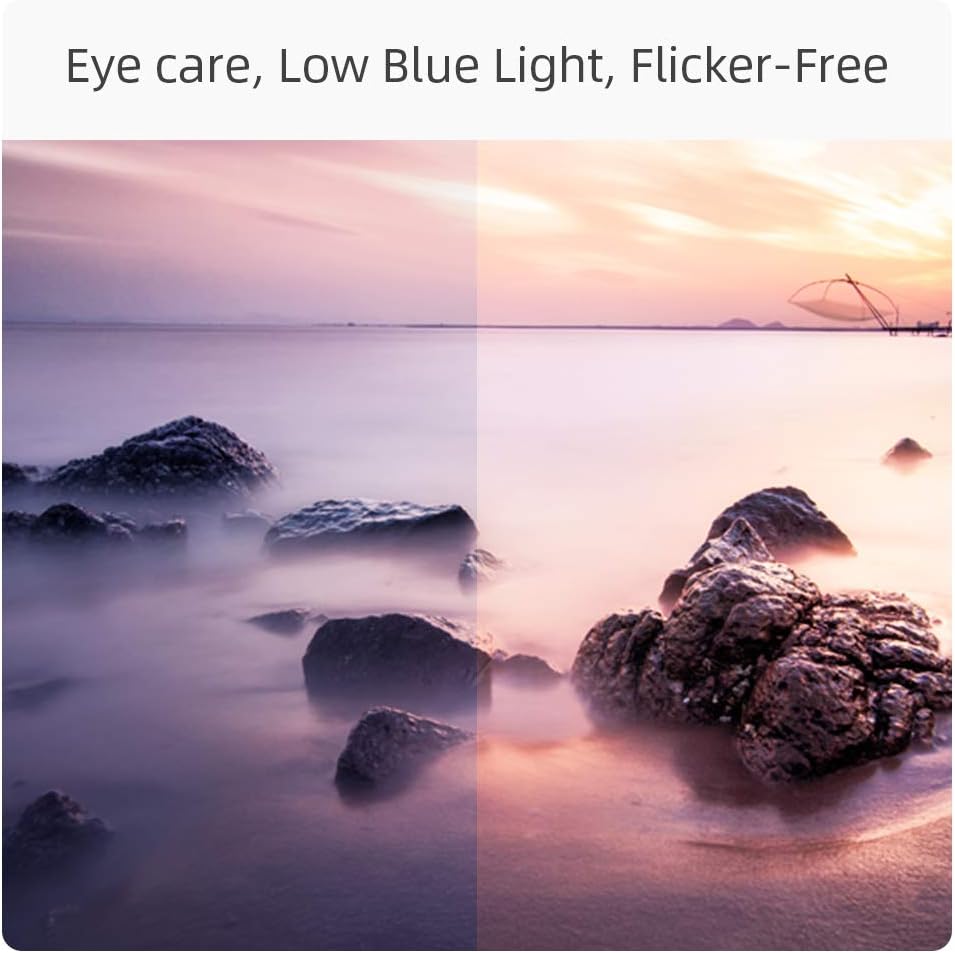
ചിത്രം 5.1: Visual representation of the monitor's eye care features, including Low Blue Light and Flicker-Free technology, designed to reduce eye strain.
5.4 ഇൻപുട്ട് തിരഞ്ഞെടുക്കൽ
If multiple devices are connected, you can switch between input sources via the OSD menu or a dedicated input select button.
5.5 ഓഡിയോ ക്രമീകരണങ്ങൾ
Adjust the volume for connected headphones or external speakers.
5.6 ഗെയിമിംഗ് സവിശേഷതകൾ
- FreeSync: This monitor supports AMD FreeSync technology, which synchronizes the monitor's refresh rate with your GPU's frame rate to eliminate screen tearing and stuttering. Enable FreeSync in the OSD menu and on your graphics card settings.
- പ്രതികരണ സമയം: The monitor features a 5ms response time for smooth motion.
- പുതുക്കൽ നിരക്ക്: The monitor supports a 75Hz refresh rate for smoother visuals compared to standard 60Hz displays.

ചിത്രം 5.2: Visual comparison demonstrating the smoother motion provided by a 75Hz refresh rate, ideal for dynamic content and gaming.
6. പരിപാലനം
മോണിറ്റർ വൃത്തിയാക്കൽ
- വൃത്തിയാക്കുന്നതിന് മുമ്പ് എപ്പോഴും മോണിറ്റർ അൺപ്ലഗ് ചെയ്യുക.
- Use a soft, lint-free cloth to gently wipe the screen. For stubborn marks, dampen the cloth with a small amount of water or a mild, non-abrasive screen cleaner.
- മോണിറ്റർ തുടയ്ക്കുക casinമൃദുവായതും ഉണങ്ങിയതുമായ തുണി ഉപയോഗിച്ച് തടവുക. അബ്രാസീവ് ക്ലീനറുകൾ, മെഴുക് അല്ലെങ്കിൽ ലായകങ്ങൾ ഉപയോഗിക്കുന്നത് ഒഴിവാക്കുക.
സംഭരണം
If storing the monitor for an extended period, unplug it and store it in a cool, dry place, preferably in its original packaging to protect it from dust and physical damage.
7. പ്രശ്നപരിഹാരം
| പ്രശ്നം | സാധ്യമായ കാരണം | പരിഹാരം |
|---|---|---|
| സ്ക്രീനിൽ ചിത്രമൊന്നുമില്ല |
|
|
| ചിത്രം മങ്ങിയതോ വളച്ചൊടിച്ചതോ ആണ് |
|
|
| No sound from audio out |
|
|
| മിന്നിമറയുന്ന അല്ലെങ്കിൽ അസ്ഥിരമായ ചിത്രം |
|
|
8 സ്പെസിഫിക്കേഷനുകൾ
| ഫീച്ചർ | വിശദാംശങ്ങൾ |
|---|---|
| മോഡൽ നമ്പർ | 32P625Q |
| സ്ക്രീൻ വലിപ്പം | 32 ഇഞ്ച് |
| പാനൽ തരം | ഐപിഎസ് എൽഇഡി |
| റെസലൂഷൻ | QHD (2560 x 1440 Pixels) |
| വീക്ഷണാനുപാതം | 16:9 |
| പ്രതികരണ സമയം | 5 എം.എസ് |
| പുതുക്കിയ നിരക്ക് | 75 Hz |
| തെളിച്ചം | 250 cd/m2 |
| കോൺട്രാസ്റ്റ് റേഷ്യോ | 1000:1 (Static), 1M:1 (Dynamic) |
| Viewing ആംഗിൾ | 178°/178° |
| വർണ്ണ ഗാമറ്റ് | sRGB 100% (10-bit panel) |
| കണക്റ്റിവിറ്റി | HDMI, DisplayPort (DP), VGA, Audio Out (Headphone Jack) |
| പ്രത്യേക സവിശേഷതകൾ | Low Blue Light, Flicker-Free, FreeSync, Ultra-thin bezels, VESA Compatible |
| വൈദ്യുതി ഉപഭോഗം | 34 Watt (Typical), 26 kWh/1000h (Energy Label) |
| അളവുകൾ (സ്റ്റാൻഡിനൊപ്പം) | 712 x 180 x 495 മിമി (LxWxH) |
| ടിൽറ്റ് അഡ്ജസ്റ്റ്മെൻ്റ് | 5° മുതൽ -15° വരെ |

ചിത്രം 8.1: Detailed dimensions of the CHiQ 32P625Q monitor with its stand.
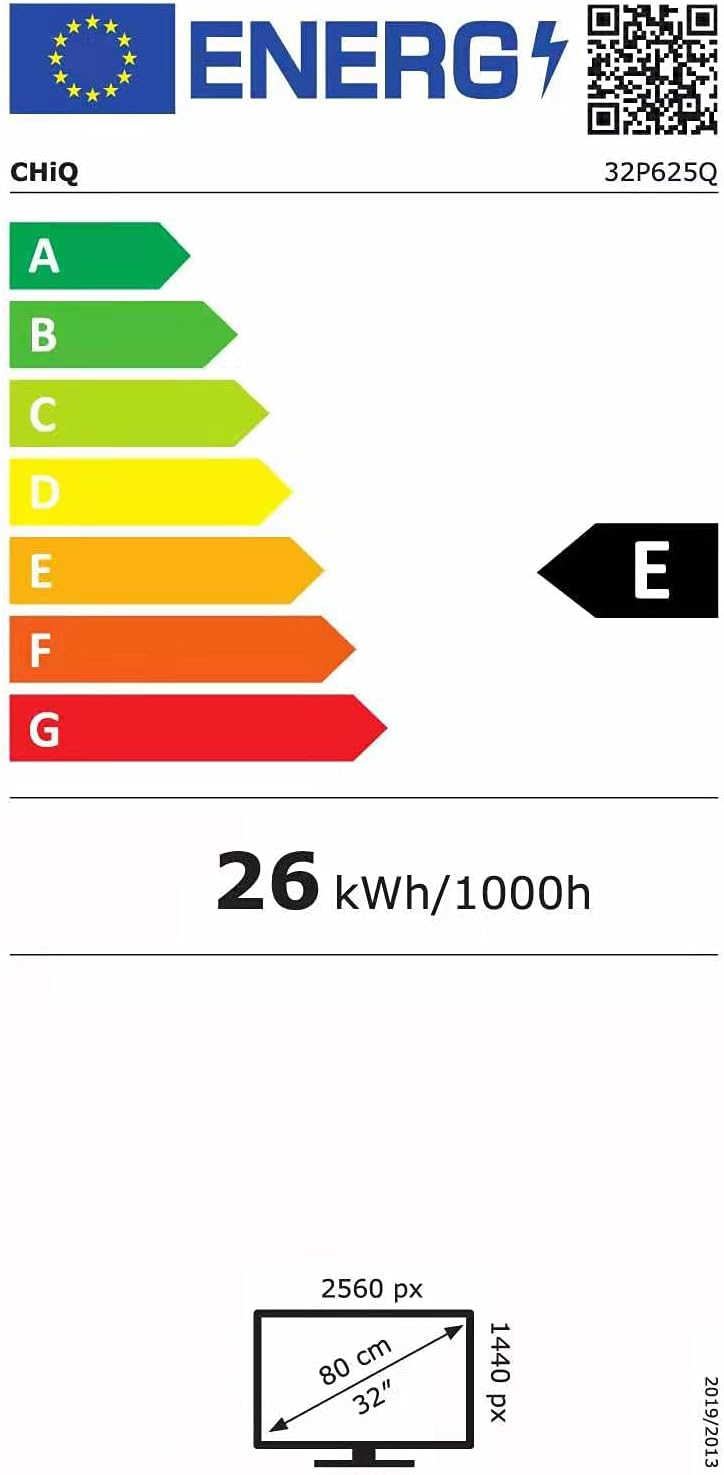
ചിത്രം 8.2: EU Energy Label for the CHiQ 32P625Q monitor, indicating an energy efficiency class E and 26 kWh/1000h consumption. For more details, visit the EPREL ഡാറ്റാബേസ്.
9. വാറൻ്റിയും പിന്തുണയും
CHiQ products are designed and manufactured to the highest quality standards. For information regarding warranty coverage, technical support, or service inquiries, please refer to the warranty card included with your product or visit the official CHiQ website. Please have your model number (32P625Q) and purchase information ready when contacting support.


