1. ഉൽപ്പന്നം കഴിഞ്ഞുview
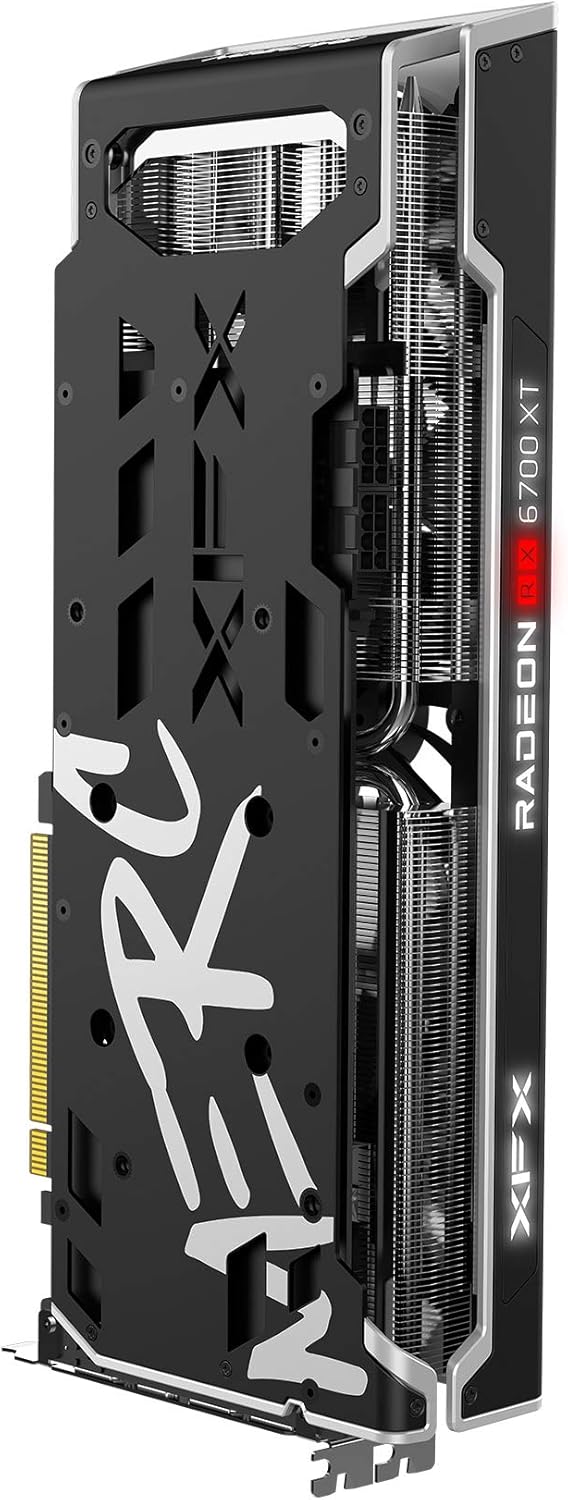
The XFX Speedster MERC319 AMD Radeon RX 6700 XT is a high-performance gaming graphics card designed for ultra-high frame rates and 1440p resolution gaming. It is powered by AMD RDNA 2 architecture, featuring 40 enhanced Compute Units, AMD Infinity Cache, and 12GB of dedicated GDDR6 memory.
പ്രധാന സവിശേഷതകളിൽ ഇവ ഉൾപ്പെടുന്നു:
- ചിപ്സെറ്റ്: AMD RX 6700 XT
- മെമ്മറി: 12GB GDDR6
- ബൂസ്റ്റ് ക്ലോക്ക്: Up To 2622MHz
- തണുപ്പിക്കൽ: XFX Speedster MERC319 Triple Fan design


2. സജ്ജീകരണവും ഇൻസ്റ്റാളേഷനും
Before installing your new graphics card, ensure your system meets the necessary requirements, including adequate power supply wattage and available PCIe slots. Always power off and unplug your computer before handling internal components.
2.1 പ്രീ-ഇൻസ്റ്റലേഷൻ ചെക്ക്ലിസ്റ്റ്
- വൈദ്യുതി വിതരണം: നിങ്ങളുടെ പവർ സപ്ലൈ യൂണിറ്റിൽ (പിഎസ്യു) ആവശ്യത്തിന് വാട്ട് ഉണ്ടെന്ന് ഉറപ്പാക്കുക.tage and the required 8-pin and 6-pin PCIe power connectors.
- PCIe സ്ലോട്ട്: Ensure you have an available PCIe x16 slot on your motherboard.
- കേസ് ക്ലിയറൻസ്: Confirm your computer case has enough physical space for the card's dimensions (approximately 12.72 x 5.2 x 2.01 inches).
- ഡ്രൈവർമാർ: Download the latest AMD Radeon drivers for the RX 6700 XT from the official AMD webഇൻസ്റ്റാളേഷന് മുമ്പുള്ള സൈറ്റ്.
2.2 ഇൻസ്റ്റലേഷൻ ഘട്ടങ്ങൾ
- വൈദ്യുതി മുടക്കം: Shut down your computer completely and unplug the power cable from the wall outlet.
- തുറന്ന കേസ്: മദർബോർഡിലേക്ക് പ്രവേശിക്കാൻ നിങ്ങളുടെ കമ്പ്യൂട്ടർ കേസിന്റെ സൈഡ് പാനൽ നീക്കം ചെയ്യുക.
- Remove Old GPU (if applicable): If upgrading, carefully unclip and unscrew your old graphics card, then gently pull it out of the PCIe slot.
- Insert New GPU: Align the XFX Speedster MERC319 graphics card with the PCIe x16 slot. Press down firmly and evenly until it is fully seated and the retention clip locks into place.
- Secure GPU: Use screws to secure the graphics card to the case's expansion slot bracket.
- പവർ ബന്ധിപ്പിക്കുക: Connect the required 8-pin and 6-pin PCIe power cables from your power supply to the corresponding ports on the graphics card.

- കേസ് അടയ്ക്കുക: നിങ്ങളുടെ കമ്പ്യൂട്ടർ കേസിന്റെ സൈഡ് പാനൽ മാറ്റിസ്ഥാപിക്കുക.
- ഡിസ്പ്ലേ ബന്ധിപ്പിക്കുക: ഗ്രാഫിക്സ് കാർഡിലെ ഡിസ്പ്ലേ ഔട്ട്പുട്ടുകളിൽ ഒന്നിലേക്ക് (HDMI അല്ലെങ്കിൽ DisplayPort) നിങ്ങളുടെ മോണിറ്റർ ബന്ധിപ്പിക്കുക.
- പവർ ഓൺ: Plug the power cable back into the wall outlet and power on your computer.
- ഡ്രൈവറുകൾ ഇൻസ്റ്റാൾ ചെയ്യുക: Once your operating system loads, install the AMD Radeon drivers you downloaded earlier. Follow the on-screen instructions.
3. പ്രവർത്തന നിർദ്ദേശങ്ങൾ
After successful installation and driver setup, your XFX Speedster MERC319 graphics card is ready for use. The AMD Radeon Software provides a comprehensive suite of tools for optimizing your gaming experience and managing your graphics card settings.
3.1 ഡ്രൈവർ അപ്ഡേറ്റുകൾ
Regularly update your graphics drivers to ensure optimal performance, stability, and access to the latest features. You can check for updates through the AMD Radeon Software application or by visiting the official AMD webസൈറ്റ്.
3.2 AMD Radeon Software
This software allows you to:
- ഡിസ്പ്ലേ ക്രമീകരണങ്ങളും റെസല്യൂഷനുകളും ക്രമീകരിക്കുക.
- Optimize game settings for performance or visual quality.
- Monitor GPU temperature, clock speeds, and usage.
- Access features like Radeon Anti-Lag, Radeon Boost, and FidelityFX.
3.3 ഡിസ്പ്ലേ കോൺഫിഗറേഷൻ
Ensure your monitor is connected to the graphics card and not the motherboard's integrated graphics ports. Use the display settings in your operating system or AMD Radeon Software to configure resolution, refresh rate, and multiple displays.
4. പരിപാലനം
ശരിയായ അറ്റകുറ്റപ്പണികൾ നിങ്ങളുടെ ഗ്രാഫിക്സ് കാർഡിന്റെ ആയുസ്സ് വർദ്ധിപ്പിക്കുകയും സ്ഥിരമായ പ്രകടനം ഉറപ്പാക്കുകയും ചെയ്യും.
4.1 വൃത്തിയാക്കൽ
Dust accumulation can impede cooling performance. Periodically clean your graphics card and PC case:
- നിങ്ങളുടെ കമ്പ്യൂട്ടർ ഓഫ് ചെയ്ത് അൺപ്ലഗ് ചെയ്യുക.
- Use compressed air to gently blow dust from the fans, heatsink fins, and other components of the graphics card. Hold the fans to prevent over-spinning.
- Clean dust filters in your PC case.
4.2 Driver Management
Keep your graphics drivers updated. Outdated drivers can lead to performance issues or compatibility problems with new games and applications.
4.3 താപനില നിരീക്ഷണം
Utilize the AMD Radeon Software or third-party tools to monitor your GPU temperatures, especially during heavy loads. Maintain good airflow within your PC case to prevent overheating.
5. പ്രശ്നപരിഹാരം
നിങ്ങളുടെ ഗ്രാഫിക്സ് കാർഡിൽ നിങ്ങൾ നേരിട്ടേക്കാവുന്ന സാധാരണ പ്രശ്നങ്ങളെ ഈ വിഭാഗം അഭിസംബോധന ചെയ്യുന്നു.
5.1 ഡിസ്പ്ലേ ഔട്ട്പുട്ട് ഇല്ല
- കണക്ഷനുകൾ പരിശോധിക്കുക: മോണിറ്റർ കേബിൾ ഗ്രാഫിക്സ് കാർഡിലേക്കും മോണിറ്ററിലേക്കും സുരക്ഷിതമായി ബന്ധിപ്പിച്ചിട്ടുണ്ടെന്ന് ഉറപ്പാക്കുക.
- പവർ കേബിളുകൾ: Verify that all PCIe power cables are correctly connected to the graphics card.
- PCIe Seating: Re-seat the graphics card in its PCIe slot to ensure it is fully inserted.
- ഇൻപുട്ട് നിരീക്ഷിക്കുക: Confirm your monitor is set to the correct input source (HDMI, DisplayPort).
5.2 Driver Issues or Crashes
- ഡ്രൈവറുകൾ വീണ്ടും ഇൻസ്റ്റാൾ ചെയ്യുക: Perform a clean installation of the latest AMD Radeon drivers. Use a driver uninstaller utility (like DDU) in Safe Mode to remove old drivers before installing new ones.
- ഓപ്പറേറ്റിംഗ് സിസ്റ്റം അപ്ഡേറ്റുകൾ: നിങ്ങളുടെ ഓപ്പറേറ്റിംഗ് സിസ്റ്റം പൂർണ്ണമായും അപ്ഡേറ്റ് ചെയ്തിട്ടുണ്ടെന്ന് ഉറപ്പാക്കുക.
- സോഫ്റ്റ്വെയർ വൈരുദ്ധ്യങ്ങൾ: Temporarily disable any overclocking software or monitoring tools to rule out conflicts.
5.3 അമിത ചൂടാക്കൽ
- Improve Airflow: ശരിയായി കോൺഫിഗർ ചെയ്ത ഇൻടേക്ക്, എക്സ്ഹോസ്റ്റ് ഫാനുകൾ ഉപയോഗിച്ച് നിങ്ങളുടെ പിസി കേസിൽ മതിയായ വായുസഞ്ചാരം ഉണ്ടെന്ന് ഉറപ്പാക്കുക.
- പൊടി വൃത്തിയാക്കുക: Clean the graphics card and case fans to remove dust buildup.
- താപനില നിരീക്ഷിക്കുക: Use AMD Radeon Software to monitor GPU temperatures. If temperatures consistently exceed safe operating limits, consider adjusting fan curves or improving case ventilation.
5.4 പ്രകടന പ്രശ്നങ്ങൾ
- ഡ്രൈവർ അപ്ഡേറ്റുകൾ: ഏറ്റവും പുതിയ ഗ്രാഫിക്സ് ഡ്രൈവറുകൾ ഇൻസ്റ്റാൾ ചെയ്തിട്ടുണ്ടെന്ന് ഉറപ്പാക്കുക.
- ഗെയിം ക്രമീകരണങ്ങൾ: നിങ്ങളുടെ സിസ്റ്റത്തിന്റെ കഴിവുകളുമായി പൊരുത്തപ്പെടുന്നതിന് ഇൻ-ഗെയിം ഗ്രാഫിക്സ് ക്രമീകരണങ്ങൾ ക്രമീകരിക്കുക.
- പശ്ചാത്തല ആപ്ലിക്കേഷനുകൾ: Close unnecessary background applications that consume system resources.
- പവർ പ്രോfile: Ensure your operating system's power profile is set to 'High Performance'.
6 സ്പെസിഫിക്കേഷനുകൾ
Detailed technical specifications for the XFX Speedster MERC319 AMD Radeon RX 6700 XT graphics card.
| ഫീച്ചർ | സ്പെസിഫിക്കേഷൻ |
|---|---|
| ചിപ്സെറ്റ് | AMD Radeon RX 6700 XT |
| ഗ്രാഫിക്സ് കോപ്രൊസസർ | AMD Radeon RX 6700 XT |
| മെമ്മറി | 12GB GDDR6 |
| മെമ്മറി സ്പീഡ് | 16 GHz |
| ബൂസ്റ്റ് ക്ലോക്ക് | Up To 2622MHz |
| തണുപ്പിക്കൽ | XFX Speedster MERC319 Triple Fan |
| പരമാവധി സ്ക്രീൻ റെസല്യൂഷൻ | 7680x4320 |
| വീഡിയോ ഔട്ട്പുട്ട് ഇൻ്റർഫേസ് | HDMI, DisplayPort (3xDP) |
| ഇനം മോഡൽ നമ്പർ | RX-67XTYTBDP |
| ഉൽപ്പന്ന അളവുകൾ (LxWxH) | 12.72 x 5.2 x 2.01 ഇഞ്ച് |
| ഇനത്തിൻ്റെ ഭാരം | 4.01 പൗണ്ട് |
7. വാറൻ്റിയും പിന്തുണയും
For warranty information and technical support, please refer to the official XFX webസൈറ്റ് അല്ലെങ്കിൽ നിങ്ങളുടെ ഉൽപ്പന്നത്തിൽ ഉൾപ്പെടുത്തിയിരിക്കുന്ന ഡോക്യുമെന്റേഷൻ. നിങ്ങൾക്ക് സന്ദർശിക്കാനും കഴിയും XFX Store on Amazon കൂടുതൽ ഉൽപ്പന്ന വിശദാംശങ്ങൾക്കും ഉറവിടങ്ങൾക്കും.