1. ആമുഖം
This manual provides essential information for setting up, operating, maintaining, and troubleshooting your Dell Latitude 5410 laptop. Please read this guide thoroughly to ensure optimal performance and longevity of your device.
The Dell Latitude 5410 is a 14-inch Full HD laptop designed for productivity, featuring an Intel Quad-Core i5-10310U processor, 16GB DDR4 RAM, and a 512GB SSD. It comes pre-installed with Windows 10 Pro.
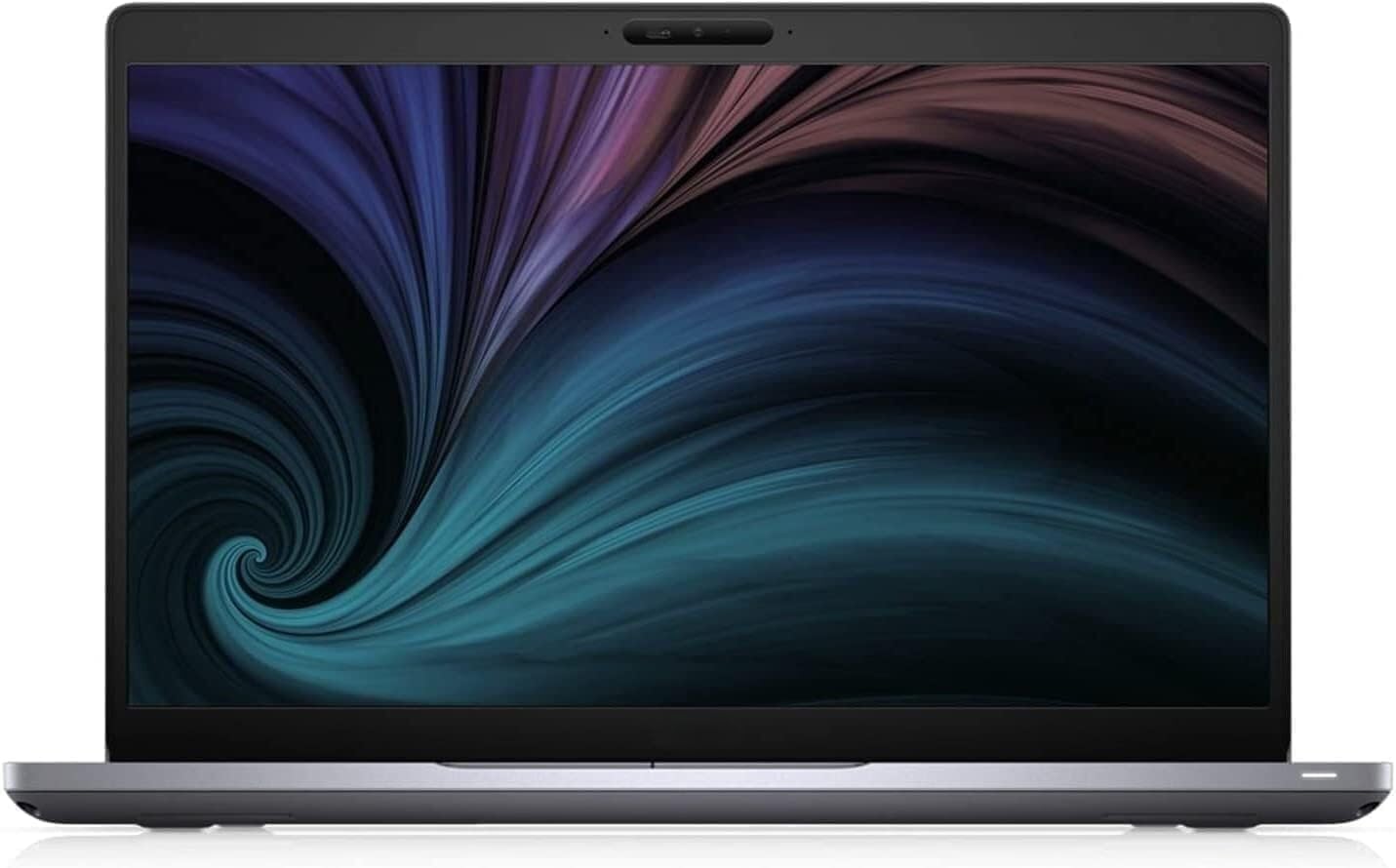
ചിത്രം 1.1: മുൻഭാഗം view of the Dell Latitude 5410 laptop, showcasing അതിന്റെ ഡിസ്പ്ലേ.
2. ആരംഭിക്കുന്നു
2.1 അൺപാക്ക് ചെയ്യലും പ്രാരംഭ സജ്ജീകരണവും
- ലാപ്ടോപ്പ് അൺപാക്ക് ചെയ്യുക: Carefully remove the laptop and its accessories from the packaging. Ensure all components, including the laptop and charger, are present.
- പവർ ബന്ധിപ്പിക്കുക: Plug the power adapter into the laptop's power port and then into a wall outlet. The battery may have a partial charge, but it is recommended to fully charge it before first use.
- പവർ ഓൺ: Open the laptop lid and press the power button, typically located on the top right of the keyboard deck.
- പ്രാരംഭ വിൻഡോസ് സജ്ജീകരണം: Follow the on-screen instructions to complete the Windows 10 Pro setup. This includes selecting your region, language, creating a user account, and connecting to a Wi-Fi network.
2.2 പെരിഫറലുകൾ ബന്ധിപ്പിക്കുന്നു
Your Dell Latitude 5410 supports various external devices. Refer to the 'Ports and Connectors' section for port identification.
- USB ഉപകരണങ്ങൾ: Connect USB mice, keyboards, external hard drives, or flash drives to the available USB Type-A or USB Type-C ports.
- ബാഹ്യ പ്രദർശനം: ഒരു ബാഹ്യ മോണിറ്ററോ പ്രൊജക്ടറോ ബന്ധിപ്പിക്കാൻ HDMI പോർട്ട് ഉപയോഗിക്കുക.
- നെറ്റ്വർക്ക് കേബിൾ: For a wired internet connection, plug an Ethernet cable into the RJ-45 port.
3. Using Your Laptop
3.1 കീബോർഡും ടച്ച്പാഡും
The Dell Latitude 5410 features a backlit keyboard and a precision touchpad for navigation.

ചിത്രം 3.1: മുകളിൽ നിന്ന് താഴേക്ക് view of the Dell Latitude 5410 keyboard and touchpad.
- കീബോർഡ്: The keyboard includes standard alphanumeric keys, function keys (F1-F12), and special keys. Function keys often have secondary actions (e.g., volume, brightness) accessible by pressing the Fn ഒരേസമയം കീ.
- ബാക്ക്ലൈറ്റ് കീബോർഡ്: To adjust keyboard backlight brightness, use the dedicated function key combination (often Fn + F10 or similar, check keyboard icons).
- ടച്ച്പാഡ്: The touchpad supports multi-touch gestures for scrolling, zooming, and other functions. Click the left or right buttons integrated into the touchpad for corresponding mouse clicks.
3.2 പോർട്ടുകളും കണക്ടറുകളും
The Dell Latitude 5410 offers a variety of ports for connectivity:

Figure 3.2: Right side of the Dell Latitude 5410, displaying various ports.
- USB Type-A Ports (3x): സാധാരണ USB ഉപകരണങ്ങൾ ബന്ധിപ്പിക്കുന്നതിന്.
- USB Type-C Port (1x): Supports data transfer and potentially power delivery or display output (check specific model capabilities).
- HDMI പോർട്ട് (1x): ബാഹ്യ ഡിസ്പ്ലേകളിലേക്ക് ബന്ധിപ്പിക്കുന്നതിന്.
- RJ-45 Ethernet Port (1x): വയർഡ് നെറ്റ്വർക്ക് കണക്ഷനുകൾക്കായി.
- Smart Card Reader (1x): For security and authentication purposes.
- ഓഡിയോ ജാക്ക്: ഹെഡ്ഫോണുകൾക്കോ ഹെഡ്സെറ്റുകൾക്കോ വേണ്ടി.
- SD കാർഡ് റീഡർ: മെമ്മറി കാർഡുകൾ വായിക്കാൻ.
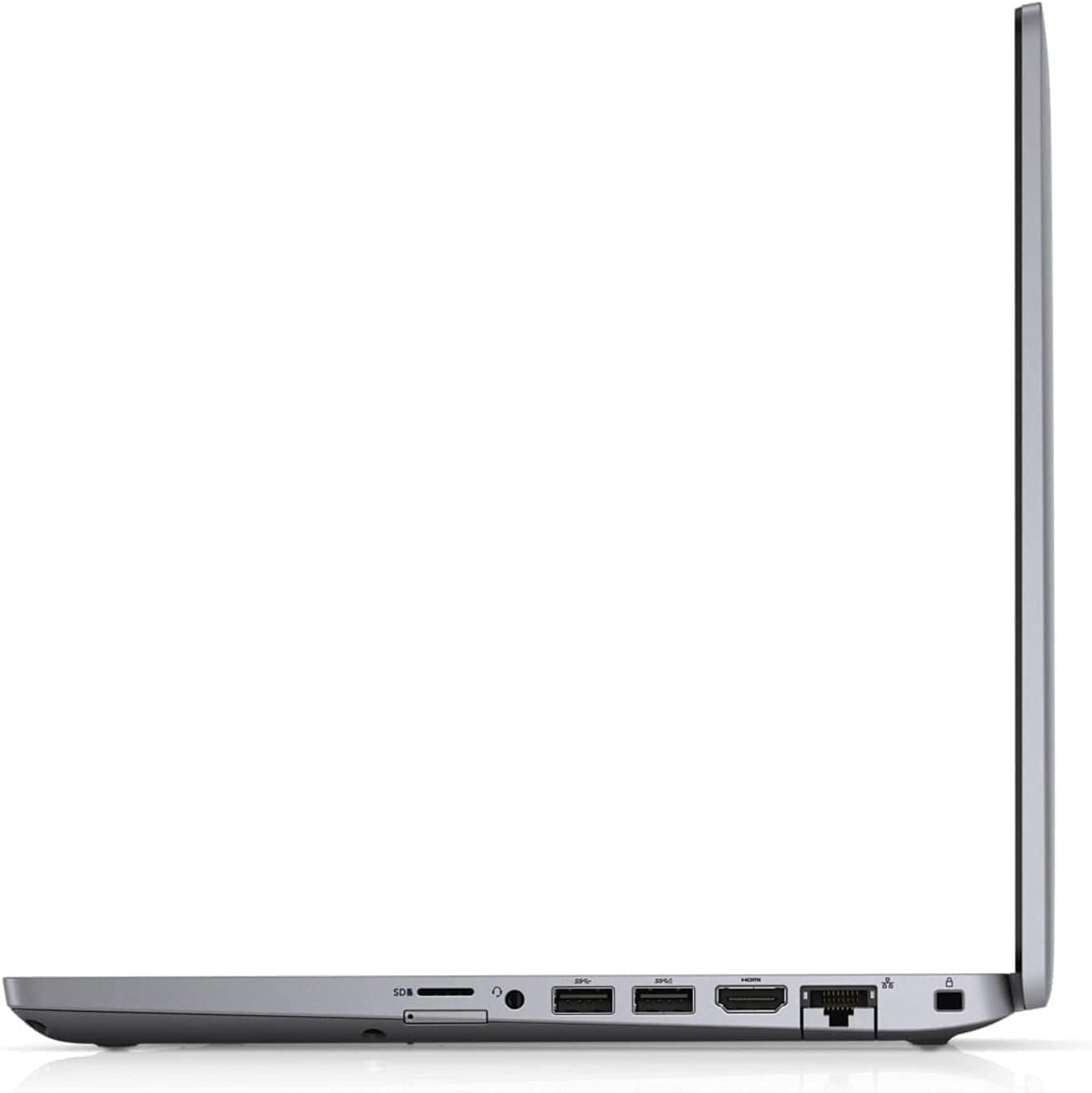
ചിത്രം 3.3: സൈഡ് പ്രോfile of the Dell Latitude 5410, illustrating its port layout and slim design.
3.3 ഓപ്പറേറ്റിംഗ് സിസ്റ്റം അടിസ്ഥാനകാര്യങ്ങൾ (Windows 10 പ്രോ)
Your laptop comes with Windows 10 Pro. Familiarize yourself with basic operations:
- ആരംഭ മെനു: ആപ്ലിക്കേഷനുകൾ, ക്രമീകരണങ്ങൾ, പവർ ഓപ്ഷനുകൾ എന്നിവ ആക്സസ് ചെയ്യുക.
- ടാസ്ക്ബാർ: Pin frequently used applications and view open programs.
- പ്രവർത്തന കേന്ദ്രം: ദ്രുത ക്രമീകരണങ്ങളും അറിയിപ്പുകളും ആക്സസ് ചെയ്യുക.
- File പര്യവേക്ഷകൻ: നിങ്ങളുടെ നിയന്ത്രിക്കുക fileകളും ഫോൾഡറുകളും.
4. Power Management and Battery
The Dell Latitude 5410 is equipped with a Lithium Ion battery. Proper power management extends battery life and ensures stable operation.
- ചാർജിംഗ്: Connect the AC adapter to charge the battery. The battery indicator light will show charging status.
- ബാറ്ററി ലൈഫ്: Average battery life is approximately 5 hours, depending on usage. To maximize battery life, adjust screen brightness, close unused applications, and utilize power-saving modes in Windows settings.
- പവർ മോഡുകൾ: Windows 10 Pro offers various power plans (e.g., Balanced, Power Saver, High Performance) that can be configured in the Control Panel or Settings app.
- സംഭരണം: If storing the laptop for an extended period, ensure the battery is charged to about 50% to prevent deep discharge.
5. പരിപാലനവും പരിചരണവും
Regular maintenance helps keep your laptop in good condition.
- വൃത്തിയാക്കൽ: സ്ക്രീനും പുറംഭാഗവും വൃത്തിയാക്കാൻ മൃദുവായ, ലിന്റ് രഹിത തുണി ഉപയോഗിക്കുക. കഠിനമായ കറകൾക്ക്, dampതുണിയിൽ വെള്ളം അല്ലെങ്കിൽ സ്ക്രീൻ ക്ലീനർ ഉപയോഗിക്കുക. കഠിനമായ രാസവസ്തുക്കൾ ഒഴിവാക്കുക.
- വെൻ്റിലേഷൻ: അമിതമായി ചൂടാകുന്നത് തടയാൻ വെന്റിലേഷൻ ദ്വാരങ്ങൾ അടഞ്ഞിട്ടില്ലെന്ന് ഉറപ്പാക്കുക. ലാപ്ടോപ്പ് കട്ടിയുള്ളതും പരന്നതുമായ പ്രതലത്തിൽ ഉപയോഗിക്കുക.
- സോഫ്റ്റ്വെയർ അപ്ഡേറ്റുകൾ: Regularly update Windows and device drivers to ensure security and optimal performance.
- ഡാറ്റ ബാക്കപ്പ്: പ്രധാനപ്പെട്ട ഡാറ്റ ഇടയ്ക്കിടെ ഒരു ബാഹ്യ ഡ്രൈവിലേക്കോ ക്ലൗഡ് സംഭരണത്തിലേക്കോ ബാക്കപ്പ് ചെയ്യുക.
- ശാരീരിക സംരക്ഷണം: Transport the laptop in a padded case to protect it from impacts.
6. പ്രശ്നപരിഹാരം
നിങ്ങൾ നേരിട്ടേക്കാവുന്ന പൊതുവായ പ്രശ്നങ്ങളെ ഈ വിഭാഗം അഭിസംബോധന ചെയ്യുന്നു.
- ലാപ്ടോപ്പ് ഓണാകുന്നില്ല:
- പവർ അഡാപ്റ്റർ ലാപ്ടോപ്പിലേക്കും പ്രവർത്തിക്കുന്ന ഒരു പവർ ഔട്ട്ലെറ്റിലേക്കും സുരക്ഷിതമായി ബന്ധിപ്പിച്ചിട്ടുണ്ടെന്ന് ഉറപ്പാക്കുക.
- മറ്റൊരു ഉപകരണം പ്ലഗ് ഇൻ ചെയ്ത് പവർ ഔട്ട്ലെറ്റ് പ്രവർത്തനക്ഷമമാണെന്ന് ഉറപ്പാക്കുക.
- ബാറ്ററി പൂർണ്ണമായും തീർന്നാൽ, ലാപ്ടോപ്പ് ഓൺ ആകുന്നതിന് മുമ്പ് ചാർജ് ചെയ്യാൻ കുറച്ച് മിനിറ്റ് എടുത്തേക്കാം.
- Screen is Blank or Black:
- Check if the laptop is powered on (listen for fan noise or look for indicator lights).
- Adjust screen brightness using the function keys.
- Connect an external monitor to see if a display appears there. If so, the laptop's internal display may have an issue.
- വൈഫൈ കണക്റ്റിവിറ്റി പ്രശ്നങ്ങൾ:
- വിൻഡോസ് ക്രമീകരണങ്ങളിൽ വൈഫൈ പ്രവർത്തനക്ഷമമാക്കിയിട്ടുണ്ടെന്ന് ഉറപ്പാക്കുക.
- നിങ്ങളുടെ റൂട്ടറും മോഡവും പുനരാരംഭിക്കുക.
- നിങ്ങളുടെ വയർലെസ്സ് നെറ്റ്വർക്ക് അഡാപ്റ്റർ ഡ്രൈവറുകൾ അപ്ഡേറ്റ് ചെയ്യുക.
- മന്ദഗതിയിലുള്ള പ്രകടനം:
- പശ്ചാത്തലത്തിൽ പ്രവർത്തിക്കുന്ന അനാവശ്യ ആപ്ലിക്കേഷനുകൾ അടയ്ക്കുക.
- മാൽവെയറോ വൈറസുകളോ ഉണ്ടോയെന്ന് പരിശോധിക്കുക.
- SSD-യിൽ മതിയായ ഇടം ഉറപ്പാക്കുക.
- വിൻഡോസും ഡ്രൈവറുകളും അപ്ഡേറ്റ് ചെയ്യുക.
7 സാങ്കേതിക സവിശേഷതകൾ
Below are the detailed technical specifications for the Dell Latitude 5410 laptop:
| ഫീച്ചർ | സ്പെസിഫിക്കേഷൻ |
|---|---|
| മോഡലിൻ്റെ പേര് | അക്ഷാംശം 5410 |
| പ്രോസസ്സർ | Intel Quad-Core i5-10310U (Up to 4.4 GHz) |
| റാം | 16 GB DDR4 |
| സംഭരണം | 512 ജിബി എസ്എസ്ഡി (എൻവിഎംഇ) |
| പ്രദർശിപ്പിക്കുക | 14 inch FHD (1920 x 1080 pixels) |
| ഗ്രാഫിക്സ് കോപ്രൊസസർ | ഇന്റൽ ഇന്റഗ്രേറ്റഡ് ഗ്രാഫിക്സ് |
| ഓപ്പറേറ്റിംഗ് സിസ്റ്റം | വിൻഡോസ് 10 പ്രോ |
| തുറമുഖങ്ങൾ | 3x USB Type-A, 1x USB Type-C, 1x HDMI, 1x RJ-45, 1x Smart Card Reader |
| വയർലെസ് കണക്റ്റിവിറ്റി | ബ്ലൂടൂത്ത് |
| പ്രത്യേക സവിശേഷതകൾ | Backlit Keyboard, HD Audio, Memory Card Slot, Spill Resistant, TrackPoint |
| ശരാശരി ബാറ്ററി ലൈഫ് | 5 മണിക്കൂർ |
| ഇനത്തിൻ്റെ ഭാരം | 3.88 പൗണ്ട് |
| ഉൽപ്പന്ന അളവുകൾ | 14 x 13 x 1 ഇഞ്ച് |
8. വാറൻ്റിയും പിന്തുണയും
This Dell Latitude 5410 laptop is a renewed product. Renewed products are professionally inspected and tested to work and look like new.
- ആമസോൺ പുതുക്കിയ ഗ്യാരണ്ടി: നിങ്ങളുടെ വാങ്ങലിൽ നിങ്ങൾ തൃപ്തനല്ലെങ്കിൽ, പുതുക്കിയ ഉൽപ്പന്നങ്ങൾ ആമസോൺ പുതുക്കിയ ഗ്യാരണ്ടി പ്രകാരം മാറ്റിസ്ഥാപിക്കാനോ റീഫണ്ട് ചെയ്യാനോ യോഗ്യമാണ്. പൂർണ്ണ വിവരങ്ങൾക്ക് ആമസോൺ പുതുക്കിയ പ്രോഗ്രാം നിബന്ധനകൾ പരിശോധിക്കുക.
- സംരക്ഷണ പദ്ധതികൾ: Optional protection plans may be available for purchase to extend coverage beyond the standard guarantee. Check your purchase details for information on any additional plans.
- സാങ്കേതിക സഹായം: For technical assistance, refer to Dell's official support website for drivers, manuals, and troubleshooting guides specific to the Latitude 5410 model.


