1. ഉൽപ്പന്നം കഴിഞ്ഞുview
The MiraScreen G2 is a wireless HDMI display receiver designed to mirror content from your compatible devices (PC, smartphone, tablet) to a larger display such as an HDTV or projector. It offers a convenient way to enjoy videos, photos, and presentations on a big screen without the need for cables. Its compact and portable design makes it ideal for various environments, from home entertainment to business meetings.

Image: The MiraScreen G2 wireless HDMI dongle, a compact black circular device with an integrated HDMI cable and a central logo.

Image: The MiraScreen G2 device shown alongside its branding and icons representing supported features like DLNA, AirPlay, Miracast, WiFi, and Cloud connectivity.
2. Getting Started: Setup and Installation
Setting up your MiraScreen G2 is a straightforward plug-and-play process. No additional drivers are required for most operating systems.
2.1 പാക്കേജ് ഉള്ളടക്കം
- 1 x MiraScreen G2 Wireless HDMI Dongle
- 1 x USB കേബിൾ
- 1 x Bilingual User Manual (English and Chinese)
2.2 കണക്ഷൻ ഘട്ടങ്ങൾ
- Connect to TV/Projector: Plug the HDMI connector of the MiraScreen G2 into an available HDMI port on your HDTV or projector.
- പവർ ഓൺ: Connect the USB cable to the MiraScreen G2 and then plug the other end into a 5V/1A USB power adapter (not included) or a USB port on your TV/projector that provides sufficient power. Ensure the device powers on, indicated by an LED light.
- ഇൻപുട്ട് തിരഞ്ഞെടുക്കുക: Switch your TV or projector's input source to the corresponding HDMI port where the MiraScreen G2 is connected. You should see the MiraScreen setup screen.
- Switch Mode (if necessary): The MiraScreen G2 has a switching button to easily toggle between AirPlay mode (for iOS/macOS) and Miracast mode (for Android/Windows). Select the appropriate mode for your device.
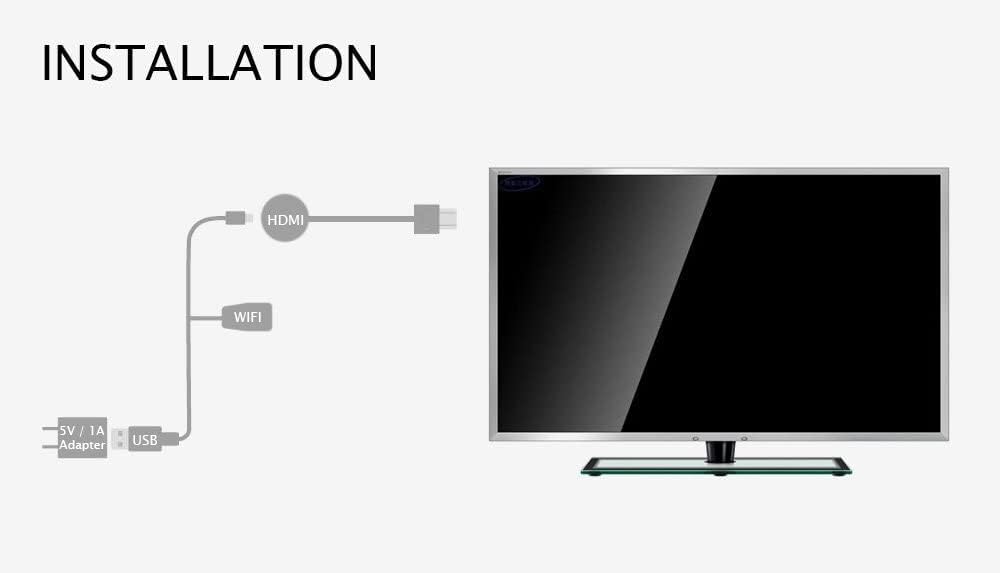
Image: A diagram illustrating the installation process, showing the MiraScreen G2 connected via HDMI to a TV and powered by a 5V/1A adapter via USB.
3. പ്രവർത്തന നിർദ്ദേശങ്ങൾ
Once connected, the MiraScreen G2 allows you to wirelessly mirror content from your mobile devices or computers to your display.
3.1 Broad Compatibility
The device is compatible with a wide range of operating systems:
- Android 4.2-ഉം അതിനുമുകളിലും
- Mac OS X 10.9 ഉം അതിന് മുകളിലുള്ളതും
- iOS 7.0-ഉം അതിനുമുകളിലും
- Windows 8.1-ഉം അതിനുമുകളിലും

Image: A diagram showing the MiraScreen G2 connecting wirelessly to various devices (smartphone, tablet, laptop) and then via HDMI to an HDTV or projector, illustrating its broad compatibility.
3.2 Mirroring Content
To mirror your device's screen, enable the screen mirroring feature on your smartphone, tablet, or PC (e.g., Screen Mirroring, Smart View, AirPlay, Miracast, Wireless Display). Select the MiraScreen G2 from the list of available devices.
3.3 Key Applications
- Private Cinema: Enjoy high-definition movies and videos (up to 1080P) from your device on your TV, creating a personal cinematic experience.
- Game Paradise: Play mobile games on a larger screen, enhancing your gaming experience and allowing for shared fun with family and friends.
- Business Meeting: Conduct wireless presentations and share documents or media from your laptop or tablet directly to a projector or large display, making meetings more efficient.
- Real-time Photography: Synchronize photos from your phone to the TV for easier viewing and sharing with others.
- Online Playing: Stream online videos from your phone directly to your TV, providing a more immersive viewഅനുഭവം.

Image: A visual demonstrating the MiraScreen G2's use for a 'Private Cinema' experience with a 1080P TV and 'Game Paradise' for playing mobile games on a large screen with friends.

Image: An illustration showing the MiraScreen G2 facilitating a wireless presentation in a business meeting setting, projecting content from a laptop to a large screen.

Image: A depiction of using the MiraScreen G2 for 'Real-time Photography', allowing users to synchronize and view photos from their phone directly on a TV screen.
Image: A visual illustrating 'Online Playing' where videos from a phone are streamed to a TV, and 'Real-time Edit' showing how to use brush tools to edit photos on a larger screen.
4 സാങ്കേതിക സവിശേഷതകൾ
| ഫീച്ചർ | സ്പെസിഫിക്കേഷൻ |
|---|---|
| മോഡൽ | G2 |
| വൈഫൈ ഫ്രീക്വൻസി | 2.4GHz |
| വൈഫൈ ശ്രേണി | 10m and less |
| WiFi Module / Version | 8188FTV |
| റെസലൂഷൻ | 1920 x 1080 (max 1080P) |
| ഓപ്പറേറ്റിംഗ് സിസ്റ്റം | ലിനക്സ് |
| സിപിയു വേഗത | 600MHz |
| റാം | ഡിഡിആർ3 128എംബി |
| ആന്തരിക ഫ്ലാഷ് | SLC 128MB |
| വീഡിയോ ഫോർമാറ്റുകൾ പിന്തുണയ്ക്കുന്നു | AVI, DIVX, MKV, DAT, VOB, MPG, MPEG, MOV, MP4, RM, RMVB, WMV |
| അളവുകൾ | 12.5 x 10 x 4.4 സെ.മീ (പാക്കേജ്) |
| ഇനത്തിൻ്റെ ഭാരം | 86 ഗ്രാം |
5. പ്രശ്നപരിഹാരം
If you encounter issues with your MiraScreen G2, please refer to the following common solutions:
- ഡിസ്പ്ലേ/സിഗ്നൽ ഇല്ല:
- Ensure the MiraScreen G2 is securely plugged into the HDMI port of your TV/projector.
- Verify that the USB power cable is connected and receiving sufficient power (5V/1A recommended).
- Check that your TV/projector is set to the correct HDMI input source.
- വൈഫൈയിലേക്ക് കണക്റ്റുചെയ്യാൻ കഴിയില്ല:
- Ensure your WiFi router is operating on the 2.4GHz frequency, as the MiraScreen G2 supports this band.
- Check for any obstructions or excessive distance between the MiraScreen G2 and your WiFi router.
- Poor Resolution/Lagging Display:
- Confirm that your display device (TV/projector) supports 1080P resolution.
- Ensure your source device (smartphone, PC) is capable of outputting at 1080P.
- Reduce the distance between the MiraScreen G2 and your mirroring device to improve signal strength.
- Unable to Mirror Content:
- Verify that the MiraScreen G2 is in the correct mode (AirPlay for iOS/macOS, Miracast for Android/Windows) using the mode switching button.
- Ensure your source device's operating system is compatible (Android 4.2+, Mac OS X 10.9+, iOS 7.0+, Windows 8.1+).
- Restart both the MiraScreen G2 (by unplugging and replugging power) and your source device.
6. പരിചരണവും പരിപാലനവും
To ensure the longevity and optimal performance of your MiraScreen G2, follow these guidelines:
- Keep the device clean by wiping it with a soft, dry cloth. Avoid using liquid cleaners or abrasive materials.
- നേരിട്ടുള്ള സൂര്യപ്രകാശത്തിൽ നിന്നും കടുത്ത താപനിലയിൽ നിന്നും മാറി തണുത്തതും വരണ്ടതുമായ സ്ഥലത്ത് ഉപകരണം സൂക്ഷിക്കുക.
- Handle the device with care to prevent physical damage. Avoid dropping or subjecting it to strong impacts.
- Do not attempt to disassemble or repair the device yourself, as this will void any warranty.
7. വാറൻ്റിയും പിന്തുണയും
For warranty information, please refer to the documentation included with your purchase or contact the retailer. Specific warranty terms and conditions may vary by region and seller.
For technical support or further assistance, please consult the official MiraScreen website or contact their customer service. You may also refer to the seller's support channels if purchased through an online marketplace.
For more information about MiraScreen products, you can visit the MiraScreen brand page on Amazon.


