ആമുഖം
This manual provides essential information for the proper use and care of your Itari 4x6 Thermal Labels. These fan-fold shipping labels are designed for thermal printers and are compatible with various shipping platforms. Please read these instructions carefully to ensure optimal performance and longevity of your labels.
ഉൽപ്പന്ന സവിശേഷതകൾ
- ഉയർന്ന നിലവാരമുള്ള മെറ്റീരിയൽ: Our shipping labels are made from high-quality material to ensure barcodes can be scanned easily.
- Water & Oil-proof & Strong Adhesive: These thermal printer labels are water & oil-proof, and scratch-proof. They feature strong adhesive for secure attachment to shipping boxes, mail, files, papers, and plastics.
- വിശാലമായ അനുയോജ്യത: The 4x6 shipping labels are compatible with Itari, Rollo, MUNBYN, Zebra, Phomemo, and other thermal label printers. They are also compatible with shipping platforms and carriers such as DHL, FedEx, USPS, Amazon, Shopify, and eBay. Note: These labels are only suitable for thermal printers, not laser or inkjet printers.
- സ്പെസിഫിക്കേഷനുകൾ: Each package contains 500 fan-fold labels. Perforations between each label allow for easy tearing and damage-free separation. Labels are designed for easy peeling.
സ്പെസിഫിക്കേഷനുകൾ
| ബ്രാൻഡ് | ഇറ്റാരി |
| മോഡൽ നമ്പർ | SLP-4x6-500-1 |
| ലേബൽ വലിപ്പം | 4 x 6 ഇഞ്ച് |
| അളവ് | 500 labels per stack |
| നിറം | വെള്ള |
| ആകൃതി | ദീർഘചതുരം |
| ഫിനിഷ് തരം | സുഷിരങ്ങളുള്ള |
| ഇനത്തിൻ്റെ ഭാരം | 2.49 പൗണ്ട് |
| ഉൽപ്പന്ന അളവുകൾ | 4.8 x 4.8 x 4.21 ഇഞ്ച് |
Setup and Loading Labels
These fan-fold labels are designed for easy loading into compatible thermal label printers. Ensure your printer is powered off before loading.
- പ്രിന്റർ കവർ തുറക്കുക: Locate and press the release latch or button on your thermal printer to open the top cover.
- പേപ്പർ ഗൈഡുകൾ ക്രമീകരിക്കുക: Adjust the movable paper guide clips within the printer's paper compartment to match the 4x6 inch width of the labels.
- ലേബലുകൾ ലോഡ് ചെയ്യുക: Place the stack of fan-fold labels into the rear paper slot or compartment of your thermal printer. Ensure the print side of the labels is facing up and the first label is fed smoothly into the printer's feed mechanism. The labels should be aligned straight with the paper guides to prevent skewing during printing.
- കവർ അടയ്ക്കുക: പ്രിൻ്റർ കവർ സുരക്ഷിതമായി അടയ്ക്കുക.
- കാലിബ്രേറ്റ് ചെയ്യുക (ആവശ്യമെങ്കിൽ): Some thermal printers may require calibration after loading new labels. Refer to your specific printer's manual for calibration instructions.


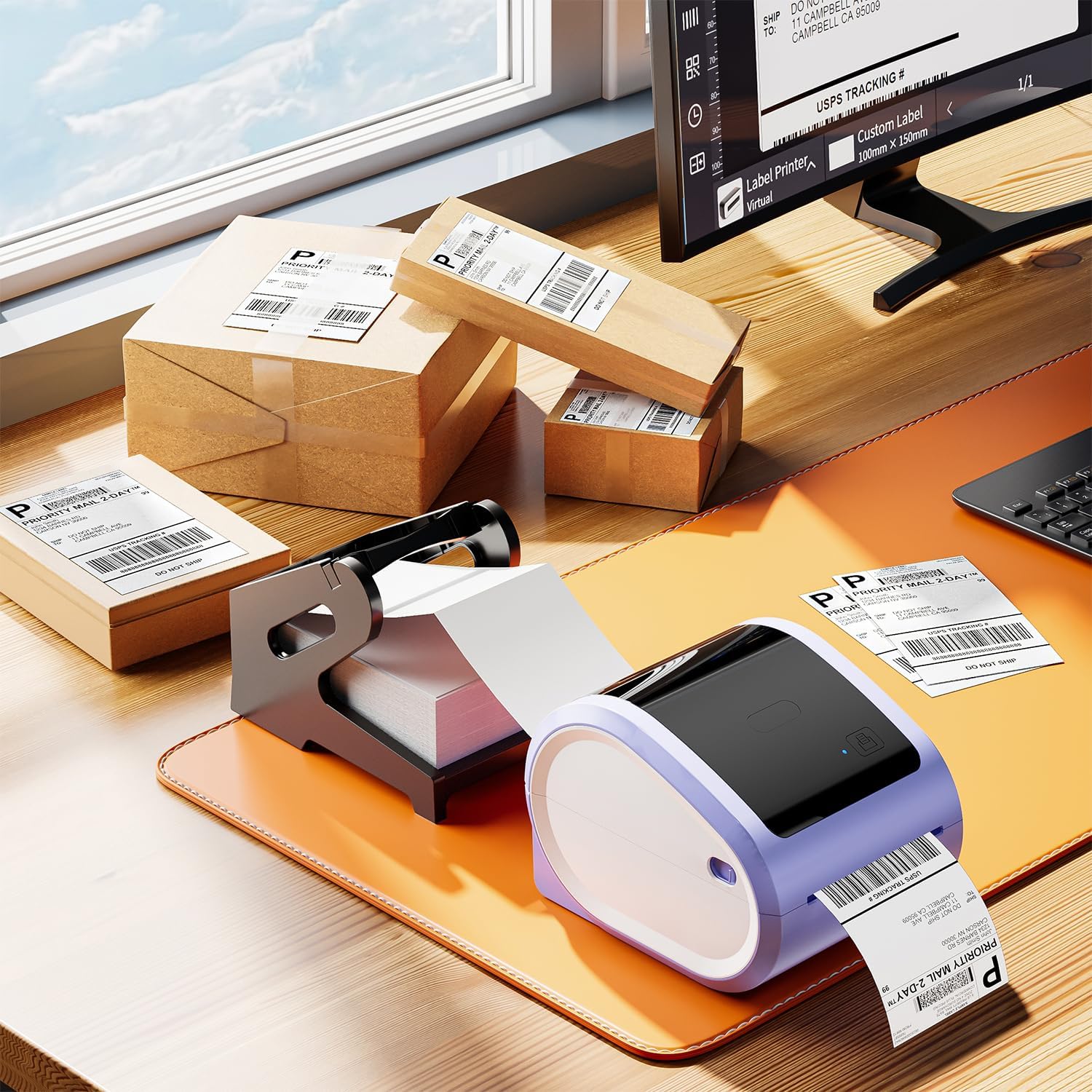
Video: How to Set Up with D520bt Printer
This video demonstrates the setup process for a D520bt thermal label printer, including loading labels and basic operation. While specific to the D520bt, the general principles of loading fan-fold labels apply to many thermal printers.
പ്രവർത്തന നിർദ്ദേശങ്ങൾ
Once the labels are loaded, you can begin printing. These labels are designed for direct thermal printing, meaning no ink or toner is required.
- പ്രിന്റർ ബന്ധിപ്പിക്കുക: Ensure your thermal printer is connected to your computer or mobile device via USB or Bluetooth, as applicable.
- സോഫ്റ്റ്വെയർ സജ്ജീകരണം: Use your preferred shipping software (e.g., from Etsy, Shopify, Amazon, FedEx) or a label design application. Configure the label size to 4x6 inches within the software settings.
- പ്രിൻ്റ്: Send the print job to your thermal printer. The labels will feed through and print clearly.
- തൊലി കളഞ്ഞ് പ്രയോഗിക്കുക: Utilize the perforations to easily tear off printed labels. Peel the backing off the label and apply it firmly to your package or item. The strong adhesive ensures secure attachment.


Video: Print via Bluetooth
This video illustrates how to print labels wirelessly from a smartphone via Bluetooth, demonstrating the convenience of mobile printing with compatible thermal printers.
മെയിൻ്റനൻസ്
To maintain the quality and performance of your Itari Thermal Labels:
- സംഭരണം: Store labels in a cool, dry place away from direct sunlight and excessive heat or humidity. Extreme conditions can affect adhesive quality and thermal printability.
- കൈകാര്യം ചെയ്യൽ: Avoid touching the thermal printing surface of the labels with bare hands, as oils and dirt can degrade print quality. Handle labels by the edges.
- പ്രിന്റർ പരിചരണം: Regularly clean your thermal printer's print head and platen roller according to the printer manufacturer's instructions to ensure clear prints and prevent damage to the labels.
ട്രബിൾഷൂട്ടിംഗ്
If you encounter issues with your Itari Thermal Labels, consider the following:
- മോശം പ്രിന്റ് നിലവാരം:
- Ensure the labels are loaded correctly with the print side facing the thermal print head.
- Clean the thermal printer's print head.
- Adjust print density or darkness settings in your printer software.
- Verify that you are using a thermal printer, not an inkjet or laser printer.
- ശരിയായി ഭക്ഷണം നൽകാത്ത ലേബലുകൾ:
- Check that the labels are properly aligned with the paper guides in the printer.
- Ensure there are no obstructions in the paper path.
- Calibrate your printer for the label size.
- ഒട്ടിപ്പിടിക്കാത്ത ലേബലുകൾ:
- Ensure the application surface is clean, dry, and free of dust or grease.
- Apply firm, even pressure across the entire label surface.
- Check the storage conditions of your labels; extreme temperatures or humidity can affect adhesive.
വാറൻ്റിയും പിന്തുണയും
Itari is committed to providing quality products and customer satisfaction. If you experience any issues with your 4x6 thermal labels, please contact our customer service team.
കസ്റ്റമർ സർവീസ്: Our customer service team is available 24/7 via WhatsApp, Skype, email, and phone call for any issues or inquiries.
- ഇമെയിൽ: support@itaricartridge.com
- WhatsApp: +86 1369 772 4676
- Website for Tutorials: www.itaricartridge.com
For additional support and video tutorials, search for "Itari Tech" on YouTube.
അനുബന്ധ രേഖകൾ - SLP-4x6-500-1
 |
ഇറ്റാരി PM-241-BT ക്വിക്ക് സ്റ്റാർട്ട് ഗൈഡ്: വയർലെസ് ലേബൽ പ്രിന്റിംഗ് ചെറുകിട ബിസിനസുകൾക്കുള്ള ആപ്പ് ഡൗൺലോഡ്, പ്രിന്റർ കണക്ഷൻ, PDF ഇറക്കുമതി, പ്രിന്റിംഗ്, പിസി കണക്റ്റിവിറ്റി എന്നിവ ഉൾക്കൊള്ളുന്ന Itari PM-241-BT ബ്ലൂടൂത്ത് ലേബൽ പ്രിന്ററിനായുള്ള സമഗ്രമായ ഒരു ക്വിക്ക് സ്റ്റാർട്ട് ഗൈഡ്. |
 |
ഇറ്റാരി PM-241 ലോജിസ്റ്റിക്സ് ലേബൽ പ്രിന്റർ ഉപയോക്തൃ ഗൈഡ്: സജ്ജീകരണം, ഇൻസ്റ്റാളേഷൻ, പ്രവർത്തനം ഇറ്റാരി പിഎം-241 ലോജിസ്റ്റിക്സ് ലേബൽ പ്രിന്ററിനായുള്ള സമഗ്രമായ ഉപയോക്തൃ ഗൈഡ്, ദ്രുത ആരംഭം, ഉൽപ്പന്നം അവസാനിക്കൽ എന്നിവ ഉൾക്കൊള്ളുന്നു.view, വിൻഡോസിനും മാകോസിനുമുള്ള സജ്ജീകരണം, ലേബൽ ലോഡിംഗ്, അറ്റകുറ്റപ്പണി, ട്രബിൾഷൂട്ടിംഗ്, ഡ്രൈവർ ഇൻസ്റ്റാളേഷൻ. |
 |
A886 ടാറ്റൂ പ്രിന്റർ ക്വിക്ക് സ്റ്റാർട്ട് ഗൈഡ് ഇറ്റാരി A886 ടാറ്റൂ പ്രിന്ററിനായുള്ള സമഗ്രമായ ഒരു ക്വിക്ക് സ്റ്റാർട്ട് ഗൈഡ്, സജ്ജീകരണം, ബ്ലൂടൂത്ത് വഴിയുള്ള ആപ്പ് കണക്ഷൻ, മൊബൈലിൽ നിന്നും കമ്പ്യൂട്ടറിൽ നിന്നും പ്രിന്റിംഗ്, അറ്റകുറ്റപ്പണികൾ, ട്രബിൾഷൂട്ടിംഗ് എന്നിവ വിശദമായി പ്രതിപാദിക്കുന്നു. |
 |
ഇ-കൊമേഴ്സ് ഷിപ്പിംഗ് ലേബലുകൾക്കായുള്ള പോളോണോ പ്ലാറ്റ്ഫോം സജ്ജീകരണ ഗൈഡ് ആമസോൺ, ഷോപ്പിഫൈ, എറ്റ്സി, ഇബേ, പേപാൽ, സെന്റ് എന്നിവയുൾപ്പെടെയുള്ള പ്രധാന ഇ-കൊമേഴ്സ് പ്ലാറ്റ്ഫോമുകളിൽ നിന്നുള്ള 4x6 ഷിപ്പിംഗ് ലേബലുകൾ പ്രിന്റ് ചെയ്യുന്നതിനുള്ള നിങ്ങളുടെ പോളോണോ പ്രിന്ററും സോഫ്റ്റ്വെയറും സജ്ജീകരിക്കുന്നതിനുള്ള സമഗ്ര ഗൈഡ്.amps.com, FedEx, പോഷ്മാർക്ക്. |
 |
ജാഡൻസ് പ്രിന്റർ ഉപയോഗിച്ച് വ്യത്യസ്ത വലുപ്പത്തിലും ആകൃതിയിലും ലേബലുകൾ എങ്ങനെ പ്രിന്റ് ചെയ്യാം ജാഡൻസ് പ്രിന്റർ ആപ്പും ബ്ലൂടൂത്ത് തെർമൽ ലേബൽ പ്രിന്ററും ഉപയോഗിച്ച് ഇഷ്ടാനുസൃത വലുപ്പത്തിലും ആകൃതിയിലും ലേബലുകൾ എങ്ങനെ പ്രിന്റ് ചെയ്യാമെന്നതിനെക്കുറിച്ചുള്ള ഒരു ഘട്ടം ഘട്ടമായുള്ള ഗൈഡ്. ആപ്പ് ഡൗൺലോഡ് ചെയ്യൽ, പ്രിന്റർ ബന്ധിപ്പിക്കൽ, തിരഞ്ഞെടുക്കൽ എന്നിവ ഉൾക്കൊള്ളുന്നു. files, വിവിധ ലേബൽ തരങ്ങൾക്കായി പ്രിന്റ് ക്രമീകരണങ്ങൾ ക്രോപ്പ് ചെയ്യൽ, തിരിക്കൽ, ക്രമീകരിക്കൽ. |
 |
മുൻബിൻപ്രിന്റർ ഉപയോക്തൃ മാനുവൽ - സജ്ജീകരണം, കോൺഫിഗറേഷൻ, പ്രവർത്തന ഗൈഡ് സോഫ്റ്റ്വെയർ ഇൻസ്റ്റാളേഷൻ, പ്രിന്റർ കോൺഫിഗറേഷൻ, പ്രിന്റ് പ്രവർത്തനങ്ങൾ, ക്രമീകരണങ്ങൾ, ട്രബിൾഷൂട്ടിംഗ് എന്നിവ ഉൾക്കൊള്ളുന്ന MunbynPrinter-നുള്ള സമഗ്രമായ ഉപയോക്തൃ മാനുവൽ. MUNBYN-ന്റെ സോഫ്റ്റ്വെയർ ഉപയോഗിച്ച് 4x6, 8x11 ലേബലുകൾ എങ്ങനെ കാര്യക്ഷമമായി പ്രിന്റ് ചെയ്യാമെന്ന് മനസിലാക്കുക. |