1. ഉൽപ്പന്നം കഴിഞ്ഞുview
The Netac N530S is a 2.5-inch SATA III Solid State Drive designed to enhance the performance of your laptop, desktop computer, or gaming console. It offers fast data transfer speeds, improved system responsiveness, and a durable, energy-efficient design.
- ഹൈ-സ്പീഡ് പ്രകടനം: Achieves sequential read speeds up to 550 MB/s and write speeds up to 510 MB/s, significantly reducing boot times and application load times.
- Enhanced System Responsiveness: Improves overall system performance compared to traditional hard disk drives (HDDs).
- മോടിയുള്ളതും വിശ്വസനീയവുമാണ്: Features error correction code, wear leveling, and TRIM technology for stable operation and extended lifespan. It is also shock, vibration, and temperature resistant.
- ഊർജ്ജ കാര്യക്ഷമത: Consumes less power than traditional HDDs, contributing to longer battery life in laptops and reduced energy costs for desktops.
- വിശാലമായ അനുയോജ്യത: Standard 2.5-inch form factor with SATA interface, suitable for a broad range of devices.

Image: Netac N530S SSD highlighting read speed up to 550 MB/s and write speed up to 500 MB/s. Performance may vary based on internal testing, drive capacity, host device, and usage conditions.
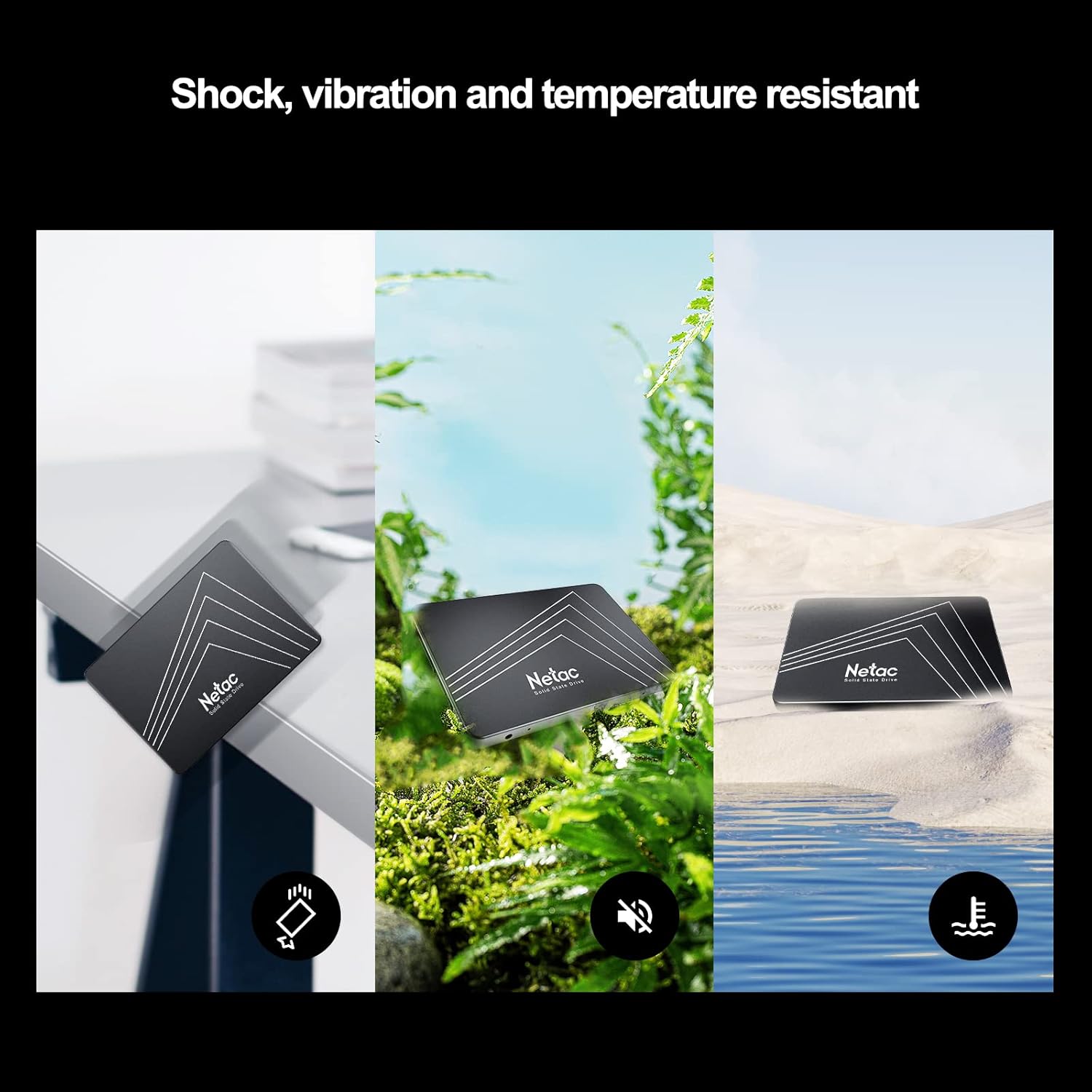
Image: The Netac N530S SSD is designed to be resistant to shock, vibration, and extreme temperatures, ensuring data integrity and reliability in various environments.
വീഡിയോ: ഒരു ആമുഖ വീഡിയോ പ്രദർശനംasing the Netac N530S Solid State Drive, highlighting its features and benefits for various computing needs.
2. സജ്ജീകരണവും ഇൻസ്റ്റാളേഷനും
This section provides general guidelines for installing your Netac N530S SSD. Specific steps may vary depending on your computer model. It is recommended to back up your data before proceeding with any hardware changes.
2.1 ടൂളുകൾ ആവശ്യമാണ്
- ഫിലിപ്സ് ഹെഡ് സ്ക്രൂഡ്രൈവർ
- SATA data cable (if not already present in your system)
- SATA power cable (usually from your power supply)
- Optional: 2.5-inch to 3.5-inch drive bay adapter (for desktop PCs without 2.5-inch bays)
2.2 Installation Steps (Desktop PC)
- പവർ ഓഫാക്കി വിച്ഛേദിക്കുക: നിങ്ങളുടെ കമ്പ്യൂട്ടർ പൂർണ്ണമായും ഷട്ട്ഡൗൺ ചെയ്യുക, വാൾ ഔട്ട്ലെറ്റിൽ നിന്ന് പവർ കേബിൾ വിച്ഛേദിക്കുക.
- തുറന്ന കേസ്: ആന്തരിക ഘടകങ്ങൾ ആക്സസ് ചെയ്യുന്നതിന് നിങ്ങളുടെ കമ്പ്യൂട്ടർ കേസിന്റെ സൈഡ് പാനൽ നീക്കം ചെയ്യുക.
- ഡ്രൈവ് ബേ കണ്ടെത്തുക: Identify an available 2.5-inch drive bay. If only 3.5-inch bays are available, use a 2.5-inch to 3.5-inch adapter.
- മൗണ്ട് SSD: Secure the Netac N530S SSD into the drive bay or adapter using screws.
- കേബിളുകൾ ബന്ധിപ്പിക്കുക:
- SATA ഡാറ്റ കേബിളിന്റെ ഒരു അറ്റം SSD-യിലേക്കും മറ്റേ അറ്റം നിങ്ങളുടെ മദർബോർഡിലെ ലഭ്യമായ SATA പോർട്ടിലേക്കും ബന്ധിപ്പിക്കുക.
- നിങ്ങളുടെ പവർ സപ്ലൈ യൂണിറ്റിൽ നിന്ന് SSD-യിലേക്ക് ഒരു SATA പവർ കേബിൾ ബന്ധിപ്പിക്കുക.

Image: A hand connecting the SATA power and data cables to the Netac N530S SSD inside a computer case. This illustrates the simple operation suitable for DIY installation.
- കെയ്സ് അടച്ച് പവർ ഓണാക്കുക: Reattach the side panel, reconnect the power cable, and power on your computer.
- Initialize and Format (New SSD): For a new SSD, you may need to initialize it in Disk Management (Windows) or Disk Utility (macOS) and format it before use. Refer to your operating system's documentation for detailed steps.
2.3 Installation Steps (Laptop)
- പവർ ഓഫാക്കി വിച്ഛേദിക്കുക: നിങ്ങളുടെ ലാപ്ടോപ്പ് ഷട്ട്ഡൗൺ ചെയ്യുക, പവർ അഡാപ്റ്റർ വിച്ഛേദിക്കുക, ബാറ്ററി നീക്കം ചെയ്യുക (നീക്കം ചെയ്യാവുന്നതാണെങ്കിൽ).
- ഡ്രൈവ് ബേയിലേക്ക് പ്രവേശിക്കുക: Consult your laptop's manual to locate and open the hard drive bay. This usually involves removing a panel on the bottom of the laptop.
- Remove Old Drive: Carefully disconnect and remove the existing hard drive. Note how it is connected and mounted.
- പുതിയ SSD ഇൻസ്റ്റാൾ ചെയ്യുക: Place the Netac N530S SSD into the drive bay. Secure it with any brackets or screws that held the old drive. Connect the SSD to the laptop's SATA connector.
- അടച്ച് പവർ ഓൺ ചെയ്യുക: Reattach the panel, reinsert the battery, reconnect the power adapter, and power on your laptop.
- ഓപ്പറേറ്റിംഗ് സിസ്റ്റം ഇൻസ്റ്റാൾ ചെയ്യുക: If replacing the primary drive, you will need to install your operating system onto the new SSD.
3. SSD പ്രവർത്തിപ്പിക്കൽ
Once installed, your Netac N530S SSD operates like any other storage device. For optimal performance and longevity, consider the following:
- ഓപ്പറേറ്റിംഗ് സിസ്റ്റം പിന്തുണ: Ensure your operating system supports TRIM functionality, which helps maintain SSD performance over time. Modern operating systems (Windows 7+, macOS, Linux) typically support TRIM automatically.
- ഡീഫ്രാഗ്മെന്റേഷൻ ഒഴിവാക്കുക: Unlike HDDs, SSDs do not benefit from defragmentation. In fact, defragmenting an SSD can reduce its lifespan by causing unnecessary write cycles. Disable any automatic defragmentation tools for your SSD.
- Leave Some Free Space: It is generally recommended to leave at least 10-15% of the SSD's capacity free. This allows the SSD's wear-leveling algorithms to function effectively and maintain performance.
- Use as Boot Drive: For the best performance improvement, install your operating system and frequently used applications on the SSD.
Image: The Netac N530S SSD significantly speeds up boot times and application loading, enhancing the overall responsiveness of your system.

Image: The Netac N530S SSD facilitates seamless multitasking, allowing users to run multiple applications and processes smoothly without slowdowns.
4. പരിപാലനം
Proper maintenance can extend the life and maintain the performance of your Netac N530S SSD.
- ഫേംവെയർ അപ്ഡേറ്റുകൾ: Periodically check the Netac official website for any available firmware updates for your N530S SSD. Firmware updates can improve performance, stability, and compatibility.
- Monitor SSD Health: Use S.M.A.R.T. (Self-Monitoring, Analysis, and Reporting Technology) tools to monitor the health and estimated lifespan of your SSD. Many operating systems and third-party utilities offer this feature.
- പതിവ് ബാക്കപ്പുകൾ: While SSDs are reliable, no storage device is infallible. Regularly back up important data to another drive or cloud storage.
5. പ്രശ്നപരിഹാരം
If you encounter issues with your Netac N530S SSD, try the following troubleshooting steps:
- SSD കണ്ടെത്തിയില്ല:
- എല്ലാ SATA ഡാറ്റയും പവർ കേബിൾ കണക്ഷനുകളും സുരക്ഷിതമാണെന്ന് ഉറപ്പാക്കാൻ പരിശോധിക്കുക.
- Verify that the SATA port on the motherboard is enabled in the BIOS/UEFI settings.
- മറ്റൊരു SATA പോർട്ടിലേക്ക് SSD ബന്ധിപ്പിക്കാൻ ശ്രമിക്കുക അല്ലെങ്കിൽ വ്യത്യസ്ത കേബിളുകൾ ഉപയോഗിക്കുക.
- Ensure the SSD is properly initialized and formatted in Disk Management (Windows) or Disk Utility (macOS) if it's a new drive.
- മന്ദഗതിയിലുള്ള പ്രകടനം:
- Confirm that TRIM is enabled for your operating system.
- Ensure the SSD is connected to a SATA III (6Gb/s) port for optimal speed.
- ഡ്രൈവ് ധാരാളമായി ഉപയോഗിക്കുന്ന പശ്ചാത്തല പ്രോസസ്സുകൾ അല്ലെങ്കിൽ ആപ്ലിക്കേഷനുകൾ പരിശോധിക്കുക.
- Ensure there is sufficient free space on the SSD (at least 10-15%).
- ലഭ്യമാണെങ്കിൽ SSD ഫേംവെയർ അപ്ഡേറ്റ് ചെയ്യുക.
- ഓപ്പറേറ്റിംഗ് സിസ്റ്റം ബൂട്ട് ചെയ്യുന്നില്ല:
- Verify the boot order in your BIOS/UEFI settings to ensure the SSD is set as the primary boot device.
- If you cloned your old drive, ensure the cloning process was successful and the new SSD is bootable.
6 സ്പെസിഫിക്കേഷനുകൾ
Detailed technical specifications for the Netac N530S 1TB Internal SSD.
| ഫീച്ചർ | സ്പെസിഫിക്കേഷൻ |
|---|---|
| ബ്രാൻഡ് | നെറ്റാക് |
| മോഡൽ നമ്പർ | N530S |
| ഡിജിറ്റൽ സ്റ്റോറേജ് കപ്പാസിറ്റി | 1 ടി.ബി |
| ഹാർഡ് ഡിസ്ക് ഇന്റർഫേസ് | Serial ATA (SATA III 6Gb/s) |
| ഹാർഡ് ഡിസ്ക് ഫോം ഫാക്ടർ | 2.5 ഇഞ്ച് |
| അനുയോജ്യമായ ഉപകരണങ്ങൾ | ഡെസ്ക്ടോപ്പ്, ഗെയിമിംഗ് കൺസോൾ, ലാപ്ടോപ്പ് |
| ഇൻസ്റ്റലേഷൻ തരം | ആന്തരിക ഹാർഡ് ഡ്രൈവ് |
| ഇനത്തിന്റെ അളവുകൾ (LxWxH) | 3.94 x 2.76 x 0.28 ഇഞ്ച് (100 x 70 x 7 മിമി) |
| ഇനത്തിൻ്റെ ഭാരം | 2.39 ഔൺസ് |
| ഹാർഡ്വെയർ പ്ലാറ്റ്ഫോം | PC |
| തുടർച്ചയായ വായനാ വേഗത | 550 MB/s വരെ |
| ക്രമാനുഗതമായ എഴുത്ത് വേഗത | 510 MB/s വരെ |

Image: Visual representation of the Netac N530S SSD's dimensions (100mm x 70mm) and various available capacities, including 120GB, 128GB, 240GB, 256GB, 480GB, 512GB, 1TB, and 2TB.
7. വാറൻ്റിയും പിന്തുണയും
Netac provides a limited warranty for its products. For specific warranty terms, conditions, and duration, please refer to the warranty information included with your product packaging or visit the official Netac website. For technical support, product inquiries, or warranty claims, please contact Netac customer service through their official channels.


