1. ആമുഖം
The EPOMAKER SKYLOONG SK21 Numpad is a versatile and programmable mechanical numeric keypad designed to enhance productivity for various tasks, including data entry, gaming, and programming. It features high-quality PBT keycaps, RGB backlighting, and a detachable Type-C interface for convenient connectivity.
This manual provides detailed instructions for setting up, operating, and maintaining your SK21 Numpad, along with troubleshooting tips and product specifications.
2. സജ്ജീകരണം
2.1 പാക്കേജ് ഉള്ളടക്കം
- EPOMAKER SKYLOONG SK21 Numpad
- യുഎസ്ബി ടൈപ്പ്-സി കേബിൾ
- ഉപയോക്തൃ മാനുവൽ (ഈ പ്രമാണം)
- Keycap Puller (may vary)
- Switch Puller (may vary, for hot-swappable versions)

Image: Contents of the EPOMAKER SKYLOONG SK21 Numpad package, showing the numpad, USB cable, and additional tools.
Video: An unboxing video for the EK21 VIA Numeric Keypad, demonstrating the contents and initial setup.
2.2 നംപാഡ് ബന്ധിപ്പിക്കുന്നു
- Locate the USB Type-C port on the back or side of the SK21 Numpad.
- Connect one end of the provided USB Type-C cable to the numpad.
- നിങ്ങളുടെ കമ്പ്യൂട്ടറിൽ ലഭ്യമായ USB പോർട്ടിലേക്ക് USB കേബിളിൻ്റെ മറ്റേ അറ്റം ബന്ധിപ്പിക്കുക.
- The numpad will automatically be recognized by your operating system (Windows/macOS).

Image: The EPOMAKER SKYLOONG SK21 Numpad showing its Type-C interface and a connected USB cable.
Video: Demonstrates connecting the Kisnt Mechanical Number Pad with a detachable cable to a computer.
3. പ്രവർത്തന നിർദ്ദേശങ്ങൾ
3.1 Basic Numpad Functions
The SK21 Numpad functions as a standard numeric keypad. Press the number keys (0-9), arithmetic operators (+, -, *, /), and Enter key for data input. The "Num Lock" key toggles the numeric keypad function.

Image: The EPOMAKER SKYLOONG SK21 Numpad featuring a red and black keycap color scheme.
3.2 RGB ബാക്ക്ലൈറ്റിംഗ്
The SK21 Numpad features 16.8 million colors RGB backlighting with multiple effects. You can customize lighting effects using the dedicated driver software. Connect the numpad via USB to access and update lighting settings.
Video: Demonstrates the backlight settings and various RGB lighting effects on a Kisnt Number Pad.
3.3 Programmable Keys and Macros
The SK21 Numpad is fully programmable, allowing for macro creation and key remapping across three definable layers (FN1/FN2/FN3). Download the driver software from the official EPOMAKER website to customize these settings. The built-in flash memory saves your configurations for offline use.
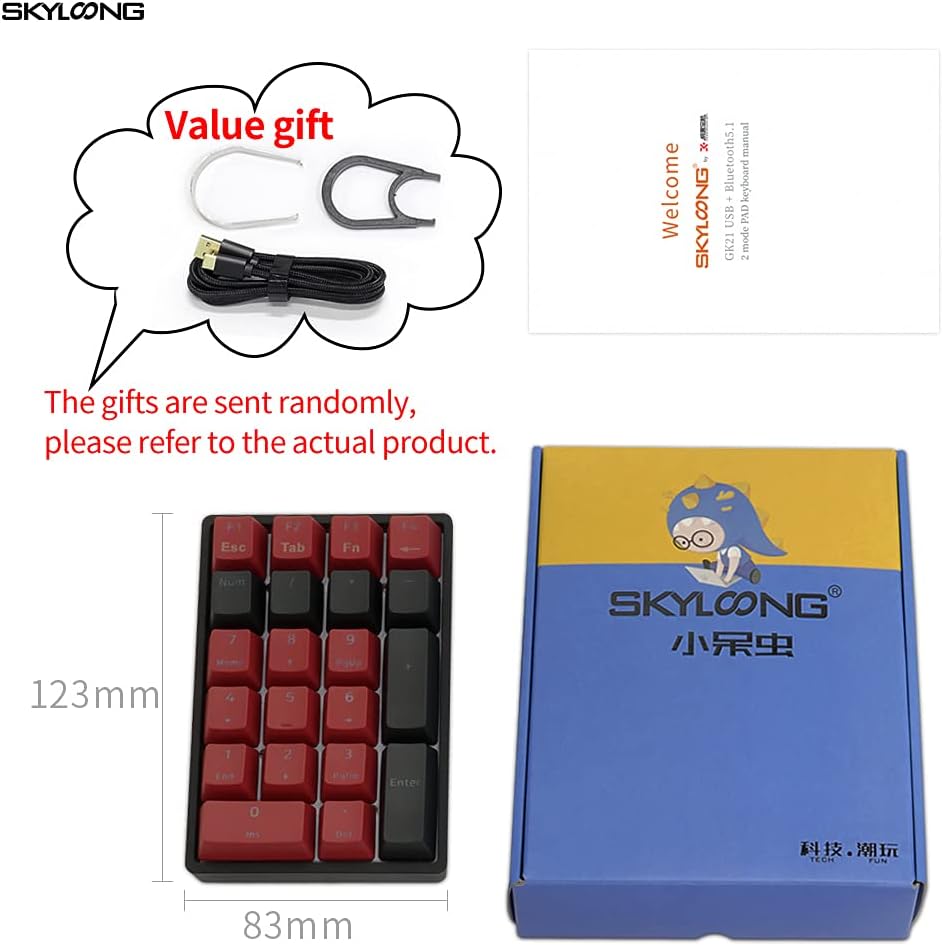
Image: Screenshot of the EPOMAKER SKYLOONG SK21 Numpad driver software, showing options for key remapping, macro creation, and RGB lighting customization.
The rotary knob can also be programmed for various functions, such as volume control or scrolling. Refer to the driver software for available options.
4. പരിപാലനം
4.1 നമ്പർ പാഡ് വൃത്തിയാക്കൽ
- Disconnect the numpad from your computer before cleaning.
- മൃദുവായ, ലിൻ്റ് രഹിത തുണി ഉപയോഗിക്കുകampകീക്യാപ്പുകൾ തുടയ്ക്കാൻ വെള്ളമോ നേരിയ ക്ലീനിംഗ് ലായനിയോ ഉപയോഗിച്ച് നനയ്ക്കുക, സി.asing.
- Avoid spraying liquids directly onto the numpad.
- For deeper cleaning, you can use a keycap puller to remove keycaps and clean underneath with compressed air or a small brush.
4.2 കീക്യാപ്പും സ്വിച്ചും മാറ്റിസ്ഥാപിക്കൽ
The SK21 Numpad features PBT keycaps that are durable and oil-resistant. If you wish to replace them, use the provided keycap puller to gently remove the existing keycaps. Align the new keycaps with the switch stems and press down firmly until they click into place.
For hot-swappable versions (only for optical switches), use a switch puller to carefully remove switches. Insert new compatible optical switches by aligning the pins with the PCB sockets and pressing down until they are seated.
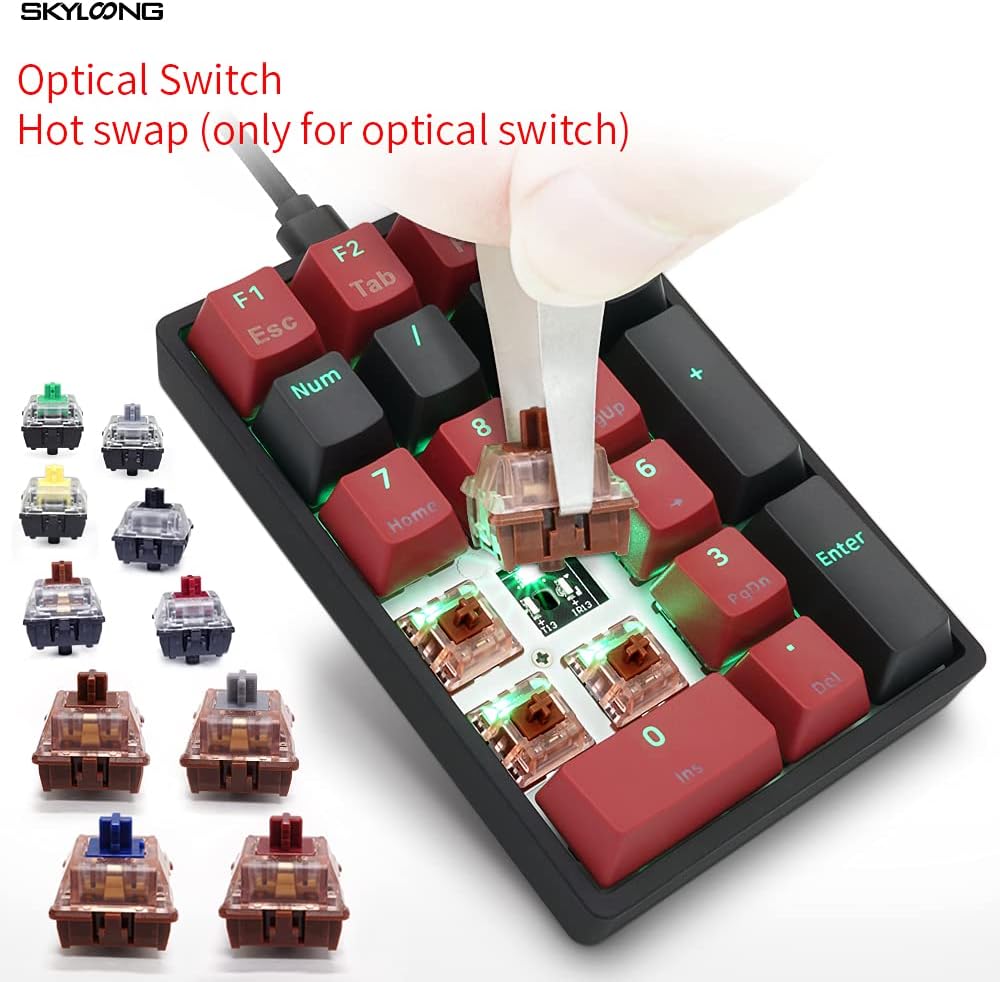
Image: The EPOMAKER SKYLOONG SK21 Numpad demonstrating the hot-swappable optical switches, with a switch being removed.
5. പ്രശ്നപരിഹാരം
5.1 നംപാഡ് പ്രതികരിക്കുന്നില്ല
- Ensure the USB cable is securely connected to both the numpad and your computer.
- Try connecting the numpad to a different USB port on your computer.
- Test the numpad on another computer to determine if the issue is with the numpad or your system.
- നിങ്ങളുടെ കമ്പ്യൂട്ടർ പുനരാരംഭിക്കുക.
5.2 RGB Backlighting Not Working/Incorrect
- Ensure the numpad is connected via USB, as some lighting features may require a wired connection or sufficient power.
- Check the lighting settings in the EPOMAKER driver software.
- Update the numpad's firmware using the latest version from the official EPOMAKER webസൈറ്റ്.
5.3 കീകൾ രജിസ്റ്റർ ചെയ്യുന്നില്ല അല്ലെങ്കിൽ ഇരട്ട-ടൈപ്പിംഗ് ചെയ്യുന്നില്ല
- If using a hot-swappable version, ensure the switch is fully seated in its socket. Gently press down on the keycap or switch to ensure proper contact.
- Clean any debris or dust from around and under the affected keycaps.
- If the issue persists, consider replacing the affected switch (for hot-swappable models).
6 സ്പെസിഫിക്കേഷനുകൾ
| ഫീച്ചർ | വിശദാംശങ്ങൾ |
|---|---|
| മോഡൽ | SKYLOONG SK21 |
| കീകൾ | 21-key layout |
| കീകാപ്പുകൾ | ഒഇഎം പ്രോfile PBT കീക്യാപ്സ് |
| സ്വിച്ചുകൾ | Gateron Optical Brown (or other available optical switches) |
| ബാക്ക്ലൈറ്റ് | 16.8 Million Colors RGB SMD Light |
| ഇൻ്റർഫേസ് | വേർപെടുത്താവുന്ന യുഎസ്ബി ടൈപ്പ്-സി |
| പ്രോഗ്രാമബിലിറ്റി | Fully programmable with 3 FN macro layers (VIA compatible) |
| എം.സി.യു | 32-bit M3 MCU with 8M Flash Memory |
| അനുയോജ്യത | Windows & macOS |
| അളവുകൾ | ഏകദേശം 5.98 x 5.08 x 2.01 ഇഞ്ച് (പാക്കേജ്) |
| ഭാരം | ഏകദേശം 11.3 ഔൺസ് |
| ഉൾപ്പെടുത്തിയ ഘടകങ്ങൾ | USB കേബിൾ |
7. വാറൻ്റിയും പിന്തുണയും
വാറന്റി വിവരങ്ങൾക്കും സാങ്കേതിക പിന്തുണയ്ക്കും, ദയവായി ഔദ്യോഗിക EPOMAKER കാണുക. webസൈറ്റിൽ ബന്ധപ്പെടുകയോ അവരുടെ ഉപഭോക്തൃ സേവനവുമായി നേരിട്ട് ബന്ധപ്പെടുകയോ ചെയ്യുക. വാറന്റി ക്ലെയിമുകൾക്കായി നിങ്ങളുടെ വാങ്ങിയതിന്റെ തെളിവ് സൂക്ഷിക്കുക.
ഔദ്യോഗിക EPOMAKER സ്റ്റോർ: ആമസോണിലെ EPOMAKER സ്റ്റോർ