ആമുഖം
Welcome to the user manual for your Beats Studio Buds True Wireless Noise Cancelling Earbuds. These earbuds are designed to deliver powerful, balanced sound with the flexibility of two distinct listening modes: Active Noise Cancelling (ANC) and Transparency mode. They offer a comfortable fit, long battery life, and seamless compatibility with both Apple and Android devices.
This manual provides essential information on setting up, operating, maintaining, and troubleshooting your Studio Buds to ensure an optimal audio experience.
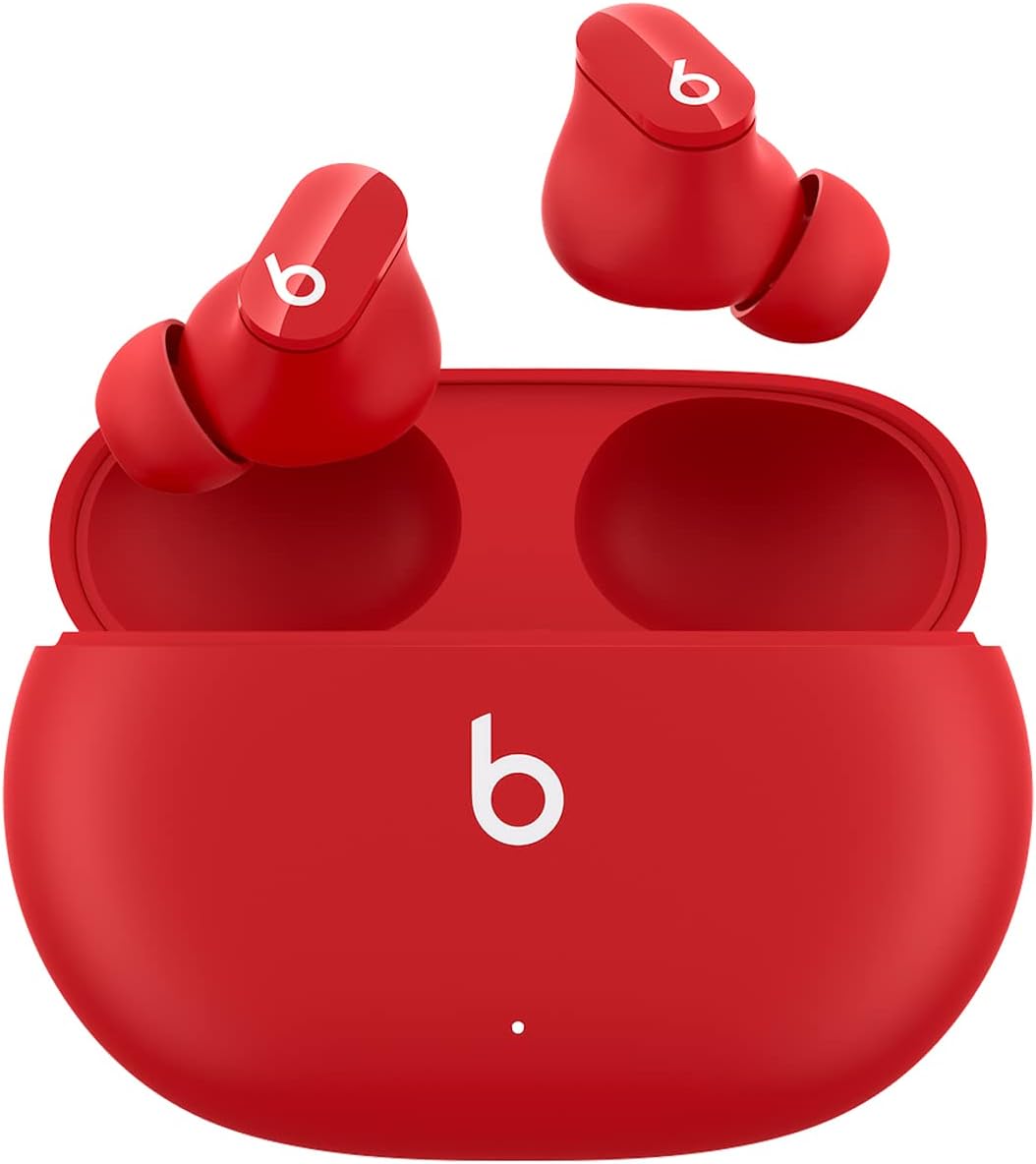
Image: Beats Studio Buds in their charging case, showcasing the compact design and vibrant red color.
ബോക്സിൽ എന്താണുള്ളത്
Your Beats Studio Buds package includes the following components:
- Beats Studio Buds true wireless noise cancelling earphones
- ചാർജിംഗ് കേസ്
- Ear tips with three size options (Small, Medium, Large)
- USB-C മുതൽ USB-C വരെ ചാർജിംഗ് കേബിൾ
- ദ്രുത ആരംഭ ഗൈഡ്
- വാറൻ്റി കാർഡ്

Image: A visual representation of all items included in the Beats Studio Buds retail packaging.
സജ്ജമാക്കുക
പ്രാരംഭ ജോടിയാക്കൽ
To pair your Beats Studio Buds with your device:
- Ensure your Studio Buds are in the charging case and the case lid is open.
- For Apple devices: Hold your Studio Buds near your unlocked iPhone or iPad. A setup animation will appear on your device. Follow the on-screen instructions.
- For Android devices: Download the Beats app from the Google Play Store. Open the app and follow the on-screen instructions to pair your Studio Buds. Alternatively, go to your device's Bluetooth settings and select "Beats Studio Buds" from the list of available devices.
- Once paired, the indicator light on the charging case will turn white.

Image: Demonstrates the simple one-touch pairing process for Beats Studio Buds with a mobile device.
ഇയർ ടിപ്പ് ഫിറ്റ്
Achieving a proper seal with the ear tips is crucial for optimal sound quality and effective Active Noise Cancellation. Your Studio Buds come with three sizes of silicone ear tips (Small, Medium, Large). Experiment with each size to find the one that provides a comfortable and secure fit, creating a good seal in your ear canal.
- Insert the earbud gently into your ear.
- Twist the earbud slightly forward or backward until it feels secure and forms a comfortable seal.
- If the sound quality is poor or noise cancellation is ineffective, try a different ear tip size.
Operating Your Studio Buds
നിയന്ത്രണങ്ങൾ
Each earbud features a multi-function button (the 'b' logo) that allows you to control playback, calls, and listening modes:
- സിംഗിൾ പ്രസ്സ്: ഓഡിയോ പ്ലേ ചെയ്യുക/താൽക്കാലികമായി നിർത്തുക, കോൾ സ്വീകരിക്കുക/അവസാനിപ്പിക്കുക.
- ഇരട്ട പ്രസ്സ്: മുന്നോട്ട് പോകുക.
- ട്രിപ്പിൾ പ്രസ്സ്: പുറകോട്ട് ഒഴിവാക്കുക.
- അമർത്തിപ്പിടിക്കുക: Toggle between Active Noise Cancellation (ANC) and Transparency mode. This action can be customized via the Beats app for Apple and Android devices to activate your voice assistant.

Image: An illustration detailing the various button press commands on the Beats Studio Buds for media, calls, and voice assistant.
സജീവ ശബ്ദ റദ്ദാക്കൽ (ANC)
Active Noise Cancellation blocks external noise for an immersive listening experience. When ANC is active, the earbuds use microphones to detect external sounds and then generate an anti-noise signal to cancel them out.

Image: Visual explanation of how Active Noise Cancelling works to block external noise for an immersive sound experience.
സുതാര്യത മോഡ്
Transparency mode allows you to hear your surroundings while still enjoying your audio. This is useful for staying aware of your environment, such as when walking in a city or listening for announcements.

Image: Visual explanation of Transparency Mode, enabling users to stay aware of their surroundings while listening to audio.
ചാർജിംഗ്
To charge your Beats Studio Buds:
- ഇയർബഡുകൾ ചാർജിംഗ് കെയ്സിൽ വയ്ക്കുക. ഇയർബഡുകൾ സ്വയമേവ ചാർജ് ചെയ്യാൻ തുടങ്ങും.
- To charge the case, connect the included USB-C to USB-C charging cable to the port on the back of the case and plug the other end into a USB-C power adapter (sold separately).
- The LED indicator on the front of the case shows the charging status:
- White (solid): Fully charged.
- White (flashing): Charging.
- Red (flashing): Low battery.
ബാറ്ററി ലൈഫ്
Your Beats Studio Buds offer extended listening time:
- Up to 8 hours of listening time on a single charge (with ANC/Transparency off).
- Up to 5 hours of listening time with Active Noise Cancellation or Transparency mode enabled.
- Up to 24 hours of combined listening time with the charging case.
- വേഗത്തിലുള്ള ഇന്ധനം: A 5-minute charge provides up to 1 hour of playback when the battery is low.

Image: An infographic detailing the battery life of Beats Studio Buds, highlighting 8 hours for earbuds and 24 hours with the charging case.
പരിപാലനവും പരിചരണവും
Proper care will extend the life and performance of your Beats Studio Buds.
വൃത്തിയാക്കൽ
- ഇയർബഡുകളും ചാർജിംഗ് കെയ്സും വൃത്തിയാക്കാൻ മൃദുവായതും ഉണങ്ങിയതും ലിന്റ് രഹിതവുമായ തുണി ഉപയോഗിക്കുക.
- Do not use abrasive cleaners, aerosols, solvents, or chemical sprays.
- For ear tips, remove them from the earbuds and wipe with a damp തുണി. വീണ്ടും ഘടിപ്പിക്കുന്നതിന് മുമ്പ് അവ പൂർണ്ണമായും ഉണങ്ങിയെന്ന് ഉറപ്പാക്കുക.
- ഏതെങ്കിലും തുറസ്സുകളിൽ ഈർപ്പം ലഭിക്കുന്നത് ഒഴിവാക്കുക.
സംഭരണം
- Always store your Studio Buds in their charging case when not in use to protect them and keep them charged.
- തീവ്രമായ താപനിലയിൽ നിന്നും നേരിട്ടുള്ള സൂര്യപ്രകാശത്തിൽ നിന്നും മാറി തണുത്തതും വരണ്ടതുമായ സ്ഥലത്ത് സൂക്ഷിക്കുക.
The Beats Studio Buds are IPX4-rated sweat and water resistant, meaning they can withstand splashes and sweat. They are not waterproof and should not be submerged in water.
ട്രബിൾഷൂട്ടിംഗ്
If you encounter issues with your Beats Studio Buds, try the following solutions:
- ശബ്ദമില്ല അല്ലെങ്കിൽ ഇടവിട്ടുള്ള ഓഡിയോ:
- ഇയർബഡുകൾ ചാർജ് ചെയ്തിട്ടുണ്ടെന്ന് ഉറപ്പാക്കുക.
- നിങ്ങളുടെ ഉപകരണത്തിലെ ബ്ലൂടൂത്ത് കണക്ഷൻ പരിശോധിക്കുക. ബ്ലൂടൂത്ത് ഓഫാക്കി വീണ്ടും ഓണാക്കാൻ ശ്രമിക്കുക.
- തടസ്സങ്ങൾ ഒഴിവാക്കാൻ നിങ്ങളുടെ ഉപകരണത്തിന് അടുത്തേക്ക് നീങ്ങുക.
- ഇയർബഡ് സ്പീക്കറുകളിലെയും ഇയർ ടിപ്പുകളിലെയും അവശിഷ്ടങ്ങൾ വൃത്തിയാക്കുക.
- ഇയർബഡുകൾ ജോടിയാക്കുന്നില്ല:
- Ensure earbuds are in the charging case with the lid open.
- Press and hold the system button on the charging case for 5 seconds until the LED indicator flashes white.
- On your device, forget the "Beats Studio Buds" from your Bluetooth settings and try pairing again.
- Active Noise Cancellation Not Working Effectively:
- Ensure you have a proper seal with the ear tips. Try different sizes.
- Make sure ANC is enabled (toggle using the earbud button or Beats app).
- ചാർജിംഗ് പ്രശ്നങ്ങൾ:
- Ensure the USB-C cable is securely connected to both the case and the power adapter.
- മറ്റൊരു USB-C കേബിളോ പവർ അഡാപ്റ്ററോ പരീക്ഷിച്ചുനോക്കൂ.
- ഇയർബഡുകളിലെയും കേസിനുള്ളിലെയും ചാർജിംഗ് കോൺടാക്റ്റുകൾ വൃത്തിയാക്കുക.
- Resetting Your Studio Buds:
- രണ്ട് ഇയർബഡുകളും ചാർജിംഗ് കെയ്സിൽ വയ്ക്കുക, ലിഡ് തുറന്നിടുക.
- Press and hold the system button on the charging case for 15 seconds until the LED indicator light flashes red and white.
- Release the button. Your Studio Buds are now reset and ready to be paired again.
സ്പെസിഫിക്കേഷനുകൾ
| മോഡലിൻ്റെ പേര് | ബീറ്റ്സ് സ്റ്റുഡിയോ ബഡ്സ് |
| മോഡൽ നമ്പർ | MJ503LL/A |
| കണക്റ്റിവിറ്റി | Wireless (Bluetooth Class 1) |
| ശബ്ദ നിയന്ത്രണം | ആക്ടീവ് നോയ്സ് റദ്ദാക്കൽ, സുതാര്യത മോഡ് |
| ബാറ്ററി ലൈഫ് (ഇയർബഡുകൾ) | Up to 8 hours (ANC/Transparency off), Up to 5 hours (ANC/Transparency on) |
| ബാറ്ററി ലൈഫ് (കേസിനൊപ്പം) | Up to 24 hours combined |
| വേഗത്തിലുള്ള ഇന്ധനം | 5-minute charge provides 1 hour playback |
| ജല പ്രതിരോധം | IPX4-rated sweat and water resistant |
| Earbud Weight (each) | 5g |
| കേസ് ഭാരം | 48 ഗ്രാം |
| അളവുകൾ (കേസ്) | 7.2cm (L) x 5.1cm (W) x 2.55cm (H) |
| ഉൾപ്പെടുത്തിയ ഘടകങ്ങൾ | Earbuds, Charging Case, Ear Tips (3 sizes), USB-C Charging Cable, Quick Start Guide, Warranty Card |
വാറൻ്റിയും പിന്തുണയും
Your Beats Studio Buds are covered by a limited warranty. Please refer to the warranty card included in your product packaging for detailed terms and conditions.
For additional support, frequently asked questions, and the latest software updates, please visit the official Beats support website or refer to the full user manual PDF:


