1. ആമുഖം
Thank you for choosing the iPega PG-9076 Wireless Bluetooth Gamepad. This versatile controller is designed to provide an immersive gaming experience across multiple platforms. It supports both Bluetooth and 2.4GHz wireless connections, making it compatible with Android smartphones, tablets, Smart TVs, TV boxes, and Windows PCs (XP/7/8/10).
Please read this manual carefully before using the product to ensure proper operation and to maximize your gaming enjoyment.
2. പാക്കേജ് ഉള്ളടക്കം
- 1 x iPega PG-9076 Wireless Bluetooth Gamepad
- 1 x USB ചാർജിംഗ് കേബിൾ
- 1 x 2.4G Wireless Receiver (USB Dongle)
- 1 x ഉപയോക്തൃ മാനുവൽ
3. ഉൽപ്പന്നം കഴിഞ്ഞുview
Familiarize yourself with the layout and functions of your gamepad.

ചിത്രം 3.1: ടോപ്പ് ഡൗൺ view of the iPega PG-9076 Gamepad. This image displays the directional pad (D-pad) on the left, two analog joysticks, action buttons (A, B, X, Y) on the right, and central function buttons including TURBO, START, SELECT, NEW, iCADE, and ANDROID mode buttons.
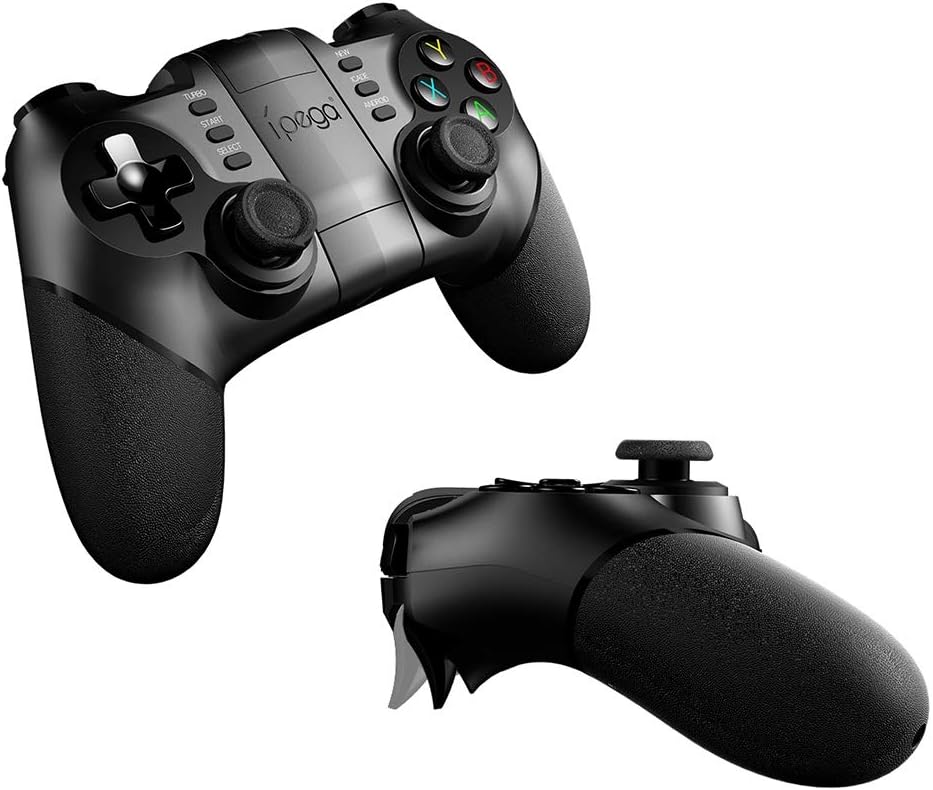
ചിത്രം 3.2: കോണാകൃതിയിലുള്ളത് view of the iPega PG-9076 Gamepad. This perspective emphasizes the ergonomic grips and the overall shape of the controller, designed for comfortable handling during extended gaming sessions.
- ഡി-പാഡ്: Directional Pad for precise movement.
- ഇടത്/വലത് അനലോഗ് സ്റ്റിക്കുകൾ: For 360-degree movement and camera control.
- ആക്ഷൻ ബട്ടണുകൾ (A, B, X, Y): ഗെയിമിനുള്ളിലെ പ്രവർത്തനങ്ങൾക്ക്.
- L1/L2/R1/R2 Triggers/Shoulder Buttons: Located on the top of the gamepad.
- ആരംഭിക്കുക/തിരഞ്ഞെടുക്കുക ബട്ടണുകൾ: സ്റ്റാൻഡേർഡ് ഗെയിം നിയന്ത്രണ ബട്ടണുകൾ.
- ടർബോ ബട്ടൺ: Activates continuous firing for assigned buttons.
- Mode Buttons (NEW, iCADE, ANDROID): Used to switch between different operating modes.
- ഹോം ബട്ടണ്: Central button for system functions.
- ഫോൺ ഉടമ: Integrated adjustable holder for smartphones.
4. സജ്ജീകരണം
4.1. ഗെയിംപാഡ് ചാർജ് ചെയ്യുന്നു
Before first use, fully charge the gamepad. Connect the supplied USB charging cable to the gamepad's charging port and the other end to a USB power source (e.g., computer USB port, USB wall adapter).
- The LED indicator will typically show charging status (e.g., red light on while charging, off when fully charged).
- സാധാരണയായി ഒരു പൂർണ്ണ ചാർജ് ഏകദേശം 2-3 മണിക്കൂർ എടുക്കും.
4.2. കണക്ഷൻ മോഡുകൾ
The PG-9076 supports multiple connection modes for various devices.
4.2.1. Bluetooth Connection (for Android/iOS/Smart TV/TV Box)
- Ensure the gamepad is powered off.
- അമർത്തിപ്പിടിക്കുക ആൻഡ്രോയിഡ് button (or relevant mode button for your device, e.g., iCADE for iOS if supported) and the വീട് button simultaneously until the LED indicator flashes rapidly. This puts the gamepad into pairing mode.
- On your device (smartphone, tablet, Smart TV, TV Box), go to Bluetooth settings and turn Bluetooth on.
- ഇതിനായി തിരയുക available devices. You should see "PG-9076" or a similar name appear in the list.
- Select "PG-9076" to pair. The LED indicator on the gamepad will become solid once successfully connected.
- For iOS devices, some games may require specific iCADE mode. Refer to game instructions.

ചിത്രം 4.1: The iPega PG-9076 Gamepad with a smartphone securely mounted in its integrated holder, ready for mobile gaming. This image demonstrates the convenience of playing on a phone with a physical controller.
4.2.2. 2.4G Wireless Connection (for PC/Smart TV/TV Box)
- Plug the 2.4G wireless receiver (USB dongle) into an available USB port on your PC, Smart TV, or TV Box.
- Ensure the gamepad is powered off.
- അമർത്തിപ്പിടിക്കുക പുതിയത് button (or a specific PC mode button if available) and the വീട് button simultaneously until the LED indicator flashes rapidly.
- The gamepad should automatically connect to the receiver. The LED indicator will become solid when connected.
- Your system may automatically install necessary drivers.

ചിത്രം 4.2: The iPega PG-9076 Gamepad with a smartphone attached, and the 2.4G USB wireless receiver prominently displayed in the foreground. This illustrates the wireless connectivity option for devices like PCs and TV boxes.
5. പ്രവർത്തന നിർദ്ദേശങ്ങൾ
5.1. പവർ ഓൺ/ഓഫ്
- പവർ ഓൺ: അമർത്തുക വീട് button. The gamepad will attempt to connect to the last paired device.
- പവർ ഓഫ്: അമർത്തിപ്പിടിക്കുക വീട് button for approximately 3 seconds until the LED indicator turns off. The gamepad will also automatically power off after a period of inactivity.
5.2. Gamepad Modes
The PG-9076 supports different modes to ensure compatibility with various games and platforms. Switch modes by holding the corresponding button (e.g., ANDROID, NEW, iCADE) and then pressing the HOME button to power on.
- ആൻഡ്രോയിഡ് സ്റ്റാൻഡേർഡ് മോഡ്: For most Android games.
- PC X-Input Mode: For Windows PC games that support X-Input (common for modern PC games).
- iCADE Mode: For some older iOS games that specifically support iCADE protocol.
5.3. ടർബോ ഫംഗ്ഷൻ
The TURBO function allows a button to continuously fire when held down, useful for certain games.
- Press the button you wish to set to TURBO (e.g., A button).
- While holding that button, press the ടർബോ button once. The LED indicator may flash to confirm.
- To cancel TURBO for that button, repeat the process.
6. പരിപാലനം
- വൃത്തിയാക്കൽ: Use a soft, dry cloth to clean the gamepad. Do not use harsh chemicals or abrasive cleaners.
- സംഭരണം: നേരിട്ടുള്ള സൂര്യപ്രകാശവും കടുത്ത താപനിലയും ഏൽക്കാത്ത തണുത്തതും വരണ്ടതുമായ സ്ഥലത്ത് ഗെയിംപാഡ് സൂക്ഷിക്കുക.
- ബാറ്ററി കെയർ: To prolong battery life, avoid fully discharging the battery frequently. Charge the gamepad regularly, even if not in use for extended periods (e.g., once every three months).
- തുള്ളികൾ ഒഴിവാക്കുക: ഗെയിംപാഡ് താഴെയിടുകയോ ശക്തമായ ആഘാതങ്ങൾക്ക് വിധേയമാക്കുകയോ ചെയ്യരുത്, കാരണം ഇത് ആന്തരിക ഘടകങ്ങളെ തകരാറിലാക്കും.
7. പ്രശ്നപരിഹാരം
7.1. ഗെയിംപാഡ് കണക്റ്റുചെയ്യുന്നില്ല
- പവർ പരിശോധിക്കുക: Ensure the gamepad is charged and powered on.
- ശരിയായ മോഡ്: Verify you are in the correct connection mode (Bluetooth for mobile/TV, 2.4G for PC with dongle).
- വീണ്ടും ജോടി: Delete the gamepad from your device's Bluetooth list and attempt to re-pair.
- ഇടപെടൽ: Move closer to your device and away from other wireless devices that might cause interference.
- Dongle Check: If using 2.4G, ensure the USB dongle is securely plugged in and recognized by your device.
7.2. ബട്ടണുകൾ പ്രതികരിക്കുന്നില്ല.
- ബാറ്ററി നില: Low battery can cause erratic behavior. Charge the gamepad.
- പുനരാരംഭിക്കുക: Power off the gamepad and your device, then restart both and try connecting again.
- ഗെയിം അനുയോജ്യത: Some games may not fully support external controllers or may require specific mapping. Check game settings.
7.3. ചാർജിംഗ് പ്രശ്നങ്ങൾ
- Cable/Port: മറ്റൊരു USB കേബിളോ ചാർജിംഗ് പോർട്ടോ പരീക്ഷിക്കുക.
- ഊർജ്ജ സ്രോതസ്സ്: Ensure the USB power source is functioning correctly.
8 സ്പെസിഫിക്കേഷനുകൾ
| ഫീച്ചർ | വിശദാംശങ്ങൾ |
|---|---|
| മോഡൽ | പിജി-9076 |
| കണക്റ്റിവിറ്റി | ബ്ലൂടൂത്ത്, 2.4G വയർലെസ് |
| അനുയോജ്യത | Android (Phones, Tablets, Smart TV, TV Box), Windows (XP/7/8/10) |
| Dimensions (Shipping) | 17.8 x 13.4 x 6.8 സെ.മീ |
| ഭാരം (ഷിപ്പിംഗ്) | 302 ഗ്രാം |
| നിർമ്മാതാവിൻ്റെ റഫറൻസ് | 2724709426067 |
9. വാറൻ്റിയും പിന്തുണയും
This product comes with a standard manufacturer's warranty. Please refer to the warranty card included in your package or contact your retailer for specific warranty terms and conditions.
For technical support or further assistance, please contact the customer service department of your place of purchase or visit the official iPega webപിന്തുണാ ഉറവിടങ്ങൾക്കായുള്ള സൈറ്റ്.


