ആമുഖം
This manual provides detailed instructions for the installation, operation, maintenance, and troubleshooting of your GIGABYTE GeForce RTX 3080 Vision OC 10G graphics card. This high-performance graphics card is designed for demanding visual tasks, powered by NVIDIA's Ampere architecture, featuring 2nd Generation RT Cores, 3rd Generation Tensor Cores, and 10GB GDDR6X memory. It incorporates the WINDFORCE 3X Cooling System for efficient thermal management and RGB Fusion 2.0 for customizable lighting.
സജ്ജീകരണവും ഇൻസ്റ്റാളേഷനും
1. സിസ്റ്റം ആവശ്യകതകൾ
- ഒരു ഇരട്ട-വീതി x16 ഗ്രാഫിക്സ് സ്ലോട്ടുള്ള പിസിഐ എക്സ്പ്രസ്-കംപ്ലയിന്റ് മദർബോർഡ്.
- രണ്ട് 8-പിൻ PCIe പവർ കണക്ടറുകൾക്കൊപ്പം കുറഞ്ഞത് 750W പവർ സപ്ലൈ.
- Microsoft Windows 10 64-bit or Linux 64-bit operating system.
- 32GB system memory recommended for optimal performance.
- ഡ്രൈവർ ഡൗൺലോഡ് ചെയ്യുന്നതിനുള്ള ഇന്റർനെറ്റ് കണക്ഷൻ.
2. പാക്കേജ് ഉള്ളടക്കം
- GIGABYTE GeForce RTX 3080 Vision OC 10G Graphics Card
- ഉപയോക്തൃ മാനുവൽ (ഈ പ്രമാണം)
3. ഫിസിക്കൽ ഇൻസ്റ്റലേഷൻ
- നിങ്ങളുടെ സിസ്റ്റം തയ്യാറാക്കുക: നിങ്ങളുടെ കമ്പ്യൂട്ടർ ഓഫ് ചെയ്ത് എല്ലാ കേബിളുകളും വിച്ഛേദിക്കുക. കമ്പ്യൂട്ടർ കേസ് തുറക്കുക.
- PCIe സ്ലോട്ട് കണ്ടെത്തുക: നിങ്ങളുടെ മദർബോർഡിൽ ലഭ്യമായ ഒരു PCI എക്സ്പ്രസ് x16 സ്ലോട്ട് തിരിച്ചറിയുക.
- Remove slot covers: Remove the necessary expansion slot covers from the back of your computer case to accommodate the graphics card.
- ഗ്രാഫിക്സ് കാർഡ് ഇടുക: ഗ്രാഫിക്സ് കാർഡ് PCIe സ്ലോട്ടുമായി ശ്രദ്ധാപൂർവ്വം വിന്യസിക്കുക, അത് സുരക്ഷിതമായി സ്ഥാപിക്കുന്നതുവരെ ദൃഢമായി അമർത്തുക. PCIe സ്ലോട്ടിലെ റിട്ടൻഷൻ ക്ലിപ്പ് അതിന്റെ സ്ഥാനത്ത് ഉറപ്പിച്ചിട്ടുണ്ടെന്ന് ഉറപ്പാക്കുക.

ചിത്രം: മുൻഭാഗം view of the GIGABYTE GeForce RTX 3080 Vision OC 10G Graphics Card, showcasing the triple WINDFORCE fans and the white/silver shroud design.
- കാർഡ് സുരക്ഷിതമാക്കുക: Fasten the graphics card to the computer case using screws.
- വൈദ്യുതി കേബിളുകൾ ബന്ധിപ്പിക്കുക: Connect the two 8-pin PCIe power connectors from your power supply to the corresponding ports on the graphics card. Ensure a firm connection.
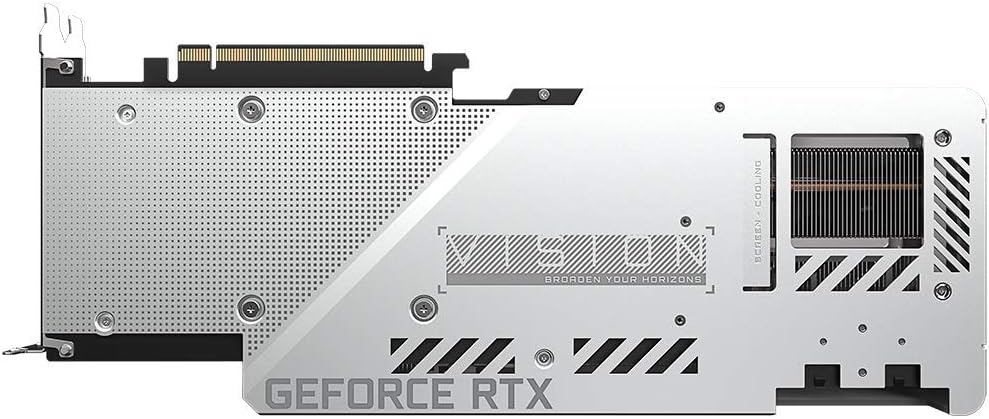
ചിത്രം: പിൻഭാഗം view of the GIGABYTE GeForce RTX 3080 Vision OC 10G Graphics Card, highlighting the protective metal backplate with ventilation cutouts and the GeForce RTX branding.
- കേസ് അവസാനിപ്പിക്കുക: കമ്പ്യൂട്ടർ കേസ് കവർ മാറ്റി എല്ലാ കേബിളുകളും വീണ്ടും ബന്ധിപ്പിക്കുക.
- Connect display: ഗ്രാഫിക്സ് കാർഡിലെ ഡിസ്പ്ലേ ഔട്ട്പുട്ടുകളിൽ ഒന്നിലേക്ക് (HDMI അല്ലെങ്കിൽ DisplayPort) നിങ്ങളുടെ മോണിറ്റർ ബന്ധിപ്പിക്കുക.
പ്രവർത്തന നിർദ്ദേശങ്ങൾ
1. ഡ്രൈവർ ഇൻസ്റ്റാളേഷൻ
- പവർ ഓൺ: Turn on your computer. The system may boot into a lower resolution or use a generic display driver.
- ഡ്രൈവറുകൾ ഡൗൺലോഡ് ചെയ്യുക: ഔദ്യോഗിക GIGABYTE സന്ദർശിക്കുക webസൈറ്റ് (www.gigabyte.com) അല്ലെങ്കിൽ NVIDIA യുടെ ഔദ്യോഗിക webസൈറ്റ് (www.nvidia.com/drivers).
- Select product: Navigate to the support section and locate the drivers for the GeForce RTX 3080 series.
- ഡ്രൈവറുകൾ ഇൻസ്റ്റാൾ ചെയ്യുക: Download the latest recommended drivers and follow the on-screen instructions to complete the installation. A system restart may be required.
2. സോഫ്റ്റ്വെയർ കോൺഫിഗറേഷൻ
- GIGABYTE Control Center / AORUS Engine: For advanced control over your graphics card, including fan speed adjustment, overclocking profiles, and RGB Fusion 2.0 lighting customization, download and install the GIGABYTE Control Center or AORUS Engine software from the GIGABYTE webസൈറ്റ്.
- എൻവിഡിയ ജിഫോഴ്സ് അനുഭവം: Install NVIDIA GeForce Experience for optimal game settings, driver updates, and access to features like ShadowPlay.
മെയിൻ്റനൻസ്
- പൊടി നീക്കം: ഗ്രാഫിക്സ് കാർഡ് ഫാനുകളിലെയും ഹീറ്റ്സിങ്കിലെയും പൊടി പതിവായി കംപ്രസ് ചെയ്ത വായു ഉപയോഗിച്ച് വൃത്തിയാക്കുക. വൃത്തിയാക്കുന്നതിന് മുമ്പ് സിസ്റ്റം ഓഫ് ചെയ്തിട്ടുണ്ടെന്നും അൺപ്ലഗ് ചെയ്തിട്ടുണ്ടെന്നും ഉറപ്പാക്കുക.
- ഫാൻ പരിശോധന: Periodically check the fans for any obstructions or unusual noises.
- ഡ്രൈവർ അപ്ഡേറ്റുകൾ: Keep your graphics drivers updated to ensure optimal performance and stability.
ട്രബിൾഷൂട്ടിംഗ്
ഡിസ്പ്ലേ ഔട്ട്പുട്ട് ഇല്ല
- മോണിറ്റർ കേബിൾ ഗ്രാഫിക്സ് കാർഡിലേക്കും മോണിറ്ററിലേക്കും സുരക്ഷിതമായി ബന്ധിപ്പിച്ചിട്ടുണ്ടെന്ന് ഉറപ്പാക്കുക.
- ഗ്രാഫിക്സ് കാർഡ് പൂർണ്ണമായും PCIe സ്ലോട്ടിൽ സ്ഥാപിച്ചിട്ടുണ്ടെന്ന് ഉറപ്പാക്കുക.
- Check that all required PCIe power connectors are securely attached to the graphics card.
- സാധ്യമെങ്കിൽ മറ്റൊരു ഡിസ്പ്ലേ കേബിൾ അല്ലെങ്കിൽ മോണിറ്റർ ഉപയോഗിച്ച് പരീക്ഷിക്കുക.
സിസ്റ്റം അസ്ഥിരത അല്ലെങ്കിൽ ക്രാഷുകൾ
- നിങ്ങളുടെ പവർ സപ്ലൈ മിനിമം വാട്ട് പാലിക്കുന്നുണ്ടെന്ന് ഉറപ്പാക്കുക.tagഇ ആവശ്യകത (750W).
- നിങ്ങളുടെ ഗ്രാഫിക്സ് ഡ്രൈവറുകൾ ഏറ്റവും പുതിയ പതിപ്പിലേക്ക് അപ്ഡേറ്റ് ചെയ്യുക.
- Monitor GPU temperatures using software like GIGABYTE Control Center to check for overheating.
- Check for conflicts with other installed drivers or software.
മോശം പ്രകടനം
- Ensure drivers are correctly installed and up to date.
- Verify that the graphics card is running at its intended clock speeds (can be checked with monitoring software).
- Check background applications that might be consuming system resources.
- Ensure your system's BIOS/UEFI is updated.
സ്പെസിഫിക്കേഷനുകൾ
| ഗ്രാഫിക്സ് പ്രോസസ്സിംഗ് യൂണിറ്റ് | NVIDIA GeForce RTX 3080 |
| വീഡിയോ മെമ്മറി | 10GB GDDR6X |
| മെമ്മറി ഇൻ്റർഫേസ് | 320-ബിറ്റ് |
| ബൂസ്റ്റ് ക്ലോക്ക് | 1800 MHz |
| മെമ്മറി സ്പീഡ് | 19000 MHz |
| ഔട്ട്പുട്ട് പോർട്ടുകൾ | ഡിസ്പ്ലേ പോർട്ട്, HDMI |
| പരമാവധി ഡിജിറ്റൽ റെസല്യൂഷൻ | 7680x4320 (via DisplayPort 1.4a) |
| മൾട്ടി-view | 4 |
| കാർഡ് അളവുകൾ (LxWxH) | 12.6 x 4.96 x 2.17 ഇഞ്ച് (320 x 126 x 55 മിമി) |
| ശുപാർശ ചെയ്യുന്ന പൊതുമേഖലാ സ്ഥാപനം | 750W |
| പവർ കണക്ടറുകൾ | 2x 8-പിൻ |
| പിസിഐ എക്സ്പ്രസ് | 4.0 x16 |
| മോഡൽ നമ്പർ | GV-N3080VISION OC-10GD 2.0 |
വാറൻ്റി വിവരങ്ങൾ
GIGABYTE products are covered by a limited warranty. The specific terms and duration of the warranty may vary by region and product. Please refer to the official GIGABYTE website or your product's packaging for detailed warranty information and registration procedures. Keep your proof of purchase for warranty claims.
സാങ്കേതിക സഹായം
For technical assistance, driver downloads, FAQs, and further support, please visit the official GIGABYTE support webസൈറ്റ്:
നൽകിയിരിക്കുന്ന കോൺടാക്റ്റ് വിവരങ്ങൾ വഴി നിങ്ങൾക്ക് GIGABYTE ഉപഭോക്തൃ സേവനവുമായി ബന്ധപ്പെടാനും കഴിയും. webനിങ്ങളുടെ നിർദ്ദിഷ്ട പ്രദേശത്തിനായുള്ള സൈറ്റ്.


