ആമുഖം
This manual provides comprehensive instructions for the setup, operation, and maintenance of your Onikuma G21 Gaming Keyboard and CW902 Gaming Mouse Combo. Please read this manual carefully before using the product to ensure optimal performance and longevity.
പാക്കേജ് ഉള്ളടക്കം
നിങ്ങളുടെ പാക്കേജിൽ എല്ലാ ഇനങ്ങളും ഉണ്ടെന്ന് ദയവായി പരിശോധിക്കുക:
- Onikuma G21 Gaming Keyboard
- Onikuma CW902 Gaming Mouse
- ഉപയോക്തൃ മാനുവൽ (ഈ പ്രമാണം)
സജ്ജീകരണ നിർദ്ദേശങ്ങൾ
ഉപകരണങ്ങൾ ബന്ധിപ്പിക്കുന്നു
The Onikuma G21 Keyboard and CW902 Mouse are designed for plug-and-play functionality. No additional drivers are typically required for basic operation.
- നിങ്ങളുടെ പിസിയിലോ ലാപ്ടോപ്പിലോ ലഭ്യമായ ഒരു യുഎസ്ബി പോർട്ട് കണ്ടെത്തുക.
- Plug the USB connector of the Onikuma G21 Gaming Keyboard into the USB port.
- Plug the USB connector of the Onikuma CW902 Gaming Mouse into another available USB port.
- Your operating system should automatically detect and install the necessary drivers. The devices will be ready for use once the installation is complete.
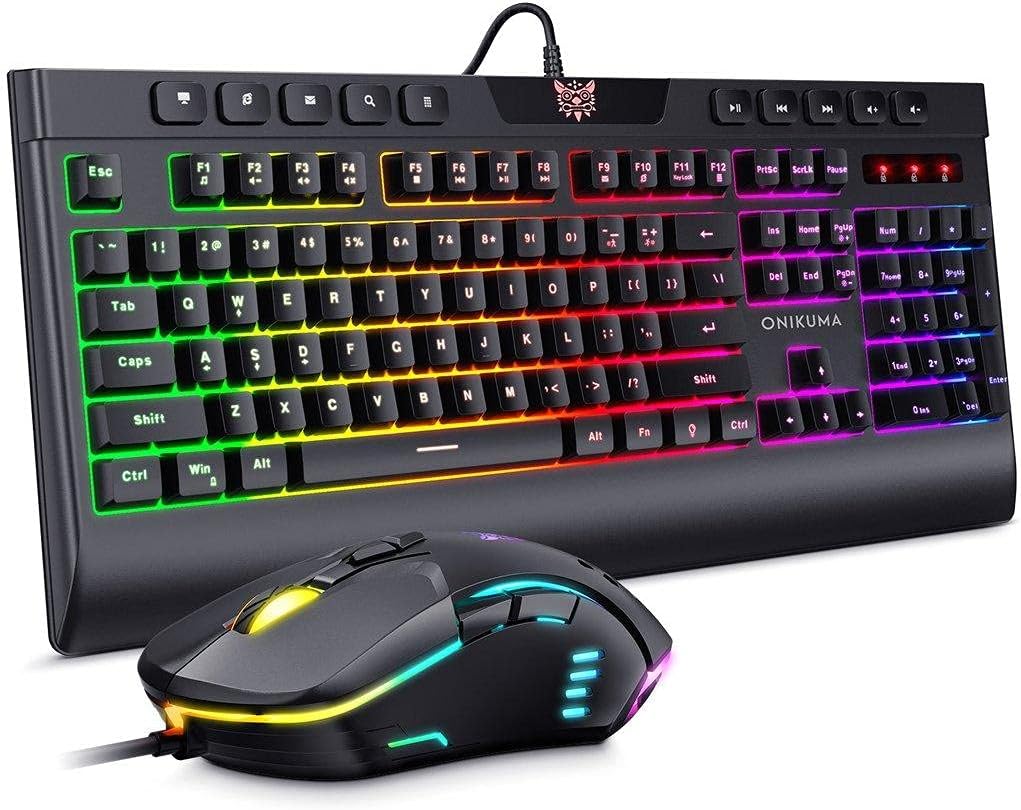
ഒരു ഓവർഹെഡ് view of the Onikuma G21 gaming keyboard and CW902 gaming mouse, both featuring RGB backlighting. The keyboard has a full layout with multimedia keys, and the mouse has an ergonomic design with illuminated accents.
Operating the Onikuma G21 Gaming Keyboard
അടിസ്ഥാന പ്രവർത്തനങ്ങൾ
The G21 keyboard functions as a standard QWERTY keyboard for typing and general computer use.
RGB ബാക്ക്ലൈറ്റ് നിയന്ത്രണം
The G21 keyboard features 7 RGB luminous LED backlight modes. Specific key combinations are used to cycle through these modes or adjust brightness. Refer to the keyboard's function keys (Fn) combined with other keys (e.g., Fn + Scroll Lock, Fn + Home/End) for backlight control.
മൾട്ടിമീഡിയ കീകൾ
Dedicated multimedia keys are located at the top of the keyboard for quick access to volume control, media playback, and other functions.
Changeable Direction Keys
The keyboard allows for switching between standard arrow keys and WASD keys for directional input, adapting to player preferences. This is typically achieved by pressing Fn+Win to switch between normal operation mode and intelligent mode, which may involve swapping the functionality of the arrow keys and WASD keys.

ഒരു ക്ലോസപ്പ് view of the Onikuma G21 gaming keyboard on a desk, highlighting its RGB lighting, ergonomic design for comfortable use, and waterproof construction. The image shows the keyboard's profile and keycaps.

എ വിശദമായി view of the Onikuma G21 gaming keyboard, focusing on the keys used for switching operation modes. The image illustrates the "Fn + Win" key combination and the WASD keys, indicating how to adapt the keyboard for different player habits.
Operating the Onikuma CW902 Gaming Mouse
അടിസ്ഥാന പ്രവർത്തനങ്ങൾ
The CW902 mouse provides standard left-click, right-click, and scroll wheel functionality for navigation and interaction.
DPI ക്രമീകരണം
The CW902 mouse features adjustable DPI settings up to 6400 DPI. A dedicated DPI button, usually located near the scroll wheel, allows you to cycle through different sensitivity levels to match your preference for gaming or general use.
പ്രോഗ്രാം ചെയ്യാവുന്ന ബട്ടണുകൾ
The mouse is equipped with 7 programmable buttons. While specific software for button customization is not detailed here, these buttons typically allow users to assign macros or specific functions for enhanced gaming performance. Refer to the manufacturer's website for any available customization software.
RGB ബാക്ക്ലൈറ്റ് മോഡുകൾ
The CW902 mouse features 7 distinct RGB backlight modes. These modes often cycle automatically or can be adjusted via a dedicated button or software, providing visual customization.
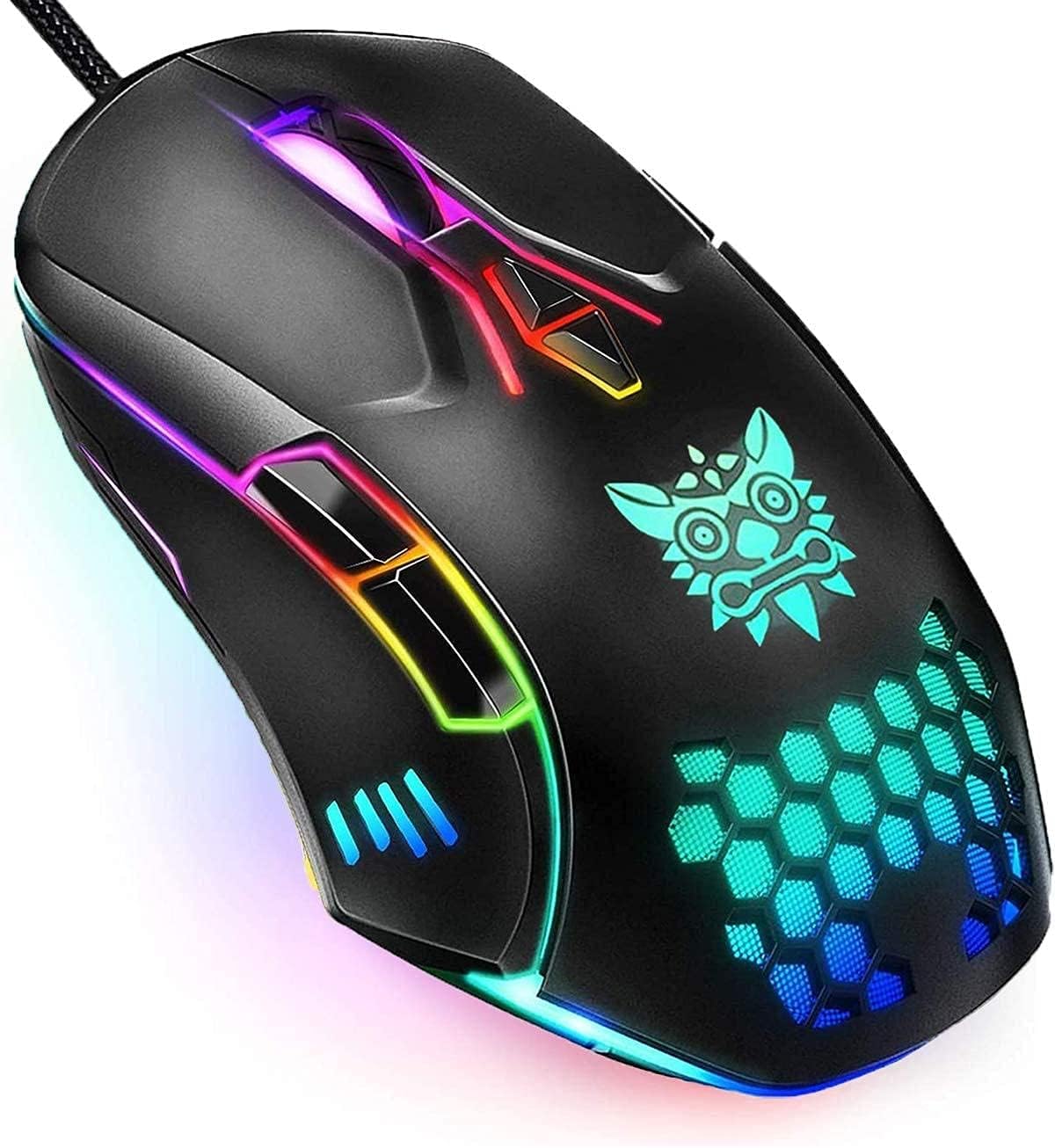
ഒരു ക്ലോസ്-അപ്പ്, ആംഗിൾഡ് view of the Onikuma CW902 gaming mouse, showcasing its ergonomic shape, textured grip, and vibrant RGB lighting elements along its body and scroll wheel. The mouse features multiple buttons.

An image displaying the Onikuma CW902 gaming mouse and its various customization options. It highlights the 7 distinct RGB backlight modes (blue, cyan-blue, green, red, purple, yellow) and indicates the 6 default adjustable DPI settings, demonstrating the mouse's versatility.
മെയിൻ്റനൻസ്
വൃത്തിയാക്കൽ
- കീബോർഡ്: Use a soft, dry cloth to wipe the surface. For deeper cleaning, use compressed air to remove debris from between keys. Avoid using harsh chemicals or excessive moisture.
- മൗസ്: മൃദുവായ, ചെറുതായി ഡി-പ്ലാസ്റ്റർ ഉപയോഗിച്ച് ഉപരിതലം തുടയ്ക്കുക.amp cloth. Ensure no liquid enters the mouse. Clean the optical sensor area gently with a cotton swab if tracking issues occur.
സംഭരണം
When not in use, store the keyboard and mouse in a cool, dry place away from direct sunlight and extreme temperatures. Avoid placing heavy objects on the devices.
ട്രബിൾഷൂട്ടിംഗ്
- ഉപകരണം തിരിച്ചറിഞ്ഞിട്ടില്ല:
Ensure the USB cables are securely plugged into your computer. Try a different USB port. Restart your computer. - കീബോർഡ്/മൗസ് പ്രതികരിക്കുന്നില്ല:
Check cable connections. If using a USB hub, try connecting directly to the computer. Test on another computer if possible to rule out a device fault. - ബാക്ക്ലൈറ്റ് പ്രവർത്തിക്കുന്നില്ല:
Ensure the backlight function is enabled (refer to operating instructions for specific key combinations). Check if the device is properly powered. - മൗസ് ട്രാക്കിംഗ് പ്രശ്നങ്ങൾ:
Clean the mouse sensor. Ensure you are using the mouse on a suitable surface (e.g., a mouse pad). Adjust DPI settings.
സ്പെസിഫിക്കേഷനുകൾ
| ഫീച്ചർ | സ്പെസിഫിക്കേഷൻ |
|---|---|
| ബ്രാൻഡ് | ഒനികുമ |
| മോഡൽ | G21 + CW902 |
| കണക്റ്റിവിറ്റി | യുഎസ്ബി വയർഡ് |
| കീബോർഡ് ലേഔട്ട് | QWERTY, English |
| കീബോർഡ് ബാക്ക്ലൈറ്റ് | 7 RGB Luminous LED Backlight |
| മൗസ് ഡിപിഐ | 6400 DPI വരെ (ക്രമീകരിക്കാവുന്നത്) |
| മൗസ് ബട്ടണുകൾ | 7 പ്രോഗ്രാം ചെയ്യാവുന്ന ബട്ടണുകൾ |
| മൗസ് ബാക്ക്ലൈറ്റ് | 7 RGB ബാക്ക്ലൈറ്റ് മോഡുകൾ |
| അനുയോജ്യമായ ഉപകരണങ്ങൾ | പിസി, ലാപ്ടോപ്പ് |
| ഇനത്തിൻ്റെ ഭാരം | 1.19 Kilograms (Combo) |
| പവർ ഉറവിടം | യുഎസ്ബി പവർഡ് (ബാറ്ററികൾ ആവശ്യമില്ല) |
വാറൻ്റിയും പിന്തുണയും
Onikuma products are manufactured to high-quality standards. For warranty information, technical support, or service inquiries, please refer to the warranty card included with your product or visit the official Onikuma webസൈറ്റ്. വാറന്റി ക്ലെയിമുകൾക്കായി നിങ്ങളുടെ വാങ്ങലിന്റെ തെളിവ് സൂക്ഷിക്കുക.


