ആമുഖം
Thank you for choosing the SENGBIRCH Bluetooth Keyboard Case. This manual provides detailed instructions for setting up, operating, and maintaining your keyboard case to ensure optimal performance and longevity. Please read this manual thoroughly before use.
അനുയോജ്യത
This keyboard case is specifically designed for the following Samsung Galaxy Tab 12.4-inch models:
- Samsung Galaxy Tab S8+ S8 Plus 12.4-inch (Model SM-X800, SM-X806) - 2022 Release
- Samsung Galaxy Tab S7 FE 5G 12.4-inch (Model SM-T730, SM-T733, SM-T736, SM-T738) - 2021 Release
- Samsung Galaxy Tab S7+ S7 Plus 12.4-inch (Model SM-T970, SM-T975, SM-T976, SM-T978) - 2020 Release

This image illustrates the specific Samsung Galaxy Tab models that are compatible with this keyboard case, including the S7 Plus 12.4" (2020), S7 FE 12.4" (2021), and S8+ 12.4" (2022).
പാക്കേജ് ഉള്ളടക്കം
പാക്കേജിൽ ഇനിപ്പറയുന്ന ഇനങ്ങൾ ഉണ്ടോ എന്ന് പരിശോധിക്കുക:
- 1 x Bluetooth Keyboard Case
- 1 x USB ചാർജിംഗ് കേബിൾ
- 1 x ഉപയോക്തൃ മാനുവൽ (ഈ പ്രമാണം)
സജ്ജീകരണ ഗൈഡ്
1. കീബോർഡ് ചാർജ് ചെയ്യുന്നു
Before first use, fully charge the keyboard. Connect the provided USB charging cable to the keyboard's charging port and a USB power adapter (not included). The charging indicator light will show the charging status.
2. Inserting Your Tablet
Gently place your Samsung Galaxy Tab into the protective case. Ensure all cutouts align with the tablet's ports, buttons, and camera. The soft TPU material provides drop-proof and scratch-resistant protection.
This image demonstrates the precise cutouts for the camera, power button, volume buttons, and charging port, ensuring full access to all tablet features when installed in the case.
3. ബ്ലൂടൂത്ത് ജോടിയാക്കൽ
- കീബോർഡ് ചാർജ് ചെയ്തിട്ടുണ്ടെന്നും പവർ ഓൺ ചെയ്തിട്ടുണ്ടെന്നും ഉറപ്പാക്കുക.
- നിങ്ങളുടെ Samsung Galaxy Tab-ൽ, ഇതിലേക്ക് പോകുക ക്രമീകരണങ്ങൾ > കണക്ഷനുകൾ > ബ്ലൂടൂത്ത്.
- Turn on Bluetooth. Your tablet will search for available devices.
- കീബോർഡിൽ, അമർത്തുക ബന്ധിപ്പിക്കുക button (usually indicated by a Bluetooth icon or 'Connect' text). The Bluetooth indicator light on the keyboard will start blinking.
- Select "Bluetooth Keyboard" (or similar name) from the list of available devices on your tablet.
- Follow any on-screen prompts to complete the pairing process. Once paired, the indicator light on the keyboard will stop blinking.
4. Setting Keyboard Layout (Important for AZERTY)
After successful Bluetooth connection, it is crucial to set the correct keyboard layout for your Android tablet. Press fn + A on the keyboard to switch to the Android layout. Failure to do so may result in incorrect key input.
പ്രവർത്തന നിർദ്ദേശങ്ങൾ
1. Detachable Keyboard Functionality
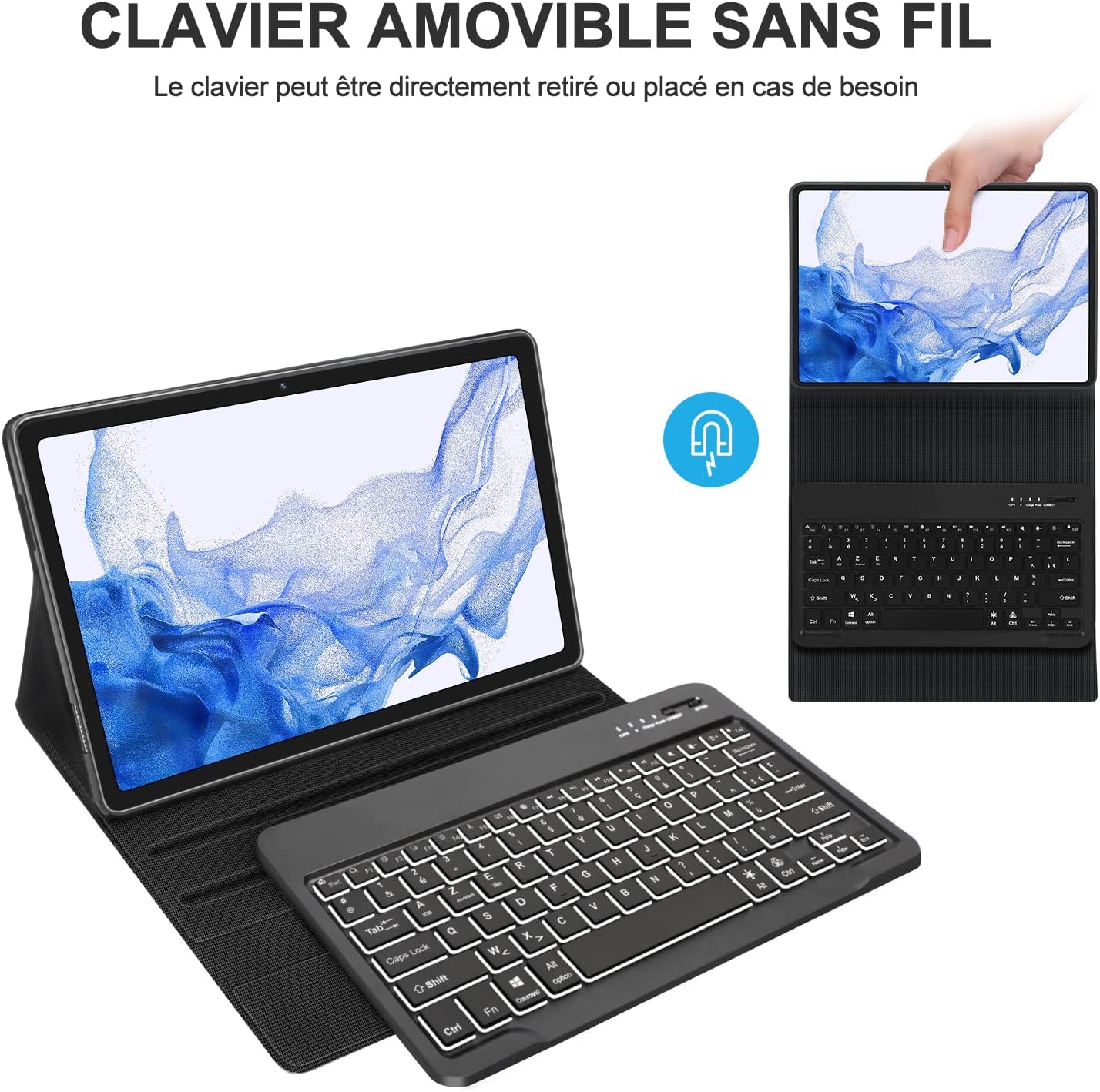
The wireless keyboard is magnetically attached to the protective case. It can be easily removed for separate use or reattached when needed, offering flexible working arrangements.

This image illustrates the detachable nature of the wireless keyboard, which can be used independently from the tablet case.
2. Backlit Keyboard
The keyboard features 7-color backlighting with adjustable brightness levels, allowing for comfortable typing in low-light conditions.
- To turn on/off the backlight: Press the ലൈറ്റ് ബൾബ് ഐക്കൺ താക്കോൽ.
- ബാക്ക്ലൈറ്റ് നിറം മാറ്റാൻ: അമർത്തുക Fn + light bulb icon താക്കോൽ.
- തെളിച്ചം ക്രമീകരിക്കാൻ: അമർത്തുക Fn + മുകളിലേക്കുള്ള അമ്പടയാളം (വർദ്ധിപ്പിക്കുക) അല്ലെങ്കിൽ Fn + താഴേക്കുള്ള അമ്പടയാളം (കുറവ്).

This image displays the keyboard's 7-color backlight feature, showing various color options for typing in different environments.

This image demonstrates the keyboard's 7-color backlight in use, highlighting its utility for typing in low-light conditions.
3. പ്രത്യേക ഫംഗ്ഷൻ കീകൾ
The keyboard includes a row of function keys for quick access to tablet features:
- ഇഎസ്സി: വീട്
- F1: തെളിച്ചം കുറയ്ക്കുക
- F2: തെളിച്ചം കൂട്ടുക
- F3: Virtual Keyboard
- F4: തിരയുക
- F5: സ്ക്രീൻഷോട്ട്
- F6: ലോക്ക് സ്ക്രീൻ
- F7: മുമ്പത്തെ ട്രാക്ക്
- F8: പ്ലേ/താൽക്കാലികമായി നിർത്തുക
- F9: അടുത്ത ട്രാക്ക്
- F10: നിശബ്ദമാക്കുക
- F11: വോളിയം താഴേക്ക്
- F12: വോളിയം കൂട്ടുക
- ഡെൽ: ഇല്ലാതാക്കുക

ഈ ചിത്രം വിശദമായ ഒരു വിവരണം നൽകുന്നു view of the keyboard layout, including the function keys and their respective icons.
4. Auto Sleep/Wake Function
The case supports the tablet's automatic sleep/wake function. Opening the case will wake your tablet, and closing it will put your tablet to sleep, conserving battery life.
5. Multi-Angle Adjustment
The case allows for multiple viewing angles (120°, 125°, 130°) to suit your comfort for typing, viewing, or drawing. The anti-slip lining ensures stability at your chosen angle.

This image demonstrates the case's ability to adjust to multiple viewing angles, providing flexibility for various tasks.
6. S Pen Slot
The case features a unique slot designed for the S Pen, accommodating both magnetic attachment to the side of the tablet and charging on the back, ensuring your S Pen is always secure and ready.
This image highlights the dedicated slot for the S Pen, designed for secure storage and charging.
മെയിൻ്റനൻസ്
1. കേസും കീബോർഡും വൃത്തിയാക്കൽ
To clean the case, gently wipe it with a soft, damp cloth. For the keyboard, use a dry, soft cloth. Avoid using harsh chemicals or abrasive materials, as these can damage the surfaces.
2. ബാറ്ററി പരിചരണം
To prolong battery life, avoid fully discharging the keyboard frequently. Charge it regularly, especially if it will not be used for an extended period. Store the keyboard in a cool, dry place.
ട്രബിൾഷൂട്ടിംഗ്
കീബോർഡ് ബ്ലൂടൂത്ത് വഴി കണക്റ്റുചെയ്യുന്നില്ല
- ബാറ്ററി പരിശോധിക്കുക: കീബോർഡ് പൂർണ്ണമായും ചാർജ് ചെയ്തിട്ടുണ്ടെന്ന് ഉറപ്പാക്കുക.
- പവർ ഓൺ: Make sure the keyboard's power switch is in the 'ON' position.
- ബ്ലൂടൂത്ത് ഓൺ: Verify that Bluetooth is enabled on your tablet.
- വീണ്ടും ജോടി: If previously paired, try unpairing the keyboard from your tablet's Bluetooth settings and then re-pairing it.
- ഉപകരണങ്ങൾ പുനരാരംഭിക്കുക: Restart both your tablet and the keyboard, then attempt pairing again.
Keys Not Responding Correctly (e.g., AZERTY layout issues)
- Layout Setting: Ensure you have pressed fn + A after connecting to set the keyboard to Android layout.
- Tablet Language Settings: Check your tablet's language and input settings to ensure the correct physical keyboard layout (e.g., French AZERTY) is selected.
- വീണ്ടും ജോടി: Disconnect and reconnect the Bluetooth keyboard.
ബാക്ക്ലൈറ്റ് പ്രവർത്തിക്കുന്നില്ല
- ബാറ്ററി പരിശോധിക്കുക: Low battery can affect backlight functionality. Charge the keyboard.
- ബാക്ക്ലൈറ്റ് ടോഗിൾ ചെയ്യുക: അമർത്തുക ലൈറ്റ് ബൾബ് ഐക്കൺ key to ensure it's turned on.
- തെളിച്ചം ക്രമീകരിക്കുക: ഉപയോഗിക്കുക Fn + മുകളിലേക്കും താഴേക്കും ഉള്ള അമ്പടയാളം തെളിച്ച നില ക്രമീകരിക്കാൻ.
സ്പെസിഫിക്കേഷനുകൾ
| ബ്രാൻഡ് | സെൻജിർച്ച് |
| മോഡൽ അനുയോജ്യത | Samsung Galaxy Tab S7 FE/S7+/S8+ 12.4-inch |
| കണക്റ്റിവിറ്റി | ബ്ലൂടൂത്ത് |
| കീബോർഡ് ലേഔട്ട് | അസെർട്ടി (ഫ്രഞ്ച്) |
| പ്രത്യേക സവിശേഷതകൾ | 7-Color Backlit, Detachable Keyboard, Auto Sleep/Wake, S Pen Slot, Multi-Angle Adjustment |
| കേസ് മെറ്റീരിയൽ | Soft PU (Polyurethane) |
| ബാറ്ററി തരം | ലിഥിയം-അയൺ |
| അളവുകൾ (L x W x H) | 27.5 x 15.5 x 1 സെ.മീ (ഏകദേശം) |
| ഭാരം | 689 ഗ്രാം (ഏകദേശം) |
| ജല പ്രതിരോധ നില | Waterproof (case) |
| ഉൾപ്പെടുത്തിയ ഘടകങ്ങൾ | USB കേബിൾ |
പിന്തുണ
If you encounter any issues or have questions regarding your SENGBIRCH Keyboard Case for Samsung Galaxy Tab S8+ 12.4 inches, please contact us via email. We are committed to providing a satisfactory solution and will respond as soon as possible.


