1. ആമുഖം
This manual provides instructions for the Monoprice Dark Matter 27-inch 165Hz Gaming Monitor. This monitor features an IPS panel, a 165Hz refresh rate, and a 1920x1080p Full HD resolution. It includes Adaptive Sync technology for smooth visuals and offers multiple connectivity options, including HDMI and DisplayPort inputs.
2 സുരക്ഷാ വിവരങ്ങൾ
- Read all instructions before operating the monitor.
- മോണിറ്റർ വെള്ളത്തിൽ നിന്നോ d യിൽ നിന്നോ അകറ്റി നിർത്തുക.amp പരിസരങ്ങൾ.
- വെന്റിലേഷൻ തുറക്കൽ തടയരുത്.
- നിർമ്മാതാവ് നൽകുന്ന പവർ അഡാപ്റ്റർ മാത്രം ഉപയോഗിക്കുക.
- മോണിറ്റർ അസ്ഥിരമായ പ്രതലങ്ങളിൽ വയ്ക്കുന്നത് ഒഴിവാക്കുക.
- Disconnect the power cable during lightning storms or when unused for long periods.
- എല്ലാ സേവനങ്ങളും യോഗ്യതയുള്ള ഉദ്യോഗസ്ഥർക്ക് റഫർ ചെയ്യുക.
3. പാക്കേജ് ഉള്ളടക്കം
നിങ്ങളുടെ പാക്കേജിൽ ഇനിപ്പറയുന്ന ഇനങ്ങൾ അടങ്ങിയിട്ടുണ്ടെന്ന് പരിശോധിക്കുക:
- Monoprice Dark Matter 27-inch Gaming Monitor
- മോണിറ്റർ സ്റ്റാൻഡ് (ബേസും കഴുത്തും)
- പവർ അഡാപ്റ്ററും പവർ കേബിളും
- HDMI കേബിൾ
- ഉപയോക്തൃ മാനുവൽ (ഈ പ്രമാണം)
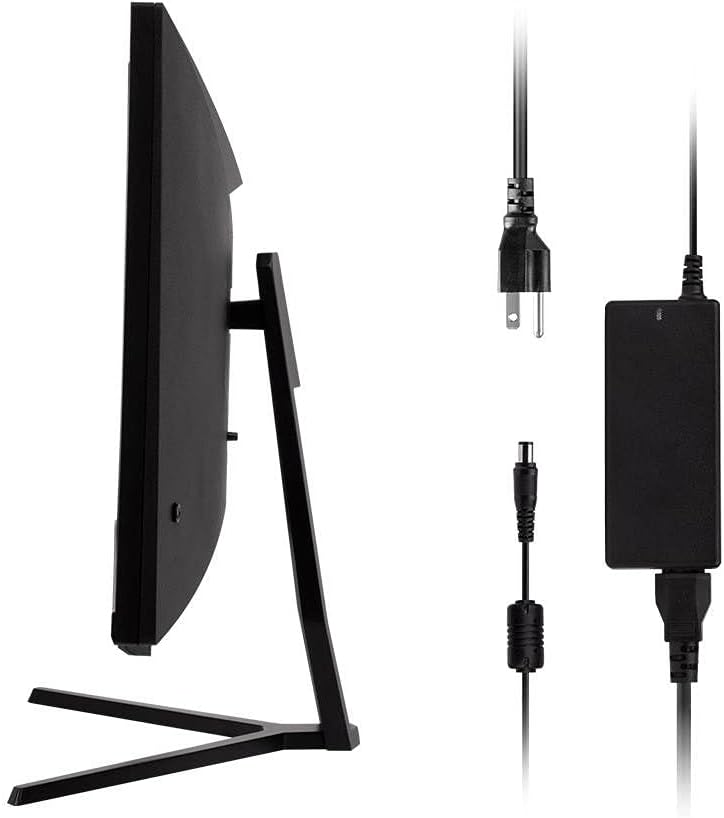
Image: Monitor side view with included power adapter and cable.
4. മോണിറ്റർ ഓവർview
ഫ്രണ്ട് View
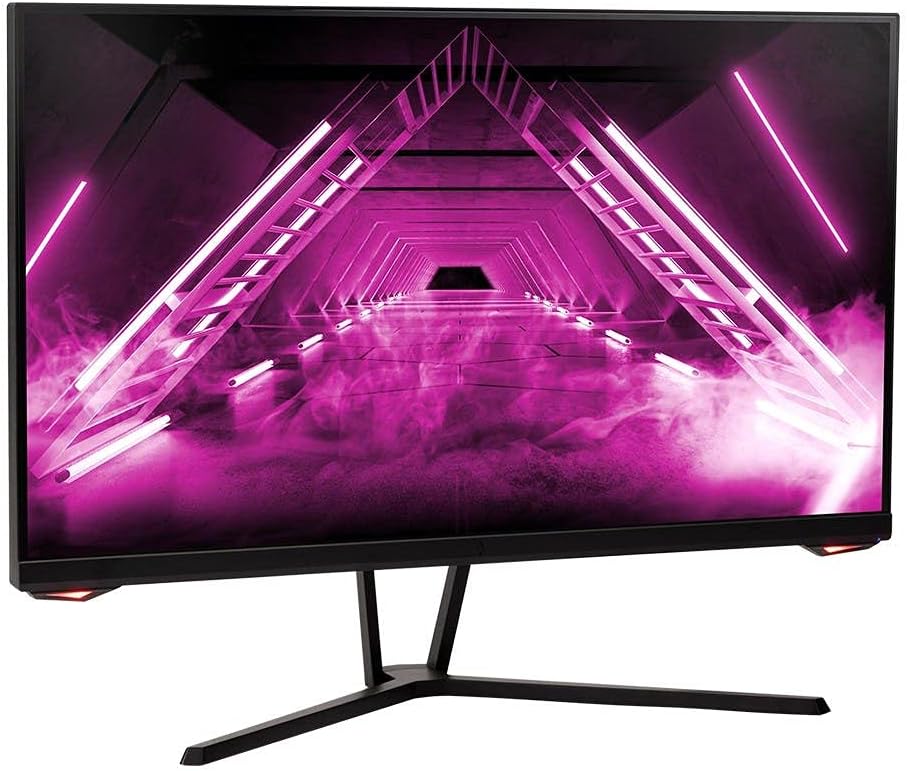
ചിത്രം: മുൻഭാഗം view മോണിറ്ററിന്റെ.
പിൻഭാഗം View തുറമുഖങ്ങളും
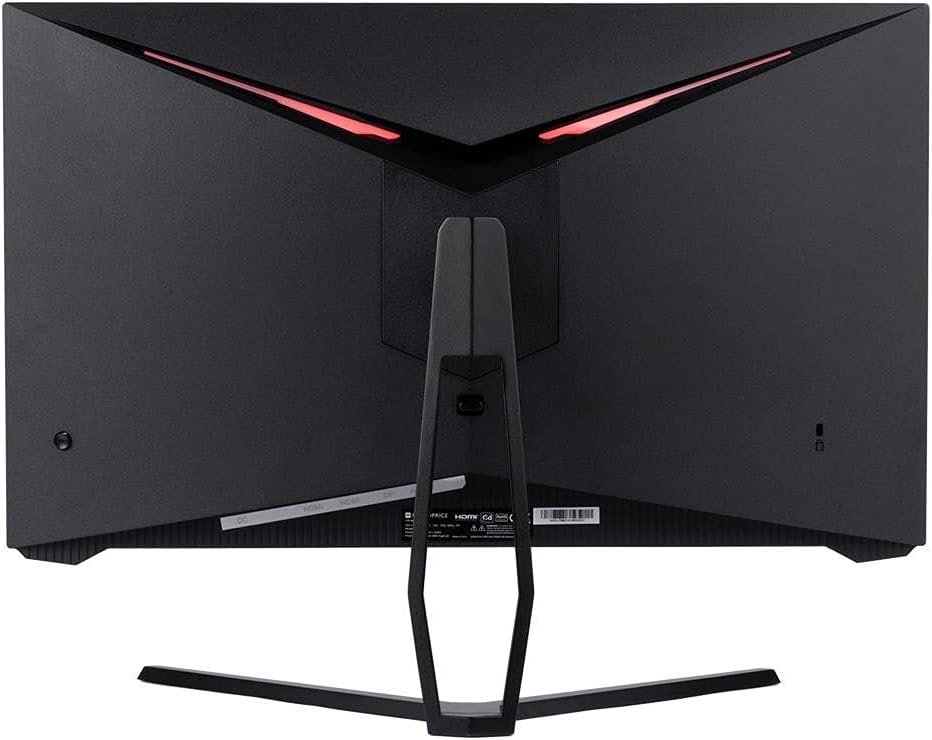
ചിത്രം: പിൻഭാഗം view of the monitor, highlighting the VESA mount and stand attachment.

Image: Close-up of the monitor's input ports.
5. സജ്ജീകരണം
5.1 സ്റ്റാൻഡ് അസംബ്ലി
- മോണിറ്റർ അതിന്റെ പാക്കേജിംഗിൽ നിന്ന് ശ്രദ്ധാപൂർവ്വം നീക്കം ചെയ്യുക, മൃദുവായ പ്രതലത്തിൽ അതിനെ സംരക്ഷിച്ചു നിർത്തുക.
- Attach the stand neck to the monitor's rear panel by aligning the tabs and securing any screws if present.
- Attach the stand base to the stand neck, ensuring it is firmly secured.
- കൂട്ടിച്ചേർത്ത മോണിറ്റർ ഒരു സ്ഥിരതയുള്ളതും പരന്നതുമായ പ്രതലത്തിൽ സ്ഥാപിക്കുക.
5.2 വെസ മൗണ്ടിംഗ്
The monitor supports a 75x75mm VESA mount pattern. To use a wall or desk mount:
- Remove the pre-attached stand by unscrewing it from the monitor's rear panel.
- Attach your VESA-compatible mount to the monitor using the appropriate screws (not included).
- റീലേ ചെയ്യുന്നതിനുമുമ്പ് മൗണ്ട് സുരക്ഷിതമായി ഉറപ്പിച്ചിട്ടുണ്ടെന്ന് ഉറപ്പാക്കുക.asinമോണിറ്റർ ജി.
5.3 ഒരു കമ്പ്യൂട്ടറിലേക്ക് ബന്ധിപ്പിക്കുന്നു
Connect the monitor to your computer using one of the following methods:
- ഡിസ്പ്ലേ പോർട്ട്: Connect one end of a DisplayPort cable to the DisplayPort output on your computer's graphics card and the other end to the DisplayPort input on the monitor.
- എച്ച്ഡിഎംഐ: Connect one end of an HDMI cable to an HDMI output on your computer's graphics card and the other end to one of the HDMI inputs on the monitor.
After connecting the video cable, connect the power adapter to the monitor's DC input and then plug the power cable into a wall outlet.
6. മോണിറ്റർ പ്രവർത്തിപ്പിക്കുക
6.1 പവർ ഓൺ/ഓഫ്
Press the power button, typically located on the rear or bottom of the monitor, to turn the monitor on or off. The power indicator light will illuminate when the monitor is on.
6.2 ഓൺ-സ്ക്രീൻ ഡിസ്പ്ലേ (OSD) മെനു
The OSD menu allows you to adjust various monitor settings. Access the OSD menu by pressing the menu button (often a joystick or a series of buttons) on the monitor. Navigate through the options using the directional controls and confirm selections.
സാധാരണ OSD ക്രമീകരണങ്ങളിൽ ഇവ ഉൾപ്പെടുന്നു:
- ചിത്ര ക്രമീകരണങ്ങൾ: തെളിച്ചം, ദൃശ്യതീവ്രത, തീവ്രത, വർണ്ണ താപനില.
- ഇൻപുട്ട് തിരഞ്ഞെടുക്കുക: Choose between DisplayPort and HDMI inputs.
- ഓഡിയോ: Volume control for the audio output.
- ഗെയിമിംഗ് സവിശേഷതകൾ: Overdrive, FreeSync/Adaptive Sync settings.
6.3 പ്രധാന സവിശേഷതകൾ
- 165Hz പുതുക്കൽ നിരക്ക്: This monitor supports a 165Hz refresh rate, providing smoother motion and reduced input lag compared to standard 60Hz monitors. Ensure your graphics card and system settings are configured to utilize this refresh rate.
- അഡാപ്റ്റീവ് സമന്വയം: This technology synchronizes the monitor's refresh rate with your graphics card's frame rate, eliminating screen tearing and stuttering for a smoother gaming experience. Enable Adaptive Sync in your graphics card's control panel and the monitor's OSD menu.
- Full HD Resolution (1920x1080p): The monitor displays content at 1920x1080 pixels, offering clear and detailed visuals.
7. പരിപാലനം
To maintain your monitor and ensure its longevity:
- സ്ക്രീൻ വൃത്തിയാക്കൽ: മൃദുവായതും, ലിന്റ് രഹിതവുമായ ഒരു തുണി ഉപയോഗിച്ച് സ്ക്രീൻ സൌമ്യമായി തുടയ്ക്കുക. കഠിനമായ അടയാളങ്ങൾക്ക്, സ്ക്രീനിൽ നേരിട്ട് പുരട്ടുന്നതിനു പകരം, തുണിയിൽ പുരട്ടിയ മോണിറ്റർ-നിർദ്ദിഷ്ട ക്ലീനിംഗ് ലായനി ഉപയോഗിക്കുക.
- സി വൃത്തിയാക്കൽasing: മോണിറ്റർ തുടയ്ക്കാൻ മൃദുവായതും ഉണങ്ങിയതുമായ തുണി ഉപയോഗിക്കുക casing. അബ്രസീവ് ക്ലീനറുകൾ ഒഴിവാക്കുക.
- വെൻ്റിലേഷൻ: Ensure the monitor's ventilation openings are clear of dust and obstructions to prevent overheating.
- പവർ ഓഫ്: Turn off the monitor when not in use for extended periods.
8. പ്രശ്നപരിഹാരം
നിങ്ങളുടെ മോണിറ്ററിൽ പ്രശ്നങ്ങൾ നേരിടുകയാണെങ്കിൽ, ഇനിപ്പറയുന്ന ട്രബിൾഷൂട്ടിംഗ് ഗൈഡ് പരിശോധിക്കുക:
| പ്രശ്നം | സാധ്യമായ കാരണം | പരിഹാരം |
|---|---|---|
| No image on screen / Power LED off | Monitor not powered on; Power cable loose; Power outlet faulty. | Press the power button; Check power cable connections; Try a different power outlet. |
| ചിത്രമില്ല / "സിഗ്നൽ ഇല്ല" എന്ന സന്ദേശം | Video cable loose; Incorrect input selected; Computer not outputting signal. | Check video cable connections; Select the correct input via OSD; Ensure computer is on and outputting video. |
| Screen flickers or goes black intermittently | Loose video cable; Graphics driver issue; Monitor overheating; Faulty cable. | Ensure video cable is secure; Update graphics drivers; Ensure adequate ventilation around the monitor; Try a different video cable. |
| അമിത ചൂടാക്കൽ / പുക | Blocked ventilation; Internal component issue. | Immediately unplug the monitor. Ensure ventilation is clear. Do not use the monitor if smoke is present. Contact support. |
| Red line or other display artifacts | Faulty panel; Graphics card issue. | Test with a different video cable and computer. If the issue persists, contact support. |
| Backlight turns off, requires power cycle | Power management settings; Internal fault. | Check computer's power saving settings. If issue persists, contact support. |
9 സ്പെസിഫിക്കേഷനുകൾ
| ഫീച്ചർ | സ്പെസിഫിക്കേഷൻ |
|---|---|
| മോഡൽ നമ്പർ | 142771 |
| സ്ക്രീൻ വലിപ്പം | 27 ഇഞ്ച് |
| പാനൽ തരം | ഐ.പി.എസ് |
| റെസലൂഷൻ | 1920 x 1080 (FHD 1080p) |
| പുതുക്കിയ നിരക്ക് | 165Hz |
| വീക്ഷണാനുപാതം | 16:9 |
| വീഡിയോ ഇൻപുട്ടുകൾ | 2x HDMI 1.4, 1x ഡിസ്പ്ലേ പോർട്ട് 1.2a |
| വെസെ മൌണ്ട് | 75x75 മി.മീ |
| അളവുകൾ (LxWxH) | 28.8 x 7.1 x 19.3 ഇഞ്ച് |
| ഇനത്തിൻ്റെ ഭാരം | 15.77 പൗണ്ട് |
10. വാറൻ്റിയും പിന്തുണയും
10.1 വാറൻ്റി വിവരങ്ങൾ
This Monoprice monitor is backed by a 1 Year PixelPerfect Guarantee. This warranty covers defects in materials and workmanship under normal use for one year from the date of purchase. Please refer to Monoprice's official webപൂർണ്ണ വാറൻ്റി നിബന്ധനകൾക്കും വ്യവസ്ഥകൾക്കുമുള്ള സൈറ്റ്.
10.2 ഉപഭോക്തൃ പിന്തുണ
For technical assistance, warranty claims, or further information, please contact Monoprice Customer Support. Contact details can typically be found on the official Monoprice webസൈറ്റ് അല്ലെങ്കിൽ നിങ്ങളുടെ വാങ്ങൽ ഡോക്യുമെന്റേഷൻ.
11. വീഡിയോ ഉറവിടങ്ങൾ
ഈ മോഡലിന് വിൽപ്പനക്കാരനിൽ നിന്നുള്ള ഔദ്യോഗിക ഉൽപ്പന്ന വീഡിയോകളൊന്നും കണ്ടെത്തിയില്ല.


