1. ആമുഖം
This manual provides essential information for the installation, operation, maintenance, and troubleshooting of your Sapphire Pulse AMD Radeon RX 6600 XT Gaming Graphics Card. Please read this manual thoroughly before installing and using your new graphics card to ensure proper functionality and to maximize its performance.
The Sapphire Pulse AMD Radeon RX 6600 XT is a high-performance gaming graphics card featuring 8GB GDDR6 memory and built on AMD RDNA 2 architecture, designed to deliver an optimal gaming experience.
2. ഉൽപ്പന്ന സവിശേഷതകൾ
The Sapphire Pulse AMD Radeon RX 6600 XT graphics card is engineered with advanced features for superior gaming and visual performance:
- ഗെയിം ക്ലോക്ക്: 2382 MHz വരെ
- ബൂസ്റ്റ് ക്ലോക്ക്: 2593 MHz വരെ
- മെമ്മറി ഇന്റർഫേസ്: 128-bit GDDR6
- ബാഹ്യ ശക്തി: 1 x 8 pin connector required
- പിസിഐ-എക്സ്പ്രസ്: 4.0 പിന്തുണ

ഫ്രണ്ട് view of the Sapphire Pulse AMD Radeon RX 6600 XT graphics card, showcasing its dual-fan cooling system.

കോണാകൃതിയിലുള്ളത് view of the graphics card, highlighting the display output ports (3x DisplayPort, 1x HDMI).

പിൻഭാഗം view of the graphics card, showing the protective metal backplate with Radeon branding.
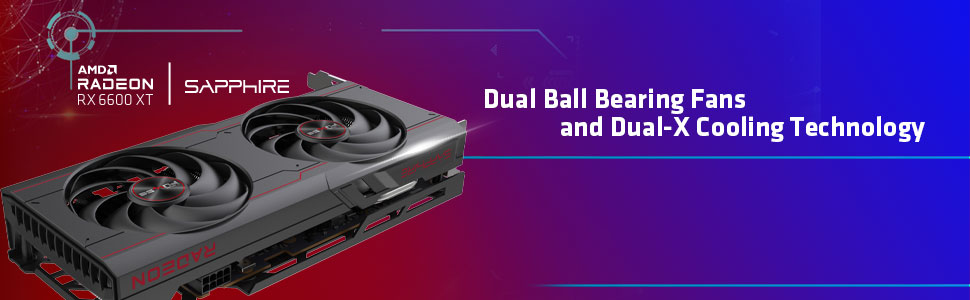
Diagram illustrating the Dual-X Cooling Technology and internal components for efficient heat dissipation.
3. സജ്ജീകരണവും ഇൻസ്റ്റാളേഷനും
Before beginning installation, ensure your computer's power supply unit (PSU) meets the recommended wattage for your system, including the new graphics card. A minimum 500W PSU is generally recommended for systems with an RX 6600 XT.
3.1. ഫിസിക്കൽ ഇൻസ്റ്റലേഷൻ
- പവർ ഓഫ്: Turn off your computer and unplug all power cables.
- തുറന്ന കേസ്: Open your computer's side panel to access the motherboard.
- PCIe സ്ലോട്ട് കണ്ടെത്തുക: Identify an available PCI-Express x16 slot on your motherboard. The RX 6600 XT supports PCIe 4.0, but is backward compatible with PCIe 3.0 slots.
- സ്ലോട്ട് കവറുകൾ നീക്കം ചെയ്യുക: Remove the necessary expansion slot covers from your computer case to accommodate the graphics card.
- കാർഡ് ചേർക്കുക: Carefully align the graphics card with the PCIe slot and press down firmly until it is securely seated. You should hear a click from the retention clip.
- സെക്യൂർ കാർഡ്: Use screws to secure the graphics card to the computer case.
- പവർ ബന്ധിപ്പിക്കുക: Connect the required 8-pin PCIe power connector from your PSU to the graphics card. Ensure the connection is firm.
- കേസ് അടയ്ക്കുക: Replace the computer's side panel and reconnect all power cables.
3.2. ഡ്രൈവർ ഇൻസ്റ്റാളേഷൻ
After physical installation, you must install the latest AMD Radeon drivers for optimal performance and stability:
- ബൂട്ട് സിസ്റ്റം: Power on your computer. It may boot into a lower resolution.
- ഡ്രൈവറുകൾ ഡൗൺലോഡ് ചെയ്യുക: ഔദ്യോഗിക എഎംഡി സന്ദർശിക്കുക webസൈറ്റ് (amd.com/en/support) and download the latest AMD Adrenalin Edition drivers for your Radeon RX 6600 XT.
- ഡ്രൈവറുകൾ ഇൻസ്റ്റാൾ ചെയ്യുക: Run the downloaded installer and follow the on-screen instructions. A system restart may be required.
4. പ്രവർത്തന നിർദ്ദേശങ്ങൾ
4.1. ഡിസ്പ്ലേകൾ ബന്ധിപ്പിക്കുന്നു
Connect your monitor(s) to the graphics card's output ports. The Sapphire Pulse RX 6600 XT typically features 3x DisplayPort and 1x HDMI output. Ensure your display cables are securely connected to both the graphics card and your monitor.
4.2. സോഫ്റ്റ്വെയർ കോൺഫിഗറേഷൻ
Utilize the AMD Adrenalin Edition software to manage your graphics card settings. This software allows you to:
- Adjust display resolution (up to 3840x2160).
- ഗെയിം-നിർദ്ദിഷ്ട പ്രോ കോൺഫിഗർ ചെയ്യുകfiles.
- ജിപിയു പ്രകടനവും താപനിലയും നിരീക്ഷിക്കുക.
- ഡ്രൈവറുകൾ അപ്ഡേറ്റ് ചെയ്യുക.
5. പരിപാലനം
നിങ്ങളുടെ ഗ്രാഫിക്സ് കാർഡിന്റെ ദീർഘായുസ്സും മികച്ച പ്രകടനവും ഉറപ്പാക്കാൻ പതിവ് അറ്റകുറ്റപ്പണികൾ സഹായിക്കുന്നു:
- പൊടി നീക്കം: ഗ്രാഫിക്സ് കാർഡിന്റെ ഫാനുകളിലെയും ഹീറ്റ്സിങ്കിലെയും പൊടി ഇടയ്ക്കിടെ കംപ്രസ് ചെയ്ത വായു ഉപയോഗിച്ച് വൃത്തിയാക്കുക. കമ്പ്യൂട്ടർ വൃത്തിയാക്കുന്നതിന് മുമ്പ് അത് ഓഫ് ചെയ്തിട്ടുണ്ടെന്നും പ്ലഗ് ഇൻ ചെയ്തിട്ടുണ്ടെന്നും ഉറപ്പാക്കുക.
- കേസ് എയർഫ്ലോ: Maintain good airflow within your computer case by keeping it clean and ensuring all case fans are functioning correctly.
- ഡ്രൈവർ അപ്ഡേറ്റുകൾ: Keep your graphics drivers updated to the latest version from the official AMD webസൈറ്റ്.
6. പ്രശ്നപരിഹാരം
6.1. ഡിസ്പ്ലേ ഔട്ട്പുട്ട് ഇല്ല
- ഗ്രാഫിക്സ് കാർഡ് പൂർണ്ണമായും PCIe സ്ലോട്ടിൽ സ്ഥാപിച്ചിട്ടുണ്ടെന്ന് ഉറപ്പാക്കുക.
- Verify that the 8-pin external power connector is securely attached.
- Check that your display cable is correctly connected to both the graphics card and the monitor.
- നിങ്ങളുടെ മോണിറ്റർ ശരിയായ ഇൻപുട്ട് ഉറവിടത്തിലേക്ക് സജ്ജീകരിച്ചിട്ടുണ്ടെന്ന് ഉറപ്പാക്കുക.
6.2. Performance Issues / Low FPS
- Ensure you have the latest AMD Radeon drivers installed.
- Check your in-game graphics settings; try reducing them if performance is consistently low.
- Monitor GPU temperature to ensure it's not overheating, which can lead to throttling.
- Verify your system meets the recommended specifications for the games you are playing.
6.3. Audio Crackling (after AMD driver installation)
- This can sometimes occur after installing AMD drivers.
- Go to Windows Update settings and install all available optional updates. This often resolves audio-related issues by providing necessary system or driver patches.
7 സാങ്കേതിക സവിശേഷതകൾ
| ഫീച്ചർ | സ്പെസിഫിക്കേഷൻ |
|---|---|
| ബ്രാൻഡ് | നീലക്കല്ല് |
| മോഡൽ നമ്പർ | 11309-03-20G |
| ഗ്രാഫിക്സ് കോപ്രൊസസർ | AMD Radeon RX 6600 XT |
| ചിപ്സെറ്റ് ബ്രാൻഡ് | എഎംഡി |
| ഗ്രാഫിക്സ് കാർഡ് റാം വലുപ്പം | 8 GB GDDR6 |
| മെമ്മറി സ്പീഡ് | 2 GHz |
| പരമാവധി സ്ക്രീൻ റെസല്യൂഷൻ | 3840x2160 |
| വീഡിയോ ഔട്ട്പുട്ട് ഇൻ്റർഫേസ് | ഡിസ്പ്ലേ പോർട്ട്, HDMI |
| ഇനത്തിൻ്റെ ഭാരം | 2.07 പൗണ്ട് |
| ഉൽപ്പന്ന അളവുകൾ (LxWxH) | 11.25 x 6.5 x 3.5 ഇഞ്ച് |
| പിസിഐ-എക്സ്പ്രസ് പതിപ്പ് | 4.0 |
| ബാഹ്യ പവർ കണക്റ്റർ | 1 x 8 പിൻ |
8. വാറൻ്റിയും പിന്തുണയും
For detailed warranty information and technical support, please refer to the official Sapphire Technology webസൈറ്റിൽ ബന്ധപ്പെടുക അല്ലെങ്കിൽ അവരുടെ ഉപഭോക്തൃ സേവനവുമായി ബന്ധപ്പെടുക. വാറന്റി ക്ലെയിമുകൾക്കായി നിങ്ങളുടെ വാങ്ങിയതിന്റെ തെളിവ് സൂക്ഷിക്കുക.
സഫയർ ഒഫീഷ്യൽ Webസൈറ്റ്: www.sapphiretech.com


