ആമുഖം
Welcome to the user manual for your Techmade 4-in-1 Gaming Kit. This kit provides essential peripherals for an enhanced gaming experience, including a keyboard, mouse, headset, and mouse pad. This manual will guide you through the setup, operation, maintenance, and troubleshooting of your new gaming kit.
ഉൽപ്പന്നം കഴിഞ്ഞുview
The Techmade 4-in-1 Gaming Kit includes the following components:
- ഗെയിമിംഗ് കീബോർഡ്: A traditional layout keyboard with function keys and a numeric pad, designed for comfortable and quiet typing.
- ഗെയിമിംഗ് മൗസ്: Features multi-color LED lights and 6 programmable buttons for precise control.
- ഗെയിമിംഗ് ഹെഡ്സെറ്റ്: Provides immersive audio and includes a microphone for in-game communication.
- Gaming Mouse Pad: A soft surface designed for enhanced mouse precision and comfort during extended gaming sessions.

Image: The complete Techmade 4-in-1 Gaming Kit, featuring the keyboard, mouse, headset, and mouse pad.
സജ്ജീകരണ ഗൈഡ്
Follow these steps to connect your Techmade 4-in-1 Gaming Kit to your PC or laptop:
- കീബോർഡ് ബന്ധിപ്പിക്കുക: Locate an available USB port on your computer. Plug the USB connector of the gaming keyboard into the USB port. The keyboard should be recognized automatically by your operating system.
- മൗസ് ബന്ധിപ്പിക്കുക: Locate another available USB port on your computer. Plug the USB connector of the gaming mouse into the USB port. The mouse should be recognized automatically, and its LED lights may illuminate.
- ഹെഡ്സെറ്റ് ബന്ധിപ്പിക്കുക: The headset uses a standard 3.5mm audio jack. Plug the headset's 3.5mm connector into the audio output (headphone) jack on your computer. If your computer has separate microphone and headphone jacks, you may need a Y-splitter (not included) or use the combined jack if available. Ensure your computer's audio settings are configured to use the connected headset.
- മൗസ് പാഡ് സ്ഥാപിക്കുക: Place the gaming mouse pad on a flat, stable surface next to your keyboard. Ensure there is enough space for comfortable mouse movement.
Your Techmade 4-in-1 Gaming Kit is now ready for use.
പ്രവർത്തന നിർദ്ദേശങ്ങൾ
കീബോർഡ് ഉപയോഗം

Image: The Techmade Gaming Keyboard with highlighted gaming keys.
The Techmade Gaming Keyboard features a standard QWERTY layout with a numeric pad and dedicated function keys (F1-F12). Its design allows for comfortable and quiet typing, suitable for both gaming and general use. The keyboard may feature single-color backlighting for improved visibility in low-light conditions.
മൗസ് ഉപയോഗം

Image: The Techmade Gaming Mouse with multi-color LED lights.
The gaming mouse is equipped with optical movement detection technology and 6 buttons for precise control. It features multi-color LED lights that enhance the aesthetic of your gaming setup. The additional buttons can be used for various in-game actions or customized through your operating system's mouse settings.
ഹെഡ്സെറ്റ് ഉപയോഗം
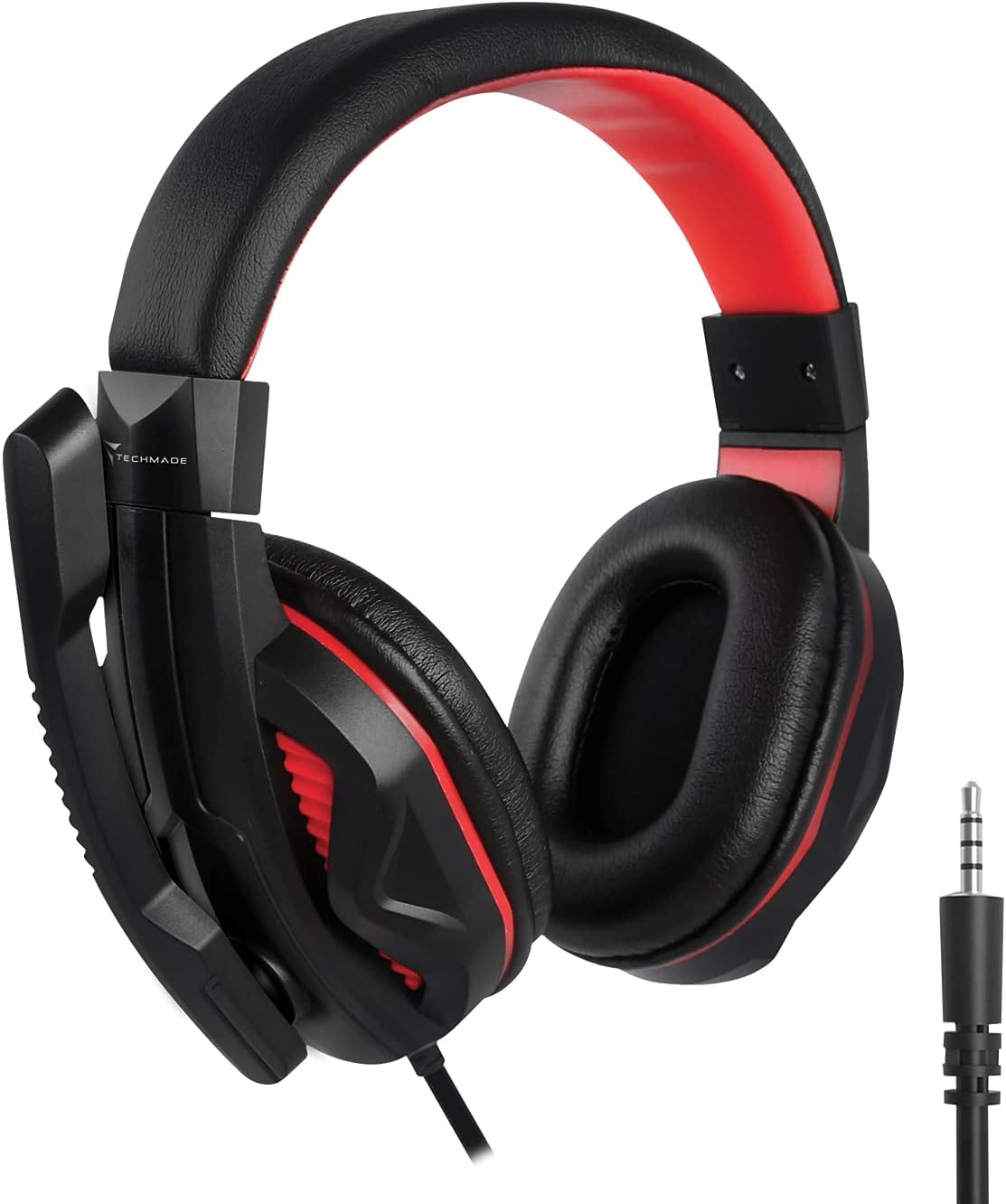
Image: The Techmade Gaming Headset with an adjustable microphone.
The gaming headset provides enveloping audio, immersing you in your games. It includes an integrated microphone, allowing for clear communication with teammates during multiplayer sessions. Adjust the headset for a comfortable fit and position the microphone appropriately for optimal voice capture.
Mouse Pad Usage

Image: The Techmade Gaming Mouse Pad.
The soft gaming mouse pad is designed to provide a smooth and consistent surface for your mouse, enhancing tracking accuracy and comfort during long gaming sessions. Its dimensions are optimized for typical gaming movements.
പരിചരണവും പരിപാലനവും
To ensure the longevity and optimal performance of your Techmade Gaming Kit, follow these maintenance guidelines:
- വൃത്തിയാക്കൽ: Use a soft, dry cloth to wipe down the keyboard, mouse, and headset. For stubborn dirt, a slightly damp cloth with mild soap can be used, but ensure no liquid enters the devices.
- ദ്രാവകങ്ങൾ ഒഴിവാക്കുക: Keep all components away from liquids to prevent damage.
- സംഭരണം: When not in use, store the kit in a clean, dry environment.
- കേബിൾ മാനേജുമെന്റ്: Avoid sharp bends or kinks in the cables to prevent internal wire damage.
ട്രബിൾഷൂട്ടിംഗ്
If you encounter issues with your Techmade 4-in-1 Gaming Kit, refer to the following troubleshooting steps:
| ഇഷ്യൂ | സാധ്യമായ പരിഹാരം |
|---|---|
| കീബോർഡ്/മൗസ് പ്രതികരിക്കുന്നില്ല |
|
| Headset audio not working |
|
| മൈക്രോഫോൺ പ്രവർത്തിക്കുന്നില്ല |
|
| Mouse LED lights not working |
|
സാങ്കേതിക സവിശേഷതകൾ
| ഫീച്ചർ | സ്പെസിഫിക്കേഷൻ |
|---|---|
| ബ്രാൻഡ് | Techmade |
| നിറം | ബഹുവർണ്ണം |
| കണക്റ്റിവിറ്റി ടെക്നോളജി | USB |
| അനുയോജ്യമായ ഉപകരണങ്ങൾ | പിസി, ലാപ്ടോപ്പ് |
| ഓപ്പറേറ്റിംഗ് സിസ്റ്റം | എല്ലാ പ്രധാന ഓപ്പറേറ്റിംഗ് സിസ്റ്റങ്ങളും |
| പ്രത്യേക സവിശേഷതകൾ | Gaming pads, Multi-color LED lights |
| കീബോർഡ് വിവരണം | Standard QWERTY keyboard |
| കീബോർഡ് ബാക്ക്ലൈറ്റ് | ഏക നിറം |
| മൗസ് ചലനം കണ്ടെത്തൽ | ഒപ്റ്റിക്കൽ |
| ശുപാർശ ചെയ്യുന്ന ഉപയോഗം | ഗെയിമിംഗ് |
| ഇനത്തിൻ്റെ ഭാരം | 1.41 കിലോഗ്രാം |
| മാതൃരാജ്യം | ചൈന |
വാറൻ്റിയും പിന്തുണയും
For warranty information and customer support, please refer to the documentation included with your product packaging or visit the official Techmade webസൈറ്റ്. ഏതെങ്കിലും വാറന്റി ക്ലെയിമുകൾക്ക് നിങ്ങളുടെ വാങ്ങലിന്റെ തെളിവ് സൂക്ഷിക്കുക.