1. ആമുഖം
This manual provides detailed instructions for the setup, operation, and maintenance of your TECLAST Mini PC N10. This compact desktop computer features an Intel Celeron N4000 processor, 6GB DDR4 RAM, 128GB SSD, and comes pre-installed with Windows 11 Pro. It is designed for various applications including office work, multimedia playback, and general computing tasks.
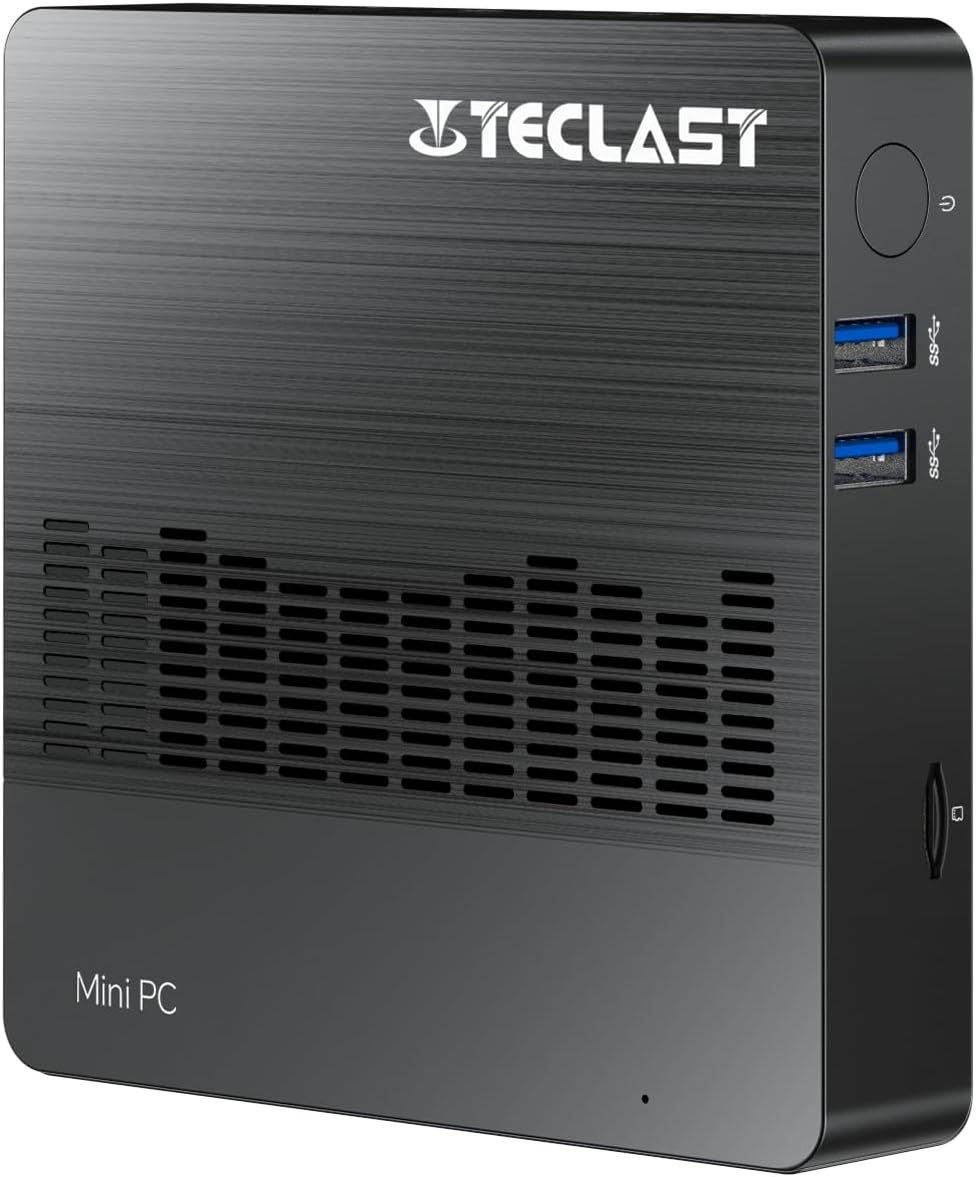
ചിത്രം 1.1: മുൻഭാഗം view of the TECLAST Mini PC N10, showing its compact design and front ports.
2. പാക്കേജ് ഉള്ളടക്കം
പാക്കേജിൽ ഇനിപ്പറയുന്ന ഇനങ്ങൾ ഉണ്ടോ എന്ന് പരിശോധിക്കുക:
- TECLAST Mini PC N10 Unit
- പവർ അഡാപ്റ്റർ
- ഉപയോക്തൃ മാനുവൽ
ഏതെങ്കിലും ഇനങ്ങൾ നഷ്ടപ്പെട്ടാലോ കേടുപാടുകൾ സംഭവിച്ചാലോ, ദയവായി ഉപഭോക്തൃ പിന്തുണയുമായി ബന്ധപ്പെടുക.
3. ഉൽപ്പന്നം കഴിഞ്ഞുview
3.1. Physical Dimensions and Design
The TECLAST Mini PC N10 is designed to be compact and lightweight, making it suitable for various environments. Its dimensions are approximately 11.9 x 11.9 x 2.4 cm, and it weighs around 700g.

Image 3.1: Illustration of the TECLAST Mini PC N10's compact dimensions (120mm x 120mm x 24mm) and lightweight design (200g, note: product specifications state 700g).
3.2. പോർട്ട് ലേഔട്ട്
The Mini PC N10 features a variety of ports for connectivity, located on its right, left, and back sides.

ചിത്രം 3.2: വിശദമായത് view of the TECLAST Mini PC N10's expansion ports.
- വലത് വശം: TF (MicroSD) Card Reader x 1, USB 3.2 x 2, Power Button x 1
- ഇടത് വശം: VGA Port x 1
- പിൻ വശം: Reset Button x 1, DC Power Input x 1, USB 3.2 x 1, HDMI Port x 1, RJ45 Ethernet Port x 1, 3.5mm Headphone Output x 1
4. പ്രാരംഭ സജ്ജീകരണം
Follow these steps to set up your TECLAST Mini PC N10:
- ഒരു ഡിസ്പ്ലേയിലേക്ക് കണക്റ്റുചെയ്യുക: Connect your monitor or TV to the Mini PC using either the HDMI port or the VGA port. For optimal resolution, use the HDMI port.
- പെരിഫറലുകൾ ബന്ധിപ്പിക്കുക: Plug in your keyboard and mouse to the available USB 3.2 ports.
- പവറിലേക്ക് ബന്ധിപ്പിക്കുക: Connect the power adapter to the DC power input port on the back of the Mini PC, then plug the adapter into a power outlet.
- പവർ ഓൺ: Press the power button located on the right side of the Mini PC. The system will boot up.
- പ്രാരംഭ വിൻഡോസ് സജ്ജീകരണം: ഭാഷ, പ്രദേശം, നെറ്റ്വർക്ക് കണക്ഷൻ, ഉപയോക്തൃ അക്കൗണ്ട് സൃഷ്ടിക്കൽ എന്നിവയുൾപ്പെടെ Windows 11 Pro സജ്ജീകരണം പൂർത്തിയാക്കാൻ ഓൺ-സ്ക്രീൻ നിർദ്ദേശങ്ങൾ പാലിക്കുക.
5. പ്രവർത്തന നിർദ്ദേശങ്ങൾ
5.1. ഇന്റർനെറ്റുമായി ബന്ധിപ്പിക്കുന്നു
- വയർഡ് കണക്ഷൻ: Connect an Ethernet cable from your router or modem to the RJ45 Ethernet port on the back of the Mini PC.
- വയർലെസ് കണക്ഷൻ: The Mini PC supports 2.4GHz and 5GHz Wi-Fi. During Windows setup or via Windows settings, select your Wi-Fi network and enter the password.
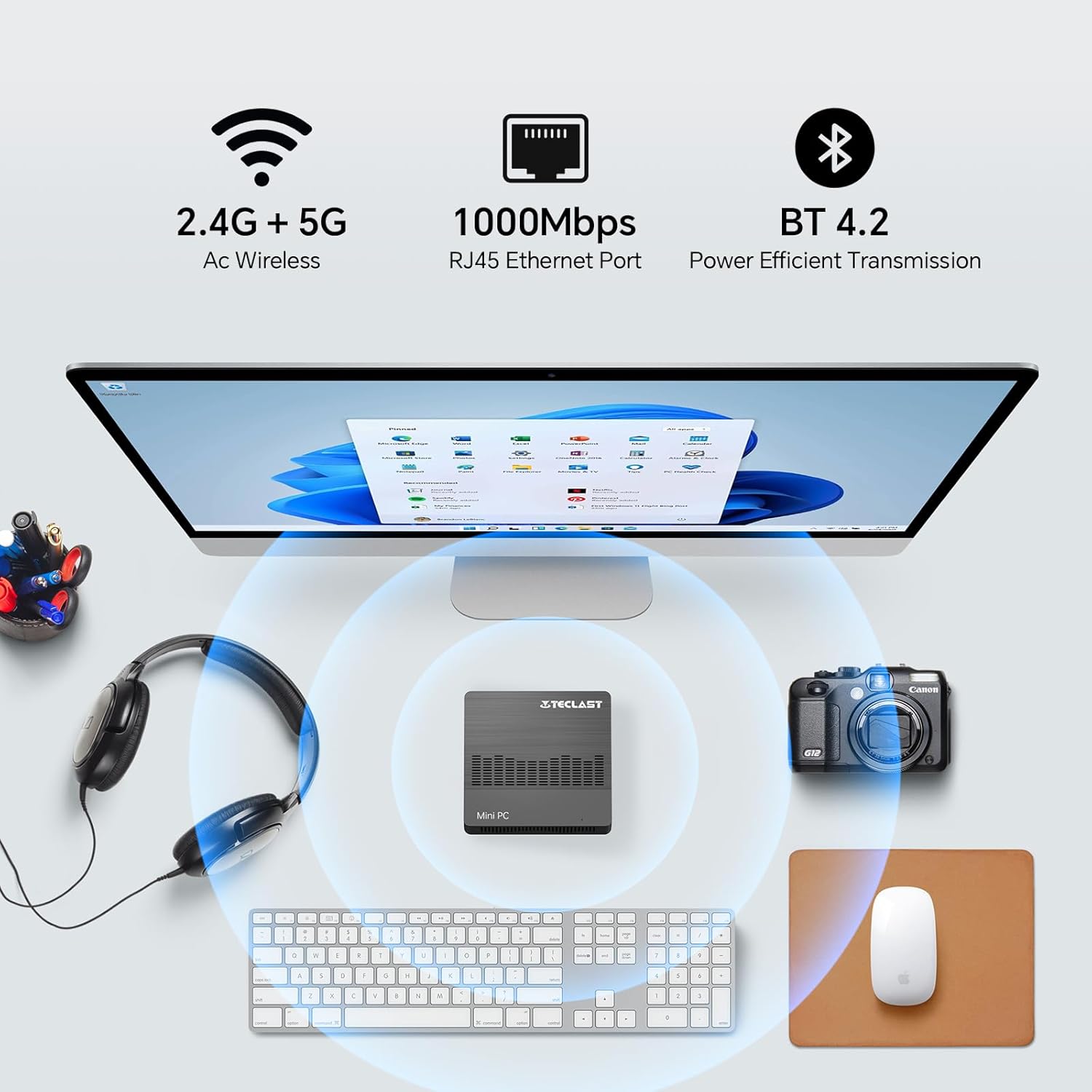
Image 5.1: The Mini PC N10 supports 2.4G+5G Wi-Fi, 1000Mbps RJ45 Ethernet, and Bluetooth 4.2 for versatile connectivity.
5.2. Dual Display Setup
The TECLAST Mini PC N10 supports dual display output via its HDMI and VGA ports, allowing you to extend your desktop across two screens or duplicate your display.
- Connect your primary monitor to the HDMI port.
- Connect your secondary monitor to the VGA port.
- Once both monitors are connected and powered on, Windows 11 should automatically detect them.
- To configure display settings (extend, duplicate, resolution), right-click on the desktop, select 'Display settings', and adjust as needed. The HDMI port supports up to 4K@60Hz resolution.

Image 5.2: The Mini PC N10 connected to two monitors via HDMI and VGA for dual display output.
5.3. സംഭരണ വിപുലീകരണം
The Mini PC N10 includes 128GB of internal SSD storage. For additional storage, it supports SATA protocol for M.2 SSD expansion (2242 length, M.2 interface, not included). A TF (MicroSD) card reader is also available for removable storage.
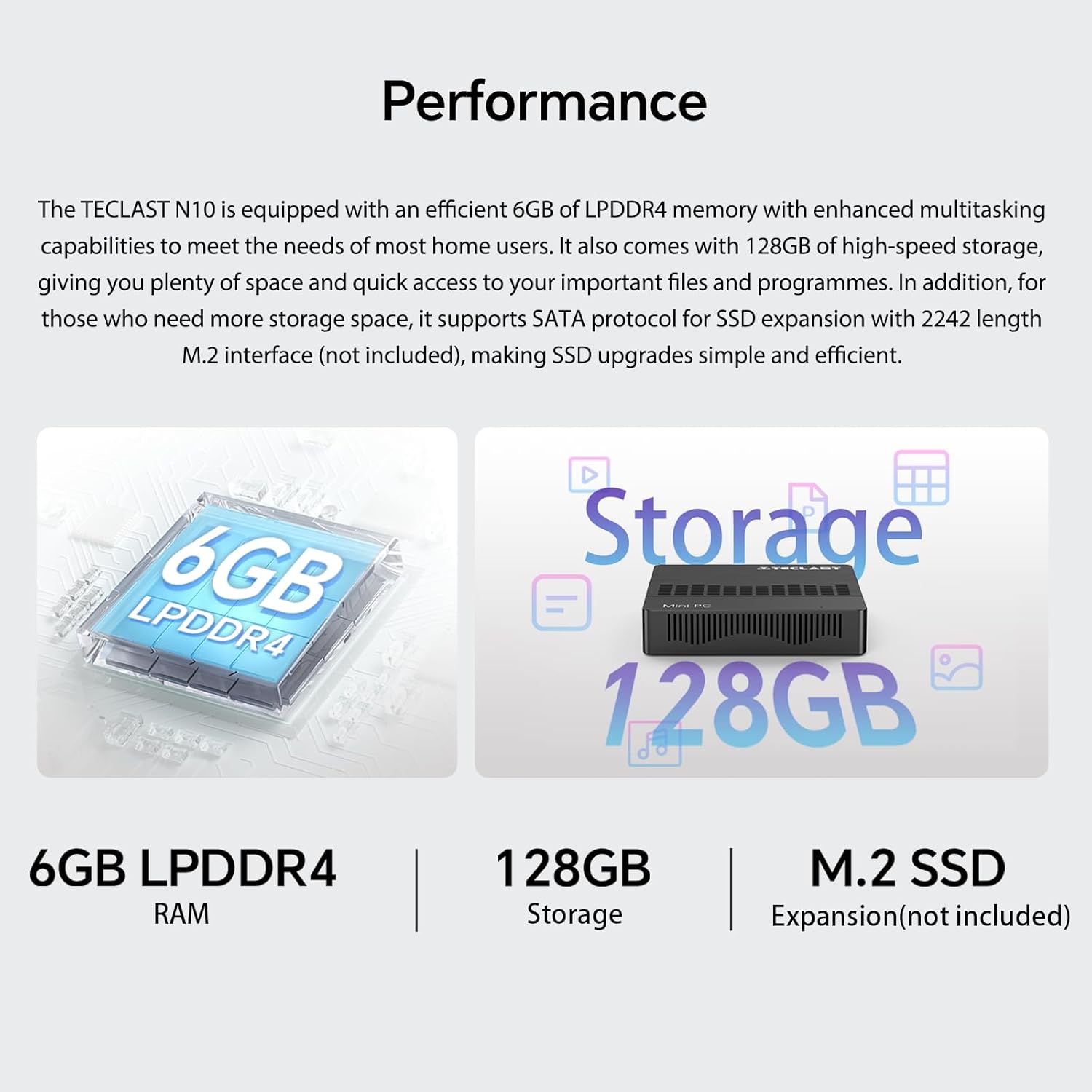
ചിത്രം 5.3: കഴിഞ്ഞുview of the Mini PC N10's 6GB LPDDR4 RAM, 128GB storage, and M.2 SSD expansion capability.
6 സ്പെസിഫിക്കേഷനുകൾ
| ഫീച്ചർ | വിശദാംശങ്ങൾ |
|---|---|
| ബ്രാൻഡ് | ടെക്ലാസ്റ്റ് |
| മോഡലിൻ്റെ പേര് | N10 |
| ഉൽപ്പന്ന അളവുകൾ | 11.9 x 11.9 x 2.4 സെ.മീ |
| ഉൽപ്പന്ന ഭാരം | 700 ഗ്രാം |
| നിറം | കറുപ്പ് |
| ഓപ്പറേറ്റിംഗ് സിസ്റ്റം | വിൻഡോസ് 11 പ്രോ |
| പ്രോസസർ നിർമ്മാതാവ് | ഇൻ്റൽ |
| പ്രോസസ്സർ തരം | ഇൻ്റൽ സെലറോൺ N4000 |
| പ്രോസസ്സർ വേഗത | 2.6 GHz (Turbo Frequency) |
| പ്രോസസ്സറുകളുടെ എണ്ണം | 2 |
| റാം ശേഷി | 6 ജിബി |
| മെമ്മറി ടെക്നോളജി | DDR4 |
| ഹാർഡ് ഡ്രൈവ് വിവരണം | എസ്എസ്ഡി |
| മെമ്മറി സ്റ്റോറേജ് കപ്പാസിറ്റി | 128 ജിബി |
| ഗ്രാഫിക്സ് കോപ്രൊസസർ | ഇൻ്റൽ UHD ഗ്രാഫിക്സ് 600 |
| ഗ്രാഫിക്സ് കാർഡ് വിവരണം | സംയോജിപ്പിച്ചത് |
| പരമാവധി മിഴിവ് | 3840 x 2160 (4K) |
| കണക്റ്റിവിറ്റി തരം | വൈ-ഫൈ, ബ്ലൂടൂത്ത് |
| വയർലെസ് കണക്ഷൻ തരം | 2.4GHz + 5GHz Wi-Fi, Bluetooth 5.0 |
| തുറമുഖങ്ങൾ | HDMI x 1, VGA x 1, USB 3.2 x 3, RJ45 Ethernet x 1, 3.5mm Audio x 1, TF (MicroSD) x 1 |

Image 6.1: Details of the Intel Celeron N4000 processor, featuring 14nm process, Gemini Lake Architecture, 4MB cache, and up to 2.6GHz turbo frequency.
7. പരിപാലനം
- വൃത്തിയാക്കൽ: Use a soft, dry cloth to clean the exterior of the Mini PC. Avoid using liquid cleaners or sprays directly on the device.
- വെൻ്റിലേഷൻ: Ensure the ventilation openings are not blocked to prevent overheating. Place the Mini PC on a flat, stable surface.
- സോഫ്റ്റ്വെയർ അപ്ഡേറ്റുകൾ: സിസ്റ്റം സ്ഥിരതയും സുരക്ഷയും ഉറപ്പാക്കാൻ വിൻഡോസ് അപ്ഡേറ്റുകൾ പതിവായി പരിശോധിച്ച് ഇൻസ്റ്റാൾ ചെയ്യുക.
- ഡാറ്റ ബാക്കപ്പ്: ഡാറ്റ നഷ്ടപ്പെടുന്നത് തടയാൻ, പ്രധാനപ്പെട്ട ഡാറ്റ ഇടയ്ക്കിടെ ഒരു ബാഹ്യ ഡ്രൈവിലേക്കോ ക്ലൗഡ് സ്റ്റോറേജിലേക്കോ ബാക്കപ്പ് ചെയ്യുക.
8. പ്രശ്നപരിഹാരം
8.1. പവർ ഇല്ല
- പവർ അഡാപ്റ്റർ മിനി പിസിയിലേക്കും പ്രവർത്തിക്കുന്ന ഒരു പവർ ഔട്ട്ലെറ്റിലേക്കും സുരക്ഷിതമായി ബന്ധിപ്പിച്ചിട്ടുണ്ടെന്ന് ഉറപ്പാക്കുക.
- മറ്റൊരു ഉപകരണം പ്ലഗ് ഇൻ ചെയ്ത് പവർ ഔട്ട്ലെറ്റ് പ്രവർത്തനക്ഷമമാണെന്ന് ഉറപ്പാക്കുക.
8.2. ഡിസ്പ്ലേ ഇല്ല
- Check that the HDMI or VGA cable is securely connected to both the Mini PC and the monitor.
- മോണിറ്റർ ഓണാക്കിയിട്ടുണ്ടെന്നും ശരിയായ ഇൻപുട്ട് സ്രോതസ്സിലേക്ക് (HDMI/VGA) സജ്ജീകരിച്ചിട്ടുണ്ടെന്നും ഉറപ്പാക്കുക.
- Try connecting to a different display or using a different cable to rule out faulty components.
8.3. ഇൻ്റർനെറ്റ് കണക്ഷൻ ഇല്ല
- വയർ: Check the Ethernet cable connection. Verify your router/modem is working correctly.
- വയർലെസ്: Ensure Wi-Fi is enabled in Windows settings. Check if you are connected to the correct network and have entered the password correctly. Restart your router/modem.
8.4. സിസ്റ്റം സ്ലോഡൗൺ
- പശ്ചാത്തലത്തിൽ പ്രവർത്തിക്കുന്ന അനാവശ്യ ആപ്ലിക്കേഷനുകൾ അടയ്ക്കുക.
- ശേഷിക്കുന്ന ഏതെങ്കിലും വിൻഡോസ് അപ്ഡേറ്റുകൾ പരിശോധിച്ച് ഇൻസ്റ്റാൾ ചെയ്യുക.
- SSD-യിൽ മതിയായ ഇടമുണ്ടെന്ന് ഉറപ്പാക്കുക.
- മാൽവെയർ പരിശോധിക്കാൻ ഒരു വൈറസ് സ്കാൻ പ്രവർത്തിപ്പിക്കുക.
9. വാറൻ്റിയും പിന്തുണയും
9.1. വാറൻ്റി വിവരങ്ങൾ
The TECLAST Mini PC N10 comes with a 2-year warranty, valid immediately after purchase. Please retain your proof of purchase for warranty claims.
9.2. ഉപഭോക്തൃ പിന്തുണ
If you require assistance or have any questions regarding your TECLAST Mini PC N10, please contact our customer support team. Send us a message, and our specialists will respond within 1 business day. We are committed to providing support for our products.


