1. ആമുഖം
Thank you for choosing the PRITOM Tronpad 7-inch Android 10 Tablet PC. This manual provides essential information to help you set up, operate, and maintain your new device. Please read these instructions carefully before use to ensure optimal performance and longevity of your tablet.
2. ഉൽപ്പന്നം കഴിഞ്ഞുview
The PRITOM Tronpad tablet features a 7-inch HD IPS display, a Quad-Core processor, 32GB of internal storage, and runs on Android 10. It includes dual cameras, Wi-Fi, and Bluetooth connectivity, designed for general use and entertainment.
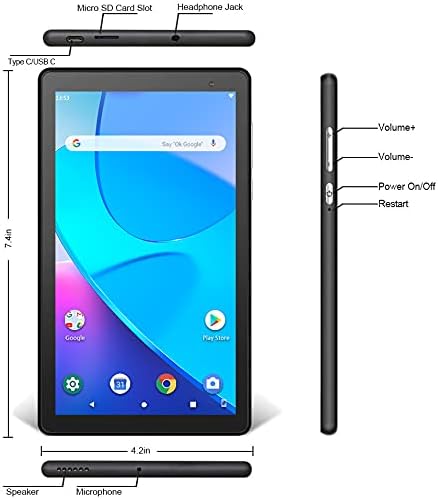
ചിത്രം: മുൻവശവും വശവും view of the PRITOM Tronpad tablet, highlighting the location of its ports and buttons. These include the Micro SD Card Slot, Headphone Jack, Type C/USB C port, Speaker, Microphone, Volume Up and Down buttons, Power On/Off button, and a dedicated Restart button.
ഭൗതിക ഘടകങ്ങൾ:
- മൈക്രോ എസ്ഡി കാർഡ് സ്ലോട്ട്: സംഭരണശേഷി വർദ്ധിപ്പിക്കുന്നതിന്.
- ഹെഡ്ഫോൺ ജാക്ക്: വയർഡ് ഹെഡ്ഫോണുകൾ ബന്ധിപ്പിക്കുന്നതിന്.
- Type C/USB C Port: ചാർജിംഗിനും ഡാറ്റ കൈമാറ്റത്തിനും.
- സ്പീക്കർ: ഓഡിയോ ഔട്ട്പുട്ട്.
- മൈക്രോഫോൺ: ഓഡിയോ ഇൻപുട്ടിനായി.
- വോളിയം ബട്ടണുകൾ (+/-): ഓഡിയോ വോളിയം ക്രമീകരിക്കാൻ.
- പവർ ഓൺ/ഓഫ് ബട്ടൺ: To power the device on or off, or to put it to sleep/wake it up.
- പുനരാരംഭിക്കുക ബട്ടൺ: A dedicated button for restarting the tablet if it becomes unresponsive.
3. സജ്ജീകരണം
3.1 പ്രാരംഭ ചാർജിംഗ്
Before first use, fully charge your tablet. Connect the provided USB-C cable to the tablet's USB-C port and the other end to a compatible power adapter. The charging indicator will typically show the charging status on the screen.
3.2 പവർ ഓൺ/ഓഫ്
- പവർ ഓണാക്കാൻ: Press and hold the Power On/Off button until the PRITOM logo appears.
- പവർ ഓഫ് ചെയ്യാൻ: Press and hold the Power On/Off button until a power menu appears on the screen. Select "Power off" and confirm.
- ഉറങ്ങാൻ/ഉണരാൻ: Briefly press the Power On/Off button to put the tablet to sleep or wake it up.
3.3 പ്രാരംഭ സജ്ജീകരണ വിസാർഡ്
ആദ്യമായി പവർ-ഓൺ ചെയ്യുമ്പോൾ, ടാബ്ലെറ്റ് നിങ്ങളെ ഒരു പ്രാരംഭ സജ്ജീകരണ പ്രക്രിയയിലൂടെ നയിക്കും:
- ഭാഷ തിരഞ്ഞെടുക്കൽ: നിങ്ങൾ തിരഞ്ഞെടുത്ത ഭാഷ തിരഞ്ഞെടുക്കുക.
- Wi-Fi കണക്ഷൻ: നിങ്ങളുടെ വൈഫൈ നെറ്റ്വർക്ക് തിരഞ്ഞെടുത്ത് ഇന്റർനെറ്റിലേക്ക് കണക്റ്റുചെയ്യാൻ പാസ്വേഡ് നൽകുക.
- Google അക്കൗണ്ട്: Sign in with your existing Google account or create a new one. This is necessary to download apps from the Google Play Store.
- തീയതിയും സമയവും: ശരിയായ തീയതിയും സമയവും സജ്ജമാക്കുക, അല്ലെങ്കിൽ നെറ്റ്വർക്കിന് അത് യാന്ത്രികമായി സജ്ജമാക്കാൻ അനുവദിക്കുക.
- സുരക്ഷ: സുരക്ഷയ്ക്കായി ഒരു സ്ക്രീൻ ലോക്ക് (പിൻ, പാറ്റേൺ അല്ലെങ്കിൽ പാസ്വേഡ്) സജ്ജീകരിക്കുക.
4. പ്രവർത്തന നിർദ്ദേശങ്ങൾ
4.1 അടിസ്ഥാന നാവിഗേഷൻ
നാവിഗേഷനായി ടാബ്ലെറ്റ് ടച്ച് ജെസ്റ്ററുകൾ ഉപയോഗിക്കുന്നു:
- ടാപ്പ് ചെയ്യുക: ഒരു ഇനം തിരഞ്ഞെടുക്കാനോ ഒരു ആപ്പ് തുറക്കാനോ.
- ടാപ്പ് & ഹോൾഡ്: സന്ദർഭോചിത മെനുകൾ ആക്സസ് ചെയ്യുന്നതിനോ ഐക്കണുകൾ നീക്കുന്നതിനോ.
- സ്വൈപ്പ്: പേജുകളിലൂടെയോ ലിസ്റ്റുകളിലൂടെയോ സ്ക്രോൾ ചെയ്യാൻ.
- പിഞ്ച്: ചിത്രങ്ങൾ സൂം ഇൻ ചെയ്യാനോ ഔട്ട് ചെയ്യാനോ, web പേജുകൾ.
4.2 വൈഫൈ കണക്ഷൻ
- പോകുക ക്രമീകരണങ്ങൾ > നെറ്റ്വർക്കും ഇൻ്റർനെറ്റും > വൈഫൈ.
- വൈഫൈ ടോഗിൾ ചെയ്യുക On.
- ലിസ്റ്റിൽ നിന്ന് നിങ്ങൾക്ക് ആവശ്യമുള്ള നെറ്റ്വർക്ക് തിരഞ്ഞെടുത്ത് ആവശ്യപ്പെടുകയാണെങ്കിൽ പാസ്വേഡ് നൽകുക.
4.3 ബ്ലൂടൂത്ത് ജോടിയാക്കൽ
- പോകുക ക്രമീകരണങ്ങൾ > ബന്ധിപ്പിച്ച ഉപകരണങ്ങൾ > ബ്ലൂടൂത്ത്.
- ബ്ലൂടൂത്ത് ടോഗിൾ ചെയ്യുക On.
- Ensure the device you want to pair is in pairing mode.
- ലഭ്യമായ ഉപകരണങ്ങളുടെ പട്ടികയിൽ നിന്ന് ഉപകരണം തിരഞ്ഞെടുത്ത് ജോടിയാക്കൽ പൂർത്തിയാക്കാൻ ഓൺ-സ്ക്രീൻ നിർദ്ദേശങ്ങൾ പാലിക്കുക.
4.4 ക്യാമറ ഉപയോഗിക്കുന്നത്
The tablet is equipped with dual cameras (front and rear).

Image: The PRITOM Tronpad tablet being used to capture a moment with its dual camera functionality.
- തുറക്കുക ക്യാമറ അപ്ലിക്കേഷൻ.
- മുൻ ക്യാമറയും പിൻ ക്യാമറയും തമ്മിൽ മാറാൻ ക്യാമറ ഐക്കണിൽ ടാപ്പ് ചെയ്യുക.
- ഒരു ഫോട്ടോ എടുക്കാൻ ഷട്ടർ ബട്ടൺ ടാപ്പ് ചെയ്യുക അല്ലെങ്കിൽ വീഡിയോ റെക്കോർഡിംഗ് ആരംഭിക്കുക/നിർത്തുക.
4.5 ആപ്പ് മാനേജ്മെന്റ്
- ആപ്പുകൾ ഇൻസ്റ്റാൾ ചെയ്യുന്നു: തുറക്കുക ഗൂഗിൾ പ്ലേ സ്റ്റോർ app, search for your desired app, and tap "Install".
- ആപ്പുകൾ അൺഇൻസ്റ്റാൾ ചെയ്യുന്നു: Tap and hold the app icon on the home screen or app drawer, then drag it to "Uninstall" or select "App info" and then "Uninstall". Alternatively, go to ക്രമീകരണങ്ങൾ > ആപ്പുകളും അറിയിപ്പുകളും, ആപ്പ് തിരഞ്ഞെടുത്ത് "അൺഇൻസ്റ്റാൾ" ടാപ്പ് ചെയ്യുക.
4.6 സ്റ്റോറേജ് മാനേജ്മെൻ്റ്
The tablet comes with 32GB of internal storage. You can expand this using a Micro SD card.
- To Insert Micro SD Card: Gently insert the Micro SD card into the designated slot until it clicks into place.
- To Manage Storage: പോകുക ക്രമീകരണങ്ങൾ > സംഭരണം വരെ view സംഭരണ ഉപയോഗവും മാനേജ്മെന്റും files.
4.7 ബാറ്ററി മാനേജ്മെൻ്റ്
ബാറ്ററി ലൈഫ് ഒപ്റ്റിമൈസ് ചെയ്യാൻ:
- സ്ക്രീൻ തെളിച്ചം സുഖകരമായ തലത്തിലേക്ക് ക്രമീകരിക്കുക.
- ഉപയോഗത്തിലില്ലാത്തപ്പോൾ വൈ-ഫൈ, ബ്ലൂടൂത്ത് എന്നിവ ഓഫാക്കുക.
- പശ്ചാത്തലത്തിൽ പ്രവർത്തിക്കുന്ന ഉപയോഗിക്കാത്ത ആപ്ലിക്കേഷനുകൾ അടയ്ക്കുക.
- ബാറ്ററി സേവർ മോഡ് പ്രവർത്തനക്ഷമമാക്കുക ക്രമീകരണങ്ങൾ > ബാറ്ററി.
5. പരിപാലനം
5.1 ടാബ്ലെറ്റ് വൃത്തിയാക്കൽ
Use a soft, lint-free cloth to clean the screen and body of the tablet. Avoid using harsh chemicals or abrasive materials, which can damage the screen or finish.
5.2 സോഫ്റ്റ്വെയർ അപ്ഡേറ്റുകൾ
നിങ്ങളുടെ ടാബ്ലെറ്റിൽ ഏറ്റവും പുതിയ സവിശേഷതകളും സുരക്ഷാ പാച്ചുകളും ഉണ്ടെന്ന് ഉറപ്പാക്കാൻ ഇടയ്ക്കിടെ സോഫ്റ്റ്വെയർ അപ്ഡേറ്റുകൾക്കായി പരിശോധിക്കുക. പോകുക ക്രമീകരണങ്ങൾ > സിസ്റ്റം > സിസ്റ്റം അപ്ഡേറ്റ്.
5.3 ഡാറ്റ ബാക്കപ്പ്
Regularly back up important data to a cloud service (like Google Drive) or an external storage device to prevent data loss.
6. പ്രശ്നപരിഹാരം
If you encounter issues with your PRITOM Tronpad tablet, try the following solutions:
- ടാബ്ലെറ്റ് പ്രതികരിക്കുന്നില്ല: Press and hold the Power On/Off button for about 10-15 seconds to force a restart. Alternatively, use the dedicated Restart button if available (refer to Product Overview ഡയഗ്രം).
- മന്ദഗതിയിലുള്ള പ്രകടനം: Close unused apps, clear cache (Settings > Storage > Cached data), or restart the tablet. Consider uninstalling rarely used apps to free up storage.
- വൈഫൈ കണക്ഷൻ പ്രശ്നങ്ങൾ: Ensure Wi-Fi is enabled. Restart your Wi-Fi router and the tablet. Forget the network and reconnect.
- ബാറ്ററി ചാർജ്ജുചെയ്യുന്നില്ല: Ensure the USB-C cable and power adapter are securely connected and functional. Try a different cable or adapter.
- ആപ്പുകൾ ക്രാഷാകുന്നു: Clear the app's cache and data (Settings > Apps & notifications > [App Name] > Storage & cache). If the issue persists, uninstall and reinstall the app.
If these steps do not resolve the issue, please contact PRITOM customer support for further assistance.
7 സ്പെസിഫിക്കേഷനുകൾ
| ഫീച്ചർ | സ്പെസിഫിക്കേഷൻ |
|---|---|
| ബ്രാൻഡ് | പ്രിറ്റോം |
| മോഡലിൻ്റെ പേര് | Tronpad Tablet |
| സ്ക്രീൻ വലിപ്പം | 7 ഇഞ്ച് |
| സ്ക്രീൻ റെസല്യൂഷൻ | 1024x600 |
| ഓപ്പറേറ്റിംഗ് സിസ്റ്റം | ആൻഡ്രോയിഡ് 10 |
| പ്രോസസ്സർ | ക്വാഡ് കോർ |
| റാം | 1 ജിബി |
| Hard Drive / Flash Memory Size | 32 ജിബി |
| വയർലെസ് തരം | 802.11bgn (വൈ-ഫൈ) |
| പിൻഭാഗം Webക്യാം റെസല്യൂഷൻ | 2.2 എം.പി |
| ഇനത്തിൻ്റെ ഭാരം | 8.8 ഔൺസ് |
| ഉൽപ്പന്ന അളവുകൾ | 7.5 x 4.3 x 0.4 ഇഞ്ച് |
| ശരാശരി ബാറ്ററി ലൈഫ് | 6 മണിക്കൂർ |
8. വാറൻ്റിയും പിന്തുണയും
8.1 വാറൻ്റി വിവരങ്ങൾ
PRITOM products are designed for quality and reliability. For specific warranty terms and conditions, please refer to the warranty card included with your product or visit the official PRITOM webസൈറ്റ്.
8.2 ഉപഭോക്തൃ പിന്തുണ
If you have any questions, issues, or require technical assistance, please contact PRITOM customer support. The PRITOM team aims to provide attentive service and will respond to inquiries promptly, typically within 24 hours.
You can often find support contact information (such as email) on the PRITOM brand store page or within the product packaging.