ആമുഖം
Thank you for choosing the Nulea M501 Wireless Trackball Mouse. This ergonomic and versatile device is designed to enhance your computing experience by providing precise control and comfort. It supports connectivity with up to three devices via Bluetooth or a 2.4G USB receiver, making it ideal for various setups and environments. Please read this manual carefully to ensure proper setup and optimal performance.
പാക്കേജ് ഉള്ളടക്കം
Upon opening your Nulea M501 package, you should find the following items:
- ന്യൂലിയ M501 വയർലെസ് ട്രാക്ക്ബോൾ മൗസ്
- യുഎസ്ബി-സി മുതൽ യുഎസ്ബി-എ ചാർജിംഗ് കേബിൾ വരെ
- 2.4G USB Receiver (stored in the mouse's bottom compartment)
- ഉപയോക്തൃ മാനുവൽ
പ്രധാന സവിശേഷതകൾ
- എർഗണോമിക് ഡിസൈൻ: Features a comfortable shape with easy thumb control to reduce wrist and arm strain. The optimal angle promotes a natural hand position for extended use.
- കൃത്യമായ ട്രാക്കിംഗ്: Offers accurate cursor movement with adjustable DPI settings for enhanced control on various surfaces.
- മൾട്ടി-ഡിവൈസ് കണക്റ്റിവിറ്റി: Connects to up to three devices (two via Bluetooth, one via 2.4G USB receiver) with easy switching.
- റീചാർജ് ചെയ്യാവുന്ന ബാറ്ററി: Built-in rechargeable battery provides long-lasting power, eliminating the need for disposable batteries.
- ആറ് ബട്ടണുകൾ: Includes standard left/right clicks, a scroll wheel, DPI adjustment, and back/forward buttons for improved productivity. Note: Buttons are not programmable.
സജ്ജമാക്കുക
1. പ്രാരംഭ ചാർജിംഗ്
For the best experience, fully charge the trackball mouse before its first use. Connect the provided USB-C cable to the mouse's front port and the USB-A end to a computer USB port or a 5V charger. Do not use a fast charger.

Image: The Nulea M501 mouse connected to a laptop via its USB-C charging cable. The mouse features a red trackball and is shown in a charging state.
2. പവർ ഓൺ
Locate the ON/OFF switch on the bottom of the mouse and slide it to the 'ON' position. An indicator light will illuminate.
3. കണക്റ്റിവിറ്റി ഓപ്ഷനുകൾ
The Nulea M501 offers three connection modes: two Bluetooth channels (BT1, BT2) and one 2.4G USB receiver channel. You can switch between these modes using the 'MODE' button on the bottom of the mouse.

Image: The underside of the Nulea M501 mouse, highlighting the ON/OFF switch, the 'MODE' button for switching between BT1, BT2, and USB connections, and the storage slot for the 2.4G USB receiver.
3.1. 2.4G USB Receiver Connection
- Remove the 2.4G USB receiver from its storage slot on the bottom of the mouse.
- നിങ്ങളുടെ കമ്പ്യൂട്ടറിൽ ലഭ്യമായ USB പോർട്ടിലേക്ക് USB റിസീവർ പ്ലഗ് ചെയ്യുക.
- Slide the 'MODE' button on the mouse's bottom until the 'USB' indicator light is active. The mouse should connect automatically.
3.2. Bluetooth Connection (BT1/BT2)
- Slide the 'MODE' button on the mouse's bottom to select either 'BT1' or 'BT2'. The corresponding indicator light will blink, indicating pairing mode.
- നിങ്ങളുടെ കമ്പ്യൂട്ടറിലോ ഉപകരണത്തിലോ, Bluetooth ക്രമീകരണങ്ങൾ തുറക്കുക.
- ഇതിനായി തിരയുക new Bluetooth devices and select "Nulea M501" from the list.
- Once paired, the indicator light on the mouse will stop blinking and remain solid.

Image: The Nulea M501 mouse positioned between a laptop and a tablet, illustrating its capability to connect to multiple devices wirelessly via Bluetooth or USB dongle.
പ്രവർത്തന നിർദ്ദേശങ്ങൾ
1. Thumb Control Trackball
Instead of moving the entire mouse, use your thumb to control the red trackball for cursor movement. This ergonomic design reduces wrist and arm movement, promoting comfort.
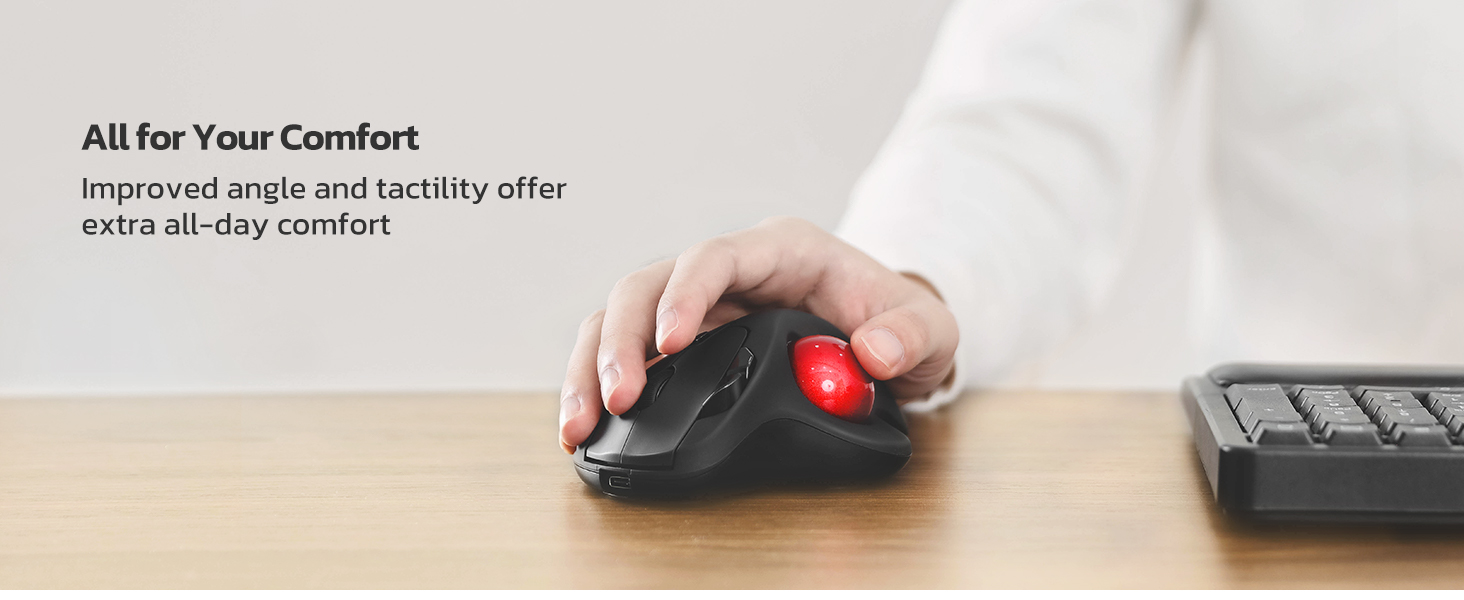
Image: A hand comfortably positioned on the Nulea M501 trackball mouse, with the thumb operating the red trackball to control the cursor, emphasizing wrist and arm relief.
2. ഡിപിഐ ക്രമീകരണം
The mouse features an adjustable DPI button, typically located near the scroll wheel. Press this button to cycle through different DPI sensitivities (e.g., 400, 800, 1200, 1600, 2000) to match your preference for cursor speed and precision.
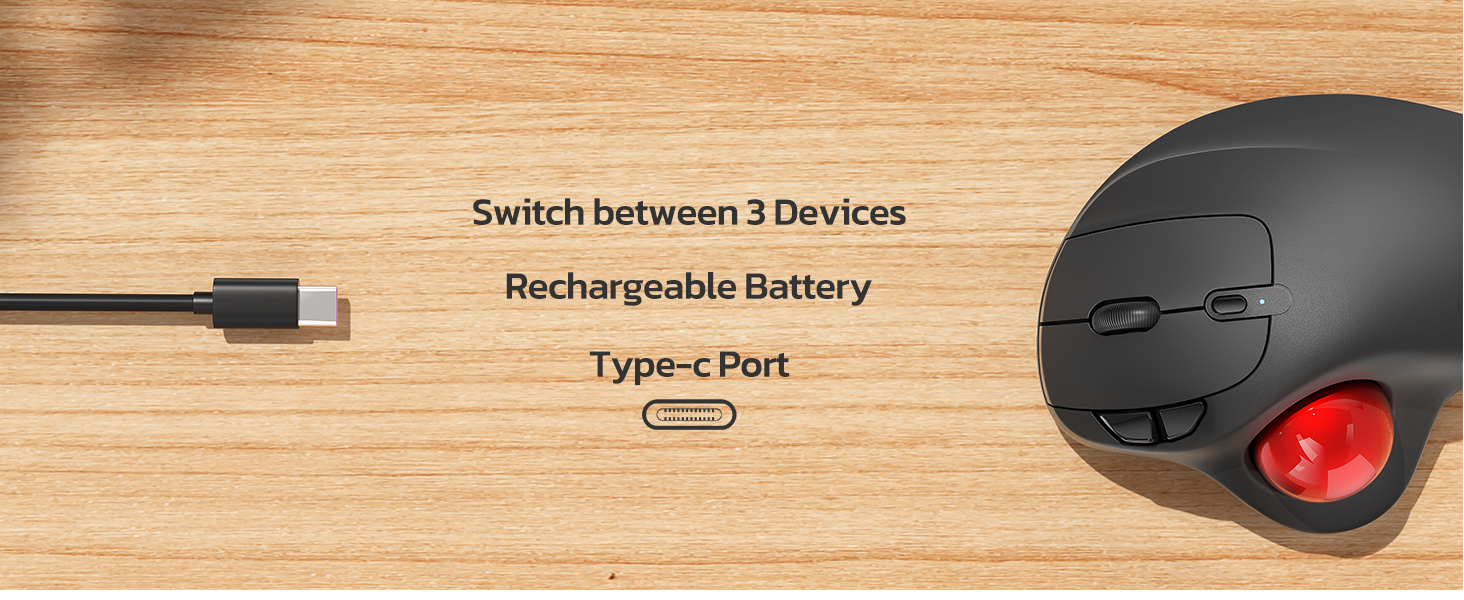
Image: A close-up of the Nulea M501 mouse, pointing out the DPI adjustment button located near the scroll wheel, used for customizing cursor sensitivity.
3. Back/Forward Buttons
Utilize the dedicated back and forward buttons, usually located on the side of the mouse, for quick navigation in web ബ്രൗസറുകൾ അല്ലെങ്കിൽ file explorers. These buttons are not programmable.

ചിത്രം: വിശദമായ ഒരു മുകളിൽ നിന്ന് താഴേക്ക് view of the Nulea M501 mouse, clearly indicating the positions of the back/forward buttons, the scroll wheel, and the DPI adjustment button.
മെയിൻ്റനൻസ്
ട്രാക്ക്ബോൾ വൃത്തിയാക്കുന്നു
Over time, dust and debris may accumulate around the trackball, affecting its smoothness. The trackball can be easily removed for cleaning:
- മൗസ് തിരിക്കുക.
- Locate the small hole on the bottom of the mouse, near the trackball.
- Use a pen or a similar thin object to gently push the trackball out from the bottom.
- Clean the trackball and the inside cavity with a soft, lint-free cloth.
- Insert the trackball back into its socket until it clicks into place.
ട്രബിൾഷൂട്ടിംഗ്
1. മൗസ് പ്രതികരിക്കുന്നില്ല
- മൗസ് ഓണാണെന്ന് ഉറപ്പാക്കുക.
- ബാറ്ററി നില പരിശോധിക്കുക; കുറവാണെങ്കിൽ റീചാർജ് ചെയ്യുക.
- Verify correct connection mode (Bluetooth or USB) is selected via the 'MODE' button.
- For USB connection, ensure the receiver is securely plugged into a working USB port.
- For Bluetooth, ensure your device's Bluetooth is enabled and the mouse is paired. Try re-pairing if necessary.
2. Cursor Movement is Erratic or Choppy
- Clean the trackball and its housing as described in the Maintenance section.
- Ensure the mouse is on a stable surface.
- Adjust DPI settings to a lower sensitivity if the cursor is too fast.
3. കണക്റ്റിവിറ്റി പ്രശ്നങ്ങൾ
- Move the mouse closer to your device to reduce interference.
- തടസ്സമുണ്ടാക്കാൻ സാധ്യതയുള്ള മറ്റ് വയർലെസ് ഉപകരണങ്ങൾക്ക് സമീപം മൗസ് ഉപയോഗിക്കുന്നത് ഒഴിവാക്കുക.
- If using Bluetooth, try forgetting the device on your computer and re-pairing.
സ്പെസിഫിക്കേഷനുകൾ
| ഫീച്ചർ | വിശദാംശങ്ങൾ |
|---|---|
| മോഡൽ നമ്പർ | M501 |
| കണക്റ്റിവിറ്റി ടെക്നോളജി | Bluetooth, 2.4G Wireless (USB Receiver) |
| മൂവ്മെന്റ് ഡിറ്റക്ഷൻ ടെക്നോളജി | ട്രാക്ക്ബോൾ |
| ഡിപിഐ ലെവലുകൾ | Adjustable (e.g., 400, 800, 1200, 1600, 2000) |
| പ്രത്യേക സവിശേഷതകൾ | Ergonomic Design, Rechargeable, Multi-Device Support |
| ബാറ്ററി തരം | 1 Lithium Ion battery required (built-in) |
| ഇനത്തിൻ്റെ ഭാരം | 4.5 ഔൺസ് |
| ഉൽപ്പന്ന അളവുകൾ | 5.51 x 4.37 x 0.04 ഇഞ്ച് |
വാറൻ്റിയും പിന്തുണയും
For warranty information, live chat support, or to send an email for support, please visit the official Nulea website or contact their customer service directly. Refer to the product packaging for specific contact details or visit www.nulea.com.
ഉൽപ്പന്ന വീഡിയോകൾ
Nulea Wireless Trackball Mouse Overview
വീഡിയോ: ഒരു ഉദ്യോഗസ്ഥൻview of the Nulea Wireless Trackball Mouse, demonstrating its ergonomic design, features, and connectivity options. This video is provided by Nulea Direct.


