1. ആമുഖം
Thank you for choosing the seenda Bluetooth Keyboard ISJ-DJC04-2. This manual provides detailed instructions for setting up, operating, and maintaining your keyboard. Please read this manual thoroughly before use to ensure optimal performance and longevity of your device.
പ്രധാന സവിശേഷതകൾ:
- മൾട്ടി-ഡിവൈസ് കണക്റ്റിവിറ്റി: Connects to up to 3 devices simultaneously via Bluetooth.
- RGB ബാക്ക്ലൈറ്റിംഗ്: Features 7 LED backlight colors and 3 adjustable brightness levels for comfortable typing in various lighting conditions.
- സാർവത്രിക അനുയോജ്യത: Supports Windows, Mac OS, Android, and iPad OS.
- Comfortable and Quiet Typing: Ergonomic design with scissor-switch keys for a precise and silent typing experience.
- റീചാർജ് ചെയ്യാവുന്ന ബാറ്ററി: Built-in 1500mAh lithium battery, rechargeable via Type-C port.
2. സജ്ജീകരണം
2.1 പാക്കേജ് ഉള്ളടക്കം
- seenda Bluetooth Keyboard ISJ-DJC04-2
- USB-C ചാർജിംഗ് കേബിൾ
- ഉപയോക്തൃ മാനുവൽ
2.2 പ്രാരംഭ ചാർജിംഗ്
Before first use, fully charge the keyboard. Connect the provided USB-C cable to the keyboard's charging port and the other end to a USB power source (e.g., computer, USB wall adapter). The charging indicator light will show the charging status.
2.3 പവർ ഓൺ/ഓഫ്
Locate the power switch on the keyboard. Slide it to the 'ON' position to power on the keyboard. Slide it to the 'OFF' position to power off.
2.4 ഉപകരണങ്ങളുമായി ജോടിയാക്കൽ
The keyboard supports connecting to three different devices. Follow these steps to pair your keyboard:
- കീബോർഡ് ഓണാക്കുക.
- അമർത്തിപ്പിടിക്കുക Fn കീയും ബ്ലൂടൂത്ത് ചാനൽ കീകളിൽ ഒന്ന് (BT1, BT2, അല്ലെങ്കിൽ BT3) അനുബന്ധ ഇൻഡിക്കേറ്റർ ലൈറ്റ് വേഗത്തിൽ മിന്നുന്നത് വരെ 3-5 സെക്കൻഡ് നേരത്തേക്ക്. കീബോർഡ് ജോടിയാക്കൽ മോഡിലാണെന്ന് ഇത് സൂചിപ്പിക്കുന്നു.
- On your device (computer, tablet, smartphone), enable Bluetooth and search for available devices.
- Select "seenda Keyboard" or a similar name from the list of found devices.
- If prompted, enter the pairing code displayed on your screen using the keyboard and press നൽകുക.
- Once paired, the indicator light will stop flashing and remain solid for a few seconds before turning off. The keyboard is now connected.
Repeat these steps for up to two additional devices using the other Bluetooth channel keys (BT2, BT3).
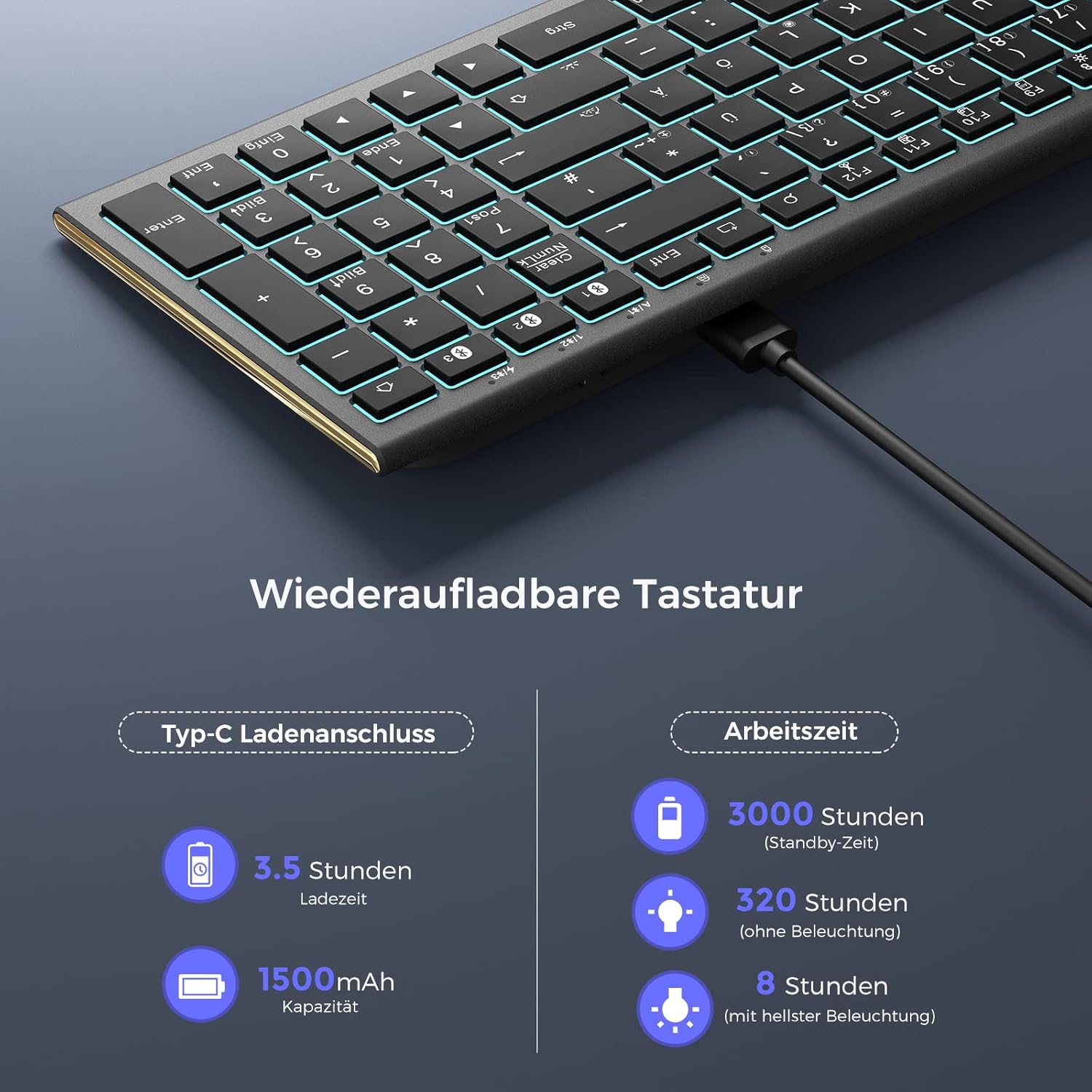
Image: Bluetooth connection diagram, illustrating how the keyboard connects to three separate devices (laptop, desktop, tablet) using distinct Bluetooth channels.
3. പ്രവർത്തന നിർദ്ദേശങ്ങൾ
3.1 ബന്ധിപ്പിച്ച ഉപകരണങ്ങൾക്കിടയിൽ മാറൽ
To switch between your paired devices, simply press the Fn അനുബന്ധ ബ്ലൂടൂത്ത് ചാനൽ കീയ്ക്കൊപ്പം കീയും (BT1, BT2, അല്ലെങ്കിൽ BT3) that your desired device is paired to. The keyboard will automatically connect to the selected device.

Image: Multi-device switching, demonstrating the use of Fn + BT1/BT2/BT3 keys to seamlessly transition between three connected Bluetooth devices.
3.2 ബാക്ക്ലൈറ്റ് നിയന്ത്രണം
The keyboard features 7 different backlight colors and 3 brightness levels.
- ബാക്ക്ലൈറ്റ് ഓൺ/ഓഫ് ചെയ്യുക: അമർത്തുക Fn + Light Bulb icon key ബാക്ക്ലൈറ്റ് ഓണാക്കാനോ ഓഫാക്കാനോ.
- തെളിച്ചം ക്രമീകരിക്കുക: അമർത്തുക Fn + Light Bulb icon key repeatedly to cycle through 3 brightness levels.
- ബാക്ക്ലൈറ്റ് നിറം മാറ്റുക: അമർത്തുക Fn + RGB icon key to cycle through the 7 available backlight colors.

Image: Backlight controls, showing the specific key combinations (Fn + Light Bulb icon, Fn + RGB icon) for adjusting backlight brightness and cycling through colors.
3.3 മൾട്ടിമീഡിയ, കുറുക്കുവഴി കീകൾ
The keyboard includes dedicated function keys that can be used as multimedia controls or system shortcuts when combined with the Fn key. The specific functions may vary slightly depending on your operating system (Windows, Mac OS, Android, iPad OS).
| കീ കോമ്പിനേഷൻ | ഫംഗ്ഷൻ |
|---|---|
| Fn + F1 | നിശബ്ദമാക്കുക |
| Fn + F2 | വോളിയം ഡൗൺ |
| Fn + F3 | വോളിയം കൂട്ടുക |
| Fn + F4 | മുമ്പത്തെ ട്രാക്ക് |
| Fn + F5 | പ്ലേ/താൽക്കാലികമായി നിർത്തുക |
| Fn + F6 | അടുത്ത ട്രാക്ക് |
| Fn + F7 | തെളിച്ചം കുറഞ്ഞു |
| Fn + F8 | തെളിച്ചം വർദ്ധിക്കുന്നു |
| Fn + F9 | എല്ലാം തിരഞ്ഞെടുക്കുക |
| Fn + F10 | പകർത്തുക |
| Fn + F11 | ഒട്ടിക്കുക |
| Fn + F12 | മുറിക്കുക |
| Fn + Search icon | തിരയൽ |
| Fn + Screenshot icon | സ്ക്രീൻഷോട്ട് |
| Fn + ഇല്ലാതാക്കുക | ഇല്ലാതാക്കുക |

Image: Multimedia and shortcut keys, detailing the functions of the F-keys when used with the Fn modifier key.
4. പരിപാലനം
4.1 കീബോർഡ് ചാർജ് ചെയ്യുന്നു
When the battery is low, the low battery indicator light on the keyboard will flash. Connect the keyboard to a power source using the USB-C cable to recharge. A full charge takes approximately 3.5 hours.
- ബാറ്ററി ശേഷി: 1500mAh
- ചാർജിംഗ് സമയം: ഏകദേശം 3.5 മണിക്കൂർ
- സ്റ്റാൻഡ്ബൈ സമയം: 3000 മണിക്കൂർ വരെ
- Working Time (without backlight): 320 മണിക്കൂർ വരെ
- Working Time (with brightest backlight): 8 മണിക്കൂർ വരെ

Image: Rechargeable keyboard, highlighting the Type-C charging port and providing details on charging time and battery life under different usage conditions.
4.2 വൃത്തിയാക്കൽ
To clean your keyboard, power it off and disconnect it from any devices. Use a soft, lint-free cloth slightly dampened with water or a mild cleaning solution. Avoid excessive moisture and do not spray cleaners directly onto the keyboard. For dust and debris between keys, use compressed air.
5. പ്രശ്നപരിഹാരം
If you encounter issues with your keyboard, please refer to the following common problems and solutions:
- കീബോർഡ് കണക്റ്റ് ചെയ്യുന്നില്ല:
- കീബോർഡ് ഓണാക്കിയിട്ടുണ്ടെന്നും പൂർണ്ണമായും ചാർജ് ചെയ്തിട്ടുണ്ടെന്നും ഉറപ്പാക്കുക.
- നിങ്ങളുടെ ഉപകരണത്തിൽ ബ്ലൂടൂത്ത് പ്രവർത്തനക്ഷമമാക്കിയിട്ടുണ്ടെന്ന് ഉറപ്പാക്കുക.
- കീബോർഡ് ജോടിയാക്കൽ മോഡിലാണെന്ന് ഉറപ്പാക്കുക (ഇൻഡിക്കേറ്റർ ലൈറ്റ് മിന്നുന്നു).
- Try unpairing and re-pairing the keyboard on your device.
- Ensure the correct Bluetooth channel (BT1, BT2, or BT3) is selected for your device.
- പ്രതികരിക്കാത്ത കീകൾ:
- Check the battery level and charge the keyboard if necessary.
- കീബോർഡ് നിങ്ങളുടെ ഉപകരണവുമായി ശരിയായി ബന്ധിപ്പിച്ചിട്ടുണ്ടെന്ന് ഉറപ്പാക്കുക.
- നിങ്ങളുടെ ഉപകരണവും കീബോർഡും പുനരാരംഭിക്കുക.
- ബാക്ക്ലൈറ്റ് പ്രവർത്തിക്കുന്നില്ല:
- ഉപയോഗിച്ച് ബാക്ക്ലൈറ്റ് ഓണാക്കിയിട്ടുണ്ടെന്ന് ഉറപ്പാക്കുക Fn + Light Bulb icon key.
- Check the battery level; low battery might disable backlighting.
- കാലതാമസം അല്ലെങ്കിൽ വൈകിയ ഇൻപുട്ട്:
- Ensure there are no strong interferences (e.g., other wireless devices) nearby.
- കീബോർഡ് നിങ്ങളുടെ ഉപകരണത്തിന് അടുത്തേക്ക് നീക്കുക.
- നിങ്ങളുടെ ഉപകരണത്തിന്റെ ബ്ലൂടൂത്ത് ഡ്രൈവറുകൾ കാലികമാണെന്ന് ഉറപ്പാക്കുക.
6 സ്പെസിഫിക്കേഷനുകൾ
| ഫീച്ചർ | വിശദാംശങ്ങൾ |
|---|---|
| ബ്രാൻഡ് | സീൻഡ |
| മോഡൽ | ISJ-DJC04-2 |
| കണക്റ്റിവിറ്റി ടെക്നോളജി | Bluetooth (Version 5.1 and higher) |
| വയർലെസ് ശ്രേണി | 10 മീറ്റർ വരെ |
| അനുയോജ്യമായ ഉപകരണങ്ങൾ | Computer, Laptop, Smartphone, Tablet |
| ഓപ്പറേറ്റിംഗ് സിസ്റ്റങ്ങൾ | Windows, Mac OS, Android, iPad OS |
| കീബോർഡ് വിവരണം | മൾട്ടിഫങ്ഷണൽ |
| പ്രത്യേക സവിശേഷതകൾ | Ergonomic, Shortcut and multimedia keys, Rechargeable, Backlit (RGB) |
| ബാക്ക്ലൈറ്റ് നിറങ്ങൾ | 7 RGB നിറങ്ങൾ |
| തെളിച്ച നിലകൾ | 3 ലെവലുകൾ |
| പവർ ഉറവിടം | Battery Powered (Lithium metal) |
| ബാറ്ററി ശേഷി | 1500mAh |
| ചാർജിംഗ് പോർട്ട് | ടൈപ്പ്-സി |
| സ്വിച്ച് തരം | കത്രിക സ്വിച്ച് |
| കീബോർഡ് ലേഔട്ട് | QWERTZ |
| ശുപാർശ ചെയ്യുന്ന ഉപയോഗം | ഓഫീസ് |
7. വാറൻ്റിയും പിന്തുണയും
വാറന്റി വിവരങ്ങൾക്കും ഉപഭോക്തൃ പിന്തുണയ്ക്കും, നിങ്ങളുടെ വാങ്ങലിനൊപ്പം നൽകിയിരിക്കുന്ന ഡോക്യുമെന്റേഷൻ പരിശോധിക്കുകയോ റീട്ടെയിലറെയോ/നിർമ്മാതാവിനെയോ നേരിട്ട് ബന്ധപ്പെടുകയോ ചെയ്യുക. വാറന്റി ക്ലെയിമുകൾക്കായി നിങ്ങളുടെ വാങ്ങിയതിന്റെ തെളിവ് സൂക്ഷിക്കുക.


