1. ആമുഖം
This manual provides comprehensive instructions for the HP LaserJet MFP M140w, a compact multifunction monochrome laser printer designed for efficient printing, scanning, and copying. It features Wi-Fi, Wi-Fi Direct, and USB 2.0 connectivity, offering a print speed of up to 20 pages per minute (ppm).

ചിത്രം 1.1: മുൻഭാഗം view of the HP LaserJet MFP M140w printer.
2 സുരക്ഷാ വിവരങ്ങൾ
Please read all safety instructions before using the printer to prevent damage or injury. Keep this manual for future reference.
- പ്രിന്റർ ഒരു സ്ഥിരതയുള്ള, നിരപ്പായ പ്രതലത്തിൽ സ്ഥാപിക്കുക.
- പ്രിൻ്ററിന് ചുറ്റും ശരിയായ വായുസഞ്ചാരം ഉറപ്പാക്കുക.
- പ്രിന്ററിനൊപ്പം നൽകിയിരിക്കുന്ന പവർ കോർഡ് മാത്രം ഉപയോഗിക്കുക.
- Do not expose the printer to water or excessive humidity.
- ഓപ്പറേഷൻ സമയത്ത് ചലിക്കുന്ന ഭാഗങ്ങളിൽ നിന്ന് കൈകൾ സൂക്ഷിക്കുക.
- Only use original HP toner cartridges to ensure optimal performance and avoid potential damage.
3. പാക്കേജ് ഉള്ളടക്കം
പാക്കേജിൽ എല്ലാ ഇനങ്ങളും ഉണ്ടെന്ന് ഉറപ്പാക്കുക:
- HP ലേസർജെറ്റ് MFP M140w പ്രിന്റർ
- Original HP Toner Cartridge
- പവർ കോർഡ്
- സജ്ജീകരണ ഗൈഡ്
4. സജ്ജീകരണം
4.1 അൺപാക്കിംഗും പ്ലേസ്മെന്റും
- പ്രിന്റർ അതിന്റെ പാക്കേജിംഗിൽ നിന്ന് നീക്കം ചെയ്യുക, എല്ലാ സംരക്ഷണ ടേപ്പുകളും പാക്കിംഗ് വസ്തുക്കളും നീക്കം ചെയ്യുക.
- പരന്നതും സുസ്ഥിരവുമായ പ്രതലത്തിൽ പ്രിൻ്റർ സ്ഥാപിക്കുക.
4.2 ടോണർ കാട്രിഡ്ജ് ഇൻസ്റ്റാൾ ചെയ്യൽ
- ടോണർ ആക്സസ് വാതിൽ തുറക്കുക.
- Remove the new toner cartridge from its packaging and gently shake it to distribute the toner.
- Insert the cartridge into the printer until it clicks into place.
- ടോണർ ആക്സസ് വാതിൽ അടയ്ക്കുക.
4.3 പേപ്പർ ലോഡ് ചെയ്യുന്നു
- ഇൻപുട്ട് ട്രേ പുറത്തെടുക്കുക.
- Adjust the paper guides to the correct paper size (e.g., A4).
- Load up to 150 sheets of paper into the input tray.
- ഇൻപുട്ട് ട്രേ പ്രിന്ററിലേക്ക് തിരികെ തിരുകുക.

Image 4.1: The printer with paper loaded and ready for use.
4.4 പവർ കണക്ഷൻ
- പവർ കോർഡ് പ്രിന്ററിലേക്കും തുടർന്ന് ഒരു വാൾ ഔട്ട്ലെറ്റിലേക്കും ബന്ധിപ്പിക്കുക.
- പ്രിന്റർ ഓണാക്കാൻ പവർ ബട്ടൺ അമർത്തുക.
4.5 സോഫ്റ്റ്വെയർ ഇൻസ്റ്റാളേഷനും കണക്റ്റിവിറ്റിയും
For full functionality, install the HP Smart App on your computer or mobile device. The app guides you through connecting the printer to your network.
- വൈഫൈ കണക്റ്റിവിറ്റി: The printer supports dual-band Wi-Fi with automatic reset. Follow the on-screen instructions in the HP Smart App to connect to your wireless network.
- വൈഫൈ ഡയറക്ട്: This feature allows direct connection from your mobile device to the printer without a router. Consult the HP Smart App for setup.
- USB 2.0: Connect the printer directly to your computer using a USB 2.0 cable (not included).
- ബ്ലൂടൂത്ത്: The printer supports Bluetooth connectivity for certain functions.
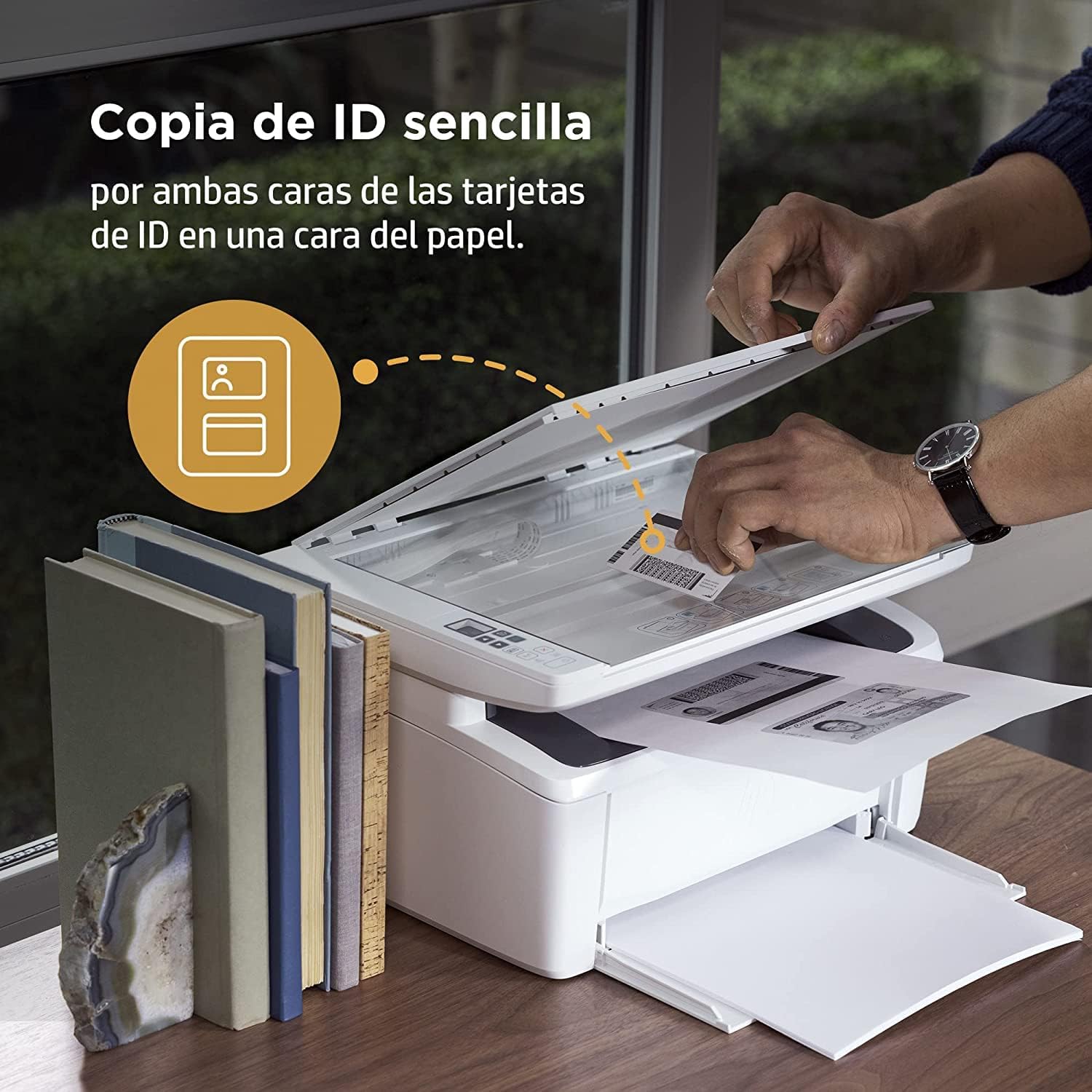
Image 4.2: The compact HP LaserJet MFP M140w printer with a mobile device displaying the HP Smart App interface.
5. പ്രവർത്തന നിർദ്ദേശങ്ങൾ
5.1 അച്ചടി
The HP LaserJet MFP M140w prints at speeds up to 20 ppm in monochrome. It supports A4 paper size.
- ഒരു കമ്പ്യൂട്ടറിൽ നിന്ന്: Select the HP LaserJet MFP M140w from your printer list in any application. Adjust print settings as needed (e.g., paper size, quality).
- ഒരു മൊബൈൽ ഉപകരണത്തിൽ നിന്ന് (HP സ്മാർട്ട് ആപ്പ്): Use the HP Smart App to easily print documents and photos directly from your smartphone or tablet.
- മാനുവൽ ഡ്യൂപ്ലെക്സ് പ്രിന്റിംഗ്: For two-sided printing, the printer supports manual duplex. Follow the prompts on your computer or the HP Smart App to reinsert the paper to print the second side.
5.2 സ്കാനിംഗ്
The printer features a flatbed scanner for digitizing documents and images.
- സ്കാനർ ലിഡ് ഉയർത്തുക.
- Place the document face down on the scanner glass, aligning it with the guides.
- സ്കാനർ ലിഡ് അടയ്ക്കുക.
- Initiate the scan from your computer or the HP Smart App. You can choose scan settings such as resolution and file ഫോർമാറ്റ്.
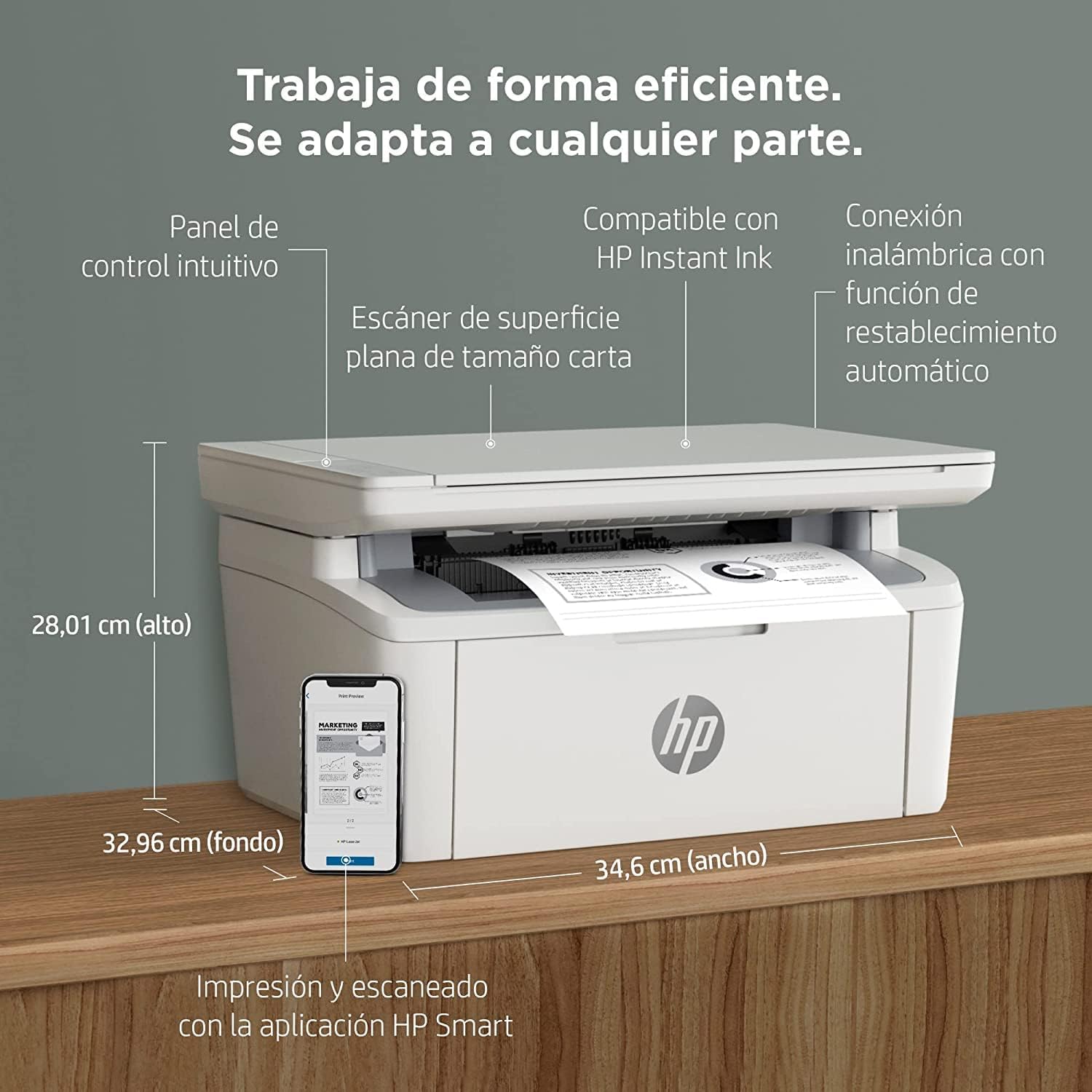
Image 5.1: Using the scanner for ID card copying.
5.3 പകർത്തൽ
The printer can make up to 150 copies per job.
- യഥാർത്ഥ പ്രമാണം സ്കാനർ ഗ്ലാസിൽ വയ്ക്കുക.
- Use the control panel on the printer or the HP Smart App to select the number of copies and start the copying process.
- ID Copy Function: This feature allows you to copy both sides of an ID card onto a single side of paper. Follow the instructions on the printer's control panel or the HP Smart App.
6. പരിപാലനം
6.1 ടോണർ കാട്രിഡ്ജ് മാറ്റിസ്ഥാപിക്കൽ
When the toner level is low, replace the cartridge with an original HP 142A Black (W1420A) toner cartridge. Using non-HP cartridges may void your warranty and affect print quality.
- ടോണർ ആക്സസ് വാതിൽ തുറക്കുക.
- Remove the old toner cartridge.
- Unpack the new HP 142A toner cartridge and gently shake it.
- Insert the new cartridge until it locks into place.
- ടോണർ ആക്സസ് വാതിൽ അടയ്ക്കുക.
6.2 പ്രിന്റർ വൃത്തിയാക്കുന്നു
പതിവായി വൃത്തിയാക്കുന്നത് പ്രിന്റ് ഗുണനിലവാരം നിലനിർത്താൻ സഹായിക്കുകയും പ്രിന്ററിന്റെ ആയുസ്സ് വർദ്ധിപ്പിക്കുകയും ചെയ്യുന്നു.
- മൃദുവായ, ലിന്റ് രഹിത തുണി ഉപയോഗിച്ച് പ്രിന്ററിന്റെ പുറംഭാഗം തുടയ്ക്കുക.
- സ്കാനർ ഗ്ലാസ് മൃദുവായ തുണി ഉപയോഗിച്ച് വൃത്തിയാക്കുക d.ampened with glass cleaner (apply cleaner to cloth, not directly to glass).
- Refer to the HP Smart App or HP support website for specific cleaning instructions for internal components.
6.3 ഫേംവെയർ അപ്ഡേറ്റുകൾ
HP periodically releases firmware updates to improve printer performance and security. Ensure your printer is connected to the internet and check for updates via the HP Smart App or the printer's embedded web സെർവർ.
7. പ്രശ്നപരിഹാരം
This section addresses common issues you might encounter with your HP LaserJet MFP M140w printer.
7.1 കണക്റ്റിവിറ്റി പ്രശ്നങ്ങൾ
- Printer not found on network: Ensure the printer is powered on and connected to the correct Wi-Fi network. Use the HP Smart App's troubleshooting tools or try resetting the Wi-Fi connection on the printer.
- Wi-Fi connection drops: The printer features dual-band Wi-Fi with automatic reset. If issues persist, ensure your router is functioning correctly and the printer is within range.
- USB connection not recognized: Verify the USB cable is securely connected to both the printer and the computer. Try a different USB port or cable.
7.2 Printing Problems
- പ്രിന്റ് ഔട്ട്പുട്ട് ഇല്ല: Check if the printer is online and there are no error messages. Ensure paper is loaded correctly and the toner cartridge is installed.
- മോശം പ്രിന്റ് നിലവാരം: Replace the toner cartridge if it's low. Ensure you are using original HP toner. Clean the printer if necessary.
- പേപ്പർ കുടുങ്ങിയത്: Follow the instructions on the printer's display or in the HP Smart App to clear any jammed paper. Ensure paper is loaded correctly and not overfilled.
7.3 Scanning/Copying Issues
- Scanner not responding: Ensure the scanner lid is fully closed and the document is placed correctly. Restart the printer and your computer/mobile device.
- Poor scan/copy quality: Clean the scanner glass. Ensure the original document is clean and flat.
7.4 Toner Cartridge Issues
The printer is designed to work exclusively with original HP toner cartridges. Firmware updates may affect the functionality of non-HP cartridges. If you experience issues with a non-HP cartridge, replace it with an original HP cartridge.
8 സ്പെസിഫിക്കേഷനുകൾ
| ഫീച്ചർ | സ്പെസിഫിക്കേഷൻ |
|---|---|
| മോഡലിൻ്റെ പേര് | M140w |
| ഉൽപ്പന്ന മോഡൽ നമ്പർ | 7MD72F |
| പ്രവർത്തനങ്ങൾ | പ്രിന്റ് ചെയ്യുക, സ്കാൻ ചെയ്യുക, പകർത്തുക |
| പ്രിന്റ് സാങ്കേതികവിദ്യ | ലേസർ |
| പ്രിന്റ് ഔട്ട്പുട്ട് | മോണോക്രോം |
| പ്രിന്റ് വേഗത (മോണോക്രോം) | 20 ppm വരെ |
| പരമാവധി പ്രിന്റ് റെസല്യൂഷൻ (മോണോക്രോം) | 1200 ഡിപിഐ |
| ഡ്യൂപ്ലക്സ് പ്രിൻ്റിംഗ് | മാനുവൽ |
| സ്കാനർ തരം | ഫ്ലാറ്റ്ബെഡ് |
| പരമാവധി ഇൻപുട്ട് ഷീറ്റ് ശേഷി | 150 ഷീറ്റുകൾ |
| Max Copies per Run | 150 |
| കണക്റ്റിവിറ്റി | Wi-Fi (Dual-band, auto-reset), Wi-Fi Direct, USB 2.0, Bluetooth |
| പ്രോസസ്സർ വേഗത | 500 MHz |
| മെമ്മറി | 64 MB |
| അനുയോജ്യമായ ഓപ്പറേറ്റിംഗ് സിസ്റ്റങ്ങൾ | Mac OS 10.15 Catalina (and later), Android |
| അളവുകൾ (W x D x H) | 34.6 x 32.96 x 28.01 സെ.മീ (ഏകദേശം) |
| ഭാരം | 5.4 കി.ഗ്രാം |
| വൈദ്യുതി ഉപഭോഗം | 60 Kilowatts (operating), 3600.0 Watts (peak) |
| അനുയോജ്യമായ ടോണർ | HP 142A Black (W1420A) |
9. വാറൻ്റിയും പിന്തുണയും
9.1 വാറൻ്റി വിവരങ്ങൾ
The product includes a 2-year availability of spare parts in the EU. For specific warranty terms and conditions, please refer to the documentation provided with your printer or visit the official HP support webസൈറ്റ്.
9.2 സോഫ്റ്റ്വെയർ അപ്ഡേറ്റുകൾ
Software updates are guaranteed until April 13, 2030. These updates ensure continued functionality and security for your printer.
9.3 ഉപഭോക്തൃ പിന്തുണ
For further assistance, technical support, or to access additional resources, please visit the official HP support website or use the HP Smart App. The HP Smart App provides guided troubleshooting and access to support documentation.
കൂടുതൽ വിവരങ്ങളും പിന്തുണയും നിങ്ങൾക്ക് ഇവിടെ കണ്ടെത്താനാകും HP പിന്തുണ Webസൈറ്റ്.