1. ആമുഖം
This manual provides essential instructions for setting up, operating, maintaining, and troubleshooting your Intel NUC 7 Essential Desktop Computer. Please read this guide thoroughly before using your device to ensure proper functionality and longevity.
The Intel NUC 7 Essential is a compact mini PC designed for everyday computing tasks, offering responsive performance with an Intel Celeron processor.
2. പാക്കേജ് ഉള്ളടക്കം
പാക്കേജിൽ എല്ലാ ഇനങ്ങളും ഉണ്ടെന്ന് ഉറപ്പാക്കുക:
- Intel NUC 7 Essential Desktop Computer (Model BOXNUC7CJYSAMN1)
- പവർ അഡാപ്റ്റർ
- ക്വിക്ക് സ്റ്റാർട്ട് ഗൈഡ് (ബാധകമെങ്കിൽ)
3. സജ്ജീകരണ ഗൈഡ്
Follow these steps to set up your Intel NUC 7 Essential:
3.1 പെരിഫറലുകൾ ബന്ധിപ്പിക്കുന്നു
- ഡിസ്പ്ലേ ബന്ധിപ്പിക്കുക: Use an HDMI cable to connect your monitor or TV to one of the HDMI ports on the back of the NUC.
- കീബോർഡും മൗസും ബന്ധിപ്പിക്കുക: Plug your USB keyboard and mouse into the available USB 3.0 ports. There are two on the front and two on the back.
- നെറ്റ്വർക്കിലേക്ക് കണക്റ്റുചെയ്യുക (ഓപ്ഷണൽ): For a wired connection, plug an Ethernet cable into the RJ45 port on the back. For wireless, ensure your NUC is within Wi-Fi range.

ചിത്രം: പിൻഭാഗം view of the Intel NUC 7 Essential, highlighting the power input, USB 3.0 ports, HDMI ports, and Ethernet port for connecting external devices.

ചിത്രം: മുൻഭാഗം view of the Intel NUC 7 Essential, displaying the two front USB 3.0 ports, SD card slot, and power button for easy access.
3.2 പവർ ചെയ്യുന്നു
- പവർ ബന്ധിപ്പിക്കുക: Plug the power adapter into the NUC's power input port, then plug the adapter into a wall outlet.
- പവർ ഓൺ: Press the power button located on the front of the NUC. The power indicator light will illuminate.

Image: A typical 'plug & play' setup showing the Intel NUC 7 Essential connected to a monitor, keyboard, and mouse, ready for use.
4. പ്രവർത്തന നിർദ്ദേശങ്ങൾ
4.1 അടിസ്ഥാന പ്രവർത്തനം
- The NUC comes pre-installed with Windows 10 Home. Follow the on-screen prompts for initial Windows setup.
- To shut down, restart, or put the NUC to sleep, use the standard Windows power options.
4.2 കണക്റ്റിവിറ്റി
- USB 3.0 പോർട്ടുകൾ: Four ports are available for connecting external devices such as storage drives, printers, or webക്യാമറകൾ.
- HDMI പോർട്ടുകൾ: Supports dual 4K displays for extended desktop or mirroring.
- ഇഥർനെറ്റ്: സ്ഥിരമായ ഒരു വയർഡ് നെറ്റ്വർക്ക് കണക്ഷൻ നൽകുന്നു.
- വൈഫൈ: Integrated wireless connectivity for internet access.
4.3 ഓഡിയോ
The Intel NUC 7 Essential supports 7.1 surround sound, providing a rich audio experience through connected HDMI displays or external audio devices.
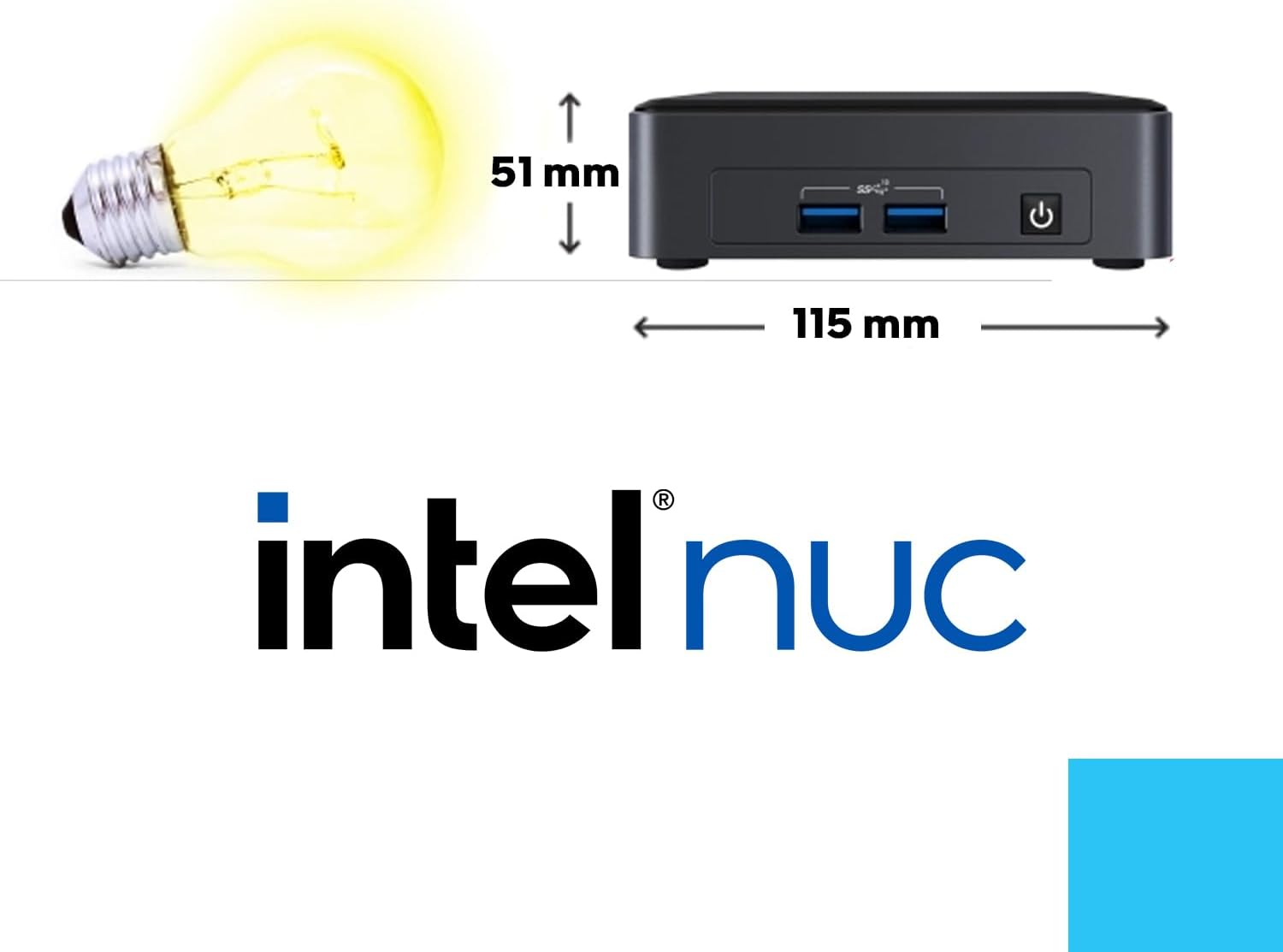
Image: The Intel NUC 7 Essential connected to a television and external speakers, demonstrating its support for 7.1 surround sound for an immersive audio experience.
5. പരിപാലനവും നവീകരണങ്ങളും
5.1 വൃത്തിയാക്കൽ
To maintain optimal performance, regularly clean the exterior of your NUC with a soft, dry cloth. Ensure the device is powered off and unplugged before cleaning. Avoid using liquid cleaners directly on the device.
5.2 Memory (RAM) Upgrade
The NUC comes with 4GB DDR4 RAM. For improved multitasking and overall performance, especially when upgrading to Windows 11, consider upgrading the RAM to 8GB. Refer to the official Intel NUC documentation for specific memory module compatibility and installation instructions.
5.3 സംഭരണ അപ്ഗ്രേഡ്
The device includes 32GB flash memory (eMMC). For additional storage or faster data access, a 2.5-inch SSD can be installed internally. This upgrade does not affect the existing eMMC storage. Consult official Intel NUC guides for detailed installation procedures.

Image: An opened Intel NUC 7 Essential, illustrating the internal layout and the available bay for a 2.5-inch SSD upgrade.
6. പ്രശ്നപരിഹാരം
If you encounter issues with your Intel NUC 7 Essential, refer to the following common solutions:
- Slow Performance after Windows 11 Upgrade: Upgrading to Windows 11 may impact performance on systems with 4GB RAM. Consider upgrading the RAM to 8GB for a smoother experience.
- Limited Storage Space: The internal eMMC storage is 32GB. If you require more space, install an internal 2.5-inch SSD or use external storage devices. Regularly clean up temporary files and old system files.
- Linux Booting Issues: Some Linux distributions may experience booting or hardware compatibility issues. Ensure your Linux distribution is compatible with the NUC's hardware.
- External HDD/SSD Not Working with Linux: If using Linux, external hard drives might experience power delivery issues. Try connecting the external drive to a powered USB hub or ensure the NUC's power adapter is correctly connected and providing sufficient power.
- ഡിസ്പ്ലേ ഔട്ട്പുട്ട് ഇല്ല: Check HDMI cable connections to both the NUC and the monitor. Ensure the monitor is set to the correct input source.
- ശക്തിയില്ല: Verify the power adapter is securely connected to both the NUC and a working power outlet.
7 സ്പെസിഫിക്കേഷനുകൾ
Detailed technical specifications for the Intel NUC 7 Essential Desktop Computer (Model BOXNUC7CJYSAMN1):
| ഫീച്ചർ | സ്പെസിഫിക്കേഷൻ |
|---|---|
| മോഡൽ നമ്പർ | BOXNUC7CJYSAMN1 |
| പ്രോസസ്സർ | Intel Celeron J4005 Dual-core (2 Core) 2 GHz |
| റാം | 4 ജിബി ഡിഡിആർ4 എസ്ഡിആർഎഎം |
| Flash Memory Capacity | 32 ജിബി (ഇഎംഎംസി) |
| ഗ്രാഫിക്സ് കോപ്രൊസസർ | ഇന്റൽ UHD ഗ്രാഫിക്സ് 600/605 |
| ഓപ്പറേറ്റിംഗ് സിസ്റ്റം | വിൻഡോസ് 10 ഹോം |
| പരമാവധി സ്ക്രീൻ റെസല്യൂഷൻ | 3840 x 2160 (4K) |
| USB 3.0 പോർട്ടുകൾ | 4 |
| HDMI പോർട്ടുകൾ | 2 |
| ഇഥർനെറ്റ് | അതെ |
| വയർലെസ് കണക്റ്റിവിറ്റി | വൈഫൈ |
| ഓഡിയോ | 7.1 സറൗണ്ട് സൗണ്ട് |
| ഇനത്തിൻ്റെ ഭാരം | 2.43 പൗണ്ട് (ഏകദേശം 1.1 കിലോഗ്രാം) |
| ഉൽപ്പന്ന അളവുകൾ (LxWxH) | 4.61 x 4.41 x 2.01 ഇഞ്ച് (ഏകദേശം 11.7 x 11.2 x 5.1 സെ.മീ) |
| ഹാർഡ്വെയർ പ്ലാറ്റ്ഫോം | PC |

Image: Dimensions of the Intel NUC 7 Essential, illustrating its compact size with measurements of 115mm in length and 51mm in height.
8. വാറൻ്റിയും പിന്തുണയും
For warranty information, please refer to the documentation included with your product or visit the official Intel support webസൈറ്റ്. സാങ്കേതിക സഹായം, ഡ്രൈവർ ഡൗൺലോഡുകൾ, കൂടുതൽ പിന്തുണയ്ക്ക്, ദയവായി സന്ദർശിക്കുക ഇന്റൽ പിന്തുണ.


