ആമുഖം
This manual provides comprehensive instructions for the setup, operation, and maintenance of your Targus Ambidextrous Bluetooth Mouse (Model: PMB58102GL). This compact, multi-device wireless mouse offers dual-mode connectivity (2.4 GHz and Bluetooth 5.0) and is compatible with Windows and macOS. It also features Targus DefenseGuard Protection, an antimicrobial additive that helps prevent the growth of microorganisms on the mouse surface.
ഉൽപ്പന്ന സവിശേഷതകൾ
- അംബിഡെക്സ്ട്രസ് ഡിസൈൻ: The mouse features an oval, pebble-shaped design suitable for both left and right-handed users.
- മൾട്ടി-ഡിവൈസ് കണക്റ്റിവിറ്റി: Connects to up to three devices using either 2.4 GHz wireless (via USB receiver) or Bluetooth 5.0.
- DefenseGuard Protection: Infused with an antimicrobial additive (Silver Phosphate Glass (nano-)) that works continuously to protect the mouse surface by inhibiting microbial growth. This protection does not wear off.
- Essential Controls: Equipped with three essential buttons for clicking, pointing, and scrolling.
- വിശാലമായ അനുയോജ്യത: Fully compatible with Windows and macOS operating systems.
സജ്ജമാക്കുക
പാക്കേജ് ഉള്ളടക്കം
- Targus Ambidextrous Bluetooth Mouse (PMB58102GL)
- USB റിസീവർ (മൗസിനുള്ളിൽ സൂക്ഷിച്ചിരിക്കുന്നു)
- AA ബാറ്ററി (മുൻകൂട്ടി ഇൻസ്റ്റാൾ ചെയ്തതോ ഉൾപ്പെടുത്തിയതോ)
- ദ്രുത ആരംഭ ഗൈഡ്
ബാറ്ററി ഇൻസ്റ്റാളേഷൻ
- മൗസിന്റെ അടിഭാഗത്ത് ബാറ്ററി കമ്പാർട്ട്മെന്റ് കവർ കണ്ടെത്തുക.
- കവർ തുറക്കുക.
- ശരിയായ പോളാരിറ്റി (+/-) ഉറപ്പാക്കിക്കൊണ്ട് ഒരു AA ബാറ്ററി ഇടുക.
- ബാറ്ററി കമ്പാർട്ട്മെൻ്റ് കവർ സുരക്ഷിതമായി അടയ്ക്കുക.
Note: The USB receiver is typically stored inside the battery compartment for safekeeping.

Image: The underside of the Targus mouse, displaying the battery compartment, the power switch, and the multi-device pairing button.
Connecting via 2.4 GHz USB Receiver
- Remove the USB receiver from its storage slot inside the mouse.
- നിങ്ങളുടെ കമ്പ്യൂട്ടറിൽ ലഭ്യമായ ഒരു USB-A പോർട്ടിലേക്ക് USB റിസീവർ പ്ലഗ് ചെയ്യുക.
- അടിവശത്തുള്ള പവർ സ്വിച്ച് ഉപയോഗിച്ച് മൗസ് ഓണാക്കുക.
- മൗസ് നിങ്ങളുടെ കമ്പ്യൂട്ടറിലേക്ക് യാന്ത്രികമായി കണക്റ്റുചെയ്യണം.
ചിത്രം: ഒരു ആംഗിൾ view of the Targus mouse, with its small USB receiver placed beside it, illustrating the 2.4 GHz wireless connection component.
ബ്ലൂടൂത്ത് 5.0 വഴി ബന്ധിപ്പിക്കുന്നു
- അടിവശത്തുള്ള പവർ സ്വിച്ച് ഉപയോഗിച്ച് മൗസ് ഓണാക്കുക.
- Press the multi-device pairing button on the underside of the mouse to select a Bluetooth channel (indicated by LED lights 1, 2, or 3).
- Press and hold the pairing button for 3-5 seconds until the selected LED light blinks rapidly, indicating pairing mode.
- On your computer (Windows or macOS), go to Bluetooth settings and search for new devices.
- Select "Targus Mouse" from the list of available devices to complete the pairing process.
Note: You can pair up to three devices (one via 2.4 GHz USB receiver, two via Bluetooth).
പ്രവർത്തന നിർദ്ദേശങ്ങൾ
പവർ ഓൺ/ഓഫ്
Use the ON/OFF switch located on the underside of the mouse to power it on or off. Turning the mouse off when not in use conserves battery life.
ബന്ധിപ്പിച്ച ഉപകരണങ്ങൾക്കിടയിൽ മാറുന്നു
If you have paired the mouse with multiple devices, press the multi-device pairing button on the underside of the mouse to cycle through the connected devices (channels 1, 2, and 3). The corresponding LED light will indicate the currently active channel.
മൗസിന്റെ അടിസ്ഥാന പ്രവർത്തനങ്ങൾ
- ഇടത് ക്ലിക്ക്: പ്രാഥമിക തിരഞ്ഞെടുപ്പും സജീവമാക്കലും.
- വലത് ക്ലിക്കിൽ: സന്ദർഭോചിത മെനുകൾ ആക്സസ് ചെയ്യുന്നു.
- സ്ക്രോൾ വീൽ: Scrolls content vertically. The scroll wheel also functions as a middle click button.

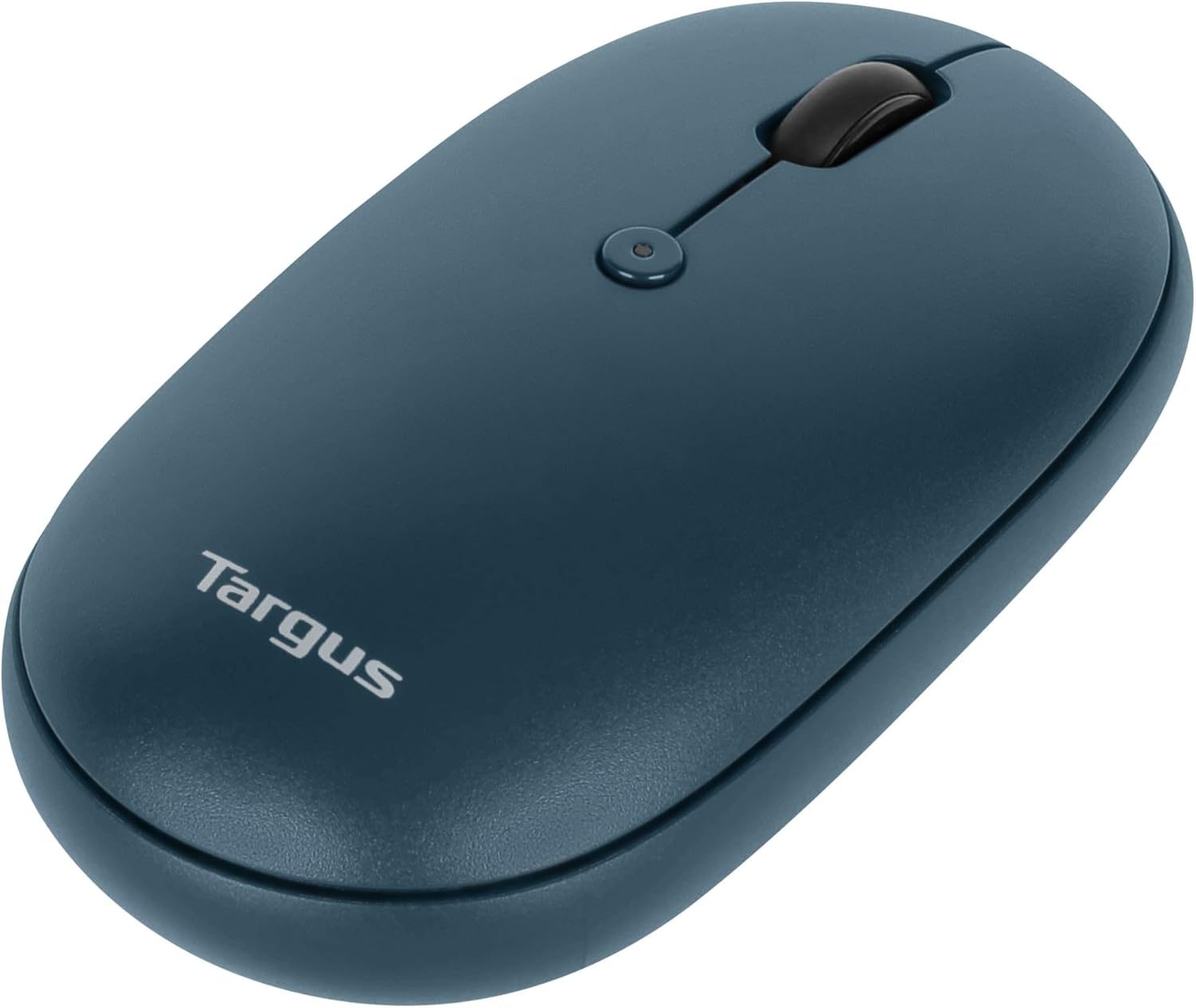
ചിത്രം: മുകളിൽ നിന്ന് താഴേക്ക് view of the Targus mouse, highlighting the left and right click buttons and the central scroll wheel.
DPI Adjustment (Scroll Speed)
The mouse features a button near the scroll wheel that allows you to adjust the DPI (Dots Per Inch) setting, which controls the cursor speed. Press this button to cycle through different sensitivity levels to match your preference.

ചിത്രം: ഒരു കോണാകൃതിയിലുള്ള മുകൾഭാഗം view of the Targus mouse, clearly showing the small button located behind the scroll wheel, used for DPI adjustment.
മെയിൻ്റനൻസ്
- വൃത്തിയാക്കൽ: ഒരു സോഫ്റ്റ് ഉപയോഗിക്കുക, ഡിamp cloth to clean the exterior of the mouse. Avoid harsh chemicals or abrasive materials.
- ബാറ്ററി മാറ്റിസ്ഥാപിക്കൽ: When the mouse performance degrades or the indicator light signals low battery, replace the AA battery as described in the "Battery Installation" section.
- സംഭരണം: ഉപയോഗത്തിലില്ലാത്തപ്പോൾ, മൗസിന്റെ ബാറ്ററി നഷ്ടപ്പെടാതിരിക്കാൻ അതിന്റെ കമ്പാർട്ടുമെന്റിനുള്ളിൽ USB റിസീവർ സൂക്ഷിക്കുക.
ട്രബിൾഷൂട്ടിംഗ്
| പ്രശ്നം | പരിഹാരം |
|---|---|
| മൗസ് പ്രതികരിക്കുന്നില്ല. |
|
| ഇടവിട്ടുള്ള കണക്ഷൻ. |
|
| Scroll wheel not working correctly. |
|
സ്പെസിഫിക്കേഷനുകൾ
| ഫീച്ചർ | വിശദാംശങ്ങൾ |
|---|---|
| ബ്രാൻഡ് | ടാർഗസ് |
| മോഡൽ നമ്പർ | PMB58102GL (also AUB09QC3P5LR) |
| കണക്റ്റിവിറ്റി ടെക്നോളജി | 2.4 GHz Wireless, Bluetooth 5.0 |
| മൂവ്മെന്റ് ഡിറ്റക്ഷൻ ടെക്നോളജി | ഒപ്റ്റിക്കൽ |
| ഓപ്പറേറ്റിംഗ് സിസ്റ്റം അനുയോജ്യത | വിൻഡോസ്, മാകോസ് |
| പവർ ഉറവിടം | ബാറ്ററി പവർ (1x AA) |
| ഇനത്തിൻ്റെ ഭാരം | 5.3 ഔൺസ് |
| പാക്കേജ് അളവുകൾ | 7.28 x 6.22 x 2.52 ഇഞ്ച് |
| നിറം | നീല |
| ആൻ്റിമൈക്രോബയൽ സംരക്ഷണം | Targus DefenseGuard (Silver Phosphate Glass (nano-)) |
ഔദ്യോഗിക ഉൽപ്പന്ന വീഡിയോ
വീഡിയോ: ഒരു ഉദ്യോഗസ്ഥൻview of the Targus Compact Multi-Device Wireless Mice, demonstrating key features like multi-device connectivity and design.
വാറൻ്റിയും പിന്തുണയും
The Targus Ambidextrous Bluetooth Mouse (PMB58102GL) comes with a പരിമിതമായ 2 വർഷത്തെ വാറൻ്റി. This warranty covers specific parts and types of damage for computer keyboards, mice, and accessories. For detailed warranty information and support, please refer to the official Targus webസൈറ്റ് അല്ലെങ്കിൽ ഉപഭോക്തൃ സേവനവുമായി ബന്ധപ്പെടുക.
കൂടുതൽ സഹായത്തിന്, സന്ദർശിക്കുക Targus Store.


