1. ആമുഖം
The IOGEAR Mini Wireless 4K HDMI Video Screen Sharing Adapter (GWAVR4K) provides a convenient solution for wirelessly displaying content from your devices onto a larger screen. This adapter supports 4K resolution at 30Hz and operates on 2.4/5GHz Wi-Fi with WPA-2 security, offering a reliable connection up to 30 feet in-room. It is compatible with various operating systems including Windows 10+, Mac OS 10.14+, iOS 10.10+, Android 10+, and Chromebook.

Image: The IOGEAR Mini Wireless 4K HDMI Video Screen Sharing Adapter, a compact device with an HDMI connector.
2. പാക്കേജ് ഉള്ളടക്കം
നിങ്ങളുടെ പാക്കേജിൽ എല്ലാ ഇനങ്ങളും ഉണ്ടെന്ന് ഉറപ്പാക്കുക:
- IOGEAR Mini Wireless 4K Screen Sharing Receiver (GWAVR4K)
- USB Power Cable with Antenna

Image: The IOGEAR GWAVR4K adapter shown with its USB power cable and wireless antenna.
3. സജ്ജീകരണം
Follow these steps to set up your IOGEAR GWAVR4K adapter:
- റിസീവർ ബന്ധിപ്പിക്കുക: Plug the IOGEAR GWAVR4K receiver into an available HDMI port on your 4K UHDTV, projector, or monitor.
- ഉപകരണത്തിന് പവർ നൽകുക: Connect the provided USB power cable to the receiver and then to a USB power source (e.g., a USB port on your TV or a USB wall adapter). The device requires power to function.
- പ്രാരംഭ പ്രദർശനം: Once powered, your display device should show a setup screen with instructions and a Wi-Fi network name (SSID) and password.
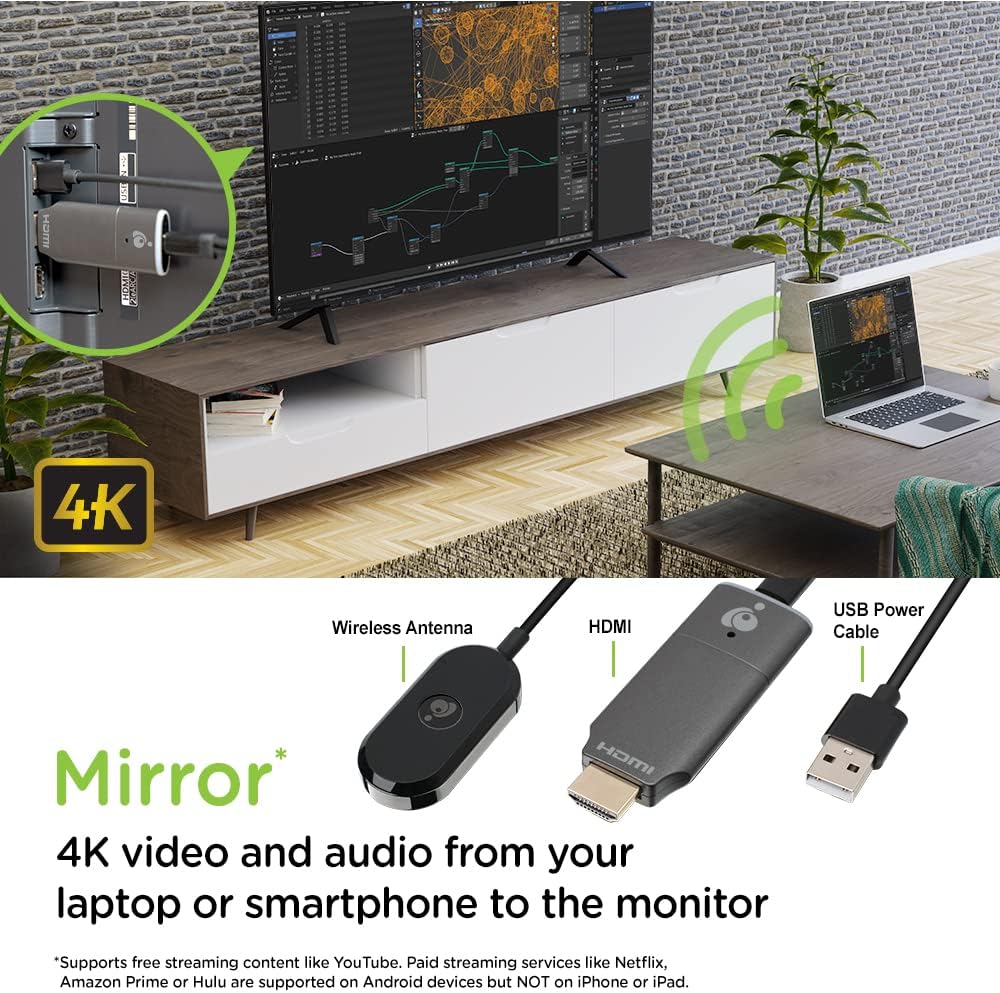
Image: The GWAVR4K adapter plugged into an HDMI port on the back of a television, with a laptop wirelessly mirroring content.
Video: Setup and Usage Overview
Video: An official IOGEAR video demonstrating the setup and basic operation of the Mini Wireless 4K HDMI Screen Sharing Adapter. It shows how to connect the device and initiate screen mirroring from various devices.
4. പ്രവർത്തന നിർദ്ദേശങ്ങൾ
The IOGEAR GWAVR4K adapter is designed for plug-and-play operation. Once connected and powered, follow the on-screen instructions on your display device to connect your source device.
നിങ്ങളുടെ ഉപകരണം ബന്ധിപ്പിക്കുന്നു:
- For Windows/Mac/Chromebook:
- On your computer, open your Wi-Fi settings and connect to the network name (SSID) displayed on your TV screen.
- Enter the password shown on the TV screen.
- Once connected, use your operating system's screen mirroring or casting feature (e.g., "Cast" in Chrome, "Display Settings" in Windows, "AirPlay" for Mac if supported by the adapter's firmware) to select the GWAVR4K device.
- iOS/Android-ന്:
- On your mobile device, open your Wi-Fi settings and connect to the network name (SSID) displayed on your TV screen.
- Enter the password shown on the TV screen.
- Activate your device's screen mirroring feature (e.g., "Screen Mirroring" on iOS, "Smart View" or "Cast" on Android) and select the GWAVR4K device from the list.
The adapter supports wireless mirroring of 4K video and audio up to 30 feet in-room. Ensure your source device is within this range for optimal performance.

Image: A laptop and a smartphone wirelessly mirroring 4K video and audio to a large monitor using the IOGEAR GWAVR4K adapter.

Image: A teacher and students in a classroom setting, demonstrating how the GWAVR4K adapter can be used to mirror a tablet wirelessly to a large screen for presentations.
5. പരിപാലനം
The IOGEAR GWAVR4K adapter requires minimal maintenance to ensure optimal performance and longevity.
- വൃത്തിയാക്കൽ: അഡാപ്റ്ററിന്റെ പുറംഭാഗം വൃത്തിയാക്കാൻ മൃദുവായതും ഉണങ്ങിയതുമായ തുണി ഉപയോഗിക്കുക. ലിക്വിഡ് ക്ലീനറുകളോ എയറോസോളുകളോ ഉപയോഗിക്കരുത്.
- സംഭരണം: ഉപയോഗത്തിലില്ലാത്തപ്പോൾ, അഡാപ്റ്റർ നേരിട്ട് സൂര്യപ്രകാശത്തിൽ നിന്നും തീവ്രമായ താപനിലയിൽ നിന്നും തണുത്തതും വരണ്ടതുമായ സ്ഥലത്ത് സൂക്ഷിക്കുക.
- ഫേംവെയർ അപ്ഡേറ്റുകൾ: Periodically check the IOGEAR website for any available firmware updates for the GWAVR4K model. Firmware updates can improve performance, add features, or fix bugs. Follow the instructions provided with the update carefully.
- കൈകാര്യം ചെയ്യൽ: Avoid dropping the device or subjecting it to strong impacts. Handle the HDMI connector with care to prevent damage.
6. പ്രശ്നപരിഹാരം
If you encounter issues with your IOGEAR GWAVR4K adapter, refer to the following common solutions:
| പ്രശ്നം | സാധ്യമായ കാരണം | പരിഹാരം |
|---|---|---|
| ടിവി/മോണിറ്ററിൽ ഡിസ്പ്ലേ ഇല്ല. |
|
|
| Cannot connect to the adapter's Wi-Fi. |
|
|
| Screen mirroring is lagging or unstable. |
|
|
| No audio during screen mirroring. |
|
|
7 സ്പെസിഫിക്കേഷനുകൾ
| ഫീച്ചർ | വിശദാംശങ്ങൾ |
|---|---|
| മോഡൽ നമ്പർ | GWAVR4K |
| ബ്രാൻഡ് | IOGEAR |
| പരമാവധി മിഴിവ് | 4K @ 30Hz |
| വയർലെസ് ഫ്രീക്വൻസി | 2.4GHz / 5GHz |
| വയർലെസ് സുരക്ഷ | WPA-2 |
| പ്രവർത്തന ശ്രേണി | Up to 30 ft (in-room) |
| OS അനുയോജ്യത | Windows 10+, Mac OS 10.14+, iOS 10.10+, Android 10+, Chromebook |
| ഇനത്തിൻ്റെ ഭാരം | 2.4 ഔൺസ് |
| ഉൽപ്പന്ന അളവുകൾ (L x W x H) | 4.12 x 1.37 x 5.25 ഇഞ്ച് |
| അനുയോജ്യമായ ഉപകരണങ്ങൾ | ടെലിവിഷൻ |
| ഫിനിഷ് തരം | HDMI |
8. വാറൻ്റിയും പിന്തുണയും
For warranty information and technical support, please visit the official IOGEAR website or contact their customer service. Details regarding product registration, warranty claims, and support resources can typically be found on the manufacturer's support pages.
IOGEAR Official Webസൈറ്റ്: www.iogear.com


