1. ആമുഖം
The Oversteel Tombac Wireless Game Controller is designed for multi-platform gaming, offering compatibility with PC, Nintendo Switch, smartphones, tablets, and Android TVs. This manual provides detailed instructions for setting up, operating, and maintaining your controller to ensure optimal performance and an enhanced gaming experience.
2. പാക്കേജ് ഉള്ളടക്കം
- 1 x Oversteel Tombac Wireless Game Controller
- 1 x USB ചാർജിംഗ് കേബിൾ
3. കൺട്രോളർ ലേഔട്ട്
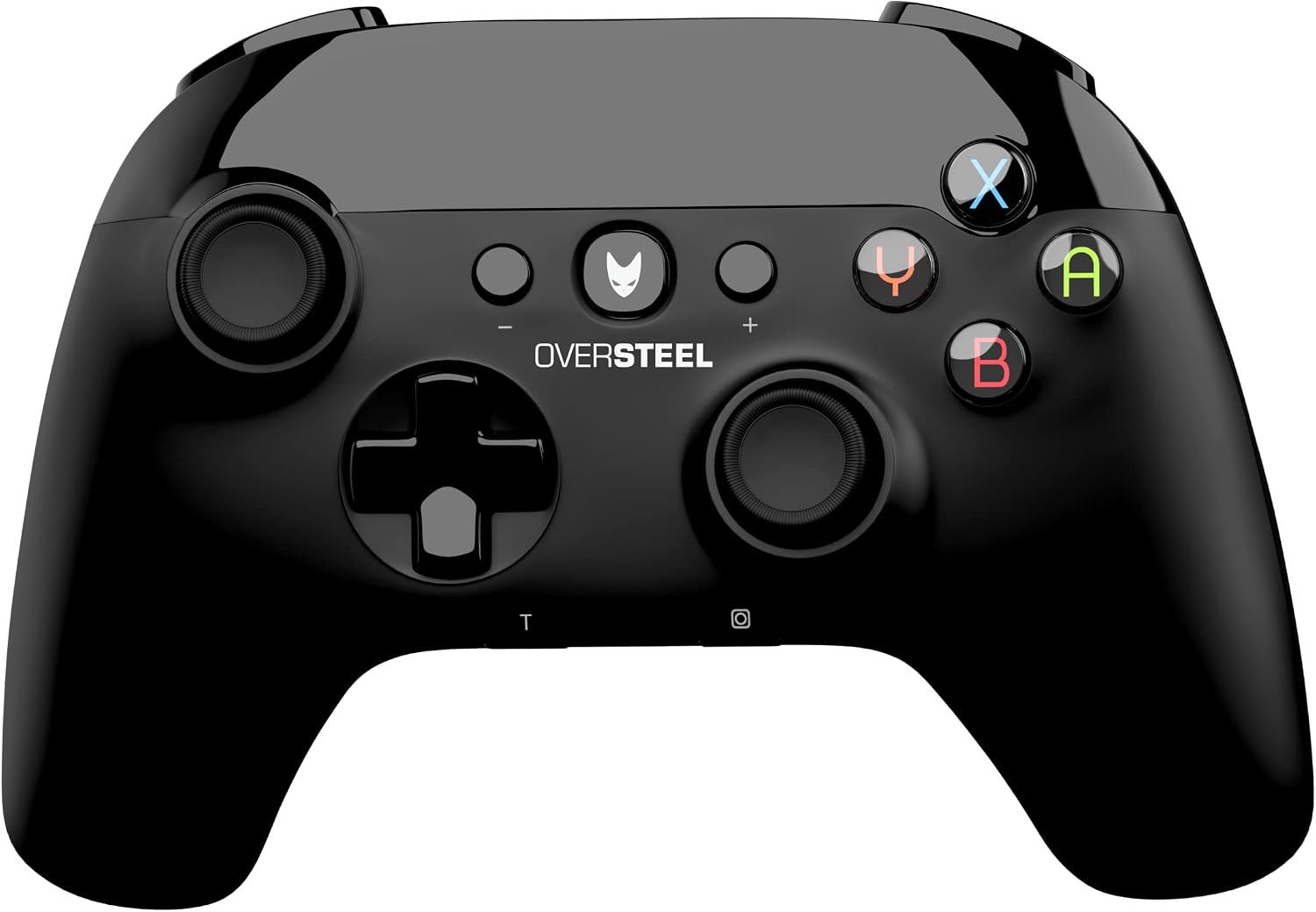
ചിത്രം 3.1: ഫ്രണ്ട് view of the Oversteel Tombac Wireless Game Controller, showing the dual analog sticks, D-pad, action buttons (A, B, X, Y), shoulder buttons, and central function buttons.

ചിത്രം 3.2: മുകളിൽ view of the Oversteel Tombac Wireless Game Controller, highlighting the shoulder buttons (L1, R1) and triggers (L2, R2).
The Oversteel Tombac controller features a standard layout for intuitive gameplay:
- ഇടത് വശം: Left Analog Stick, Directional Pad (D-pad).
- വലത് വശം: Right Analog Stick, Action Buttons (A, B, X, Y).
- കേന്ദ്രം: Home/Power Button (Oversteel logo), Plus (+) Button, Minus (-) Button, Turbo (T) Button, Screenshot Button (Camera icon).
- മുകളിൽ: Left Shoulder Button (L1), Right Shoulder Button (R1), Left Trigger (L2), Right Trigger (R2).
- സൂചകങ്ങൾ: Player LED indicators at the bottom.
4. സജ്ജീകരണം
4.1. കൺട്രോളർ ചാർജ് ചെയ്യുന്നു
Before initial use, fully charge the controller. Connect the provided USB charging cable to the controller's USB port and the other end to a USB power source (e.g., PC, USB wall adapter). The charging indicator will illuminate. A full charge typically takes approximately 2-3 hours and provides up to 8 hours of continuous gameplay.
4.2. പിസി കണക്ഷൻ
4.2.1. യുഎസ്ബി വയർഡ് കണക്ഷൻ
- Connect the controller to your PC using the USB charging cable.
- The PC will automatically detect and install the necessary drivers.
- The controller is ready for use.
4.2.2. ബ്ലൂടൂത്ത് വയർലെസ് കണക്ഷൻ
- നിങ്ങളുടെ പിസിയിൽ ബ്ലൂടൂത്ത് പ്രവർത്തനക്ഷമമാക്കിയിട്ടുണ്ടെന്ന് ഉറപ്പാക്കുക.
- On the controller, press and hold the Home/Power button for 3 seconds to enter pairing mode (player LEDs will flash rapidly).
- On your PC, go to 'Bluetooth & other devices' settings.
- 'Bluetooth അല്ലെങ്കിൽ മറ്റ് ഉപകരണം ചേർക്കുക' > 'Bluetooth' തിരഞ്ഞെടുക്കുക.
- Select 'Oversteel Tombac' from the list of available devices to pair.
- Once paired, the player LED(s) on the controller will remain lit.
4.3. നിന്റെൻഡോ സ്വിച്ച് കണക്ഷൻ
- From the Nintendo Switch HOME Menu, select 'Controllers' > 'Change Grip/Order'.
- On the Oversteel Tombac controller, press and hold the Home/Power button for 3 seconds to enter pairing mode (player LEDs will flash rapidly).
- The Switch will detect the controller. Once paired, the player LED(s) on the controller will remain lit.
4.4. Smartphone/Tablet/Android TV Connection (Bluetooth)
- Enable Bluetooth on your smartphone, tablet, or Android TV.
- On the controller, press and hold the Home/Power button for 3 seconds to enter pairing mode (player LEDs will flash rapidly).
- In your device's Bluetooth settings, search for new devices and select 'Oversteel Tombac' to pair.
- Once paired, the player LED(s) on the controller will remain lit.
5. പ്രവർത്തന നിർദ്ദേശങ്ങൾ
5.1. പവർ ഓൺ/ഓഫ്
- പവർ ഓണാക്കാൻ: Press the Home/Power Button (Oversteel logo).
- പവർ ഓഫ് ചെയ്യാൻ: Press and hold the Home/Power Button for approximately 5 seconds until the controller shuts down.
5.2. ടർബോ ഫംഗ്ഷൻ
The controller supports a Turbo function for rapid button presses.
- ടർബോ സജീവമാക്കാൻ: അമർത്തിപ്പിടിക്കുക T (Turbo) button, then press the desired action button (e.g., A, B, X, Y, L1, R1, L2, R2). The button will now repeatedly input as long as it is held down.
- ടർബോ നിർജ്ജീവമാക്കാൻ: Repeat the activation process for the same button.
5.3. Vibration Function
The Oversteel Tombac controller features dual vibration motors, providing immersive haptic feedback during compatible gameplay moments.
5.4. Gyroscope Function (Nintendo Switch)
When connected to a Nintendo Switch, the integrated gyroscope allows for motion control in compatible games, enhancing gameplay experiences like aiming or steering.
6. പരിപാലനം
- Clean the controller regularly with a soft, dry cloth. Avoid using abrasive materials or harsh chemical cleaners.
- Do not expose the controller to extreme temperatures, direct sunlight, or high humidity.
- Store the controller in a dry, cool place when not in use.
- കൺട്രോളർ താഴെയിടുന്നത് ഒഴിവാക്കുക അല്ലെങ്കിൽ ശക്തമായ ആഘാതങ്ങൾക്ക് വിധേയമാക്കുക.
7. പ്രശ്നപരിഹാരം
7.1. കൺട്രോളർ കണക്റ്റുചെയ്യുന്നില്ല/ജോടിയാക്കുന്നില്ല
- കൺട്രോളർ ആവശ്യത്തിന് ചാർജ്ജ് ചെയ്തിട്ടുണ്ടെന്ന് ഉറപ്പാക്കുക.
- Verify that Bluetooth is enabled on your device (PC, Switch, smartphone, etc.).
- Try re-pairing the controller by following the specific connection steps for your device.
- For PC wired connection, try a different USB port or cable.
- Ensure the controller is within the 10-meter wireless range of your device.
7.2. Controller Not Charging
- Ensure the USB cable is securely connected to both the controller and the power source.
- Try using a different USB port or a different USB wall adapter.
- Verify that the USB cable is not damaged.
7.3. ഇൻപുട്ട് ലാഗ് അല്ലെങ്കിൽ ഡിസ്കണക്ഷനുകൾ
- Ensure you are within the optimal 10-meter wireless range.
- Reduce potential interference from other wireless devices (e.g., Wi-Fi routers, other Bluetooth devices).
- നിങ്ങളുടെ ഉപകരണത്തിന്റെ ഓപ്പറേറ്റിംഗ് സിസ്റ്റവും ബ്ലൂടൂത്ത് ഡ്രൈവറുകളും കാലികമാണെന്ന് ഉറപ്പാക്കുക.
8 സ്പെസിഫിക്കേഷനുകൾ
| ഫീച്ചർ | വിശദാംശങ്ങൾ |
|---|---|
| ബ്രാൻഡ് | ഓവർസ്റ്റീൽ |
| മോഡൽ | Tombac (NAT-OV-TOMBAC) |
| കണക്റ്റിവിറ്റി | ബ്ലൂടൂത്ത്, യുഎസ്ബി |
| ബാറ്ററി തരം | 600mA ലിഥിയം ബാറ്ററി |
| കളിക്കുന്ന സമയം | 8 മണിക്കൂർ വരെ (ഒറ്റ ചാർജിൽ) |
| ചാർജ്ജ് സമയം | ഏകദേശം 2-3 മണിക്കൂർ |
| വയർലെസ് ശ്രേണി | 10 മീറ്റർ വരെ |
| ബട്ടണുകളുടെ എണ്ണം | 16 |
| പ്രത്യേക സവിശേഷതകൾ | Vibration Feedback, Gyroscope (for Switch), Turbo Function, Ergonomic Design |
| അളവുകൾ (L x W x H) | 17.3 x 13.2 x 7.5 സെ.മീ |
| ഭാരം | 320 ഗ്രാം |
9. വാറൻ്റിയും പിന്തുണയും
For detailed warranty information, technical support, or customer service inquiries, please refer to the official Oversteel website or contact your product retailer. Keep your proof of purchase for any warranty claims.


