ആമുഖം
The iFLYTEK A.I.Smart Mouse M110 is an advanced computer peripheral designed for enhanced productivity and convenience. It features multi-language online transcription, dual-device connectivity, and an ergonomic design for comfortable use. This manual provides detailed instructions for setting up, operating, and maintaining your device.

ചിത്രം: മുകളിൽ view of the iFLYTEK A.I.Smart Mouse M110, showcasing its sleek black design and scroll wheel.
സജ്ജീകരണ ഗൈഡ്
1. Initial Setup (USB Receiver Connection)
- മൗസ് അൺപാക്ക് ചെയ്യുക: മൗസ് അതിന്റെ പാക്കേജിംഗിൽ നിന്ന് ശ്രദ്ധാപൂർവ്വം നീക്കം ചെയ്യുക.
- യുഎസ്ബി റിസീവർ കണ്ടെത്തുക: The USB receiver is stored inside the mouse. To access it, gently hold the button position on both sides of the mouse's face shell and lift the shell.
- Remove the USB Receiver: Take out the small USB receiver from its storage compartment.
- മൗസ് ഓൺ ചെയ്യുക: Turn the power switch located on the back of the mouse to the "ON" position. A green Bluetooth signal light will flash slowly for a few seconds and then go out, indicating it's ready for connection.
- കമ്പ്യൂട്ടറുമായി ബന്ധിപ്പിക്കുക: Insert the USB receiver into an available USB port on your computer. The mouse's Bluetooth signal light will briefly turn on and then go out, indicating a successful connection. The mouse is now ready for normal use.
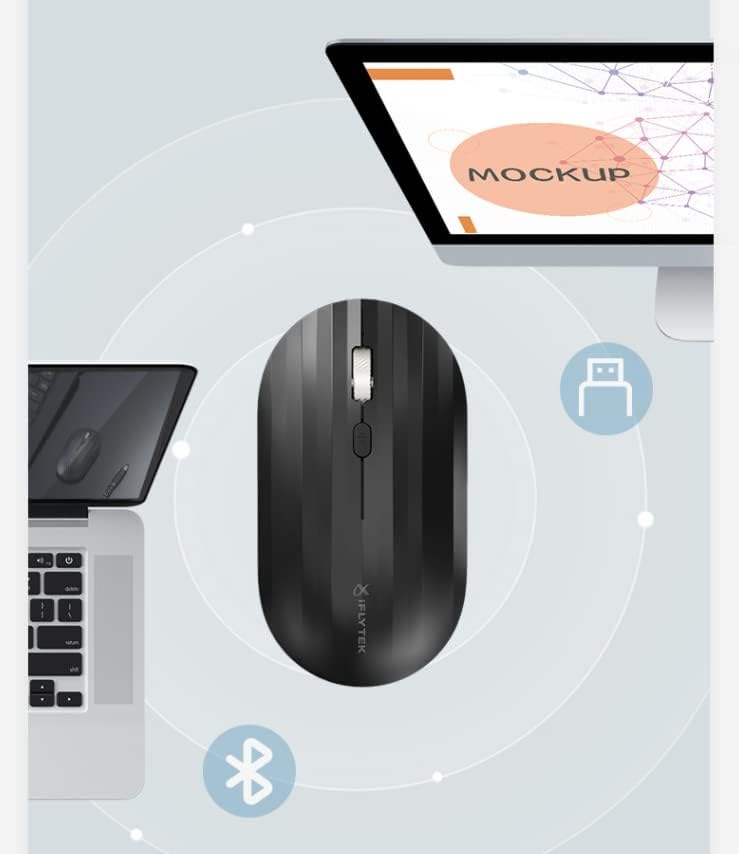
Image: The iFLYTEK A.I.Smart Mouse M110 positioned between a laptop and a desktop, illustrating its connectivity options.
2. Installing Voice Assistant Software
To utilize the voice typing features, you need to install the iFLYTEK Voice Assistant software. Ensure your computer's system language is set to English before proceeding, as the interface of the installed software might otherwise default to Chinese.
- Open Download Interface: Long press the voice button on the mouse for 5 seconds. Your computer will automatically open the download interface for the iFLYTEK Smart Mouse/Keyboard software.
- Download the Software: Click the "Win Download" button (for Windows) or "Mac Download" button (for macOS). A download pop-up box will appear. Select "Save to desktop" and click "Save".
- സോഫ്റ്റ്വെയർ ഇൻസ്റ്റാൾ ചെയ്യുക: Once downloaded, locate the software file on your desktop and double-click to open it. The Voice Assistant installation wizard will appear. Follow the prompts, clicking "Next" as required. During the installation, a device driver installation wizard may pop up; click "Next" to proceed.
- പൂർണ്ണമായ ഇൻസ്റ്റാളേഷൻ: The voice assistant software will be installed. Accept the privacy policy when prompted.
3. Bluetooth Connection Mode
The iFLYTEK A.I.Smart Mouse M110 also supports Bluetooth connection. Ensure the USB receiver is unplugged from your computer before attempting Bluetooth pairing.
- Enable Bluetooth on Computer: Turn on the Bluetooth function of your computer.
- Activate Mouse Pairing Mode: With the mouse powered on (green light flashing slowly), long press the "Reset" button at the bottom of the mouse for 3 seconds. The Bluetooth signal light will then flash quickly, indicating it's in pairing mode.
- ഉപകരണം ജോടിയാക്കുക: On your computer, navigate to the Bluetooth settings. Find and click on the connection named "M110" in the list of available Bluetooth devices.
- ജോടിയാക്കൽ സ്ഥിരീകരിക്കുക: After successful pairing, the mouse's Bluetooth signal light will be continuously on for several seconds and then go out. The mouse is now connected via Bluetooth.
പ്രവർത്തന നിർദ്ദേശങ്ങൾ
1. Basic Mouse Functions
The iFLYTEK A.I.Smart Mouse M110 functions as a standard computer mouse, offering precise cursor control, left and right clicks, and smooth scrolling with its scroll wheel.
- ഇടത് ക്ലിക്ക്: പ്രാഥമിക തിരഞ്ഞെടുപ്പും സജീവമാക്കലും.
- വലത് ക്ലിക്കിൽ: സന്ദർഭോചിത മെനുകൾ ആക്സസ് ചെയ്യുന്നു.
- സ്ക്രോൾ വീൽ: Scrolls content vertically.
- നിശബ്ദ ബട്ടൺ: The mouse features a mute button to eliminate click sounds, providing a quiet working environment.
2. Voice Typing Feature
The A.I.Smart Mouse M110 offers an advanced voice typing feature, supporting 27 languages with an average accuracy rate of over 85% and an input speed of up to 400 words per minute.
- Activate Voice Input: Click and release the voice button on the mouse to begin speaking.
- വ്യക്തമായി സംസാരിക്കുക: Speak clearly into the mouse's microphone. Your spoken words will be transcribed into text on your computer.
- End Voice Input: After speaking, click the mouse button again to end the voice input session.
3. Dual-Device Switching
The mouse M110 has two connection channels, allowing it to connect to and switch between up to two devices. One color indicator represents one channel (e.g., green for Channel 1, pink for Channel 2).
- Connecting to First Device (Channel 1 - USB Receiver):
- Turn the power switch on the back of the mouse to the "ON" position. The green Bluetooth signal light will flash slowly.
- Long press the "Reset" button at the bottom of the mouse for 3 seconds. The Bluetooth signal light will flash quickly.
- Insert the USB receiver into the computer's USB port. When the Bluetooth signal light is always on for several seconds and then goes out, the mouse is successfully connected to the first device.
- Connecting to Second Device (Channel 2 - Bluetooth):
- Ensure the USB receiver is unplugged.
- Short press the "Reset" button at the bottom of the mouse. The pink Bluetooth signal light will flash slowly.
- Long press the "Reset" button at the bottom of the mouse for 3 seconds. The Bluetooth signal light will flash quickly.
- On your computer, enable Bluetooth and find and click "M110" in the Bluetooth device list to pair. When the Bluetooth signal light is always on for several seconds and then goes out, the mouse is successfully connected to the second device.
- ഉപകരണങ്ങൾക്കിടയിൽ മാറൽ:
To switch between connected devices, short press the "Reset" button at the bottom of the mouse. The Bluetooth signal light of the active channel will briefly turn on and then go out, indicating the switch. For example, if you are using the mouse on the second computer, short pressing the reset button will switch it back to the first computer.

Image: A display of iFLYTEK A.I.Smart Mouse M110 in various colors, highlighting its ergonomic design.
മെയിൻ്റനൻസ്
- വൃത്തിയാക്കൽ: മൗസ് വൃത്തിയാക്കാൻ മൃദുവായതും ഉണങ്ങിയതുമായ തുണി ഉപയോഗിക്കുക. കഠിനമായ രാസവസ്തുക്കളോ ഉരച്ചിലുകളോ ഉള്ള വസ്തുക്കൾ ഉപയോഗിക്കുന്നത് ഒഴിവാക്കുക.
- ബാറ്ററി കെയർ: The mouse features long battery endurance (up to 1 month). When the battery is low, replace it with new batteries as per the instructions.
- സംഭരണം: നേരിട്ടുള്ള സൂര്യപ്രകാശത്തിൽ നിന്നും കടുത്ത താപനിലയിൽ നിന്നും മാറി തണുത്തതും വരണ്ടതുമായ സ്ഥലത്ത് മൗസ് സൂക്ഷിക്കുക.
ട്രബിൾഷൂട്ടിംഗ്
- മൗസ് പ്രതികരിക്കുന്നില്ല:
- മൗസ് ഓൺ ആണോ എന്ന് പരിശോധിക്കുക.
- Ensure the USB receiver is properly inserted into the computer's USB port, or that Bluetooth is correctly paired.
- ബാറ്ററികൾ കുറവാണെങ്കിൽ അവ മാറ്റിസ്ഥാപിക്കുക.
- Try connecting the mouse to a different USB port or re-pairing via Bluetooth.
- Voice Typing Not Working:
- Verify that the iFLYTEK Voice Assistant software is correctly installed and running.
- Check your computer's microphone settings to ensure the mouse's microphone is selected and enabled.
- Ensure a stable internet connection for online transcription.
- കണക്ഷൻ പ്രശ്നങ്ങൾ:
- If using the USB receiver, ensure no other wireless devices are causing interference.
- If using Bluetooth, ensure your computer's Bluetooth is enabled and the mouse is within range. Try unpairing and re-pairing the device.
സ്പെസിഫിക്കേഷനുകൾ
| ഫീച്ചർ | വിശദാംശങ്ങൾ |
|---|---|
| ബ്രാൻഡ് | iFLYTEK |
| മോഡൽ | M110 |
| നിറം | കറുപ്പ് |
| പ്രത്യേക ഫീച്ചർ | എർഗണോമിക് ഡിസൈൻ |
| ബട്ടണുകളുടെ എണ്ണം | 3 |
| കൈ ഓറിയൻ്റേഷൻ | ഉഭയകക്ഷി |
| Voice Transcription | 27 languages, >85% accuracy |
| ഇൻപുട്ട് വേഗത | Up to 400 words per minute |
| കണക്റ്റിവിറ്റി | Dual-device switch (USB receiver & Bluetooth) |
| ഭാരം | 86 ഗ്രാം |
| ബാറ്ററി എൻഡുറൻസ് | 1 മാസം വരെ |
വാറൻ്റിയും പിന്തുണയും
iFLYTEK products come with a standard manufacturer's warranty. For specific warranty details, please refer to the warranty card included with your product or visit the official iFLYTEK webസൈറ്റ്.
For technical support, troubleshooting assistance, or any inquiries regarding your iFLYTEK A.I.Smart Mouse M110, please contact iFLYTEK customer service. Contact information can typically be found on the product packaging or the official iFLYTEK support page.


