1. ആമുഖം
നിങ്ങളുടെ ലോജിടെക് ബ്രിയോ 301 ഫുൾ എച്ച്ഡിയുടെ സജ്ജീകരണം, പ്രവർത്തനം, പരിപാലനം എന്നിവയ്ക്കുള്ള നിർദ്ദേശങ്ങൾ ഈ മാനുവൽ നൽകുന്നു. Webcam. നിങ്ങളുടെ ഓൺലൈൻ ആശയവിനിമയങ്ങൾക്ക് വ്യക്തമായ വീഡിയോയും ഓഡിയോയും നൽകുന്നതിനാണ് ബ്രിയോ 301 രൂപകൽപ്പന ചെയ്തിരിക്കുന്നത്, 1080p റെസല്യൂഷൻ, ഓട്ടോമാറ്റിക് ലൈറ്റ് കറക്ഷൻ, നോയ്സ് കുറയ്ക്കുന്ന മൈക്രോഫോൺ, സംയോജിത സ്വകാര്യതാ കവർ എന്നിവ ഇതിൽ ഉൾപ്പെടുന്നു.
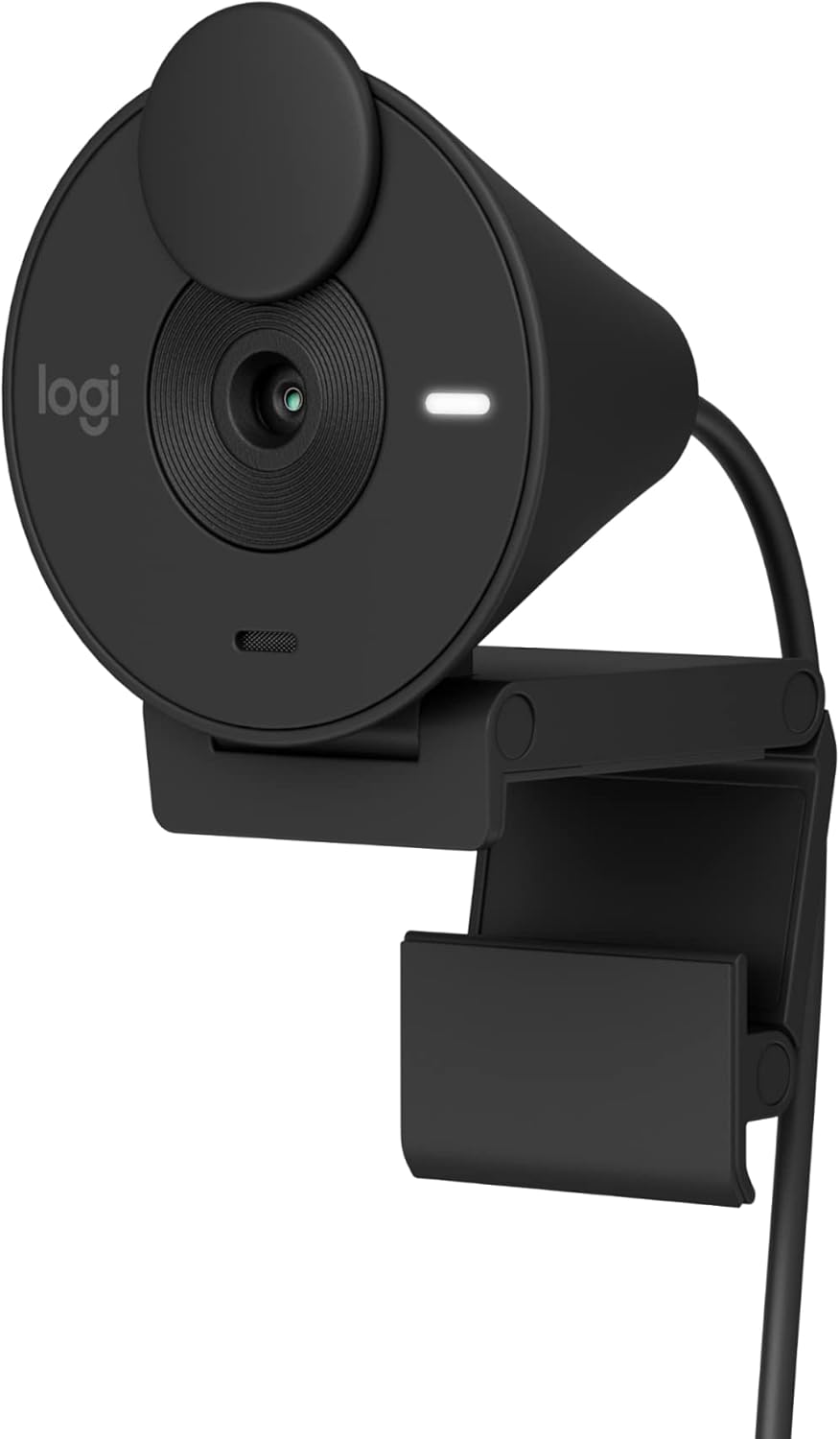
ചിത്രം 1.1: ലോജിടെക് ബ്രിയോ 301 ഫുൾ എച്ച്ഡി Webകാം, കറുപ്പ് നിറം, അതിന്റെ മോണിറ്റർ ക്ലിപ്പിനൊപ്പം മുൻവശത്തെ കോണിൽ നിന്ന് കാണിച്ചിരിക്കുന്നു.
2. ബോക്സിൽ എന്താണുള്ളത്?
ലോജിടെക് ബ്രിയോ 301 പാക്കേജിൽ ഇനിപ്പറയുന്ന ഘടകങ്ങൾ ഉൾപ്പെടുന്നു:
- ലോജിടെക് ബ്രിയോ 301 Webക്യാം (ഇന്റഗ്രേറ്റഡ് USB-C കേബിളോടുകൂടി)

ചിത്രം 2.1: മുകളിൽ നിന്ന് താഴേക്ക് view ലോജിടെക് ബ്രിയോ 301 ന്റെ webതാഴെ സംയോജിത യുഎസ്ബി-സി കേബിൾ ചുരുട്ടിയിരിക്കുന്ന ക്യാമറ. ചിത്രം കേബിളിന്റെ നീളവും (5 അടി / 1.5 മീറ്റർ) ഉൽപ്പന്ന ഭാരവും (2.63 oz / 74.6 ഗ്രാം) സൂചിപ്പിക്കുന്നു.
3. സജ്ജീകരണ നിർദ്ദേശങ്ങൾ
- സ്ഥാനനിർണ്ണയം Webക്യാം:
ഇന്റഗ്രേറ്റഡ് മൗണ്ടിംഗ് ക്ലിപ്പ് തുറക്കുക. സ്ഥാപിക്കുക webനിങ്ങളുടെ കമ്പ്യൂട്ടർ മോണിറ്ററിന്റെയോ ലാപ്ടോപ്പ് സ്ക്രീനിന്റെയോ മുകളിലുള്ള ക്യാം. സുരക്ഷിതമായി പിടിക്കാൻ ക്ലിപ്പ് ക്രമീകരിക്കുക. webക്യാം സ്ഥലത്ത് സ്ഥാപിച്ചിരിക്കുന്നു. ഉറപ്പാക്കുക webകാം ലെൻസ് നിങ്ങൾക്ക് അഭിമുഖമായി സ്ഥിതിചെയ്യുകയും കണ്ണിന്റെ നിരപ്പിൽ നിന്ന് ആശയവിനിമയം നടത്താൻ അനുയോജ്യമായ ഉയരത്തിലായിരിക്കുകയും ചെയ്യുന്നു.
- നിങ്ങളുടെ കമ്പ്യൂട്ടറിലേക്ക് ബന്ധിപ്പിക്കുന്നു:
ബ്രിയോ 301-ൽ നിന്ന് ഇന്റഗ്രേറ്റഡ് USB-C കേബിൾ പ്ലഗ് ചെയ്യുക. webനിങ്ങളുടെ കമ്പ്യൂട്ടറിൽ ലഭ്യമായ ഒരു USB-C പോർട്ടിലേക്ക് ക്യാമറ ബന്ധിപ്പിക്കുക. നിങ്ങളുടെ കമ്പ്യൂട്ടറിൽ USB-A പോർട്ടുകൾ മാത്രമേ ഉള്ളൂവെങ്കിൽ, നിങ്ങൾക്ക് USB-C മുതൽ USB-A വരെ അഡാപ്റ്റർ ആവശ്യമായി വന്നേക്കാം (പ്രത്യേകം വിൽക്കുന്നു).
- ഡ്രൈവർ ഇൻസ്റ്റാളേഷൻ:
ലോജിടെക് ബ്രിയോ 301 ഒരു പ്ലഗ്-ആൻഡ്-പ്ലേ ഉപകരണമാണ്. നിങ്ങളുടെ ഓപ്പറേറ്റിംഗ് സിസ്റ്റം (Windows 10 അല്ലെങ്കിൽ അതിനുശേഷമുള്ളത്, macOS 10.15 അല്ലെങ്കിൽ അതിനുശേഷമുള്ളത്, ChromeOS) ആവശ്യമായ ഡ്രൈവറുകൾ സ്വയമേവ കണ്ടെത്തി ഇൻസ്റ്റാൾ ചെയ്യണം. സാധാരണയായി മാനുവൽ ഡ്രൈവർ ഇൻസ്റ്റാളേഷൻ ആവശ്യമില്ല.
- സോഫ്റ്റ്വെയർ കോൺഫിഗറേഷൻ (ഓപ്ഷണൽ):
വിപുലമായ ക്രമീകരണങ്ങൾക്കും ഇഷ്ടാനുസൃതമാക്കലിനും, ലോജിടെക്കിൽ നിന്ന് സൗജന്യ ലോഗി ട്യൂൺ ആപ്ലിക്കേഷൻ ഡൗൺലോഡ് ചെയ്യുക. webസൈറ്റ്. നിറം, ചിത്ര നിലവാരം, മറ്റ് വീഡിയോ അനുഭവങ്ങൾ എന്നിവ ക്രമീകരിക്കാൻ ലോഗി ട്യൂൺ നിങ്ങളെ അനുവദിക്കുന്നു. (ശ്രദ്ധിക്കുക: Chrome OS-ന് ലോഗി ട്യൂൺ ലഭ്യമല്ല).

ചിത്രം 3.1: ബ്രിയോ 301 webകമ്പ്യൂട്ടർ മോണിറ്ററിന് മുകളിൽ സ്ഥാപിച്ചിരിക്കുന്ന ക്യാമറ, ഉപയോക്താവിനെ ഫുൾ എച്ച്ഡി വീഡിയോ കോളിൽ പ്രദർശിപ്പിക്കുന്നു.
4. പ്രവർത്തന നിർദ്ദേശങ്ങൾ
4.1. ഒരു വീഡിയോ കോൾ ആരംഭിക്കൽ
കണക്റ്റ് ചെയ്തുകഴിഞ്ഞാൽ, മിക്ക വീഡിയോ കോൺഫറൻസിംഗ് ആപ്ലിക്കേഷനുകളും (ഉദാ. സൂം, മൈക്രോസോഫ്റ്റ് ടീമുകൾ, ഗൂഗിൾ മീറ്റ്) ബ്രിയോ 301 തിരിച്ചറിയും. നിങ്ങൾ തിരഞ്ഞെടുത്ത ആപ്ലിക്കേഷന്റെ ക്രമീകരണങ്ങളിൽ നിങ്ങളുടെ ക്യാമറയും മൈക്രോഫോണും ഇൻപുട്ടായി "ലോജിടെക് ബ്രിയോ 301" തിരഞ്ഞെടുക്കുക.

ചിത്രം 4.1: ബ്രിയോ 301 webസൂം, ക്രോംബുക്ക്, ഗൂഗിൾ മീറ്റ്, മൈക്രോസോഫ്റ്റ് ടീമുകൾ എന്നിവയുമായുള്ള അനുയോജ്യതയെ സൂചിപ്പിക്കുന്ന ലോഗോകളുള്ള, ഒരു വീഡിയോ കോൾ പ്രദർശിപ്പിക്കുന്ന മോണിറ്ററിന് മുകളിൽ കാണിച്ചിരിക്കുന്ന ക്യാം.
4.2. പ്രൈവസി ഷട്ടർ ഉപയോഗിക്കൽ
ബ്രിയോ 301-ൽ ഒരു സംയോജിത സ്വകാര്യതാ ഷട്ടർ ഉണ്ട്. ലെൻസ് മറയ്ക്കുന്നതിനും സ്വകാര്യത ഉറപ്പാക്കുന്നതിനും, ലെൻസ് പൂർണ്ണമായും മറയ്ക്കുന്നതുവരെ ഷട്ടർ ഘടികാരദിശയിൽ തിരിക്കുക. ലെൻസ് മറയ്ക്കാൻ, അത് എതിർ ഘടികാരദിശയിൽ തിരിക്കുക.

ചിത്രം 4.2: ബ്രിയോ 301 webലെൻസ് മറയ്ക്കുന്നതിനുള്ള സ്വകാര്യതാ ഷട്ടറിന്റെ ഭ്രമണം സൂചിപ്പിക്കുന്ന ഒരു അമ്പടയാളമുള്ള cam.
5 പ്രധാന സവിശേഷതകൾ
- ഫുൾ HD 1080p റെസല്യൂഷൻ: വീഡിയോ കോളുകൾക്ക് വ്യക്തവും സ്വാഭാവികവുമായ ചിത്ര നിലവാരം നൽകുന്നു.
ചിത്രം 5.1: ബ്രിയോ 301 ന്റെ പൂർണ്ണ HD വ്യക്തത തെളിയിക്കുന്ന ഒരു വീഡിയോ കോളിൽ നിന്നുള്ള സ്ക്രീൻഷോട്ട്. web1080p യിലും സെക്കൻഡിൽ 30 ഫ്രെയിമുകളിലും ക്യാമറ.
- ഓട്ടോ ലൈറ്റ് കറക്ഷൻ (റൈറ്റ്ലൈറ്റ് 2): കുറഞ്ഞ വെളിച്ച സാഹചര്യങ്ങളുമായി യാന്ത്രികമായി പൊരുത്തപ്പെടുന്നു, കുറഞ്ഞ വെളിച്ചമുള്ള സാഹചര്യങ്ങളിൽ പോലും നിങ്ങളെ വ്യക്തമായി കാണാൻ സഹായിക്കുന്നു.

ചിത്രം 5.2: ഒരു വ്യക്തി വീഡിയോ കോളിലായിരിക്കുന്നതിന്റെ വശങ്ങളിലായി താരതമ്യം ചെയ്യുമ്പോൾ, ഓട്ടോ ലൈറ്റ് കറക്ഷൻ കാരണം ഇടതുവശത്തെ ചിത്രം മങ്ങിയതായും വലതുവശത്തെ ചിത്രം കൂടുതൽ തെളിച്ചമുള്ളതായും കാണപ്പെടുന്നു.
- ശബ്ദം കുറയ്ക്കുന്ന മൈക്രോഫോൺ: ഇന്റഗ്രേറ്റഡ് മോണോ മൈക്രോഫോൺ പശ്ചാത്തല ശബ്ദത്തെ അടിച്ചമർത്തുന്നു, ഇത് കോളുകൾ ചെയ്യുമ്പോൾ നിങ്ങളുടെ ശബ്ദം വ്യക്തമായി കേൾക്കാൻ അനുവദിക്കുന്നു.

ചിത്രം 5.3: ബ്രിയോ 301 webശബ്ദ തരംഗങ്ങളെ ചിത്രീകരിക്കുന്ന ഒരു ഗ്രാഫിക് ഉള്ള ഒരു ക്യാമറ, അതിന്റെ മൈക്രോഫോണിന്റെ ശബ്ദം കുറയ്ക്കുന്നതിനുള്ള കഴിവുകൾക്ക് ഊന്നൽ നൽകുന്നു.
- ഇന്റഗ്രേറ്റഡ് പ്രൈവസി ഷട്ടർ: തൽക്ഷണ സ്വകാര്യതയ്ക്കായി ക്യാമറ ലെൻസ് മറയ്ക്കാൻ കഴിയുന്ന ഒരു ഫിസിക്കൽ ഷട്ടർ.
- USB-C കണക്റ്റിവിറ്റി: എളുപ്പത്തിലുള്ള സജ്ജീകരണത്തിനായി ആധുനികവും റിവേഴ്സിബിൾ യുഎസ്ബി-സി കണക്ഷൻ.
- പ്ലാറ്റ്ഫോം അനുയോജ്യത: സൂം, മൈക്രോസോഫ്റ്റ് ടീമുകൾ, ഗൂഗിൾ മീറ്റ് എന്നിവയ്ക്ക് സാക്ഷ്യപ്പെടുത്തിയിരിക്കുന്നു, തടസ്സമില്ലാത്ത സംയോജനം ഉറപ്പാക്കുന്നു. നിൻടെൻഡോ സ്വിച്ച് 2 ന്റെ പുതിയ ഗെയിംചാറ്റ് മോഡിനും ഇത് അനുയോജ്യമാണ്.
- സുസ്ഥിര രൂപകൽപ്പന: കുറഞ്ഞത് 48% പോസ്റ്റ്-കൺസ്യൂമർ റീസൈക്കിൾ ചെയ്ത പ്ലാസ്റ്റിക് ഉപയോഗിച്ച് നിർമ്മിച്ചത് (ശതമാനംtage നിറം അനുസരിച്ച് വ്യത്യാസപ്പെടുന്നു).

ചിത്രം 5.4: ബ്രിയോ 301 ന്റെ പ്രധാന ഘടകങ്ങൾ ലേബൽ ചെയ്യുന്ന വിശദമായ ഡയഗ്രം. webക്യാമറ, സ്വകാര്യതാ ഷട്ടർ, ഫുൾ HD ലെൻസ്, 70° ഫീൽഡ് എന്നിവയുൾപ്പെടെ view, ഓട്ടോ ലൈറ്റ് കറക്ഷൻ, മോണോ നോയ്സ് കുറയ്ക്കുന്ന മൈക്ക്, LED ആക്റ്റിവിറ്റി ലൈറ്റ്, USB-C കണക്റ്റിവിറ്റി എന്നിവ ഇതിൽ ഉൾപ്പെടുന്നു.
6. ലോഗി ട്യൂൺ സോഫ്റ്റ്വെയർ
ലോഗി ട്യൂൺ ആപ്ലിക്കേഷൻ നിങ്ങളുടെ ബ്രിയോ 301 ന്മേൽ അധിക നിയന്ത്രണം നൽകുന്നു webcam. ഈ സൌജന്യ സോഫ്റ്റ്വെയർ ഔദ്യോഗിക ലോജിടെക്കിൽ നിന്ന് ഡൗൺലോഡ് ചെയ്യാം. webസൈറ്റ്.
6.1. ലോഗി ട്യൂണിന്റെ സവിശേഷതകൾ:
- വർണ്ണ, ചിത്ര ഗുണനിലവാര ക്രമീകരണങ്ങൾ ക്രമീകരിക്കുന്നു.
- നിങ്ങളുടെ വീഡിയോ അനുഭവം ഇഷ്ടാനുസൃതമാക്കുന്നു.
കുറിപ്പ്: Chrome OS-ന് Logi Tune ലഭ്യമല്ല. Logi Tune ആപ്പിലെ ഹെഡ്സെറ്റ് വോയ്സ് പ്രോംപ്റ്റുകൾ ഇംഗ്ലീഷ്, ഫ്രഞ്ച്, ജർമ്മൻ, ഇറ്റാലിയൻ, സ്പാനിഷ്, പോർച്ചുഗീസ് ഭാഷകളിൽ പിന്തുണയ്ക്കുന്നു.

ചിത്രം 6.1: ലോഗി ട്യൂൺ ആപ്ലിക്കേഷൻ ഇന്റർഫേസിന്റെ സ്ക്രീൻഷോട്ടുകൾ, ഓട്ടോ എക്സ്പോഷർ, വൈറ്റ് ബാലൻസ്, ബ്രൈറ്റ്നസ്, കോൺട്രാസ്റ്റ് തുടങ്ങിയ ഇമേജ് ക്രമീകരണങ്ങൾക്കുള്ള ഓപ്ഷനുകൾ കാണിക്കുന്നു.
7. പരിപാലനം
- ലെൻസ് വൃത്തിയാക്കൽ: മൃദുവായി തുടയ്ക്കാൻ ഒപ്റ്റിക്സിനായി പ്രത്യേകം രൂപകൽപ്പന ചെയ്ത മൃദുവായ, ലിന്റ് രഹിത തുണി ഉപയോഗിക്കുക. webക്യാം ലെൻസ്. ലെൻസിൽ പോറലുകൾ ഉണ്ടാക്കാനോ കേടുവരുത്താനോ സാധ്യതയുള്ള ഉരച്ചിലുകളുള്ള വസ്തുക്കളോ കഠിനമായ ക്ലീനിംഗ് കെമിക്കലുകളോ ഒഴിവാക്കുക.
- ശരീരം വൃത്തിയാക്കൽ: യുടെ പുറംഭാഗം തുടയ്ക്കുക webസോഫ്റ്റ്, ഡി ഉള്ള ക്യാംamp തുണി. മുക്കരുത് webവെള്ളത്തിൽ മുക്കിവയ്ക്കുക അല്ലെങ്കിൽ അമിതമായ ഈർപ്പം ഉപയോഗിക്കുക.
- സംഭരണം: ഉപയോഗത്തിലില്ലാത്തപ്പോൾ, പ്രത്യേകിച്ച് ഗതാഗത സമയത്ത്, പൊടിയിൽ നിന്നും പോറലുകളിൽ നിന്നും ലെൻസിനെ സംരക്ഷിക്കുന്നതിന് സ്വകാര്യതാ ഷട്ടർ അടച്ചിട്ടുണ്ടെന്ന് ഉറപ്പാക്കുക. സൂക്ഷിക്കുക. webവൃത്തിയുള്ളതും വരണ്ടതുമായ അന്തരീക്ഷത്തിൽ ക്യാമറ.
8. പ്രശ്നപരിഹാരം
| പ്രശ്നം | സാധ്യമായ പരിഹാരം |
|---|---|
| Webകമ്പ്യൂട്ടർ ക്യാമറ കണ്ടെത്തിയില്ല. |
|
| വീഡിയോ ആപ്ലിക്കേഷനിൽ വീഡിയോയോ കറുത്ത സ്ക്രീനോ ഇല്ല. |
|
| മോശം വീഡിയോ നിലവാരം (മങ്ങിയത്, ഇരുണ്ടത്, ഗ്രെയിനി). |
|
| മൈക്രോഫോൺ പ്രവർത്തിക്കുന്നില്ല അല്ലെങ്കിൽ മോശം ഓഡിയോ നിലവാരം. |
|
9 സ്പെസിഫിക്കേഷനുകൾ
| ഫീച്ചർ | വിശദാംശങ്ങൾ |
|---|---|
| മോഡൽ നമ്പർ | 960-001513 |
| പരമാവധി വീഡിയോ റെസല്യൂഷൻ | 1920x1080 പിക്സലുകൾ (ഫുൾ HD 1080p) |
| ഫോട്ടോ സെൻസർ ടെക്നോളജി | CMOS |
| ഫീൽഡ് View | 70 ഡിഗ്രി |
| മൈക്രോഫോൺ | മോണോ, ശബ്ദം കുറയ്ക്കൽ |
| കണക്റ്റിവിറ്റി | USB-C (ഇന്റഗ്രേറ്റഡ് കേബിൾ, 1.5 മീ / 5 അടി) |
| ഓട്ടോ ലൈറ്റ് തിരുത്തൽ | റൈറ്റ്ലൈറ്റ് 2 |
| സ്വകാര്യതാ സവിശേഷത | ഇന്റഗ്രേറ്റഡ് പ്രൈവസി ഷട്ടർ |
| ഓപ്പറേറ്റിംഗ് സിസ്റ്റം അനുയോജ്യത | വിൻഡോസ് 10 അല്ലെങ്കിൽ അതിനുശേഷമുള്ളത്, മാക്ഒഎസ് 10.15 അല്ലെങ്കിൽ അതിനുശേഷമുള്ളത്, ക്രോംഒഎസ് |
| അളവുകൾ (LxWxH) | 2.09 x 1.78 x 2.58 ഇഞ്ച് (5.3 x 4.5 x 6.5 സെ.മീ) |
| ഇനത്തിൻ്റെ ഭാരം | 2.63 ഔൺസ് (74.6 ഗ്രാം) |
| മെറ്റീരിയൽ | കുറഞ്ഞത് 48% ഉപഭോക്തൃ ഉപയോഗത്തിനു ശേഷമുള്ള പുനരുപയോഗ പ്ലാസ്റ്റിക് (നിറമനുസരിച്ച് വ്യത്യാസപ്പെടാം) |
10. വാറൻ്റിയും പിന്തുണയും
വിശദമായ വാറന്റി വിവരങ്ങൾക്കും സാങ്കേതിക പിന്തുണയ്ക്കും, ദയവായി ഔദ്യോഗിക ലോജിടെക് പിന്തുണ സന്ദർശിക്കുക. webസൈറ്റ്. ഉൽപ്പന്ന രജിസ്ട്രേഷൻ, പതിവുചോദ്യങ്ങൾ, ഉപഭോക്തൃ സേവനത്തിനായുള്ള ബന്ധപ്പെടാനുള്ള വിവരങ്ങൾ എന്നിവ നിങ്ങൾക്ക് അവിടെ കണ്ടെത്താൻ കഴിയും.
ലോജിടെക് പിന്തുണ Webസൈറ്റ്: support.logi.com