1. ആമുഖം
This manual provides detailed instructions for the installation, operation, and maintenance of your Veement VU12 12-inch 4K WiFi Mirror Dash Cam. Please read this manual thoroughly before using the product to ensure proper functionality and safety. Keep this manual for future reference.
2. പാക്കേജ് ഉള്ളടക്കം
താഴെ ലിസ്റ്റ് ചെയ്തിരിക്കുന്ന എല്ലാ ഇനങ്ങളും നിങ്ങളുടെ പാക്കേജിൽ ഉൾപ്പെടുത്തിയിട്ടുണ്ടെന്ന് ഉറപ്പാക്കുക:
- 1 x Veement VU12 Mirror Dash Cam
- 1 x Rear Camera Kit (24.6ft cable)
- 1 x കാർ ചാർജർ
- 1 x ജിപിഎസ് ആന്റിന
- 4 x Rubber Mounting Straps
3. ഉൽപ്പന്നം കഴിഞ്ഞുview
The Veement VU12 is a 12-inch mirror dash cam featuring 4K front recording, 1080P rear recording, WiFi connectivity, GPS tracking, voice control, and a touch screen interface. It is designed to provide comprehensive vehicle surveillance and driving assistance.

Image: The Veement VU12 Mirror Dash Cam, showing the main unit, front camera, rear camera, and GPS module.
4. ഇൻസ്റ്റലേഷൻ
4.1 Mirror Dash Cam Installation
- Secure the mirror dash cam over your vehicle's existing rearview mirror using the provided rubber mounting straps. Ensure the camera lens has a clear view റോഡിൻ്റെ.
- Adjust the angle of the front camera lens to capture the desired field of view.
4.2 പിൻ ക്യാമറ ഇൻസ്റ്റലേഷൻ
- Mount the rear camera at the rear of your vehicle, typically above the license plate or inside the rear window. Ensure it has a clear view.
- Connect the rear camera cable to the main dash cam unit. Route the cable neatly along the vehicle's interior trim to avoid interference.
- If connecting for reverse assistance, connect the red wire of the rear camera cable to your vehicle's reverse light positive wire.
4.3 ജിപിഎസ് ആൻ്റിന ഇൻസ്റ്റലേഷൻ
- Attach the GPS antenna to the windshield, away from metallic objects or other electronic devices that might interfere with the signal.
- Connect the GPS antenna cable to the designated port on the main dash cam unit.
4.4 പവർ കണക്ഷൻ
- Insert the car charger into your vehicle's cigarette lighter socket.
- Connect the other end of the car charger cable to the power input port on the dash cam.
- നിങ്ങളുടെ വൈദ്യുതി കേബിൾ തടസ്സപ്പെടാതിരിക്കാൻ വൃത്തിയായി റൂട്ട് ചെയ്യുക view or interfering with driving controls.
5. സജ്ജീകരണം
5.1 SD കാർഡ് ചേർക്കൽ
- Insert a high-speed (Class 10 or higher) Micro SD card (up to 128GB, not included) into the designated slot on the dash cam.
- Format the SD card through the dash cam's settings menu before first use to ensure compatibility and optimal performance.
5.2 പ്രാരംഭ ക്രമീകരണങ്ങൾ
- Upon powering on, the dash cam will display the main interface.
- Access the settings menu by tapping the gear icon on the screen.
- Adjust date/time, video resolution, loop recording duration, G-sensor sensitivity, and other preferences as needed.
5.3 WiFi Connection and GPS Tracking
The dash cam features built-in WiFi and GPS for enhanced functionality.

Image: The dash cam's WiFi connection to a smartphone app and GPS tracking functionality, displaying a map with a recorded route and speed data.
6. പ്രവർത്തന നിർദ്ദേശങ്ങൾ
6.1 അടിസ്ഥാന റെക്കോർഡിംഗ്
Once powered on and an SD card is inserted, the dash cam will automatically begin loop recording. The front camera records in 4K, and the rear camera records in 1080P.
6.2 ശബ്ദ നിയന്ത്രണം
The VU12 supports hands-free voice commands for common operations. Speak clearly to the dash cam to activate functions.
- "Start recording": Initiates video recording.
- "Stop recording": Halts video recording.
- "Lock the video": Protects the current recording from being overwritten.
- "Show front camera": Displays only the front camera view.
- "Show rear camera": Displays only the rear camera view.
- "Show both cameras": Displays both front and rear camera viewകൾ ഒരേസമയം.
- "Turn on screen": Activates the display.
- "Turn off screen": Deactivates the display while recording continues.

Image: A driver using voice commands to control the dash cam, illustrating the hands-free interactive voice control feature.
6.3 ജി-സെൻസർ (എമർജൻസി റെക്കോർഡിംഗ്)
The built-in G-sensor detects sudden impacts or collisions. When triggered, it automatically locks the current video segment, preventing it from being overwritten by loop recording. The sensitivity of the G-sensor can be adjusted in the settings.

Image: A graphic depicting two cars in a collision, with a lock icon symbolizing the G-sensor's function to automatically save emergency footage.
6.4 ലൂപ്പ് റെക്കോർഡിംഗ്
ഡാഷ് ക്യാം തുടർച്ചയായ ലൂപ്പുകളിൽ വീഡിയോ റെക്കോർഡുചെയ്യുന്നു. മെമ്മറി കാർഡ് നിറയുമ്പോൾ, ഏറ്റവും പഴയത് അൺലോക്ക് ചെയ്യപ്പെടും. fileപുതിയ റെക്കോർഡിംഗുകൾ യാന്ത്രികമായി തിരുത്തിയെഴുതപ്പെടുന്നു. ഇത് മാനുവൽ ഇടപെടലില്ലാതെ തുടർച്ചയായ റെക്കോർഡിംഗ് ഉറപ്പാക്കുന്നു.

Image: A graphic illustrating the continuous loop recording function, where older files are overwritten by new ones when the memory card is full.
6.5 Parking Monitor (24H Parking Surveillance)
With an optional hardwire kit (not included), the dash cam can provide 24-hour parking surveillance. If an impact is detected while parked, the dash cam will automatically record a short video and lock it. Time-lapse recording is also available with the hardwire kit to maximize memory storage.
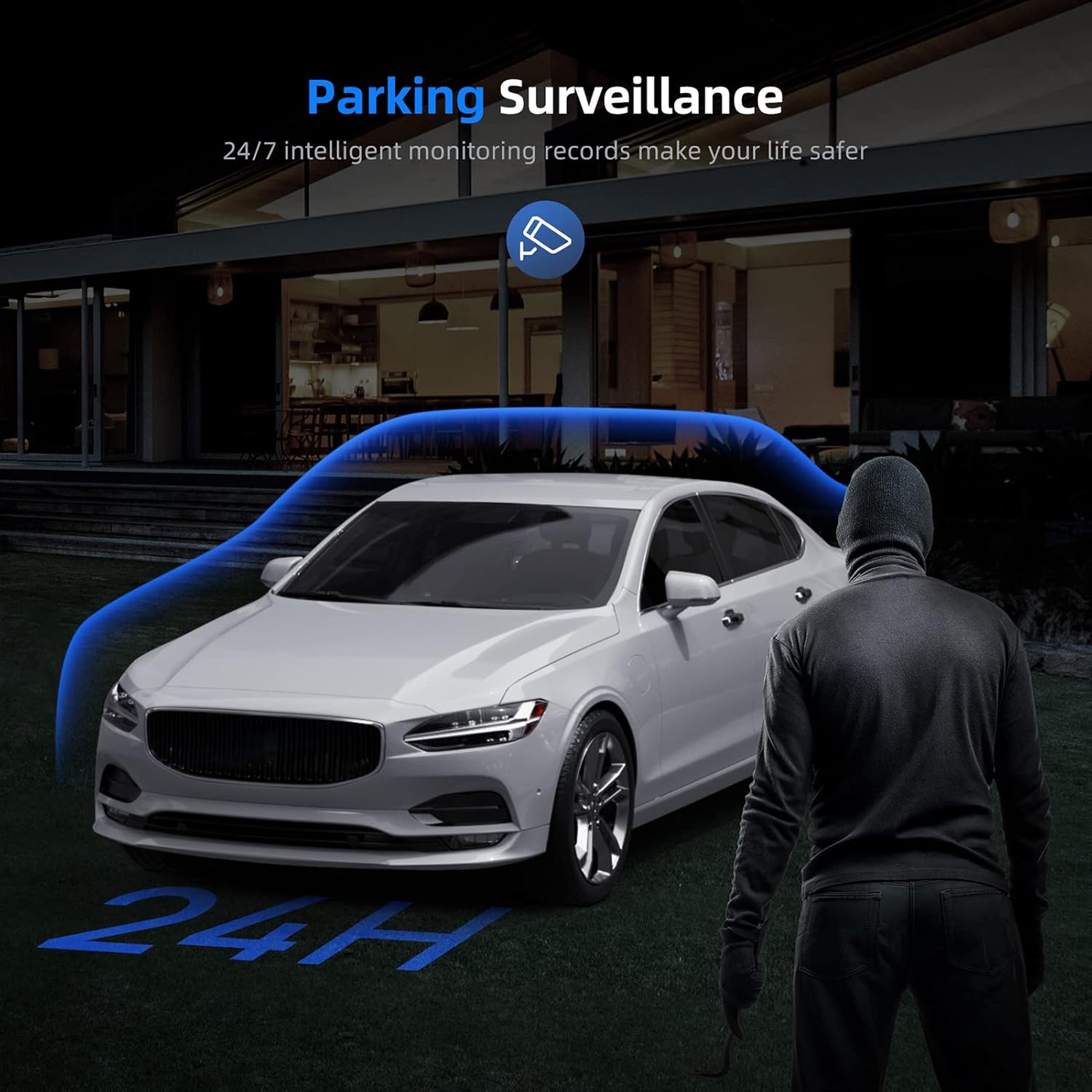
Image: A car parked at night with a figure approaching, illustrating the 24-hour parking surveillance feature.
6.6 Parking Assistance (Reverse Camera)
When the vehicle is shifted into reverse (and the rear camera is correctly wired to the reverse light), the dash cam screen will automatically display the rear camera view with parking assist lines, aiding in safe and easy parking.

Image: A car reversing into a parking spot, with parking assist lines displayed on the dash cam screen for guidance.
6.7 നൈറ്റ് വിഷൻ
Equipped with a Sony Starvis sensor, the VU12 provides enhanced night vision capabilities, capturing clear details even in low-light conditions.

Image: The dash cam's display at night, demonstrating enhanced night vision capabilities with clear details of a street scene.
6.8 4K Video Recording
The front camera records in Ultra HD 4K (3840*2160P), capturing sharp and detailed footage, including road signs and license plates.

Image: A comparison image showing the clarity difference between 4K and 1080P video recording, highlighting the superior detail of 4K footage.
7. App Connection (RoadCam APP)
The Veement VU12 features a built-in WiFi module, allowing you to connect to the "RoadCam" app on your smartphone for convenient control and file മാനേജ്മെൻ്റ്.
- Download the "RoadCam" app from your smartphone's app store (iOS/Android).
- On the dash cam, navigate to the WiFi settings and enable the WiFi hotspot.
- On your smartphone, connect to the dash cam's WiFi network (SSID and password will be displayed on the dash cam screen).
- "റോഡ്ക്യാം" ആപ്പ് തുറക്കുക. ഇപ്പോൾ നിങ്ങൾക്ക് കഴിയും view തത്സമയംtage, browse recorded videos, download files to your phone, and adjust settings remotely.
8. പരിപാലനം
- വൃത്തിയാക്കൽ: Gently wipe the dash cam screen and lens with a soft, lint-free cloth. Avoid using abrasive cleaners or solvents.
- SD കാർഡ് കെയർ: Regularly format the SD card (at least once a month) through the dash cam's settings to maintain optimal performance and prevent data corruption. Replace the SD card if it shows signs of degradation or error.
- താപനില: Avoid exposing the dash cam to extreme temperatures for prolonged periods, as this can affect battery life and component integrity.
9. പ്രശ്നപരിഹാരം
| ഇഷ്യൂ | സാധ്യമായ പരിഹാരം |
|---|---|
| ഡാഷ് ക്യാം പവർ ഓൺ ചെയ്യുന്നില്ല. | Check the power connection to the car charger and ensure the vehicle's cigarette lighter socket is functioning. |
| റെക്കോർഡിംഗ് അപ്രതീക്ഷിതമായി നിലയ്ക്കുന്നു. | Ensure the SD card is Class 10 or higher and formatted correctly. The card might be full; enable loop recording or replace the card. |
| വീഡിയോ footage മങ്ങിയതോ അവ്യക്തമോ ആണ്. | Clean the camera lens. Ensure the protective film has been removed. Check video resolution settings. |
| GPS signal is weak or unavailable. | Ensure the GPS antenna is properly connected and mounted in an open area, away from obstructions. |
| Voice control is not responding. | Speak clearly and directly towards the dash cam. Ensure the microphone is not obstructed. |
| പിൻ ക്യാമറ പ്രദർശിപ്പിക്കുന്നില്ല. | പിൻ ക്യാമറ കേബിളിന്റെ പ്രധാന യൂണിറ്റിലേക്കുള്ള കണക്ഷൻ പരിശോധിക്കുക. കേബിളിന് കേടുപാടുകൾ സംഭവിച്ചിട്ടില്ലെന്ന് ഉറപ്പാക്കുക. |
10 സ്പെസിഫിക്കേഷനുകൾ
| ഫീച്ചർ | വിശദാംശങ്ങൾ |
|---|---|
| മോഡലിൻ്റെ പേര് | VU12 |
| ഫ്രണ്ട് ക്യാമറ റെസല്യൂഷൻ | 4 കെ (3840*2160 പി) |
| പിൻ ക്യാമറ റെസല്യൂഷൻ | 1080P (1920*1080P) |
| ഡിസ്പ്ലേ സ്ക്രീൻ | 12-inch IPS Full Touch Screen |
| Front Camera Field of View | 170° |
| Rear Camera Field of View | 160° |
| സെൻസർ | സോണി സ്റ്റാർവിസ് സെൻസർ |
| കണക്റ്റിവിറ്റി | Wi-Fi, GPS (Geotagജിംഗ്) |
| പ്രത്യേക സവിശേഷതകൾ | Voice Control, G-Sensor, Loop Recording, Parking Monitor (requires hardwire kit), Parking Assistance, Night Vision |
| സംഭരണം | Micro SD Card (Class 10+, up to 128GB, not included) |
| പവർ ഉറവിടം | കാർ ചാർജർ (12V) |
| അളവുകൾ (ഉൽപ്പന്നം) | 13.39 x 4.72 x 2.76 ഇഞ്ച് |
| ഭാരം (ഇനം) | 2.07 പൗണ്ട് |
| ബാറ്ററി | 1 ലിഥിയം പോളിമർ ബാറ്ററി (ഉൾപ്പെടുത്തിയിരിക്കുന്നു) |
11. വാറൻ്റിയും പിന്തുണയും
Veement products are covered by a limited warranty. For detailed warranty information, technical support, or service inquiries, please refer to the contact information provided with your purchase or visit the official Veement webസൈറ്റ്. വാറന്റി ക്ലെയിമുകൾക്കായി നിങ്ങളുടെ വാങ്ങലിന്റെ തെളിവ് സൂക്ഷിക്കുക.


