1. ആമുഖം
This manual provides detailed instructions for the VVB 9-in-1 USB C Docking Station. This device expands a single USB-C/Thunderbolt 3 port on your laptop into multiple ports, including HDMI, DisplayPort, USB 3.0, SD/TF card readers, and Power Delivery charging. Please read this manual carefully before use to ensure proper operation and to maximize the functionality of your docking station.
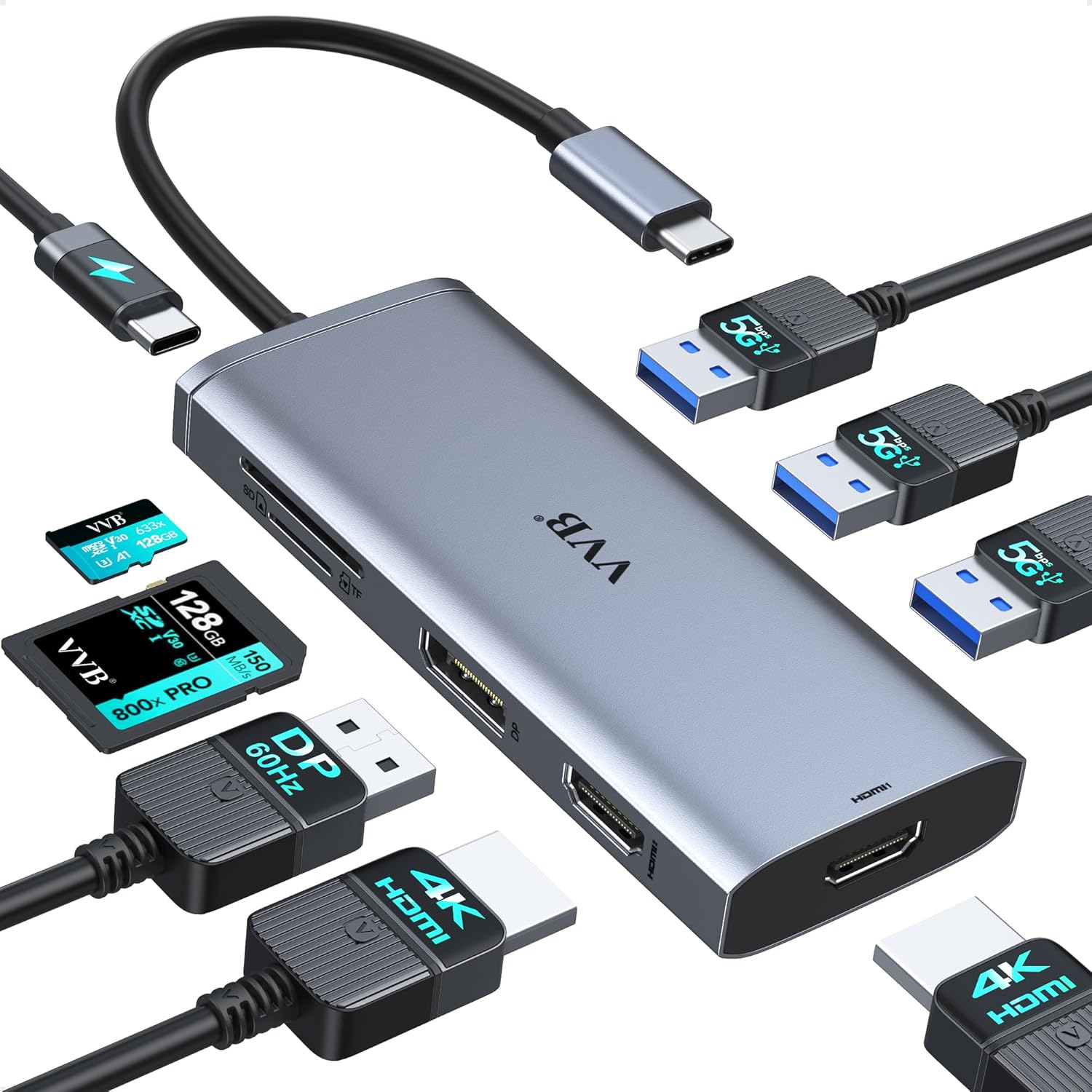
Image 1.1: The VVB 9-in-1 USB C Docking Station, showcasing അതിന്റെ ഒതുക്കമുള്ള രൂപകൽപ്പനയും വിവിധ പോർട്ടുകളും.
2. ഉൽപ്പന്നം കഴിഞ്ഞുview
The VVB 9-in-1 USB C Docking Station is designed to enhance your laptop's connectivity. It features the following ports:
- 2 x HDMI Ports: Supports up to 4K resolution at 30Hz.
- 1 x DisplayPort: Supports up to 4K resolution at 60Hz.
- 3 x USB 3.0 പോർട്ടുകൾ: Data transfer speeds up to 5Gbps.
- 1 x SD കാർഡ് റീഡർ: Data transfer speeds up to 104MB/s.
- 1 x TF (Micro SD) Card Reader: Data transfer speeds up to 104MB/s.
- 1 x USB-C പവർ ഡെലിവറി (PD) പോർട്ട്: Supports up to 100W input, with a safe power output of 87W for laptop charging.

ചിത്രം 2.1: വിശദമായത് view of the VVB 9-in-1 USB C Docking Station ports and their functions.
3. അനുയോജ്യതാ ആവശ്യകതകൾ
This docking station is compatible with laptops and computers featuring a Full-featured USB Type-C port that supports DisplayPort Alternate Mode (Alt Mode), Power Delivery, and data transfer protocols.
3.1. പിന്തുണയ്ക്കുന്ന ഓപ്പറേറ്റിംഗ് സിസ്റ്റങ്ങൾ
- വിൻഡോസ്
- macOS
- ലിനക്സ്
- ഐപാഡ് ഒഎസ്
- ആൻഡ്രോയിഡ്
3.2. Important Note on USB-C Port Functionality
Before purchase and use, please confirm that your laptop's USB-C port supports the necessary functions. Not all USB-C ports are identical.

Image 3.1: Visual guide to identifying full-function USB-C ports versus charge-only or data-only ports.
3.3. ഉദാampഅനുയോജ്യമായ ഉപകരണങ്ങളുടെ കുറവ്
This docking station is compatible with many devices, including but not limited to:
- ഡെൽ: Latitude 5330, 5420, 5430, 5530, 5431, 5531, 7330, 7420, 7430, 7530, 9420, 9430; Inspiron; Vostro; XPS 9380/13/15/17.
- HP: Elitebook Zbook G7/G8, Probook, Elitebook 630/640/645/650/655 G9, 840/850 G6/G7/G8/G9, 845, Elitebook 830 G7/G8/G9/G10, EliteBook x360 G9/G10, 1030 G2/G3/G4/G7/G8, 1040 G5/G6/G7/G8/G9/G10, X2, Probook 440 G6, 445 G7, 450 G5/6/7/9/10, 455 G9/10, 650 G8; Zbook Firefly 14/15 G7/G8; Zbook 15 G3; Spectre x360.
- ലെനോവോ: Yoga 720/910/920/930, Thinkpad, T14/s/T480/T490s/ThinkPad X1 Carbon/Yoga Gen6/7/8.
- മൈക്രോസോഫ്റ്റ് സർഫസ്: Surface Pro 7/X/Go/Laptop 3, Surface Pro X/9/8/7, Surface Laptop 3/4/5.
- ആപ്പിൾ: MacBook Pro (2018-2023), MacBook Air/Mac mini (2018-2023), iMac Pro (2018-2023), iPad/Pro (2018-Newest).

ചിത്രം 3.2: കഴിഞ്ഞുview of compatible laptop brands and models.
3.4. Incompatible Devices
Some devices may not be fully compatible due to limitations in their USB-C port functionality or specific hardware configurations. Examples of potentially incompatible devices include:
- HP Pavilion x360, HP Probook 650b/650 G2/640 G8/655 G4
- Dell Latitude E7480/E5430/E6520/E6230/3390/5510
- Dell Inspiron 15 3535/3520/3530/3511/5000/5379/7706 2n1/3593
- Dell Vostro 15 3530/3535/3430/3420/Chromebook 5190
- Lenovo ThinkPad L13 Gen 3 (13" AMD), L14 Gen 3 (14" AMD), L15 Gen 3 (15" AMD), T14 Gen 4 (14" AMD), X13 (13" Snapdragon), P14s Gen 4 (14" AMD)
- IdeaPad Slim 3 Chromebook, IdeaPad Pro 5i (16" Intel), IdeaPad Flex 5 (16" AMD), IdeaPad Flex 3 Chromebook
- Acer Chromebook, Acer Aspire series (e.g., E15, F5-573G, A717-72G, Nitro 5 AN515-15, AN517-41)
- ASUS Vivobook Flip 14, ASUS Chromebook, ASUS Vivobook 15 X1500EA/X1500E, ASUS Vivobook E210MA-GJ96WS, ASUS Vivobook 17, ASUS Laptop Model # F 1502 ZA-S896
- Samsung Galaxy Tab A 2018, Galaxy Tab S3/S4, Galaxy Tab E, Galaxy S23 FE phones, Galaxy S5/S6/S7 or older version
- Nintendo Switch, Honor View 10, Lenovo Tab 4, ASUS Zenpad x10, Google Pixelbook 2, Blu Vivo, Motorola G7/G5/G6/G5/G4/G3, Google Pixel, Pixel 2, Pixel XL, Pixel C, OnePlus 2/3/3T/5/6T/7/7T/7T Pro, ZTE/Zmax Pro/ZTE Blade X Max/Zxon 7

Image 3.3: List of devices that may not be compatible with the docking station.
4. സജ്ജീകരണ നിർദ്ദേശങ്ങൾ
The VVB 9-in-1 USB C Docking Station is designed for plug-and-play functionality, requiring no additional drivers or software installation for most operating systems.
- പവർ കണക്റ്റ് ചെയ്യുക (ഓപ്ഷണൽ പക്ഷേ ശുപാർശ ചെയ്യുന്നു): If you intend to charge your laptop through the docking station, connect a USB-C power adapter (not included) to the docking station's USB-C PD port. A 100W power adapter is recommended for optimal performance.
- ലാപ്ടോപ്പിലേക്ക് കണക്റ്റുചെയ്യുക: Plug the integrated USB-C cable from the docking station into a full-featured USB-C/Thunderbolt 3 port on your laptop.
- പെരിഫറലുകൾ ബന്ധിപ്പിക്കുക: Connect your external monitors, USB devices (keyboard, mouse, external drives), and SD/TF cards to the corresponding ports on the docking station.
- ഡിസ്പ്ലേ ക്രമീകരണങ്ങൾ കോൺഫിഗർ ചെയ്യുക: Your operating system should automatically detect the connected displays. If not, or to adjust display modes (extend, mirror), refer to your operating system's display settings.
Note: It is recommended to connect the power supply to the docking station first, then connect the docking station to your laptop, and finally connect other peripherals.
5. Operating the Docking Station
5.1. Display Modes for Windows Laptops
For Windows systems, the docking station supports dual and triple extended displays, allowing for different content on each screen.
- സിംഗിൾ ഡിസ്പ്ലേ: Connect one monitor to either HDMI 1, HDMI 2, or DisplayPort.
- HDMI 1 / DisplayPort: Up to 4K@60Hz
- HDMI 2: Up to 4K@30Hz
- ഡ്യുവൽ മോണിറ്ററുകൾ: Connect two monitors.
- HDMI 1 + HDMI 2: 4K@30Hz and 1080P@60Hz (DP1.4)
- HDMI 1 + DisplayPort: 4K@30Hz and 1080P@60Hz (DP1.4)
- HDMI 2 + DisplayPort: 4K@30Hz and 1080P@60Hz (DP1.4)
- ട്രിപ്പിൾ മോണിറ്ററുകൾ: Connect three monitors (HDMI 1, HDMI 2, and DisplayPort).
- All three monitors will display at 1080P resolution.
- കുറിപ്പ്: If your laptop uses DP1.2, one of the external monitors' resolutions will be lower than 1080P in triple display mode.

Image 5.1: Visual representation of dual and triple monitor setups for Windows laptops.
5.2. Display Modes for macOS Laptops
Due to limitations in macOS (Multi-Stream Transport - MST is not supported), MacBook laptops only support mirror display across external monitors. This means all connected external monitors will show the same image.
- മിറർ ഡിസ്പ്ലേ: All external monitors will mirror the laptop's display.
- പരമാവധി മിഴിവ്: Up to 4K@30Hz for all mirrored displays.

Image 5.2: Illustration of macOS display limitations, showing only mirrored external displays.
5.3. Data Transfer and Charging
- USB 3.0 പോർട്ടുകൾ: Connect USB devices for data transfer at up to 5Gbps. These ports do not support charging or video output.
- SD/TF കാർഡ് റീഡറുകൾ: Insert SD or Micro SD cards for fast data transfer up to 104MB/s.
- USB-C PD പോർട്ട്: Use this port to power your laptop. Ensure your laptop supports the Power Delivery protocol. A 65W or higher power adapter is required; a 100W adapter is recommended. The hub reserves 8W for its own operation.

Image 5.3: Depiction of 5Gbps data transfer via USB 3.0 ports.

Image 5.4: Illustration of 104MB/s data transfer for SD/TF card readers.

Image 5.5: Diagram explaining 100W input and 87W output for USB-C Power Delivery.
6. പരിപാലനവും പരിചരണവും
- Keep the docking station away from water, fire, and corrosive liquids.
- ശക്തമായ ആഘാതങ്ങൾക്ക് ഉപകരണം ഇടുകയോ ഇടുകയോ ചെയ്യുന്നത് ഒഴിവാക്കുക.
- മൃദുവായതും ഉണങ്ങിയതുമായ തുണി ഉപയോഗിച്ച് ഉപകരണം വൃത്തിയാക്കുക. കഠിനമായ രാസവസ്തുക്കളോ ഉരച്ചിലുകളോ ഉള്ള വസ്തുക്കൾ ഉപയോഗിക്കരുത്.
- ഉപയോഗത്തിലില്ലാത്തപ്പോൾ തണുത്തതും ഉണങ്ങിയതുമായ സ്ഥലത്ത് സൂക്ഷിക്കുക.
- The docking station may become warm during extended use, which is normal. Ensure adequate ventilation.
7. പ്രശ്നപരിഹാരം
നിങ്ങൾക്ക് പ്രശ്നങ്ങൾ നേരിടുകയാണെങ്കിൽ, ഇനിപ്പറയുന്ന പൊതുവായ പരിഹാരങ്ങൾ പരിശോധിക്കുക:
- ഡിസ്പ്ലേ ഔട്ട്പുട്ട് ഇല്ല:
- നിങ്ങളുടെ ലാപ്ടോപ്പിന്റെ USB-C പോർട്ട് DisplayPort Alt മോഡിനെ പിന്തുണയ്ക്കുന്നുണ്ടെന്ന് ഉറപ്പാക്കുക.
- Verify that all cables (USB-C to laptop, HDMI/DP to monitors) are securely connected.
- Check your laptop's display settings to ensure external monitors are detected and configured (extend/mirror).
- പ്രശ്നം ഒറ്റപ്പെടുത്താൻ ഒരു സമയം ഒരു മോണിറ്റർ മാത്രം കണക്റ്റ് ചെയ്യാൻ ശ്രമിക്കുക.
- Ensure HDMI/DP cables do not exceed 3 meters in length.
- ലാപ്ടോപ്പ് ചാർജ് ചെയ്യുന്നില്ല:
- നിങ്ങളുടെ ലാപ്ടോപ്പ് USB-C പവർ ഡെലിവറിയെ പിന്തുണയ്ക്കുന്നുണ്ടെന്ന് സ്ഥിരീകരിക്കുക.
- Ensure the power adapter connected to the docking station is at least 65W (100W recommended).
- Verify the power adapter and USB-C charging cable are functional and securely connected.
- A lower power charger may cause a low charging warning or prevent charging.
- യുഎസ്ബി ഉപകരണങ്ങൾ പ്രവർത്തിക്കുന്നില്ല:
- Ensure USB devices are properly plugged into the USB 3.0 ports.
- Test the USB device directly on your laptop to confirm it is functional.
- Some high-power USB devices may require additional power, ensure the docking station is connected to a power source.
- SD/TF Card Not Detected:
- കാർഡ് ശരിയായ സ്ലോട്ടിൽ പൂർണ്ണമായും ചേർത്തിട്ടുണ്ടെന്ന് ഉറപ്പാക്കുക.
- കാർഡ് കേടായതാണോ അതോ കേടായതാണോ എന്ന് പരിശോധിക്കുക.
- Test the card directly on your laptop or another device.
- ഇടയ്ക്കിടെയുള്ള കണക്റ്റിവിറ്റി:
- എല്ലാ കണക്ഷനുകളും ദൃഢമാണെന്ന് ഉറപ്പാക്കുക.
- Avoid using other converters in conjunction with the docking station, as this can cause compatibility issues.
- Ensure the docking station is receiving adequate power, especially when multiple devices are connected.
Image 7.1: Important tips regarding power supply, display limitations, and general compatibility.
8 സ്പെസിഫിക്കേഷനുകൾ
| ബ്രാൻഡ് | വി.വി.ബി |
| മോഡൽ നമ്പർ | 9 IN 1 usb c hub |
| കണക്റ്റിവിറ്റി | USB-C (ഹോസ്റ്റ്) |
| ഔട്ട്പുട്ട് പോർട്ടുകൾ | 2x HDMI, 1x DisplayPort, 3x USB 3.0, 1x SD Card Reader, 1x TF Card Reader, 1x USB-C PD |
| HDMI റെസല്യൂഷൻ | 4K@30Hz വരെ |
| ഡിസ്പ്ലേ പോർട്ട് റെസല്യൂഷൻ | 4K@60Hz വരെ |
| യുഎസ്ബി 3.0 ഡാറ്റാ വേഗത | 5Gbps വരെ |
| SD/TF Card Speed | 104MB/s വരെ |
| USB-C PD ഇൻപുട്ട് | 100W പരമാവധി |
| USB-C PD ഔട്ട്പുട്ട് | 87W (8W reserved for hub operation) |
| ഓപ്പറേറ്റിംഗ് സിസ്റ്റം | Windows, Linux, Mac OS, iPad OS, Android |
| ഇനത്തിൻ്റെ ഭാരം | 3.2 ഔൺസ് |
| ഉൽപ്പന്ന അളവുകൾ (LxWxH) | 2.8 x 0.67 x 5.16 ഇഞ്ച് |
9. വാറൻ്റിയും പിന്തുണയും
For warranty information or technical support, please refer to the contact details provided with your product packaging or visit the official VVB website. If you have any questions or operational problems, please contact customer support for assistance.
വാറൻ്റി ക്ലെയിമുകൾക്കായി നിങ്ങളുടെ വാങ്ങിയതിൻ്റെ തെളിവ് സൂക്ഷിക്കുക.


