1. ആമുഖം
This manual provides detailed instructions for the installation, operation, and maintenance of your ANNKE 4K PoE Security Camera System. This system is designed for comprehensive surveillance, offering high-resolution video recording and smart detection features for both home and business environments. Please read this manual thoroughly before using the product to ensure proper setup and functionality.

Image 1.1: ANNKE 4K PoE Security Camera System components including NVR and 12 dome cameras.
2. പാക്കേജ് ഉള്ളടക്കം
താഴെ ലിസ്റ്റ് ചെയ്തിരിക്കുന്ന എല്ലാ ഇനങ്ങളും നിങ്ങളുടെ പാക്കേജിൽ ഉൾപ്പെടുത്തിയിട്ടുണ്ടെന്ന് ഉറപ്പാക്കുക. ഏതെങ്കിലും ഇനങ്ങൾ നഷ്ടപ്പെട്ടിട്ടുണ്ടെങ്കിലോ കേടായിട്ടുണ്ടെങ്കിലോ, ദയവായി ANNKE ഉപഭോക്തൃ പിന്തുണയുമായി ബന്ധപ്പെടുക.
- 1x 16-Channel 8MP PoE NVR (with 4TB HDD pre-installed)
- 12x 8MP IP PoE Dome Cameras
- 6x 30 മീ/100 അടി നെറ്റ്വർക്ക് കേബിളുകൾ
- 6x 18 മീ/60 അടി നെറ്റ്വർക്ക് കേബിളുകൾ
- NVR-നുള്ള 1x പവർ അഡാപ്റ്റർ (DC48V)
- 1x 5.9 അടി/1.8 മീറ്റർ HDMI കേബിൾ
- 1x 3.2 അടി/1 മീറ്റർ ഇതർനെറ്റ് കേബിൾ
- 1x യുഎസ്ബി മൗസ്
- 1x ദ്രുത നിർദ്ദേശ ഗൈഡ്
- 1x വാൾ സ്റ്റിക്കർ
- 12x Screws for camera mounting

Image 2.1: Visual representation of all items included in the ANNKE 4K PoE Security Camera System package.
3 പ്രധാന സവിശേഷതകൾ
- അൾട്രാ HD 4K റെസല്യൂഷൻ: Equipped with 8MP image sensors, delivering video footage with four times the pixels of 1080p, allowing for enhanced detail upon digital zoom.
- PoE (Power over Ethernet) Connectivity: Simplifies installation by transmitting both data and power through a single network cable, eliminating the need for separate power adapters for cameras.
- Person and Vehicle Detection: Advanced algorithms differentiate between human and vehicle movement, reducing false alarms.
- H.265+ വീഡിയോ കംപ്രഷൻ: Efficiently saves up to 75% of storage space compared to H.264, optimizing HDD usage for longer recording times.
- 24/7 തുടർച്ചയായ റെക്കോർഡിംഗ്: The included 4TB surveillance-grade HDD is engineered for constant operation, supporting simultaneous recording from all 16 channels.
- ANNKE വിഷൻ ആപ്പ് വഴി വിദൂര ആക്സസ്: Free mobile application for Android and iOS devices enables live viewing, snapshots, video recording, and push notifications with event images.
- Customizable Motion Detection Areas: Define specific zones for motion detection to focus on critical areas and minimize irrelevant alerts.
- IP67 Weatherproof Cameras: Cameras feature a robust metal and ABS housing, providing protection against extreme weather conditions with an operating temperature range of -22°F to 140°F.

Image 3.1: Day and night vision clarity with 4K resolution.

Image 3.2: Simplified installation with PoE technology.
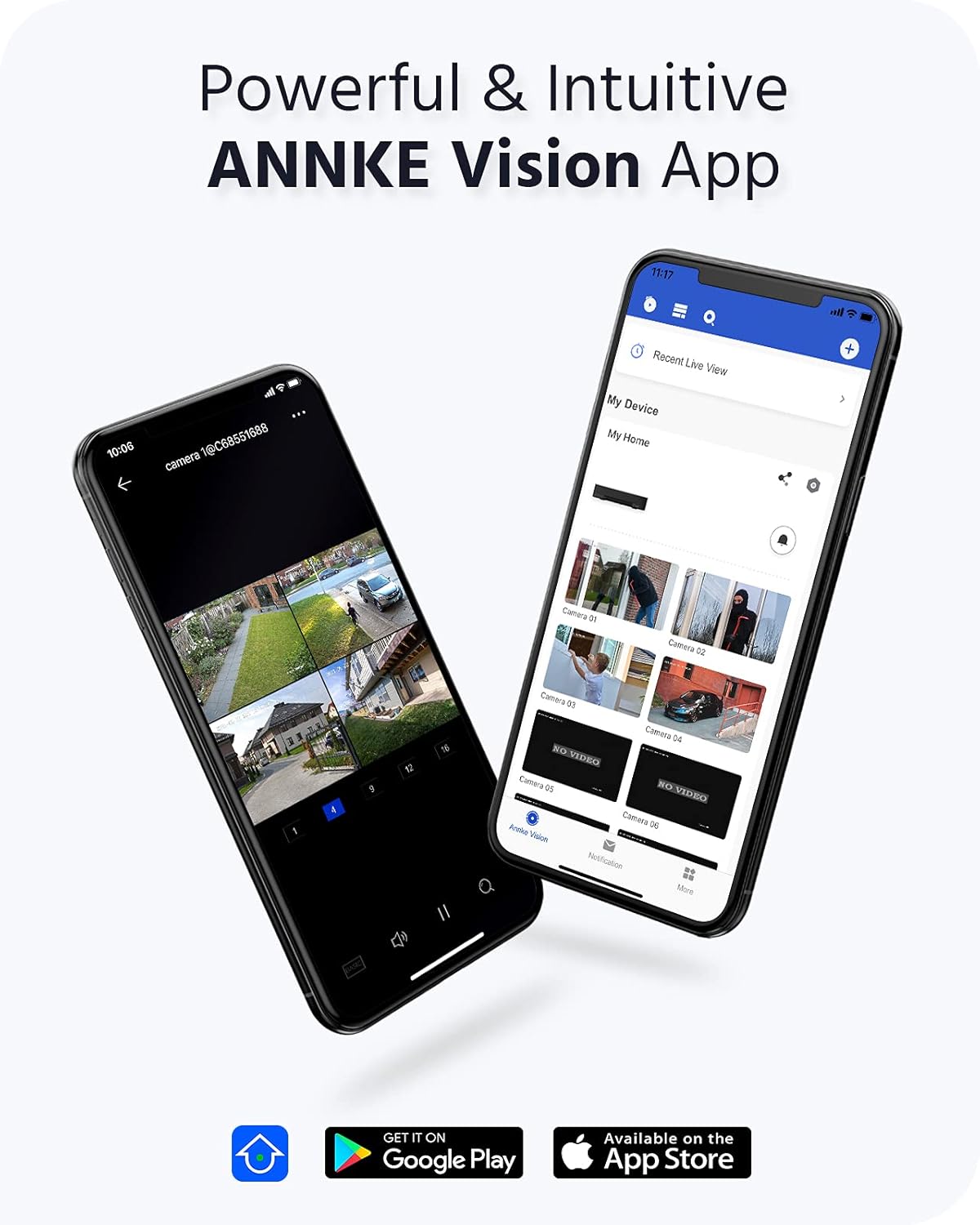
Image 3.3: ANNKE Vision App for remote monitoring.

Image 3.4: Various 24/7 monitoring and recording options.

ചിത്രം 3.5: H.265+ വീഡിയോ കംപ്രഷൻ കാര്യക്ഷമത.

Image 3.6: Customizing motion detection areas.

Image 3.7: IP67 weatherproof and wide operating temperature range.
4. സജ്ജീകരണ ഗൈഡ്
Follow these steps to set up your ANNKE 4K PoE Security Camera System.
4.1 NVR പ്രാരംഭ സജ്ജീകരണം
- മോണിറ്റർ ബന്ധിപ്പിക്കുക: Connect the NVR to a monitor using the provided HDMI cable or a VGA cable (not included).
- മൗസ് ബന്ധിപ്പിക്കുക: NVR-ന്റെ USB പോർട്ടുകളിൽ ഒന്നിലേക്ക് USB മൗസ് പ്ലഗ് ചെയ്യുക.
- നെറ്റ്വർക്ക് ബന്ധിപ്പിക്കുക: Connect the NVR to your router using the Ethernet cable for internet access and remote viewകഴിവുകൾ.
- പവർ ഓൺ: NVR പവർ അഡാപ്റ്റർ NVR-ലേക്ക് കണക്റ്റുചെയ്യുക, തുടർന്ന് ഒരു പവർ ഔട്ട്ലെറ്റിലേക്ക് കണക്റ്റുചെയ്യുക. NVR യാന്ത്രികമായി പവർ ഓൺ ആകും.
- പ്രാരംഭ കോൺഫിഗറേഷൻ: Follow the on-screen wizard to set up basic settings such as language, date/time, and create a strong password for the NVR.
4.2 ക്യാമറ ഇൻസ്റ്റാളേഷനും കണക്ഷനും
The ANNKE PoE system utilizes Power over Ethernet, simplifying camera installation.
- മൗണ്ട് ക്യാമറകൾ: നിങ്ങളുടെ ക്യാമറകൾക്ക് അനുയോജ്യമായ സ്ഥലങ്ങൾ തിരഞ്ഞെടുക്കുക, ഒപ്റ്റിമൽ ഉറപ്പാക്കുന്നു viewing angles and coverage. Use the provided screws to securely mount the cameras.
- PoE കേബിളുകൾ ബന്ധിപ്പിക്കുക: Connect one end of the network cable to the camera's PoE port and the other end to an available PoE port on the NVR. The cameras will receive both power and data through this single cable.
- കണക്ഷൻ സ്ഥിരീകരിക്കുക: Once connected, the cameras should automatically be detected and display video on the connected monitor.
4.3 ANNKE Vision App Setup
For remote access and mobile monitoring, download and configure the ANNKE Vision App.
- അപ്ലിക്കേഷൻ ഡൗൺലോഡുചെയ്യുക: ഇതിനായി തിരയുക 'ANNKE Vision' in the Apple App Store (iOS) or Google Play Store (Android) and install it.
- അക്കൗണ്ട് രജിസ്റ്റർ ചെയ്യുക: ആപ്പ് തുറന്ന് ഒരു പുതിയ അക്കൗണ്ട് രജിസ്റ്റർ ചെയ്യുക അല്ലെങ്കിൽ നിങ്ങൾക്ക് ഇതിനകം അക്കൗണ്ട് ഉണ്ടെങ്കിൽ ലോഗിൻ ചെയ്യുക.
- ഉപകരണം ചേർക്കുക: Tap the '+' icon to add your NVR. You can typically scan the QR code displayed on your NVR's monitor (under Network settings) or manually enter the NVR's serial number.
- തത്സമയം View: Once added, you can access live video feeds from your cameras, view recordings, and receive notifications directly on your smartphone.
5. പ്രവർത്തന നിർദ്ദേശങ്ങൾ
This section covers the basic operation of your ANNKE Security Camera System.
5.1 തത്സമയം View
വിജയകരമായ സജ്ജീകരണത്തിന് ശേഷം, നിങ്ങൾക്ക് കഴിയും view തത്സമയംtage from your cameras:
- On Monitor: The NVR will display a multi-channel live view on the connected monitor. Use the USB mouse to navigate the interface.
- Via ANNKE Vision App: Open the app on your smartphone or tablet, select your NVR, and tap on the desired camera feed for live viewing.
- വഴി Web ബ്രൗസർ: Access the NVR's web ഇന്റർഫേസ് അതിന്റെ IP വിലാസം a-യിൽ നൽകി web ഒരേ നെറ്റ്വർക്കിലേക്ക് കണക്റ്റുചെയ്തിരിക്കുന്ന കമ്പ്യൂട്ടറിലെ ബ്രൗസർ.
5.2 റെക്കോർഡിംഗ് മോഡുകൾ
NVR വിവിധ റെക്കോർഡിംഗ് മോഡുകളെ പിന്തുണയ്ക്കുന്നു:
- തുടർച്ചയായ റെക്കോർഡിംഗ്: Records 24/7 without interruption. Configurable via NVR settings.
- മോഷൻ ഡിറ്റക്ഷൻ റെക്കോർഡിംഗ്: Records only when motion is detected in the configured areas.
- ഷെഡ്യൂൾഡ് റെക്കോർഡിംഗ്: Records during specific time periods set by the user.
- ഇവൻ്റ് റെക്കോർഡിംഗ്: Records triggered by specific events like person/vehicle detection.
These modes can be configured through the NVR's menu system (right-click with the mouse on the monitor) or via the ANNKE Vision App/web ഇൻ്റർഫേസ്.
5.3 പ്ലേബാക്ക്
വീണ്ടുംview രേഖപ്പെടുത്തി footage:
- On NVR: From the NVR's main menu, select 'Playback'. Choose the camera(s), date, and time range to review.
- Via ANNKE Vision App: In the app, select your NVR, then navigate to the playback section. Select the desired camera and timeline to view റെക്കോർഡിംഗുകൾ.
5.4 Smart Detection (Person/Vehicle)
Configure smart detection features to receive more accurate alerts:
- ആക്സസ് ക്രമീകരണങ്ങൾ: Navigate to the 'Event' or 'Smart Analysis' section in the NVR menu or app settings.
- Enable Detection: Activate 'Person Detection' and/or 'Vehicle Detection' for specific cameras.
- Configure Areas: Draw specific detection zones on the camera's view to define where the system should look for persons or vehicles.
- Set Actions: Choose actions to be taken upon detection, such as recording, sending push notifications, or triggering an audible alarm.
6. പരിപാലനം
പതിവ് അറ്റകുറ്റപ്പണികൾ നിങ്ങളുടെ സുരക്ഷാ സംവിധാനത്തിന്റെ ഒപ്റ്റിമൽ പ്രകടനവും ദീർഘായുസ്സും ഉറപ്പാക്കുന്നു.
6.1 Cleaning Cameras
- ക്യാമറ ലെൻസും ഹൗസിംഗും മൃദുവായ, ഡി-ടച്ച് ഉപയോഗിച്ച് സൌമ്യമായി തുടയ്ക്കുക.amp തുണി. ഉരച്ചിലുകൾ ഉണ്ടാക്കുന്ന ക്ലീനറുകളോ ലായകങ്ങളോ ഒഴിവാക്കുക.
- Ensure the lens is free from dust, dirt, or spiderwebs for clear image quality.
6.2 ഫേംവെയർ അപ്ഡേറ്റുകൾ
- ഇടയ്ക്കിടെ ANNKE പരിശോധിക്കുക website or the NVR's system settings for available firmware updates.
- Firmware updates can improve system stability, add new features, and enhance security. Follow the provided instructions carefully when performing updates.
6.3 ഹാർഡ് ഡ്രൈവ് മാനേജ്മെന്റ്
- The 4TB HDD is configured for continuous recording with overwrite functionality, meaning older footage is automatically deleted to make space for new recordings.
- You can check the HDD status and remaining capacity in the NVR's storage settings.
7. പ്രശ്നപരിഹാരം
This section addresses common issues you might encounter with your ANNKE Security Camera System.
7.1 വീഡിയോ ഡിസ്പ്ലേ ഇല്ല
- പവർ പരിശോധിക്കുക: NVR ഓണാക്കിയിട്ടുണ്ടെന്നും പവർ അഡാപ്റ്റർ സുരക്ഷിതമായി ബന്ധിപ്പിച്ചിട്ടുണ്ടെന്നും ഉറപ്പാക്കുക.
- മോണിറ്റർ കണക്ഷൻ: Verify the HDMI/VGA cable connection between the NVR and the monitor. Try a different cable or monitor if possible.
- ക്യാമറ കണക്ഷൻ: Ensure all PoE cables are securely connected to both the cameras and the NVR's PoE ports. Check for any damaged cables.
- NVR Output Resolution: If the monitor shows 'Out of Range', the NVR's output resolution might be too high for the monitor. Connect the NVR to a different monitor or try resetting the NVR's display settings (refer to the quick guide for specific steps).
7.2 No Remote Access
- നെറ്റ്വർക്ക് കണക്ഷൻ: Ensure the NVR is connected to your router via an Ethernet cable and has internet access. Check the network status in the NVR settings.
- ആപ്പ് ലോഗിൻ: Verify you are logged into the ANNKE Vision App with the correct account.
- ഉപകരണ നില: In the app, check if the NVR device is online. If offline, troubleshoot the NVR's network connection.
- ഫയർവാൾ/റൂട്ടർ ക്രമീകരണങ്ങൾ: Ensure your router's firewall is not blocking the NVR's connection. Port forwarding might be required in some complex network setups (consult your router's manual or ISP).
7.3 റെക്കോർഡിംഗ് പ്രശ്നങ്ങൾ
- HDD സ്റ്റാറ്റസ്: Check the HDD status in the NVR's storage settings. Ensure it is detected and healthy.
- റെക്കോർഡിംഗ് ഷെഡ്യൂൾ: Verify that the recording schedule is correctly configured for the desired cameras and times.
- മോഷൻ ഡിറ്റക്ഷൻ ക്രമീകരണങ്ങൾ: If using motion detection, ensure it is enabled and the sensitivity and detection areas are properly set.
For further assistance, please refer to the ANNKE support webസൈറ്റ് അല്ലെങ്കിൽ ഉപഭോക്തൃ സേവനവുമായി ബന്ധപ്പെടുക.
8 സ്പെസിഫിക്കേഷനുകൾ
| ഫീച്ചർ | സ്പെസിഫിക്കേഷൻ |
|---|---|
| ബ്രാൻഡ് | ആൻകെ |
| മോഡൽ നമ്പർ | AU-N46PCK4-V2-9CBN-V3#USH1 (H800 Series) |
| കണക്റ്റിവിറ്റി ടെക്നോളജി | വയേർഡ് (PoE) |
| പ്രത്യേക സവിശേഷതകൾ | Image Sensor, Person Detection, Vehicle Detection, Night Vision |
| എൻവിആർ ചാനലുകൾ | 16-ചാനൽ |
| ക്യാമറ റെസല്യൂഷൻ | 8MP (4K Ultra HD) |
| വീഡിയോ കംപ്രഷൻ | H.265 + |
| സംഭരണ ശേഷി | 4TB HDD (Surveillance-grade) |
| പവർ ഉറവിടം | Corded Electric (NVR), Power over Ethernet (Cameras) |
| Camera Weatherproof Rating | IP67 |
| പ്രവർത്തന താപനില | -22°F മുതൽ 140°F വരെ (-30°C മുതൽ 60°C വരെ) |
| NVR Video Output | HDMI (up to 4K), VGA (up to 1080p) |
| Product Dimensions (NVR) | 20.87 x 19.29 x 11.81 ഇഞ്ച് (ഏകദേശം) |
| ആദ്യ തീയതി ലഭ്യമാണ് | ഏപ്രിൽ 24, 2022 |
9. വാറൻ്റിയും പിന്തുണയും
ANNKE products are designed for reliability and performance. For warranty information, technical support, or service inquiries, please visit the official ANNKE website or contact their customer support team directly. Ensure you have your product model number (H800) and purchase details available when seeking support.
ആൻകെ ഉദ്യോഗസ്ഥൻ Webസൈറ്റ്: www.annke.com


