1. ആമുഖം
This manual provides comprehensive instructions for the setup, operation, and maintenance of your Amazon Fire 7 Tablet (12th Generation). This bundle includes the Fire 7 Tablet, an Amazon Standing Case, and a Screen Protector (2-Pack). Please read this manual thoroughly to ensure proper use and to maximize your device's performance and longevity.
2. ബോക്സിൽ എന്താണുള്ളത്?
നിങ്ങളുടെ പാക്കേജിൽ എല്ലാ ഇനങ്ങളും ഉണ്ടെന്ന് ഉറപ്പാക്കുക:
- Amazon Fire 7 Tablet (12th Generation)
- യുഎസ്ബി-സി കേബിൾ
- പവർ അഡാപ്റ്റർ
- Amazon Standing Case for Fire 7 Tablet
- Screen Protector (2-Pack)
- ദ്രുത ആരംഭ ഗൈഡ്
3. സജ്ജീകരണം
3.1. Initial Fire 7 Tablet Setup
- ടാബ്ലെറ്റ് ചാർജ് ചെയ്യുക: Connect the USB-C cable to the tablet's charging port and the power adapter. Plug the adapter into a wall outlet. Allow the tablet to charge fully before first use. The power indicator light will show charging status.
- പവർ ഓൺ: ആമസോൺ ലോഗോ ദൃശ്യമാകുന്നതുവരെ ടാബ്ലെറ്റിന്റെ വശത്തുള്ള പവർ ബട്ടൺ അമർത്തിപ്പിടിക്കുക.
- ഭാഷയും പ്രദേശവും: നിങ്ങളുടെ ഇഷ്ടപ്പെട്ട ഭാഷയും പ്രദേശവും തിരഞ്ഞെടുക്കാൻ ഓൺ-സ്ക്രീൻ നിർദ്ദേശങ്ങൾ പാലിക്കുക.
- വൈഫൈയിലേക്ക് കണക്റ്റുചെയ്യുക: Select your Wi-Fi network from the list and enter the password. A stable internet connection is required for initial setup and software updates.
- നിങ്ങളുടെ ഉപകരണം രജിസ്റ്റർ ചെയ്യുക: Sign in with your existing Amazon account or create a new one. This links the tablet to your Amazon content and services.
- Restore from Backup (Optional): If you have a previous Fire tablet, you may have the option to restore settings and content from a backup.
- സജ്ജീകരണം പൂർത്തിയാക്കുക: Follow any remaining prompts to finalize the setup process, including setting up parental controls if desired.
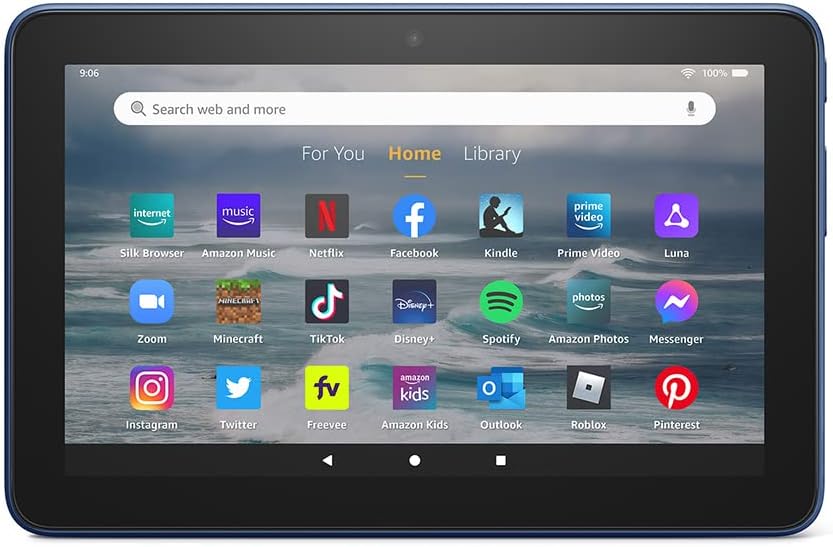
Image: The Fire 7 Tablet displaying its home screen with various applications. This shows the user interface after initial setup.
3.2. Installing the Screen Protector
The screen protector provides an additional layer of defense against scratches and smudges. For best results, install in a dust-free environment.
- സ്ക്രീൻ വൃത്തിയാക്കുക: Use the provided cleaning cloth to thoroughly clean the tablet screen, removing all dust, fingerprints, and smudges. Ensure the screen is completely dry.
- Peel Back Layer 1: Carefully peel off the protective film labeled "Layer 1" or "Back" from the screen protector, exposing the adhesive side. Avoid touching the adhesive.
- വിന്യസിക്കുക, പ്രയോഗിക്കുക: Align the screen protector with the tablet's screen, paying attention to the camera and speaker cutouts. Once aligned, gently lay the protector onto the screen, starting from one edge and slowly lowering it.
- കുമിളകൾ നീക്കം ചെയ്യുക: Use a squeegee tool (if provided) or a soft cloth to gently push out any air bubbles towards the edges of the screen.
- Peel Back Layer 2: Once the protector is smoothly applied and free of bubbles, carefully peel off the top protective film labeled "Layer 2" or "Front".

Image: Features of the screen protector, highlighting its ultra-clear view, easy alignment, residue-free adhesive, and bubble-resistant installation.
3.3. Attaching the Amazon Standing Case
The Amazon Standing Case protects your tablet and provides a convenient stand function.
- കേസ് തുറക്കുക: Open the standing case fully.
- ടാബ്ലെറ്റ് ചേർക്കുക: Carefully insert your Fire 7 Tablet into the case, ensuring all edges are securely seated within the case's frame. The case is designed for a snug fit, providing access to all ports, buttons, and cameras.
- കവർ സുരക്ഷിതമാക്കുക: Close the front cover. The magnetic connection will keep it securely closed.
- Using the Stand: To use the stand function, fold the front cover back and position it to support the tablet in a viewing or typing angle.
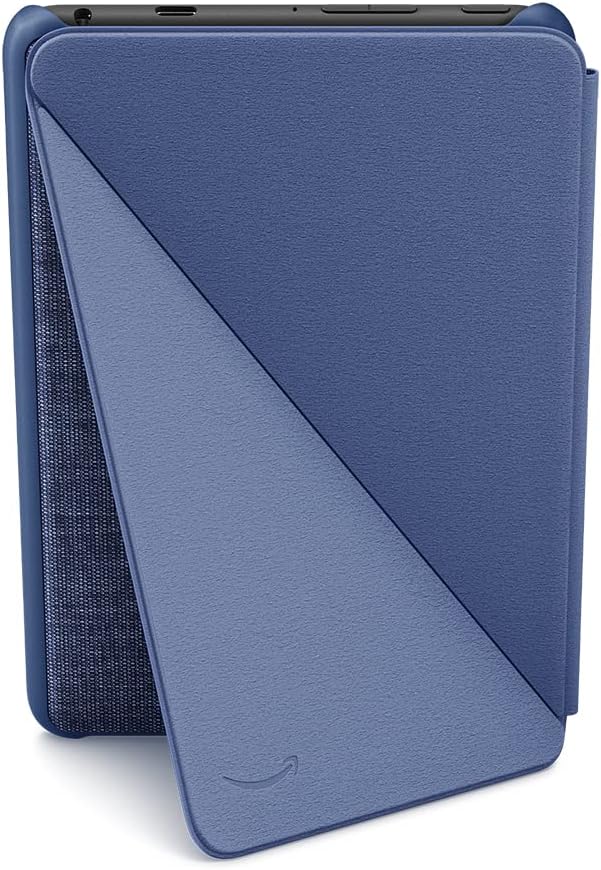
Image: The Amazon Standing Case for the Fire 7 Tablet, demonstrating its design and how it can be opened.
4. Operating the Fire 7 Tablet
4.1. അടിസ്ഥാന നാവിഗേഷൻ
- സ്പർശന ആംഗ്യങ്ങൾ: തിരഞ്ഞെടുക്കാൻ ടാപ്പ് ചെയ്യുക, സ്ക്രോൾ ചെയ്യാൻ സ്വൈപ്പ് ചെയ്യുക, സൂം ചെയ്യാൻ പിഞ്ച് ചെയ്യുക.
- ഹോം സ്ക്രീൻ: Tap the home icon at the bottom of the screen to return to the main home screen.
- ബാക്ക് ബട്ടൺ: Tap the back icon to go to the previous screen.
- സമീപകാല ആപ്പുകൾ: Tap the square icon to view കൂടാതെ അടുത്തിടെ ഉപയോഗിച്ച ആപ്ലിക്കേഷനുകൾക്കിടയിൽ മാറുക.
- ദ്രുത ക്രമീകരണങ്ങൾ: Swipe down from the top of the screen to access quick settings like Wi-Fi, Bluetooth, brightness, and notifications.
4.2. Wi-Fi-ലേക്ക് ബന്ധിപ്പിക്കുന്നു
- ദ്രുത ക്രമീകരണങ്ങൾ തുറക്കാൻ സ്ക്രീനിന്റെ മുകളിൽ നിന്ന് താഴേക്ക് സ്വൈപ്പ് ചെയ്യുക.
- ടാപ്പ് ചെയ്യുക വൈഫൈ ഐക്കൺ.
- ലിസ്റ്റിൽ നിന്ന് നിങ്ങൾക്ക് ആവശ്യമുള്ള നെറ്റ്വർക്ക് തിരഞ്ഞെടുക്കുക.
- ആവശ്യപ്പെടുകയാണെങ്കിൽ പാസ്വേഡ് നൽകി ടാപ്പ് ചെയ്യുക ബന്ധിപ്പിക്കുക.
4.3. ആപ്പുകൾ ഡൗൺലോഡ് ചെയ്യുന്നു
Apps can be downloaded from the Amazon Appstore.
- ടാപ്പ് ചെയ്യുക ആപ്പ്സ്റ്റോർ നിങ്ങളുടെ ഹോം സ്ക്രീനിലെ ഐക്കൺ.
- Browse or search for the app you wish to install.
- Tap the app, then tap നേടുക അല്ലെങ്കിൽ ഡൗൺലോഡ് ചെയ്ത് ഇൻസ്റ്റാൾ ചെയ്യാനുള്ള വില.
4.4. ക്യാമറ ഉപയോഗിക്കുന്നത്
The Fire 7 Tablet features front and rear cameras.
- ടാപ്പ് ചെയ്യുക ക്യാമറ app icon.
- ഫോട്ടോ എടുക്കാൻ ഷട്ടർ ബട്ടൺ ടാപ്പ് ചെയ്യുക അല്ലെങ്കിൽ റെക്കോർഡ് ചെയ്യാൻ വീഡിയോ മോഡിലേക്ക് മാറുക.
- മുൻ ക്യാമറയും പിൻ ക്യാമറയും തമ്മിൽ മാറാൻ ക്യാമറ സ്വിച്ച് ഐക്കണിൽ ടാപ്പ് ചെയ്യുക.
4.5. സംഭരണം കൈകാര്യം ചെയ്യൽ
Your Fire 7 Tablet comes with 16 GB of internal storage, expandable up to 1 TB with a microSD card.
- മൈക്രോ എസ്ഡി കാർഡ് ചേർക്കുക: Locate the microSD card slot on the side of the tablet. Gently insert the card until it clicks into place.
- സംഭരണം പരിശോധിക്കുക: പോകുക ക്രമീകരണങ്ങൾ > സംഭരണം വരെ view സംഭരണ ഉപയോഗവും മാനേജ്മെന്റും files.
- Move Content: You can move compatible apps and media files to the microSD card to free up internal storage.
4.6. രക്ഷാകർതൃ നിയന്ത്രണങ്ങൾ
Amazon FreeTime (now Amazon Kids) allows you to create profiles for children and manage their content, screen time, and access to features.
- Access parental controls via Settings > Parental Controls or through the Amazon Kids app.
- Set daily time limits, age filters for content, and control web ബ്രൗസർ ആക്സസ്.
5. പരിപാലനം
5.1. Cleaning the Tablet and Screen Protector
- Use a soft, lint-free cloth (microfiber is ideal) to gently wipe the screen and tablet body.
- കഠിനമായ പാടുകൾക്ക്, ചെറുതായി dampen the cloth with water or a screen-cleaning solution specifically designed for electronics. Avoid harsh chemicals, abrasive materials, or excessive moisture.
- വൃത്തിയാക്കുന്നതിന് മുമ്പ് ടാബ്ലെറ്റ് ഓഫ് ചെയ്തിട്ടുണ്ടെന്നും അൺപ്ലഗ് ചെയ്തിട്ടുണ്ടെന്നും ഉറപ്പാക്കുക.
5.2. ബാറ്ററി പരിചരണം
- ബാറ്ററി ആയുസ്സ് വർദ്ധിപ്പിക്കുന്നതിന്, ഉയർന്ന താപനില ഒഴിവാക്കുക.
- Charge the tablet using the provided Amazon power adapter and USB-C cable.
- While it's not necessary to fully discharge the battery before recharging, occasional full charge cycles can help calibrate the battery meter.
5.3. സോഫ്റ്റ്വെയർ അപ്ഡേറ്റുകൾ
Amazon regularly releases software updates to improve performance, add features, and enhance security.
- Ensure your tablet is connected to Wi-Fi.
- പോകുക Settings > Device Options > System Updates ലഭ്യമായ അപ്ഡേറ്റുകൾ പരിശോധിച്ച് ഇൻസ്റ്റാൾ ചെയ്യാൻ.
- It is recommended to keep your tablet updated to the latest software version.
6. പ്രശ്നപരിഹാരം
6.1. പൊതുവായ പ്രശ്നങ്ങളും പരിഹാരങ്ങളും
- ടാബ്ലെറ്റ് പ്രവർത്തിക്കുന്നില്ല:
- Ensure the tablet is charged. Connect it to the power adapter and wait a few minutes before attempting to power on.
- Perform a hard reset: Press and hold the power button for 40 seconds, then release and press it again to power on.
- Wi-Fi കണക്ഷൻ പ്രശ്നങ്ങൾ:
- നിങ്ങളുടെ വൈഫൈ പാസ്വേഡ് ശരിയാണോ എന്ന് പരിശോധിക്കുക.
- നിങ്ങളുടെ വൈഫൈ റൂട്ടറും മോഡവും പുനരാരംഭിക്കുക.
- പോകുക ക്രമീകരണങ്ങൾ > Wi-Fi, forget the network, and then reconnect.
- ആപ്പുകൾ ക്രാഷാകുകയോ മരവിപ്പിക്കുകയോ ചെയ്യുന്നു:
- ആപ്പ് അടച്ച് വീണ്ടും തുറക്കുക.
- ആപ്പിന്റെ കാഷെ മായ്ക്കുക: പോകുക Settings > Apps & Games > Manage All Applications, select the app, then കാഷെ മായ്ക്കുക.
- ആപ്പ് അൺഇൻസ്റ്റാൾ ചെയ്ത് വീണ്ടും ഇൻസ്റ്റാൾ ചെയ്യുക.
- നിങ്ങളുടെ ടാബ്ലെറ്റിന്റെ സോഫ്റ്റ്വെയർ കാലികമാണെന്ന് ഉറപ്പാക്കുക.
- മന്ദഗതിയിലുള്ള പ്രകടനം:
- പശ്ചാത്തലത്തിൽ പ്രവർത്തിക്കുന്ന ഉപയോഗിക്കാത്ത ആപ്പുകൾ അടയ്ക്കുക.
- പതിവായി ഉപയോഗിക്കുന്ന ആപ്പുകൾക്കായി കാഷെ മായ്ക്കുക.
- Check available storage and free up space if necessary.
- ടാബ്ലെറ്റ് പുനരാരംഭിക്കുക.
6.2. ഫാക്ടറി റീസെറ്റ്
A factory reset will erase all data from your tablet and restore it to its original factory settings. This can resolve persistent software issues but should be used as a last resort.
- ബാക്കപ്പ് ഡാറ്റ: If possible, back up any important data to the cloud or a computer.
- പോകുക ക്രമീകരണങ്ങൾ > ഉപകരണ ഓപ്ഷനുകൾ > ഫാക്ടറി ഡിഫോൾട്ടുകളിലേക്ക് പുനഃസജ്ജമാക്കുക.
- Confirm your decision when prompted. The tablet will restart and begin the reset process.
7 സ്പെസിഫിക്കേഷനുകൾ
| ഫീച്ചർ | സ്പെസിഫിക്കേഷൻ |
|---|---|
| മോഡലിൻ്റെ പേര് | Fire 7 Tablet (12th Generation) |
| പ്രദർശിപ്പിക്കുക | 7 ഇഞ്ച് ടച്ച്സ്ക്രീൻ |
| സംഭരണം | 16 ജിബി (മൈക്രോ എസ്ഡി വഴി 1 ടിബി വരെ വികസിപ്പിക്കാം) |
| റാം | 2 ജിബി |
| പ്രോസസ്സർ | Quad-core (up to 30% faster than 9th Gen) |
| ബാറ്ററി ലൈഫ് | Up to 10 hours (reading, browsing, video, music) |
| ക്യാമറകൾ | ഫ്രണ്ട്, റിയർ ക്യാമറകൾ |
| തുറമുഖങ്ങൾ | USB-C, 3.5mm stereo jack, microSD slot |
| കണക്റ്റിവിറ്റി | വൈ-ഫൈ, ബ്ലൂടൂത്ത് |
8. വാറൻ്റിയും പിന്തുണയും
Your Amazon Fire 7 Tablet is covered by a limited warranty. For detailed warranty information, please refer to the documentation included with your device or visit the official Amazon support webസൈറ്റ്. സാങ്കേതിക സഹായത്തിനോ, പ്രശ്നപരിഹാരത്തിനോ, അല്ലെങ്കിൽ ഉപഭോക്തൃ സേവനവുമായി ബന്ധപ്പെടുന്നതിനോ, ദയവായി സന്ദർശിക്കുക amazon.com/devicesupport.


