ആമുഖം
This manual provides detailed instructions for the installation, operation, and maintenance of your SMONET 8-Channel 5MP Wireless Network Video Recorder (NVR). This NVR is designed to work with SMONET 5MP wireless security camera systems, offering robust surveillance capabilities without a pre-installed power supply or hard drive, allowing for custom configuration.

Figure 1: SMONET 8-Channel 5MP Wireless NVR with compatible cameras.
1. സജ്ജീകരണം
1.1 Unboxing and Component Overview
Before beginning installation, ensure all components are present. The package typically includes the 8-Channel 5MP NVR unit, a power adapter (not included with this specific model, must be purchased separately), a USB mouse, and a quick start guide. Cameras are sold separately.
1.2 NVR Rear Panel Connections
Familiarize yourself with the NVR's rear panel for proper connectivity.
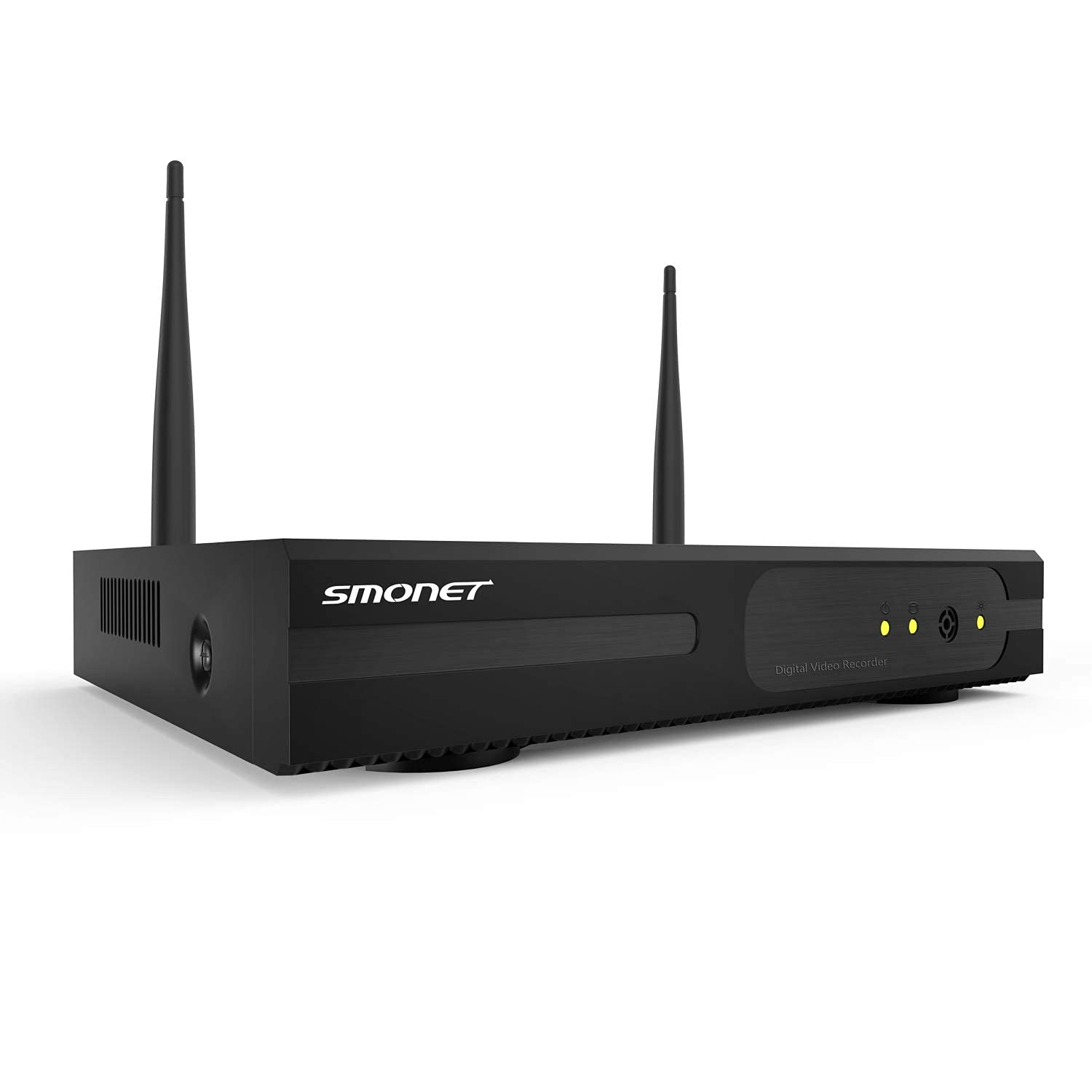
Figure 2: Rear panel of the SMONET NVR showing various ports.
- USB പോർട്ടുകൾ: For connecting the USB mouse and external storage devices.
- VGA പോർട്ട്: For connecting to a PC monitor.
- എച്ച്ഡിഎംഐ പോർട്ട്: For connecting to a TV monitor.
- ഇഥർനെറ്റ് പോർട്ട് (WAN): For connecting to your router for network access.
- ഓഡിയോ Outട്ട്: ഓഡിയോ ഔട്ട്പുട്ടിനായി.
- ഡിസി 12 വി: Power input for the NVR.
- ഓൺ/ഓഫ് സ്വിച്ച്: Power control for the NVR.
1.3 Hard Drive Installation (User-Provided)
This NVR model does not include a pre-installed hard drive. A compatible 3.5-inch SATA hard drive (HDD) must be installed by the user for video recording. Ensure the NVR is powered off before installation.
- Unscrew the cover of the NVR unit.
- Carefully connect the SATA data and power cables from the NVR to your hard drive.
- നൽകിയിരിക്കുന്ന സ്ക്രൂകൾ ഉപയോഗിച്ച് NVR ചേസിസിനുള്ളിൽ ഹാർഡ് ഡ്രൈവ് സുരക്ഷിതമാക്കുക.
- Replace and secure the NVR cover.
Video 1: Demonstration of hard drive installation in a similar DVR unit. Note: This NVR model requires a user-provided hard drive.
1.4 Initial Power-Up and Connections
- Connect the NVR to a monitor using either an HDMI or VGA cable.
- Connect the USB mouse to one of the NVR's USB ports.
- നെറ്റ്വർക്ക് ആക്സസിനായി ഒരു ഇതർനെറ്റ് കേബിൾ ഉപയോഗിച്ച് നിങ്ങളുടെ റൂട്ടറിലേക്ക് NVR ബന്ധിപ്പിക്കുക.
- Connect the appropriate 12V DC power supply (not included) to the NVR's DC 12V input.
- Turn on the NVR using the On/Off switch.
Video 2: General setup and connection process for a surveillance system video recorder.
1.5 Camera Pairing and Placement
The SMONET NVR is designed for wireless cameras. Ensure your SMONET 5MP wireless cameras are powered on and within range of the NVR. The NVR should automatically detect and pair with compatible cameras. For optimal signal strength, position cameras strategically, avoiding major obstructions.
വീഡിയോ 3: കഴിഞ്ഞുview of a SANNCE 8-Channel DVR, demonstrating camera features and setup. Note: This NVR is for wireless cameras, not wired as shown in parts of the video.
2. ഓപ്പറേഷൻ
2.1 തത്സമയം View and Multi-Channel Display
Once cameras are connected, the NVR will display live feeds on the connected monitor. You can typically switch between single-camera view and multi-channel views (e.g., 4-channel, 8-channel) using the mouse interface.
2.2 റെക്കോർഡിംഗ് മോഡുകൾ
The NVR supports continuous recording. Other recording options, such as motion-activated recording, can be configured through the system settings.
2.3 Night Vision and Spotlight Features
Compatible SMONET cameras feature night vision technology for clear monitoring in low-light conditions. Some cameras may also include spotlights that activate upon motion detection, enhancing visibility and acting as a deterrent.
2.4 Two-Way Audio and Siren (Camera Dependent)
If your connected cameras support two-way audio, you can communicate through the camera via the NVR interface or a mobile application. Some cameras may also feature a siren function, which can be activated manually or automatically upon detection of suspicious activity.
2.5 Playback and Event Review
റെക്കോർഡ് ചെയ്ത foo ആക്സസ് ചെയ്യുകtage through the NVR's playback menu. You can search by date, time, or event (if motion detection recording is enabled) to review specific incidents.
2.6 System Settings and Configuration
Navigate the NVR's menu using the USB mouse to adjust various settings, including:
- വീഡിയോ മിഴിവ്: Set the display and recording resolution (up to 1920p).
- തീയതിയും സമയവും: Configure system date, time, and time zone.
- നെറ്റ്വർക്ക് ക്രമീകരണങ്ങൾ: Manage IP address, port forwarding, and remote access.
- സ്റ്റോറേജ് മാനേജ്മെന്റ്: Format the hard drive, set recording overwrite rules.
- ഉപയോക്തൃ മാനേജ്മെന്റ്: Create and manage user accounts and permissions.
3. പരിപാലനം
3.1 Regular System Checks
Periodically check the NVR and camera connections to ensure they are secure. Verify that cameras are transmitting video and that the hard drive is recording properly.
3.2 ഹാർഡ് ഡ്രൈവ് മാനേജ്മെന്റ്
If your hard drive becomes full, the NVR will typically overwrite the oldest footage. You can configure this behavior in the storage settings. Regularly back up important footage to an external device if needed.
3.3 Camera Durability
SMONET wireless cameras are often rated IP66, indicating they are built to withstand various outdoor weather conditions, including rain and snow. Regular cleaning of camera lenses is recommended for clear image quality.
4. പ്രശ്നപരിഹാരം
- വീഡിയോ ഔട്ട്പുട്ട് ഇല്ല:
- Ensure the NVR is powered on and connected to a monitor via HDMI or VGA.
- മോണിറ്റർ ഇൻപുട്ട് ഉറവിടം ശരിയായി തിരഞ്ഞെടുത്തിട്ടുണ്ടെന്ന് ഉറപ്പാക്കുക.
- Check if the monitor resolution is compatible with the NVR's output. Adjust NVR display settings if necessary.
- കണക്റ്റുചെയ്യാത്ത ക്യാമറകൾ:
- Ensure cameras are powered on and within wireless range of the NVR.
- Check for strong Wi-Fi signals for each camera.
- Reboot both the NVR and cameras.
- റെക്കോർഡിംഗ് ഇല്ല:
- Verify that a hard drive is correctly installed and formatted.
- NVR മെനുവിൽ റെക്കോർഡിംഗ് ഷെഡ്യൂളുകളും ക്രമീകരണങ്ങളും പരിശോധിക്കുക.
- Ensure the hard drive is not full (if overwrite is disabled).
- റിമോട്ട് ആക്സസ് പ്രശ്നങ്ങൾ:
- Ensure the NVR is connected to the internet via the Ethernet port.
- Check network settings (IP address, port forwarding) on your router.
- Verify the mobile application is correctly configured and updated.
5 സ്പെസിഫിക്കേഷനുകൾ
| ഫീച്ചർ | വിശദാംശങ്ങൾ |
|---|---|
| ബ്രാൻഡ് | സ്മോനെറ്റ് |
| മോഡൽ നമ്പർ | 8CH 5MP NVR |
| കണക്റ്റിവിറ്റി ടെക്നോളജി | വയർലെസ് |
| വീഡിയോ ക്യാപ്ചർ റെസല്യൂഷൻ | 1920p (5MP) |
| ചാനലുകളുടെ എണ്ണം | 8 |
| ഓപ്പറേറ്റിംഗ് സിസ്റ്റം | ലിനക്സ് |
| അനുയോജ്യമായ ഉപകരണങ്ങൾ | SMONET Wireless Cameras |
| ലോ ലൈറ്റ് ടെക്നോളജി | നൈറ്റ് വിഷൻ |
| ഫ്രെയിം റേറ്റ് | 24, 30, or 60 FPS |
| റെക്കോർഡിംഗ് മോഡ് | Continuous (configurable) |
| മൊത്തം USB പോർട്ടുകൾ | 1 |
| ഹാർഡ്വെയർ ഇന്റർഫേസ് | 802.11 ac/b/g/n (Wireless), RJ45 (Video Input/Ethernet) |
| ലെൻസ് തരം | Wide Angle (Camera dependent) |
| സംഭരണം | User-provided 3.5" SATA HDD (not included) |
| വൈദ്യുതി വിതരണം | 12V DC (not included) |
6. പിന്തുണയും വാറന്റിയും
For technical assistance, troubleshooting, or warranty inquiries, please contact SMONET customer support. SMONET is committed to providing top-rated service and offers 24/7 online support. Refer to your product packaging or the official SMONET webഏറ്റവും പുതിയ കോൺടാക്റ്റ് വിവരങ്ങൾക്കും വാറന്റി വിശദാംശങ്ങൾക്കുമുള്ള സൈറ്റ്.
Additional protection plans are available for purchase, including 2-Year and 3-Year options, as well as a Complete Protect plan covering eligible past and future purchases.
- ഓൺലൈൻ പിന്തുണ: 24/7 ലഭ്യമാണ്.
- നിർമ്മാതാവ്: സ്മോനെറ്റ്
- തിരികെ നൽകൽ നയം: 30-day refund/replacement.


