1. ആമുഖം
This manual provides essential information for the safe and efficient use of your HUAWEI PixLab B5 Multifunction Laser Printer. Please read it thoroughly before operating the device and keep it for future reference.
The HUAWEI PixLab B5 is a versatile 3-in-1 device, offering high-speed printing, copying, and scanning functionalities. It features automatic duplex printing, a user-friendly one-step toner replacement system, and multiple connectivity options including USB, Wi-Fi, and LAN.
2 സുരക്ഷാ വിവരങ്ങൾ
തീ, വൈദ്യുതാഘാതം, വ്യക്തികൾക്ക് പരിക്കേൽക്കൽ എന്നിവ കുറയ്ക്കുന്നതിന് ഈ ഉൽപ്പന്നം ഉപയോഗിക്കുമ്പോൾ എല്ലായ്പ്പോഴും അടിസ്ഥാന സുരക്ഷാ മുൻകരുതലുകൾ പാലിക്കുക.
- Do not place the printer on an unstable cart, stand, or table.
- Do not block or cover the slots and openings in the printer.
- Use only the power cord and power source indicated in this manual.
- പ്രിന്റർ സ്വയം സർവീസ് ചെയ്യാൻ ശ്രമിക്കരുത്. എല്ലാ സർവീസിംഗും യോഗ്യതയുള്ള സർവീസ് ഉദ്യോഗസ്ഥരെ ഏൽപ്പിക്കുക.
- പ്രിന്റർ വെള്ളത്തിൽ നിന്നും ഈർപ്പത്തിൽ നിന്നും അകറ്റി നിർത്തുക.
- പ്രിൻ്ററിന് ചുറ്റും ശരിയായ വായുസഞ്ചാരം ഉറപ്പാക്കുക.
3. പാക്കേജ് ഉള്ളടക്കം
എല്ലാ ഇനങ്ങളും പാക്കേജിൽ ഉൾപ്പെടുത്തിയിട്ടുണ്ടെന്ന് ഉറപ്പാക്കുക:
- HUAWEI PixLab B5 Multifunction Laser Printer
- പവർ കേബിൾ
- USB കേബിൾ
- HUAWEI F-1500BZ Toner Cartridge
- HUAWEI X-15000BZ Drum Unit
- ഉപയോക്തൃ മാനുവൽ (ഈ പ്രമാണം)
4. ഉൽപ്പന്നം കഴിഞ്ഞുview
Familiarize yourself with the main components of your HUAWEI PixLab B5 printer.

ചിത്രം 4.1: ഫ്രണ്ട് view of the HUAWEI PixLab B5 printer, showing the HUAWEI logo on the front panel.

ചിത്രം 4.2: ടോപ്പ് ഡൗൺ view of the HUAWEI PixLab B5 printer, illustrating a document exiting the output tray after printing.
5. സജ്ജീകരണം
5.1 അൺപാക്കിംഗ്
- പ്രിന്റർ അതിന്റെ പാക്കേജിംഗിൽ നിന്ന് ശ്രദ്ധാപൂർവ്വം നീക്കം ചെയ്യുക.
- പ്രിന്ററിന്റെ പുറംഭാഗത്തും ഉൾഭാഗത്തുനിന്നും എല്ലാ സംരക്ഷണ ടേപ്പുകളും പാക്കിംഗ് വസ്തുക്കളും നീക്കം ചെയ്യുക.
5.2 Toner and Drum Unit Installation
The HUAWEI PixLab B5 features an innovative drawer-type toner cartridge for easy replacement.
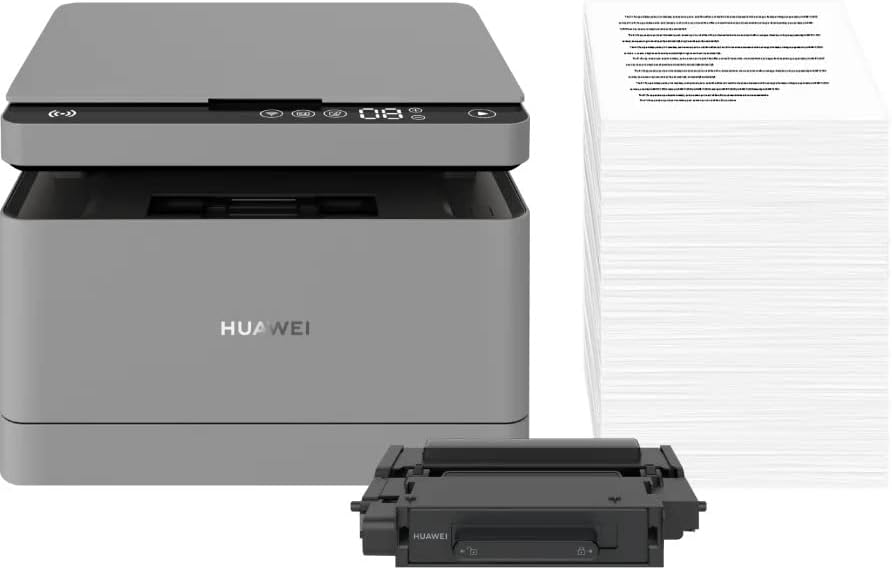
ചിത്രം 5.1: The HUAWEI PixLab B5 printer shown alongside a replacement toner cartridge and a stack of paper, highlighting the separate components.

ചിത്രം 5.2: A diagram illustrating the toner cartridge detached from the drum unit, demonstrating the modular design for replacement.
- പ്രിന്ററിന്റെ മുൻ കവർ തുറക്കുക.
- Gently pull out the toner cartridge drawer.
- Insert the HUAWEI F-1500BZ toner cartridge into the HUAWEI X-15000BZ drum unit until it clicks into place.
- Slide the assembled toner and drum unit back into the printer until it is securely seated.
- മുൻ കവർ അടയ്ക്കുക.
5.3 പേപ്പർ ലോഡിംഗ്
- പേപ്പർ ട്രേ തുറക്കുക.
- പേപ്പർ ഗൈഡുകൾ ശരിയായ പേപ്പർ വലുപ്പത്തിലേക്ക് ക്രമീകരിക്കുക (ഉദാ. A4).
- Load paper into the tray, ensuring it is not overfilled (maximum capacity: 150 sheets).
- പേപ്പർ ട്രേ അടയ്ക്കുക.
5.4 പവർ കണക്ഷൻ
- പ്രിന്ററിന്റെ പവർ പോർട്ടിലേക്ക് പവർ കേബിൾ ബന്ധിപ്പിക്കുക.
- പവർ കേബിളിന്റെ മറ്റേ അറ്റം ഒരു ഗ്രൗണ്ടഡ് ഇലക്ട്രിക്കൽ ഔട്ട്ലെറ്റിലേക്ക് പ്ലഗ് ചെയ്യുക.
- പ്രിന്റർ ഓണാക്കാൻ പവർ ബട്ടൺ അമർത്തുക.
5.5 സോഫ്റ്റ്വെയർ ഇൻസ്റ്റാളേഷനും കണക്റ്റിവിറ്റിയും
The HUAWEI PixLab B5 supports multiple connection methods for seamless integration with various devices.
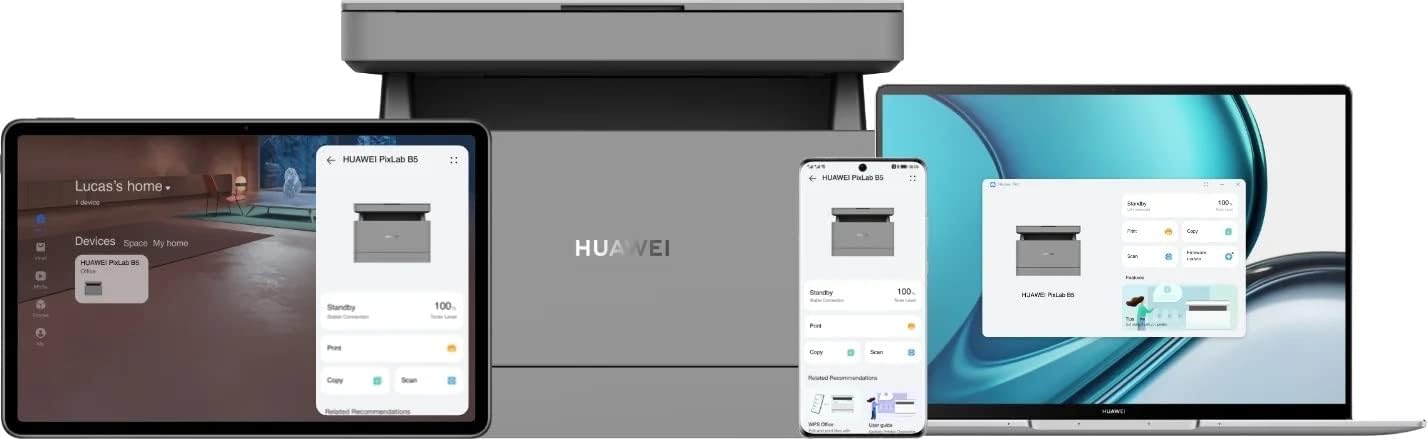
ചിത്രം 5.3: The HUAWEI PixLab B5 printer demonstrating its versatile connectivity by being linked to a tablet, a smartphone, and a laptop, all displaying the printer's interface.

ചിത്രം 5.4: An illustrative image depicting various devices such as a tablet, smartphone, and laptop connected to the printer, emphasizing multi-device compatibility.


ചിത്രം 5.5: Icons representing various connectivity options: USB, LAN, Wi-Fi, and Printer Hotspot.
- USB കണക്ഷൻ: Connect the printer to your computer using the provided USB cable. The necessary drivers should install automatically.
- LAN കണക്ഷൻ: Connect an Ethernet cable from your router or network switch to the LAN port on the printer.
- Wi-Fi കണക്ഷൻ:
- Download and install the HUAWEI AI Life app on your smartphone or tablet.
- Follow the in-app instructions to connect your printer to your Wi-Fi network.
- For PC/laptop, ensure your device is on the same Wi-Fi network as the printer and add the printer through your operating system's printer settings.
- എൻഎഫ്സി കണക്ഷൻ: For compatible devices, tap your device to the NFC tag on the printer to establish a quick connection.
6. പ്രവർത്തന നിർദ്ദേശങ്ങൾ
6.1 അച്ചടി
The HUAWEI PixLab B5 offers high-speed monochrome printing at up to 30 pages per minute.

ചിത്രം 6.1: An image highlighting the printer's capability of printing 30 pages per minute for single-sided documents.
- Open the document you wish to print on your connected device.
- Select the print option (usually File > പ്രിന്റ് ചെയ്യുക).
- Choose the HUAWEI PixLab B5 from the list of available printers.
- ആവശ്യാനുസരണം പ്രിന്റ് ക്രമീകരണങ്ങൾ ക്രമീകരിക്കുക:
- ഡ്യൂപ്ലെക്സ് പ്രിന്റിംഗ്: The printer supports automatic double-sided printing. Select this option in your print settings to save paper.
- ഗുണനിലവാരം: The printer uses Q14 grayscale for clear and layered black and white prints.
- 'പ്രിന്റ്' ക്ലിക്ക് ചെയ്യുക.
6.2 പകർത്തൽ
The printer can make up to 100 copies in a single series.

ചിത്രം 6.2: A person placing a smart card on the scanner bed of the HUAWEI PixLab B5, demonstrating the Smart Card Copy function.

ചിത്രം 6.3: An image showing a user placing a card on the scanner glass, indicating the process for copying or scanning small items like ID cards.
- Place the document face down on the scanner glass or face up in the automatic document feeder (if available).
- പ്രിന്ററിന്റെ നിയന്ത്രണ പാനലിൽ, 'പകർത്തുക' ഫംഗ്ഷൻ തിരഞ്ഞെടുക്കുക.
- Adjust settings such as number of copies, darkness, or paper size.
- Smart Card Copy: This feature automatically corrects the position and orientation of cards for perfect copies, even if not perfectly aligned.
- പകർത്തൽ ആരംഭിക്കാൻ 'ആരംഭിക്കുക' ബട്ടൺ അമർത്തുക.
6.3 സ്കാനിംഗ്
The HUAWEI PixLab B5 functions as a photo and sheet-fed scanner.
- ഡോക്യുമെന്റ് സ്കാനർ ഗ്ലാസിലോ ഡോക്യുമെന്റ് ഫീഡറിലോ വയ്ക്കുക.
- On your connected computer or mobile device, open the scanning software (e.g., HUAWEI AI Life app or your operating system's scanning utility).
- Select the HUAWEI PixLab B5 as your scanner.
- Choose scan settings such as resolution, color mode (monochrome), and destination folder.
- സ്കാൻ ആരംഭിക്കുക.
6.4 Remote Printing
The HUAWEI AI Life app allows for flexible remote printing.

ചിത്രം 6.4: The HUAWEI PixLab B5 printer positioned on a desk next to a computer monitor, which displays the printer's software interface, indicating remote management capabilities.
- Ensure your HUAWEI PixLab B5 is connected to the internet via Wi-Fi or LAN.
- Open the HUAWEI AI Life app on your smartphone or tablet.
- Select your PixLab B5 printer from the device list.
- You can now send print jobs to your printer remotely, even when you are away from your office.
7. പരിപാലനം
7.1 ടോണർ കാട്രിഡ്ജ് മാറ്റിസ്ഥാപിക്കൽ
The HUAWEI PixLab B5 uses separate toner and drum units, allowing for independent replacement and cost savings.

ചിത്രം 7.1: An image displaying the maximum page yield for the drum cartridge (15,000 pages) and the toner cartridge (1,500 pages).
- When the toner low indicator appears, prepare a new HUAWEI F-1500BZ toner cartridge.
- പ്രിന്ററിന്റെ മുൻ കവർ തുറക്കുക.
- Pull out the toner cartridge drawer.
- Remove the empty toner cartridge from the drum unit.
- Unpack the new toner cartridge and insert it into the drum unit until it clicks.
- Slide the assembled unit back into the printer and close the front cover.
7.2 Drum Unit Replacement
The HUAWEI X-15000BZ drum unit has a yield of up to 15,000 pages.
- When the drum unit needs replacement, open the front cover of the printer.
- Pull out the toner cartridge drawer, which contains the drum unit.
- Remove the toner cartridge from the old drum unit.
- Insert the toner cartridge into the new HUAWEI X-15000BZ drum unit.
- Slide the new assembled unit back into the printer and close the front cover.
7.3 വൃത്തിയാക്കൽ
- പ്രിന്റർ ഓഫാക്കി പവർ കോർഡ് അൺപ്ലഗ് ചെയ്യുക.
- മൃദുവായ, ലിന്റ് രഹിത തുണി ഉപയോഗിക്കുകampened with water to wipe the exterior of the printer.
- For the scanner glass, use a glass cleaner applied to a cloth (not directly to the glass) to clean any smudges or dust.
- ഉരച്ചിലുകളുള്ള ക്ലീനറുകളോ ലായകങ്ങളോ ഉപയോഗിക്കരുത്.
8. പ്രശ്നപരിഹാരം
This section addresses common issues you might encounter with your HUAWEI PixLab B5 printer.
8.1 പ്രിന്റർ പ്രതികരിക്കുന്നില്ല
- Check if the printer is powered on and the power cable is securely connected.
- Verify the USB, LAN, or Wi-Fi connection. For Wi-Fi, ensure the printer is connected to the correct network.
- Restart both the printer and your connected device.
- പ്രിന്റർ ഡ്രൈവറുകൾ ശരിയായി ഇൻസ്റ്റാൾ ചെയ്തിട്ടുണ്ടെന്നും അപ്ഡേറ്റ് ചെയ്തിട്ടുണ്ടെന്നും ഉറപ്പാക്കുക.
8.2 പ്രിന്റ് ഗുണനിലവാര പ്രശ്നങ്ങൾ
- Check the toner level and replace the toner cartridge if it is low.
- Ensure the drum unit is not worn out (check its page yield).
- Clean the printer's internal components as per the maintenance section.
- Use recommended paper types and ensure paper is loaded correctly.
8.3 പേപ്പർ ജാം
- പ്രിൻ്റർ ഓഫാക്കി അൺപ്ലഗ് ചെയ്യുക.
- Carefully open all covers and remove any jammed paper, pulling in the direction of the paper path.
- ചെറിയ കടലാസ് കഷ്ണങ്ങൾ ഉള്ളിൽ അവശേഷിക്കുന്നില്ലെന്ന് ഉറപ്പാക്കുക.
- Close all covers, plug in, and power on the printer.
9 സ്പെസിഫിക്കേഷനുകൾ
| ഫീച്ചർ | സ്പെസിഫിക്കേഷൻ |
|---|---|
| ബ്രാൻഡ് | ഹുവായ് |
| മോഡലിൻ്റെ പേര് | HUPIXLABB5 |
| ഉൽപ്പന്ന തരം | Copy, Scan, Print |
| പ്രിൻ്റിംഗ് ടെക്നോളജി | ലേസർ |
| പ്രിൻ്റർ ഔട്ട്പുട്ട് | മോണോക്രോം |
| പരമാവധി മോണോക്രോം പ്രിന്റ് വേഗത | മിനിറ്റിൽ 30 പേജുകൾ |
| പരമാവധി പ്രിന്റ് റെസല്യൂഷൻ | 600 x 600 ബിപിഐ |
| ഡ്യൂപ്ലക്സ് പ്രിൻ്റിംഗ് | അതെ (ഓട്ടോമാറ്റിക്) |
| സ്കാനർ തരം | Photo, Sheet-fed |
| പരമ്പരയിലെ പരമാവധി പകർപ്പുകൾ | 100 |
| കണക്റ്റിവിറ്റി ടെക്നോളജി | Ethernet, NFC, USB, Wi-Fi |
| മൊത്തം USB പോർട്ടുകൾ | 1 |
| അനുയോജ്യമായ ഉപകരണങ്ങൾ | Desktop Computer, Laptop, Smartphone, Tablet |
| ഓപ്പറേറ്റിംഗ് സിസ്റ്റം പിന്തുണ | OS X 10.9 Mavericks, Windows 10 |
| പരമാവധി മീഡിയ വലുപ്പം | A4 |
| ഷീറ്റ് വലിപ്പം | 210×297 മി.മീ |
| പരമാവധി ഷീറ്റ് ഫീഡിംഗ് ശേഷി | 150 |
| മെമ്മറി കപ്പാസിറ്റി | 512 MB |
| വൈദ്യുതി ഉപഭോഗം | 410 വാട്ട് |
| Power (Operating) | 240 വാട്ട്സ് |
| ഇനത്തിൻ്റെ ഭാരം | 12.3 കിലോഗ്രാം |
| ഉൽപ്പന്ന അളവുകൾ | 10D x 20W x 10H സെന്റീമീറ്ററുകൾ |
| നിറം | കറുപ്പ് |
| പ്രത്യേക സവിശേഷതകൾ | Versatile connectivity (USB, LAN, Wi-Fi), Stable Wi-Fi, High print quality (Q14 grayscale), Remote printing (AI Life app), Print history erase for privacy. |
10. വാറൻ്റിയും പിന്തുണയും
വാറന്റി വിവരങ്ങൾക്കും സാങ്കേതിക പിന്തുണയ്ക്കും, ദയവായി ഔദ്യോഗിക HUAWEI കാണുക. website or contact your local HUAWEI customer service center. Keep your purchase receipt as proof of purchase.
സ്പെയർ പാർട്സ് ലഭ്യതയെക്കുറിച്ചും ഉറപ്പായ സോഫ്റ്റ്വെയർ അപ്ഡേറ്റുകളെക്കുറിച്ചുമുള്ള വിവരങ്ങൾ ഇപ്പോൾ ലഭ്യമല്ല.


