1. ആമുഖം
This manual provides comprehensive instructions for setting up, operating, maintaining, and troubleshooting your GMKtec Nucbox 4 Mini PC. This compact desktop computer is powered by an AMD Ryzen 7 3750H processor, 16GB DDR4 RAM, and a 512GB PCIe SSD, offering robust performance for business, office, video editing, and light gaming. It supports 4K UHD triple screen display for enhanced productivity.

ചിത്രം 1: മുന്നിലും പിന്നിലും view of the GMKtec Nucbox 4 Mini PC, highlighting its compact design and various ports.
2. പാക്കേജ് ഉള്ളടക്കം
താഴെ കൊടുത്തിരിക്കുന്ന എല്ലാ ഇനങ്ങളും നിങ്ങളുടെ പാക്കേജിൽ ഉണ്ടെന്ന് ഉറപ്പാക്കുക:
- 1x GMKtec Nucbox 4 Mini PC
- 1x Power Adapter (65W)
- 1x ഉപയോക്തൃ മാനുവൽ (ഈ പ്രമാണം)
- Screws and cables for 2.5-inch HDD/SSD installation
The package includes the Mini PC, power adapter, and necessary hardware for storage expansion.
Video: Unboxing the Nucbox 4 Mini PC, showing the contents and initial appearance of the device.
3. ഉൽപ്പന്നം കഴിഞ്ഞുview
3.1. ഫ്രണ്ട് പാനൽ
- പവർ ബട്ടൺ: ഉപകരണം ഓൺ/ഓഫ് ചെയ്യാൻ.
- 3.5mm ഓഡിയോ ജാക്ക്: ഹെഡ്ഫോണുകൾക്കോ ബാഹ്യ സ്പീക്കറുകൾക്കോ വേണ്ടി.
- USB Type-C (USB+DP): Supports data transfer and DisplayPort output for 4K@60Hz.
- USB 3.1 പോർട്ടുകൾ (x2): പെരിഫറലുകൾ ബന്ധിപ്പിക്കുന്നതിന്.
3.2. പിൻ പാനൽ
- ഡിസി ജാക്ക്: വൈദ്യുതി ഇൻപുട്ട്.
- HDMI 2.0 പോർട്ടുകൾ (x2): Supports 4K@60Hz display output.
- USB 3.1 പോർട്ടുകൾ (x2): Additional ports for peripherals.
- RJ45 1000M (Gigabit LAN): വയർഡ് നെറ്റ്വർക്ക് കണക്ഷനായി.
3.3. സൈഡ് പാനൽ
- മൈക്രോ എസ്ഡി കാർഡ് സ്ലോട്ട്: For additional storage expansion.
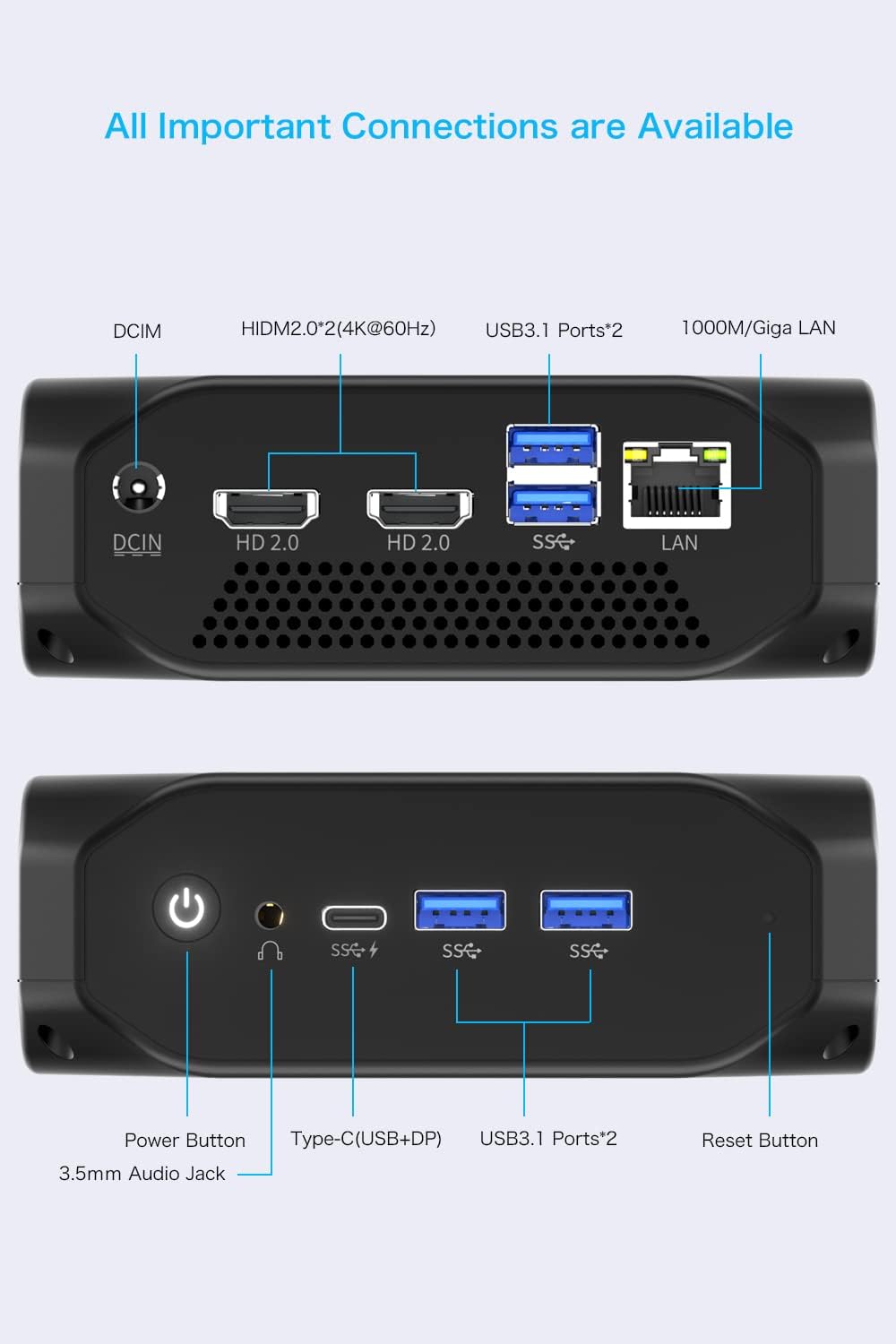
Figure 2: Detailed diagram of all available ports on the GMKtec Nucbox 4 Mini PC.
4. സജ്ജീകരണ ഗൈഡ്
- പവറിലേക്ക് ബന്ധിപ്പിക്കുക: Plug the power adapter into the DC Jack on the rear panel and then into a power outlet.
- ഡിസ്പ്ലേയിലേക്ക് കണക്റ്റുചെയ്യുക: Connect your monitor(s) to the HDMI 2.0 ports or the USB Type-C port using appropriate cables. The Mini PC supports up to three independent 4K@60Hz displays.
- പെരിഫറലുകൾ ബന്ധിപ്പിക്കുക: Connect your keyboard, mouse, and other USB devices to the available USB 3.1 ports.
- നെറ്റ്വർക്ക് കണക്ഷൻ: For a wired connection, plug an Ethernet cable into the RJ45 port. For wireless, the device supports dual-band 2.4G+5G Wi-Fi (802.11ac).
- പവർ ഓൺ: Press the power button on the front panel to start the Mini PC.
- പ്രാരംഭ സജ്ജീകരണം: Windows 11 Pro സജ്ജീകരണം പൂർത്തിയാക്കാൻ ഓൺ-സ്ക്രീൻ നിർദ്ദേശങ്ങൾ പാലിക്കുക.

ചിത്രം 3: ഉദാample setup showing the Mini PC connected to three monitors for a multi-display workstation.
5. പ്രവർത്തന നിർദ്ദേശങ്ങൾ
The GMKtec Nucbox 4 comes pre-installed with Windows 11 Pro, providing a familiar and user-friendly operating environment. It also supports Linux and Ubuntu operating systems.
5.1. Everyday Use
This Mini PC is designed for daily general use, including web browsing, email, document editing, and multimedia consumption. Its AMD Ryzen 7 3750H processor ensures smooth performance for these tasks.
5.2. Light Gaming & Video Editing
Equipped with Radeon RX Vega 10 Graphics, the Nucbox 4 is capable of handling light gaming and 1080p video editing. For optimal gaming performance, consider utilizing third-party applications to adjust power limits if the cooling system allows.
Video: Demonstrates the gaming capabilities of the Nucbox 4 Mini PC, showcasing its performance in various titles.
6. Storage and Memory Expansion
The Mini PC comes with 16GB DDR4 RAM and a 512GB M.2 PCIe SSD. Both memory and storage are upgradeable.
6.1. RAM Expansion
The RAM capacity can be expanded up to 32GB using a single card slot or up to 64GB with dual card slots. The device features two SO-DIMM slots for DDR4 RAM.
6.2. SSD/HDD Expansion
The internal storage can be expanded up to 1TB via the M.2 2280 PCIe slot. Additionally, you can add a 2.5-inch HDD/SSD (up to 2TB) using the provided cables and mounting tabs inside the case lid.

ചിത്രം 4: പൊട്ടിത്തെറിച്ചു view showing internal components and options for storage and memory expansion.

Figure 5: Visual representation of adding a 2.5-inch HDD and using Micro SD for external storage.
7. BIOS Settings and Performance Optimization
The BIOS (Basic Input/Output System) allows for advanced configuration of your Mini PC. While the device is set to 25W power consumption out of the box, advanced users can adjust settings for enhanced performance.
7.1. Accessing BIOS
To access the BIOS setup utility, press the designated key (usually DEL or F2) during startup.
7.2. RAM Overclocking
Within the BIOS, navigate to the വിപുലമായ section, then എഎംഡി സിബിഎസ്, ഒടുവിൽ UMC പൊതു ഓപ്ഷനുകൾ. Here, you can adjust DRAM Timing Configuration to potentially overclock the RAM from 2400MHz to higher frequencies, which can significantly improve GPU performance.
7.3. Power Limit Adjustment (TDP)
The default power configuration is 25W. While the BIOS offers options to increase this, the built-in cooling system is optimized for this default. For higher power limits (e.g., 30W for gaming), a third-party application like APU Tuning Utility can be used within Windows. Be aware that increasing the power limit may lead to higher operating temperatures.
Video: Demonstrates navigating BIOS settings and discusses power consumption and performance optimization for the Mini PC.
8. പരിപാലനം
To ensure the longevity and optimal performance of your GMKtec Nucbox 4, follow these maintenance guidelines:
- വൃത്തിയായി സൂക്ഷിക്കു: Regularly clean the exterior of the Mini PC with a soft, dry cloth. Avoid using liquid cleaners directly on the device.
- വെൻ്റിലേഷൻ: Ensure the ventilation holes are clear of obstructions to allow for proper airflow and heat dissipation.
- സോഫ്റ്റ്വെയർ അപ്ഡേറ്റുകൾ: Keep your operating system and drivers updated to the latest versions for security and performance improvements.
- താപനില നിരീക്ഷണം: While the device has excellent heat dissipation with its smart fan, avoid placing it in enclosed spaces that could restrict airflow. Average CPU temperatures are around 39°C at idle and 70°C during gaming, with a maximum observed temperature of 94°C.
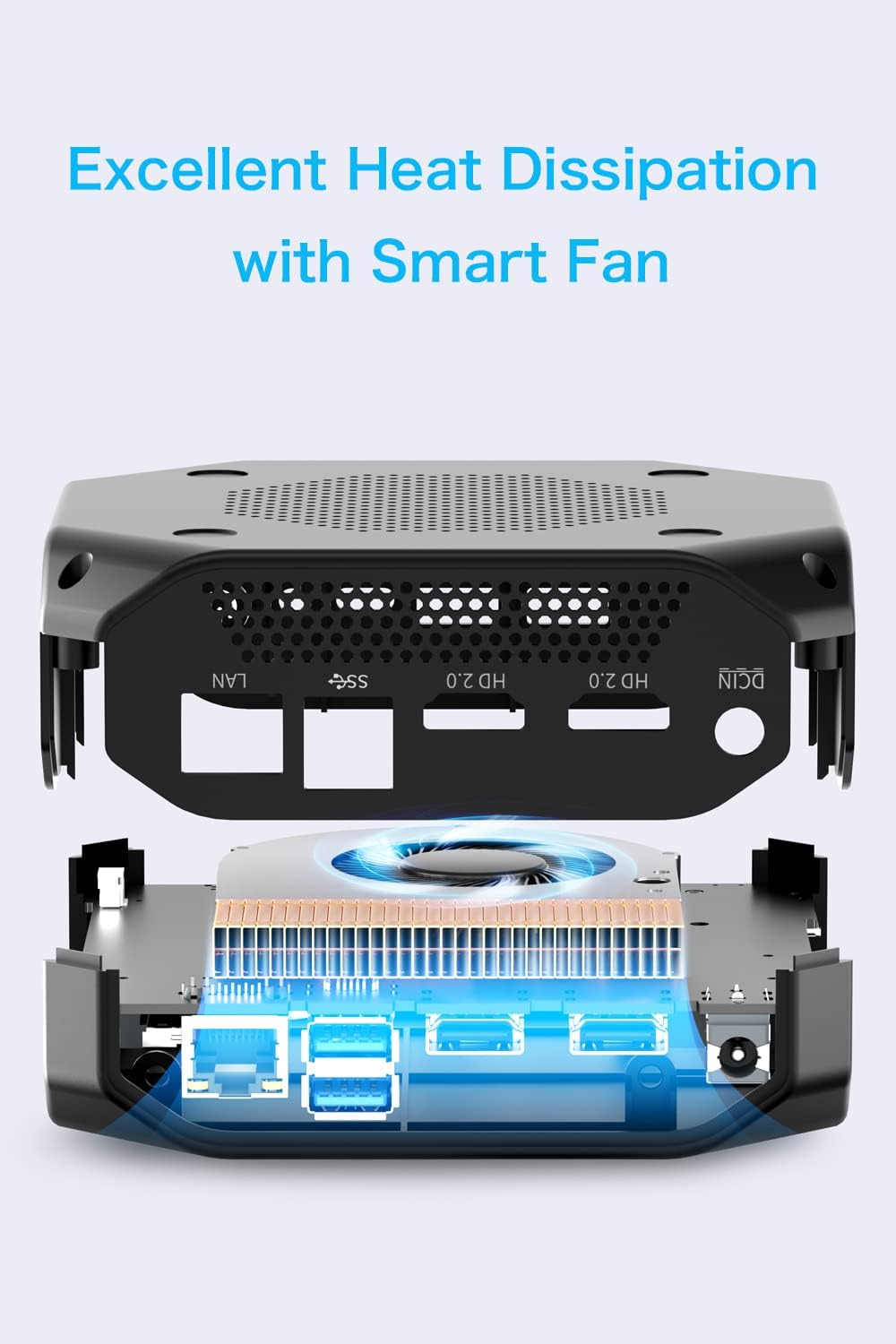
Figure 6: Diagram illustrating the heat dissipation system of the Mini PC.
9. പ്രശ്നപരിഹാരം
നിങ്ങളുടെ മിനി പിസിയിൽ പ്രശ്നങ്ങൾ നേരിടുകയാണെങ്കിൽ, ഇനിപ്പറയുന്ന പൊതുവായ ട്രബിൾഷൂട്ടിംഗ് ഘട്ടങ്ങൾ പരിശോധിക്കുക:
- ഡിസ്പ്ലേ ഇല്ല:
- Ensure all display cables (HDMI, USB-C) are securely connected to both the Mini PC and the monitor.
- മോണിറ്റർ ഇൻപുട്ട് ഉറവിടം ശരിയായി തിരഞ്ഞെടുത്തിട്ടുണ്ടെന്ന് ഉറപ്പാക്കുക.
- ലഭ്യമെങ്കിൽ മറ്റൊരു ഡിസ്പ്ലേ കേബിളോ മോണിറ്ററോ പരീക്ഷിച്ചുനോക്കൂ.
- വൈദ്യുതി പ്രശ്നങ്ങൾ:
- Check if the power adapter is properly connected to the Mini PC and the power outlet.
- പവർ ഔട്ട്ലെറ്റ് പ്രവർത്തനക്ഷമമാണെന്ന് ഉറപ്പാക്കുക.
- മന്ദഗതിയിലുള്ള പ്രകടനം:
- പശ്ചാത്തലത്തിൽ പ്രവർത്തിക്കുന്ന അനാവശ്യ ആപ്ലിക്കേഷനുകൾ അടയ്ക്കുക.
- ശേഷിക്കുന്ന ഏതെങ്കിലും വിൻഡോസ് അപ്ഡേറ്റുകൾ പരിശോധിച്ച് ഇൻസ്റ്റാൾ ചെയ്യുക.
- താപ തടസ്സം തടയാൻ മതിയായ വായുസഞ്ചാരം ഉറപ്പാക്കുക.
- പെരിഫറൽ തിരിച്ചറിയാൻ കഴിയാത്തത്:
- മറ്റൊരു USB പോർട്ടിലേക്ക് പെരിഫറൽ ബന്ധിപ്പിക്കാൻ ശ്രമിക്കുക.
- മിനി പിസി പുനരാരംഭിക്കുക.
- Update the peripheral's drivers if necessary.
10 സ്പെസിഫിക്കേഷനുകൾ
| ഫീച്ചർ | സ്പെസിഫിക്കേഷൻ |
|---|---|
| പ്രോസസ്സർ | AMD Ryzen 7 3750H (4 Cores, 8 Threads, 2.3GHz base / 4.0GHz boost) |
| ഗ്രാഫിക്സ് | Radeon RX Vega 10 Graphics (up to 1400 MHz) |
| റാം | 16GB DDR4 (2400MHz, Dual channel SO-DIMM slots x2, Max 64GB) |
| സംഭരണം | 512GB M.2 PCIe 3.0 SSD (Max 1TB) + 2.5-inch SATA HDD Slot (Max 2TB) |
| ഓപ്പറേറ്റിംഗ് സിസ്റ്റം | Windows 11 Pro (Supports Linux, Ubuntu) |
| കണക്റ്റിവിറ്റി | Intel AC 7265 2.4G/5G Wi-Fi (802.11ac), Bluetooth 4.2, Gigabit LAN (RJ45) |
| തുറമുഖങ്ങൾ | 4x USB 3.1, 2x HDMI 2.0 (4K@60Hz), 1x Type-C (USB+DP 4K@60Hz), 1x 3.5mm Headphone Jack, 1x DC Port |
| അളവുകൾ | 124.5 x 112 x 41 മിമി |
| ഭാരം | 339 ഗ്രാം |
| പവർ അഡാപ്റ്റർ | AC 100-240V, 50/60Hz, 19V/3.42A (65W) |
11. വാറൻ്റിയും പിന്തുണയും
GMKtec provides lifetime technical support and 7-day, 24-hour service for this product. All products have obtained FCC, CE, and ROSH certification.
For further assistance, please refer to the contact information provided with your purchase or visit the official GMKtec webസൈറ്റ്.


