1. ആമുഖം
Welcome to the user manual for your Rollei Smart Frame WiFi 100. This digital photo frame allows you to easily share and display your favorite photos and videos with family and friends, no matter where they are. This manual provides detailed instructions for setting up, operating, and maintaining your device.

Image: The Rollei Smart Frame WiFi 100 displaying a vibrant family photo.
2. പാക്കേജ് ഉള്ളടക്കം
പാക്കേജിൽ ഇനിപ്പറയുന്ന ഇനങ്ങൾ ഉണ്ടോ എന്ന് പരിശോധിക്കുക:
- 1 x Rollei Smart Frame 100 WiFi Digital Photo Frame (White)
- 1 x Power Adapter with Power Cable
- 1 x സ്റ്റാൻഡ്
- 1 x Screw (for wall mounting)
- 1 x ഉപയോക്തൃ മാനുവൽ
3. ഉൽപ്പന്നം കഴിഞ്ഞുview
പ്രധാന സവിശേഷതകൾ:
- 10.1 ഇഞ്ച് ഐപിഎസ് ടച്ച്സ്ക്രീൻ ഡിസ്പ്ലേ
- Wi-Fi Connectivity for easy photo/video transfer
- 8 GB Internal Storage (up to 7000 photos or 250 videos)
- MicroSD Card Slot for expanded storage
- Micro-USB Port for data transfer
- Automatic or Manual Rotation
- Frameo App compatibility (iOS and Android)

Image: Visual representation of the Rollei Smart Frame's key features including Wi-Fi, 10.1-inch touchscreen, IPS panel, 1280x800 resolution, 8GB storage, microSD, and micro-USB.
ഭൗതിക ഘടകങ്ങൾ:
- ഡിസ്പ്ലേ: 10.1-inch IPS touchscreen.
- പവർ പോർട്ട്: ഉൾപ്പെടുത്തിയിരിക്കുന്ന പവർ അഡാപ്റ്ററുമായി ബന്ധിപ്പിക്കുന്നു.
- മൈക്രോ എസ്ഡി കാർഡ് സ്ലോട്ട്: അധിക സംഭരണത്തിനായി.
- മൈക്രോ-യുഎസ്ബി പോർട്ട്: For connecting to a computer or other devices.
- Stand/Mounting Points: Allows for standing or wall-mounted use, both vertically and horizontally.

ചിത്രം: പിൻഭാഗം view of the digital photo frame, highlighting the MicroSD card slot, Micro-USB port, and DC power input.
4. പ്രാരംഭ സജ്ജീകരണം
4.1 പവർ കണക്ഷൻ
- Connect the power adapter to the DC port on the back of the frame.
- Plug the power adapter into a wall outlet. The frame will automatically power on.
4.2 Frame Orientation
The frame can be used in both portrait and landscape orientations, either standing on a surface or mounted on a wall.
- നിൽക്കുന്നത്: Attach the included stand to the back of the frame.
- മതിൽ മൗണ്ടിംഗ്: Use the screw provided to secure the frame to a wall. Ensure the frame is securely mounted before use.
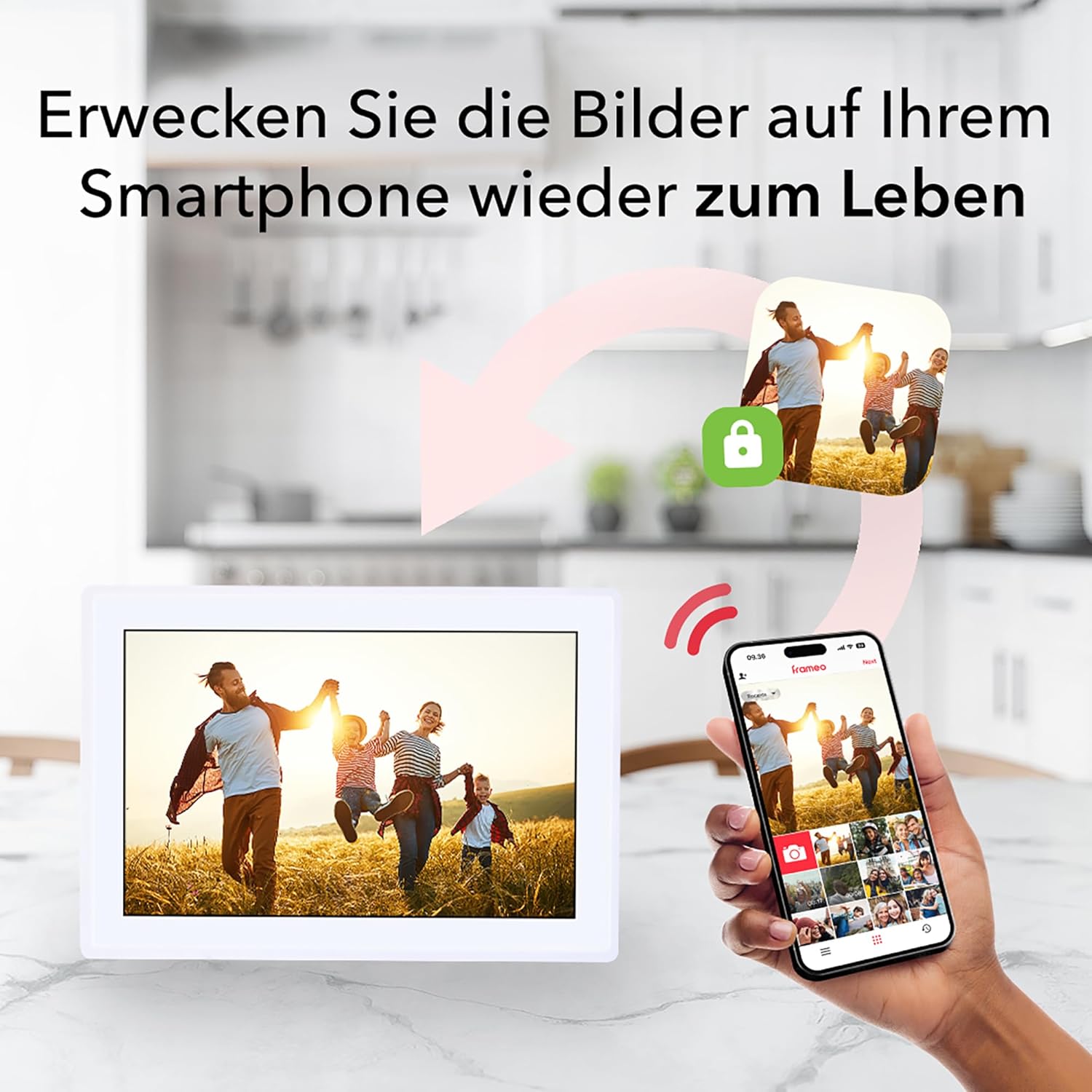
Image: The digital photo frame positioned horizontally on a surface.
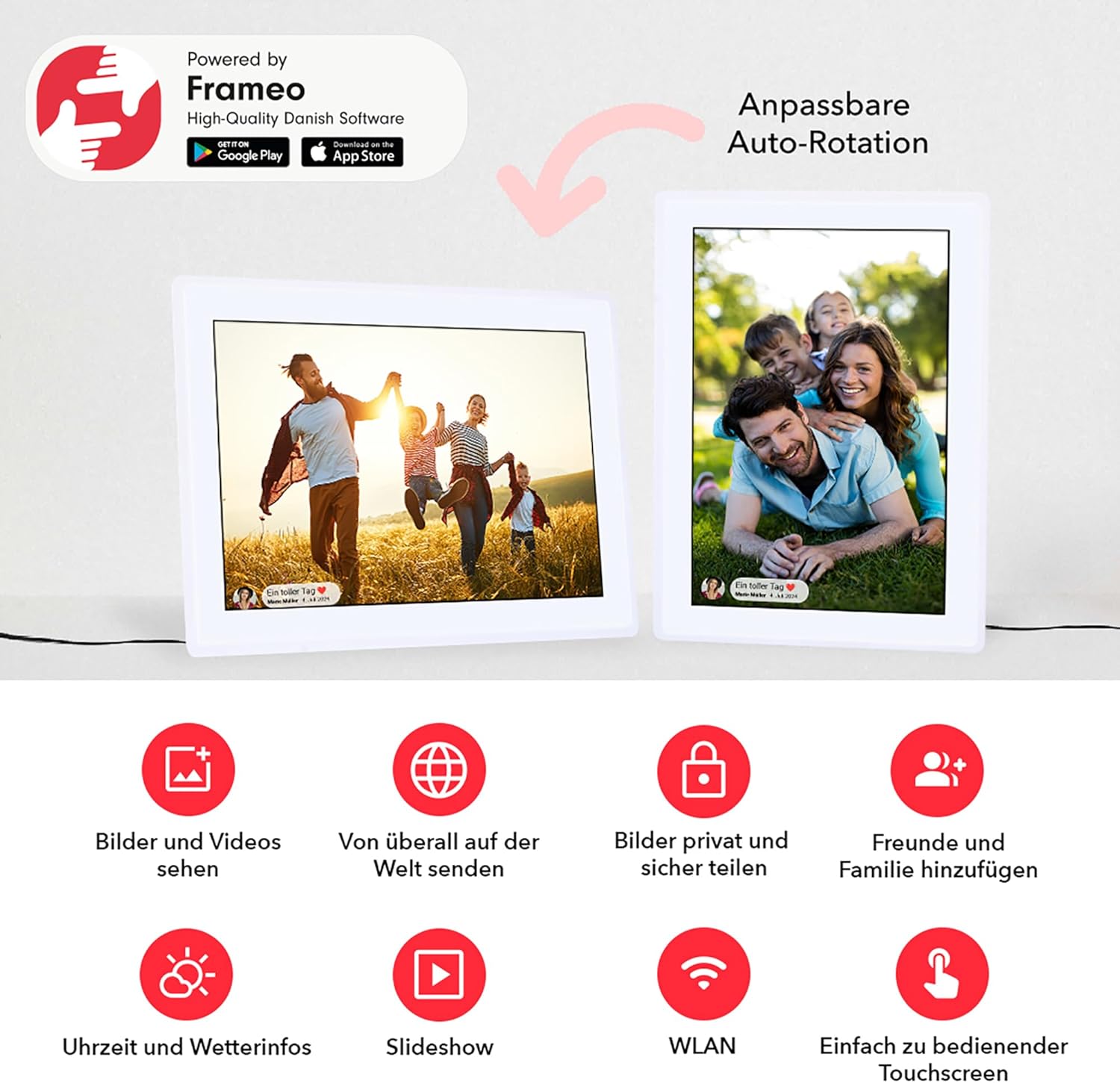
Image: The digital photo frame positioned vertically on a surface.
4.3 വൈഫൈ കണക്ഷൻ
- On the frame's touchscreen, follow the on-screen prompts to select your language and time zone.
- ലിസ്റ്റിൽ നിന്ന് നിങ്ങളുടെ വൈഫൈ നെറ്റ്വർക്ക് തിരഞ്ഞെടുത്ത് പാസ്വേഡ് നൽകുക.
- Once connected, the frame will display a unique Frame ID.
4.4 ഫ്രെയിമിയോ ആപ്പ് ഇൻസ്റ്റാളേഷനും ജോടിയാക്കലും
- Download the free Frameo app from the App Store (iOS) or Google Play Store (Android) on your smartphone or tablet.
- Open the Frameo app and create an account.
- In the app, add your frame by entering the unique Frame ID displayed on your Rollei Smart Frame.
- Your frame is now paired and ready to receive photos and videos.
5. Operating the Frameo App
The Frameo app is the primary tool for managing content on your digital photo frame.
5.1 ഫോട്ടോകളും വീഡിയോകളും അയയ്ക്കൽ
- Open the Frameo app on your smartphone or tablet.
- Select the photos or videos you wish to send from your device's gallery.
- Choose the recipient frame(s) if you have multiple frames or are sending to a friend's frame.
- Add a caption to your photos/videos (optional).
- Adjust the photo/video cropping if necessary.
- Tap 'Send' to transfer the content to your frame.

Image: A smartphone screen showing the Frameo app, ready to send photos to the digital frame.
5.2 Managing Multiple Users and Frames
The Frameo app allows you to connect to multiple frames and invite friends and family to send photos to your frame. Each user can have their own profile and send content.
5.3 വിപുലമായ ആപ്പ് സവിശേഷതകൾ
- Reactions: Respond to photos on the frame directly from the app.
- സ്ലൈഡ്ഷോ ക്രമീകരണങ്ങൾ: Customize the duration, transition effects, and order of photos in the slideshow.
- സ്ലീപ്പ് മോഡ്: Schedule the frame to automatically turn off and on at specific times to save energy.
- ഇറക്കുമതി/കയറ്റുമതി: Transfer photos to and from a microSD card.
- Cloud Backup: Securely back up your frame's content (requires Frameo+ subscription).
- Google Cast: Display photos from the app on a Google Cast-compatible TV (requires Frameo+ subscription).
Video: A demonstration of various features of the Frameo app, including sending photos, adding captions, multi-user functionality, reactions, slideshows, and cloud backup options.
6. Using the Digital Photo Frame
6.1 ടച്ച്സ്ക്രീൻ നാവിഗേഷൻ
The Rollei Smart Frame features an intuitive touchscreen interface:
- ഇടത്തേക്ക്/വലത്തേക്ക് സ്വൈപ്പ് ചെയ്യുക: Navigate through photos and videos.
- ടാപ്പ് ചെയ്യുക: Display options or interact with on-screen elements.
- പിഞ്ച്-ടു-സൂം: Zoom in or out on photos.

Image: A hand touching the screen of the digital photo frame, demonstrating its touchscreen functionality.
6.2 ഡിസ്പ്ലേ ക്രമീകരണങ്ങൾ
You can adjust various display settings directly on the frame:
- ഓട്ടോമാറ്റിക് റൊട്ടേഷൻ: The frame automatically adjusts the photo orientation based on how the frame is positioned.
- മാനുവൽ റൊട്ടേഷൻ: Manually rotate photos if needed.
- ഫ്രെയിം ക്രമീകരണം: Adjust how photos fit the frame (e.g., fill screen, fit to screen).
- Fade Function: Control the transition effect between photos.
7. മെമ്മറി മാനേജ്മെൻ്റ്
7.1 Internal Storage
The Rollei Smart Frame comes with 8 GB of internal storage, capable of holding approximately 7,000 photos or 250 videos (based on average file വലുപ്പങ്ങൾ).

Image: An infographic illustrating the 8GB internal storage capacity, capable of storing over 7000 photos or 250 videos.
7.2 MicroSD Card Usage
To expand storage or transfer content, insert a microSD card into the designated slot on the back of the frame. You can then use the frame's settings or the Frameo app to import or export media.
8. പരിപാലനവും പരിചരണവും
- സ്ക്രീൻ വൃത്തിയാക്കൽ: Use a soft, lint-free cloth to gently wipe the screen. Do not use abrasive cleaners or sprays directly on the screen.
- പൊതുവായ ശുചീകരണം: ഫ്രെയിമിന്റെ പുറംഭാഗം ഉണങ്ങിയതും മൃദുവായതുമായ തുണി ഉപയോഗിച്ച് തുടയ്ക്കുക.
- ദ്രാവകങ്ങൾ ഒഴിവാക്കുക: Keep the frame away from water and other liquids.
- താപനില: Operate the frame within recommended temperature ranges to prevent damage.
9. പ്രശ്നപരിഹാരം
9.1 Frame Not Turning On
- പവർ അഡാപ്റ്റർ ഫ്രെയിമിലേക്കും പ്രവർത്തിക്കുന്ന ഒരു പവർ ഔട്ട്ലെറ്റിലേക്കും സുരക്ഷിതമായി ബന്ധിപ്പിച്ചിട്ടുണ്ടെന്ന് ഉറപ്പാക്കുക.
- പവർ ഔട്ട്ലെറ്റ് പ്രവർത്തനക്ഷമമാണോയെന്ന് പരിശോധിക്കുക.
9.2 വൈഫൈയിലേക്ക് കണക്റ്റുചെയ്യാൻ കഴിയില്ല
- Verify that your Wi-Fi network is active and within range.
- വൈഫൈ പാസ്വേഡ് രണ്ടുതവണ പരിശോധിക്കുക.
- Restart your Wi-Fi router and the photo frame.
9.3 ഫ്രെയിമിൽ ഫോട്ടോകൾ ദൃശ്യമാകുന്നില്ല
- Ensure the frame is connected to Wi-Fi.
- Verify that the photos were successfully sent from the Frameo app.
- Check the frame's storage capacity.
9.4 ടച്ച്സ്ക്രീൻ പ്രതികരിക്കുന്നില്ല
- Restart the frame by unplugging and re-plugging the power adapter.
- സ്ക്രീൻ വൃത്തിയുള്ളതും അവശിഷ്ടങ്ങൾ ഇല്ലാത്തതുമാണെന്ന് ഉറപ്പാക്കുക.
10 സ്പെസിഫിക്കേഷനുകൾ
| ഫീച്ചർ | വിശദാംശങ്ങൾ |
|---|---|
| ബ്രാൻഡ് | റോളി |
| മോഡൽ നമ്പർ | 30272 |
| ഉൽപ്പന്ന അളവുകൾ | 19.5 x 16.1 x 2.51 സെ.മീ; 798 ഗ്രാം |
| ഡിസ്പ്ലേ വലിപ്പം | 10.1 ഇഞ്ച് |
| റെസലൂഷൻ | 800 x 1280p |
| ഹ്യൂമൻ ഇന്റർഫേസ് ഇൻപുട്ട് | ടച്ച് സ്ക്രീൻ |
| കണക്റ്റിവിറ്റി ടെക്നോളജി | വൈഫൈ |
| പവർ ഉറവിടം | പവർ കേബിൾ |
| അനുയോജ്യമായ ഉപകരണങ്ങൾ | സ്മാർട്ട്ഫോൺ, ടാബ്ലെറ്റ് |
| ഫ്രെയിം മെറ്റീരിയൽ | പ്ലാസ്റ്റിക് |
11. വാറൻ്റിയും പിന്തുണയും
11.1 വാറൻ്റി വിവരങ്ങൾ
Your Rollei Smart Frame WiFi 100 comes with a 24-month exchange guarantee വാങ്ങിയ തീയതി മുതൽ. വാറന്റി ക്ലെയിമുകൾക്കായി നിങ്ങളുടെ വാങ്ങിയതിന്റെ തെളിവ് സൂക്ഷിക്കുക.
11.2 ഉപഭോക്തൃ പിന്തുണ
For technical assistance, troubleshooting, or warranty inquiries, please contact Rollei customer support. Our experts are available to assist you.
- നിർമ്മാതാവ്: Rollei GmbH & Co. KG
- ബന്ധപ്പെടാനുള്ള വിവരങ്ങൾ: Refer to the official Rollei website or the contact details provided in your product packaging for the most up-to-date support options.


