1. ആമുഖം
This manual provides detailed instructions for the installation, operation, and maintenance of your Spedal MINIEYE AC1 Dash Cam. Please read this manual thoroughly before using the device to ensure proper functionality and safety. The MINIEYE AC1 is designed to record your driving journey in high definition and offers advanced features for enhanced road safety.
2. ഉൽപ്പന്നം കഴിഞ്ഞുview
2.1 പ്രധാന സവിശേഷതകൾ
- 1944P Ultra Full HD Recording: വ്യക്തമായ വീഡിയോ ഫൂ പകർത്തുന്നുtage with a 140° wide-angle field of view.
- AI ADAS (Advanced Driver-Assistance System): Provides real-time alerts for collision avoidance.
- Built-in G-Sensor: Automatically detects sudden movements or impacts and locks footage.
- 24 മണിക്കൂർ പാർക്കിംഗ് നിരീക്ഷണം: Monitors your vehicle even when parked (requires hardwire kit, sold separately).
- ശക്തമായ രാത്രി കാഴ്ച: Ensures clear recordings in low-light conditions.
- ലൂപ്പ് റെക്കോർഡിംഗ്: ഏറ്റവും പഴയ ഫൂ ഓവർറൈറ്റ് ചെയ്യുന്നുtagമെമ്മറി കാർഡ് നിറഞ്ഞിരിക്കുമ്പോൾ, തുടർച്ചയായ റെക്കോർഡിംഗ് ഉറപ്പാക്കുന്നു.
- APP നിയന്ത്രണം: Manage settings, view footage, and download videos via a dedicated mobile application.
2.2 പാക്കേജ് ഉള്ളടക്കം
താഴെ കൊടുത്തിരിക്കുന്ന എല്ലാ ഇനങ്ങളും നിങ്ങളുടെ പാക്കേജിൽ ഉണ്ടെന്ന് ഉറപ്പാക്കുക:
- MINIEYE AC1 Dash Cam Unit
- കാർ ചാർജർ
- പവർ കേബിൾ
- മോണിറ്റർ കേബിൾ
- Host Base
- ജിപിഎസ് മൊഡ്യൂൾ
- ഇലക്ട്രോസ്റ്റാറ്റിക് സ്റ്റിക്കർ
- Crowbar (for cable routing)
- ബബിൾ ലെവൽ
- Free 32GB TF Card (MicroSD Card)
- ഉപയോക്തൃ മാനുവൽ (ഈ പ്രമാണം)
2.3 ഉപകരണ ഘടകങ്ങൾ
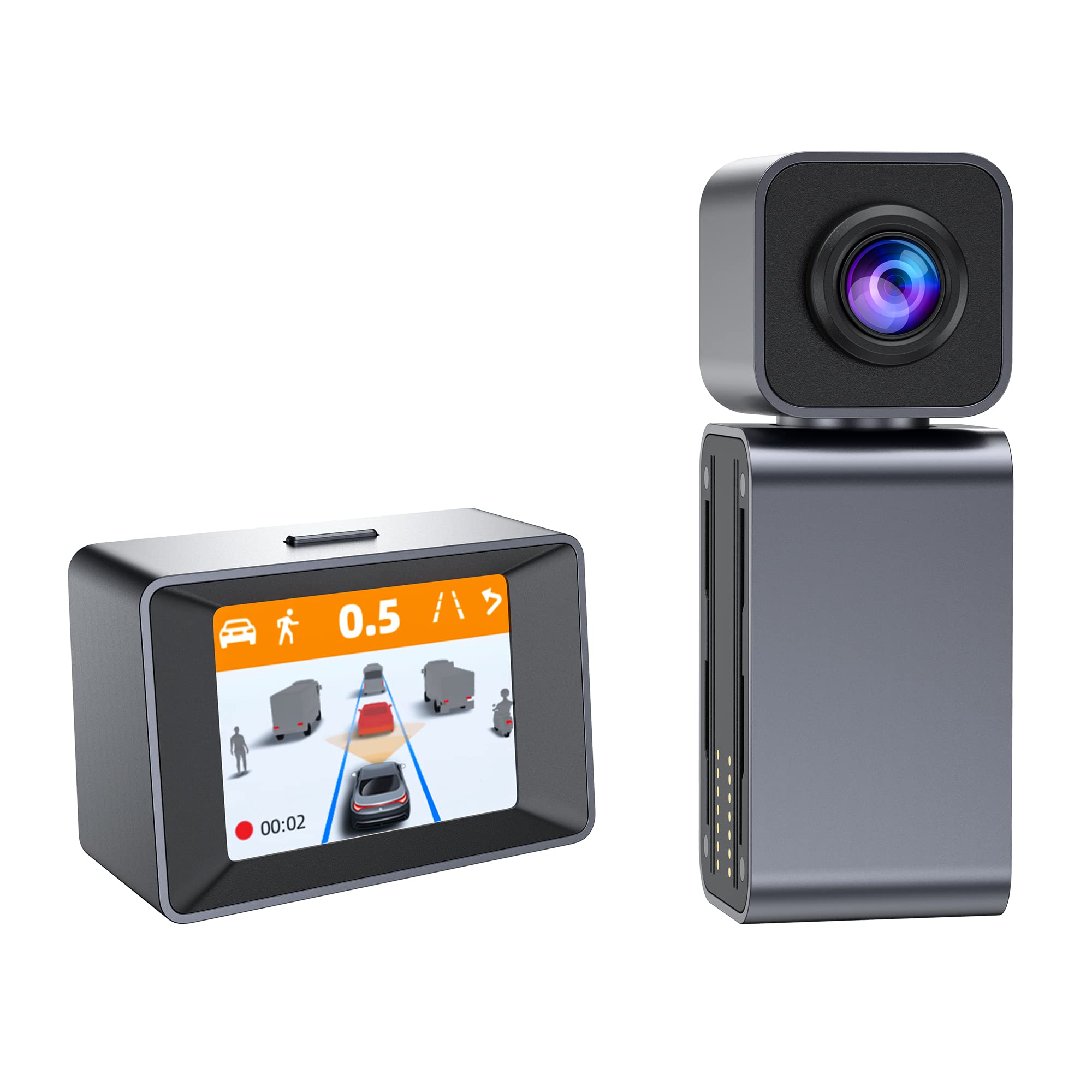
Image: The MINIEYE AC1 Dash Cam showing the main recording unit with its lens and the separate display unit. The display unit shows a simulated traffic scenario with distance warnings, illustrating the ADAS functionality.
3. സജ്ജീകരണം
3.1 ഇൻസ്റ്റലേഷൻ
- വിൻഡ്ഷീൽഡ് തയ്യാറാക്കുക: Clean the area on your windshield where the dash cam will be mounted. Ensure it is free of dust and grease.
- ഇലക്ട്രോസ്റ്റാറ്റിക് സ്റ്റിക്കർ പ്രയോഗിക്കുക: Apply the electrostatic sticker to the cleaned area. This helps in easy removal and prevents residue on the windshield.
- Attach Host Base: Secure the host base to the electrostatic sticker. Use the bubble level to ensure the base is level for optimal camera angle.
- മൗണ്ട് ഡാഷ് കാം: Attach the MINIEYE AC1 Dash Cam unit to the host base.
- TF കാർഡ് ചേർക്കുക: Insert the provided 32GB TF card into the designated slot on the dash cam. Ensure it is inserted correctly until it clicks into place.
- പവർ ബന്ധിപ്പിക്കുക: Connect the power cable to the dash cam and route it along the windshield edge and dashboard using the crowbar to tuck it neatly. Plug the car charger into your vehicle's cigarette lighter socket.
- Connect Monitor (if applicable): If using an external monitor, connect it using the monitor cable.
- ജിപിഎസ് മൊഡ്യൂൾ ബന്ധിപ്പിക്കുക: Attach the GPS module to the dash cam for location and speed data recording.
3.2 Initial Power On and Settings
- പവർ ഓൺ: Start your vehicle. The dash cam will automatically power on and begin recording.
- TF കാർഡ് ഫോർമാറ്റ് ചെയ്യുക: It is recommended to format the TF card upon first use and periodically thereafter to ensure optimal performance. This can usually be done through the device settings or the mobile app.
- ക്യാമറ ആംഗിൾ ക്രമീകരിക്കുക: Adjust the camera lens to ensure it captures the road ahead clearly, covering the desired field of view.
3.3 ആപ്പ് നിയന്ത്രണ സജ്ജീകരണം
- അപ്ലിക്കേഷൻ ഡൗൺലോഡുചെയ്യുക: ഇതിനായി തിരയുക the "MINIEYE" in your smartphone's app store (iOS or Android) and install it.
- വൈഫൈയിലേക്ക് കണക്റ്റുചെയ്യുക: Enable Wi-Fi on your smartphone and connect to the dash cam's Wi-Fi network. The network name and password can typically be found in the dash cam's settings or manual.
- ഉപകരണം ജോടിയാക്കുക: Open the MINIEYE app and follow the on-screen instructions to pair your dash cam.
- ക്രമീകരണങ്ങൾ കോൺഫിഗർ ചെയ്യുക: Use the app to adjust recording resolution, G-sensor sensitivity, parking monitoring settings, and other preferences.
4. പ്രവർത്തന നിർദ്ദേശങ്ങൾ
4.1 അടിസ്ഥാന റെക്കോർഡിംഗ്
Once powered on, the MINIEYE AC1 automatically begins continuous loop recording. Video files are saved in segments (e.g., 1, 3, or 5 minutes) to the TF card. When the card is full, the oldest unprotected fileകൾ തിരുത്തിയെഴുതിയിരിക്കുന്നു.
4.2 G-Sensor and Emergency Recording
The built-in G-Sensor detects sudden impacts or rapid acceleration/deceleration. When triggered, the current video segment is automatically locked and saved to a protected folder, preventing it from being overwritten by loop recording. The sensitivity of the G-Sensor can be adjusted via the mobile app.
4.3 പാർക്കിംഗ് നിരീക്ഷണം
With the optional hardwire kit (not included), the dash cam can monitor your vehicle while parked. If an impact or motion is detected, the dash cam will automatically record a short video segment. Ensure this feature is enabled and configured in the app settings.
4.4 ADAS (Advanced Driver-Assistance System)
The AI ADAS features provide real-time alerts to enhance driving safety:
- ഫോർവേഡ് കൊളിഷൻ മുന്നറിയിപ്പ് (FCW): Alerts you if you are approaching a vehicle ahead too quickly.
- ലെയ്ൻ പുറപ്പെടൽ മുന്നറിയിപ്പ് (LDW): Notifies you if your vehicle drifts out of its lane without signaling.
- Front Vehicle Start Alert: Informs you when the vehicle in front of you has started moving after a stop.
These alerts are typically visual on the display and/or audible. Calibration may be required for optimal ADAS performance.
4.5 Viewഇംഗും ഡൗൺലോഡും ഫൂtage
ഫൂtagഇ ആകാം viewed directly on the dash cam's display (if available) or more conveniently through the MINIEYE mobile application. Use the app to browse recorded videos, download important clips to your smartphone, or share them.
5. പരിപാലനം
- ലെൻസ് വൃത്തിയാക്കുക: വ്യക്തമായ വീഡിയോ നിലവാരം ഉറപ്പാക്കാൻ ക്യാമറ ലെൻസ് മൃദുവായ, ലിന്റ് രഹിത തുണി ഉപയോഗിച്ച് പതിവായി വൃത്തിയാക്കുക.
- TF കാർഡ് ഫോർമാറ്റ് ചെയ്യുക: Format the TF card every 2-4 weeks to prevent data corruption and maintain optimal recording performance. Back up any important fileഫോർമാറ്റ് ചെയ്യുന്നതിന് മുമ്പ് എസ്.
- ഫേംവെയർ അപ്ഡേറ്റുകൾ: Check the MINIEYE app or official website periodically for firmware updates. Keeping your dash cam's firmware updated ensures access to new features and performance improvements.
- സംഭരണം: ദീർഘനേരം ഉപയോഗിക്കാത്തപ്പോൾ, ഡാഷ് കാം നേരിട്ട് സൂര്യപ്രകാശം ഏൽക്കാത്ത ഒരു തണുത്തതും വരണ്ടതുമായ സ്ഥലത്ത് സൂക്ഷിക്കുക.
6. പ്രശ്നപരിഹാരം
- ഡാഷ് കാം ഓണാക്കുന്നില്ല:
- Check the car charger connection and ensure the vehicle's cigarette lighter socket is functioning.
- Ensure the power cable is securely connected to the dash cam.
- റെക്കോർഡിംഗ് പ്രശ്നങ്ങൾ (ഉദാ. ഫ്രീസിംഗ്, കേടായത്) files):
- TF കാർഡ് ഫോർമാറ്റ് ചെയ്യുക.
- Try a different high-speed (Class 10 or U1/U3) TF card.
- Ensure the TF card is not full of locked files.
- ആപ്പ് കണക്ഷൻ പ്രശ്നങ്ങൾ:
- ഡാഷ് കാമിന്റെ വൈ-ഫൈ പ്രവർത്തനക്ഷമമാക്കിയിട്ടുണ്ടെന്ന് ഉറപ്പാക്കുക.
- ഡാഷ്കാമും നിങ്ങളുടെ സ്മാർട്ട്ഫോണും പുനരാരംഭിക്കുക.
- Verify you are connecting to the correct Wi-Fi network and using the correct password.
- ADAS Alerts Not Functioning:
- Ensure ADAS features are enabled in the app settings.
- Perform ADAS calibration if available in the app.
- ക്യാമറ ലെൻസ് വൃത്തിയുള്ളതും തടസ്സമില്ലാത്തതുമാണെന്ന് ഉറപ്പാക്കുക.
7 സ്പെസിഫിക്കേഷനുകൾ
| ഫീച്ചർ | വിശദാംശങ്ങൾ |
|---|---|
| മോഡലിൻ്റെ പേര് | MINIEYE AC1 |
| ബ്രാൻഡ് | സ്പെഡൽ |
| വീഡിയോ ക്യാപ്ചർ റെസല്യൂഷൻ | 1944p |
| യഥാർത്ഥ ആംഗിൾ View | 140 ഡിഗ്രി |
| കണക്റ്റിവിറ്റി ടെക്നോളജി | USB, Wireless (for App Control) |
| നിയന്ത്രണ രീതി | ആപ്പ് |
| മൗണ്ടിംഗ് തരം | സക്ഷൻ മൗണ്ട് |
| വാഹന സേവന തരം | കാർ |
| നിർമ്മാതാവ് | Shenzhen Youjia Innov Tech Co., Ltd |
8. വാറൻ്റിയും പിന്തുണയും
For warranty information, technical support, or service inquiries, please refer to the warranty card included with your product or visit the official Spedal website. You may also contact Spedal customer service directly through the contact information provided on their website or within the MINIEYE mobile application.
വാറൻ്റി ക്ലെയിമുകൾക്കായി നിങ്ങളുടെ വാങ്ങിയതിൻ്റെ തെളിവ് സൂക്ഷിക്കുക.


