1. ആമുഖം
Thank you for choosing the Mcdodo OT-1580 Wireless Adapter. This device is designed to provide seamless wireless connectivity for a variety of peripherals, enhancing your digital experience. Please read this manual carefully to ensure proper installation, operation, and maintenance of your adapter.
2. ഉൽപ്പന്നം കഴിഞ്ഞുview
The Mcdodo OT-1580 is a compact and efficient wireless adapter. Its key features include:
- ബഹുമുഖ അനുയോജ്യത: Connects effortlessly with a range of wireless devices such as headphones, keyboards, mice, speakers, and more.
- Low Energy Technology: Utilizes wireless low energy technology to minimize power consumption and extend battery life of connected devices.
- മെച്ചപ്പെടുത്തിയ പ്രകടനം: Achieves data transfer speeds up to 3 Mbps, improving overall wireless experience and sound quality.
- വിപുലീകരിച്ച ശ്രേണി: Offers a transmission distance of up to 20 meters for greater flexibility and convenience.
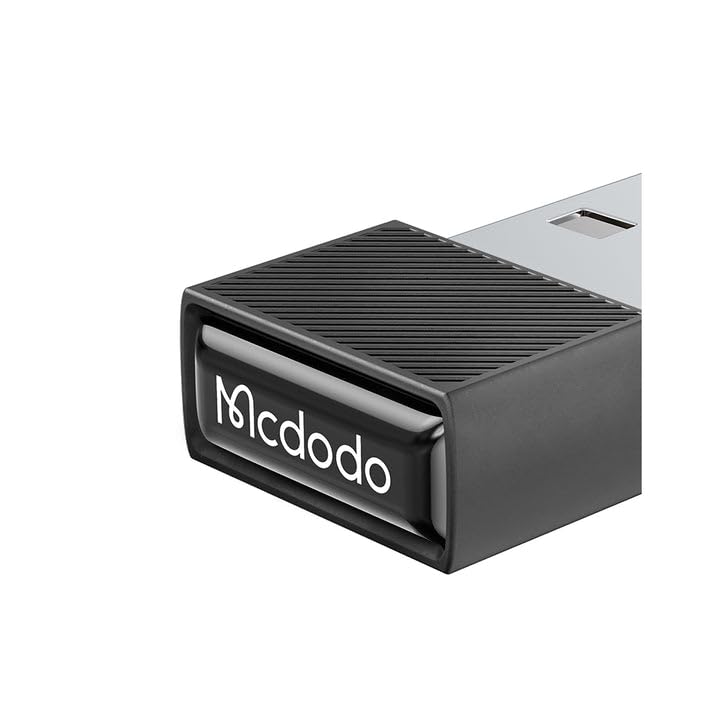
ചിത്രം 2.1: മുൻഭാഗം view of the Mcdodo OT-1580 Wireless Adapter. This image shows the compact design of the adapter, highlighting its small form factor.
3. പാക്കേജ് ഉള്ളടക്കം
നിങ്ങളുടെ പാക്കേജിൽ എല്ലാ ഇനങ്ങളും ഉണ്ടെന്ന് ദയവായി പരിശോധിക്കുക:
- Mcdodo OT-1580 Wireless Adapter
- ഉപയോക്തൃ മാനുവൽ (ഈ പ്രമാണം)
4. സജ്ജീകരണ നിർദ്ദേശങ്ങൾ
Follow these steps to set up your Mcdodo OT-1580 Wireless Adapter:
- അഡാപ്റ്റർ ചേർക്കുക: Locate an available USB port on your computer, laptop, or compatible device. Gently insert the Mcdodo OT-1580 Wireless Adapter into the USB port. Ensure it is fully seated.
- ഡ്രൈവർ ഇൻസ്റ്റാളേഷൻ (ആവശ്യമെങ്കിൽ): In most modern operating systems (Windows 10/11, macOS, Linux), the adapter should be recognized automatically, and drivers will install without user intervention. If prompted, allow the system to install necessary drivers. If automatic installation fails, please visit the official Mcdodo webഡ്രൈവർ ഡൗൺലോഡുകൾക്കുള്ള സൈറ്റ്.
- ഇൻസ്റ്റാളേഷൻ പരിശോധിക്കുക: Once installed, a notification or an icon in your system tray/menu bar should indicate that the wireless adapter is ready for use.

Image 4.1: The Mcdodo OT-1580 Wireless Adapter plugged into a laptop's USB port. This illustrates the physical connection of the adapter to a host device.
5. പ്രവർത്തന നിർദ്ദേശങ്ങൾ
After successful installation, you can begin connecting your wireless devices:
- Enable Wireless on Your Device: Ensure the wireless function is enabled on the peripheral you wish to connect (e.g., headphones, keyboard, mouse).
- ജോടിയാക്കൽ മോഡ്: Put your wireless peripheral into pairing mode. Refer to your peripheral's user manual for specific instructions on how to do this.
- ഇതിനായി തിരയുക ഉപകരണങ്ങൾ: On your computer or host device, open the wireless settings (e.g., Bluetooth settings on Windows/macOS). Initiate a scan for new devices.
- തിരഞ്ഞെടുത്ത് ബന്ധിപ്പിക്കുക: From the list of available devices, select your peripheral and click "Connect" or "Pair." You may be prompted to enter a PIN or confirm a pairing code.
- വിജയകരമായ കണക്ഷൻ: Once connected, your peripheral should be ready for use. The system will typically indicate a successful connection.

Image 5.1: A visual representation of the Mcdodo OT-1580 Wireless Adapter facilitating a connection between a laptop and a mobile device. This highlights the adapter's role in enabling wireless data transfer.
6. പരിപാലനവും പരിചരണവും
To ensure the longevity and optimal performance of your Mcdodo OT-1580 Wireless Adapter, please follow these guidelines:
- വൃത്തിയാക്കൽ: അഡാപ്റ്റർ വൃത്തിയാക്കാൻ മൃദുവായതും ഉണങ്ങിയതുമായ തുണി ഉപയോഗിക്കുക. ലിക്വിഡ് ക്ലീനറുകളോ ലായകങ്ങളോ ഉപയോഗിക്കുന്നത് ഒഴിവാക്കുക.
- സംഭരണം: ഉപയോഗത്തിലില്ലാത്തപ്പോൾ, അഡാപ്റ്റർ തണുത്തതും വരണ്ടതുമായ സ്ഥലത്ത് സൂക്ഷിക്കുക, നേരിട്ടുള്ള സൂര്യപ്രകാശത്തിൽ നിന്നും കടുത്ത താപനിലയിൽ നിന്നും അകറ്റി നിർത്തുക.
- കൈകാര്യം ചെയ്യൽ: Avoid dropping the adapter or subjecting it to strong impacts. Do not attempt to disassemble the device.
- ഈർപ്പം: Keep the adapter away from water and other liquids.
7. പ്രശ്നപരിഹാരം
If you encounter issues with your Mcdodo OT-1580 Wireless Adapter, refer to the following common problems and solutions:
| പ്രശ്നം | സാധ്യമായ പരിഹാരം |
|---|---|
| കമ്പ്യൂട്ടർ അഡാപ്റ്റർ തിരിച്ചറിഞ്ഞില്ല. |
|
| Cannot connect to wireless device. |
|
| Poor connection or intermittent signal. |
|
8 സ്പെസിഫിക്കേഷനുകൾ
| ഫീച്ചർ | വിശദാംശങ്ങൾ |
|---|---|
| മോഡൽ നമ്പർ | OT-1580 |
| ബ്രാൻഡ് | മക്ഡോഡോ |
| കണക്റ്റിവിറ്റി ടെക്നോളജി | വയർലെസ്സ് (ബ്ലൂടൂത്ത് 5.1) |
| ഡാറ്റ ട്രാൻസ്ഫർ വേഗത | 3 Mbps വരെ |
| ട്രാൻസ്മിഷൻ ദൂരം | 20 മീറ്റർ വരെ |
| അനുയോജ്യമായ ഉപകരണങ്ങൾ | Headphones, Keyboards, Mice, Speakers, and other wireless peripherals |
| നിറം | ഇരുണ്ട ചാരനിറം |
| ഇനത്തിൻ്റെ ഭാരം | 57 ഗ്രാം |
| പാക്കേജ് അളവുകൾ | 18 x 7 x 2.2 സെ.മീ |
9. വാറൻ്റിയും പിന്തുണയും
Mcdodo products are designed for reliability and performance. For detailed warranty information, please refer to the warranty card included with your purchase or visit the official Mcdodo website. For technical support, driver downloads, or further assistance, please visit the Mcdodo official store page or contact Mcdodo customer service.