1. ആമുഖം
Thank you for choosing the Superboost WiFi Range Extender. This device is designed to expand your existing wireless network coverage, eliminate Wi-Fi dead zones, and provide a stable, high-speed internet connection throughout your home or office. With its easy setup and versatile operating modes, the Superboost extender ensures seamless connectivity for all your devices.

A white Superboost WiFi Range Extender with two external antennas, plugged into a standard wall power outlet. The device features indicator lights on its front panel.
2. ഉൽപ്പന്ന സവിശേഷതകൾ
- വിപുലീകരിച്ച കവറേജ്: Eliminates Wi-Fi dead zones, extending coverage up to 9000 sq ft.
- ഉയർന്ന വേഗത: Supports data transfer speeds of up to 300 Mbps on the 2.4 GHz band.
- ഒന്നിലധികം ഓപ്പറേറ്റിംഗ് മോഡുകൾ: Functions as a Wireless Router, Repeater, Access Point, Client, and WISP.
- One-Touch Setup (WPS): Simplifies installation with a single button press.
- ഇഥർനെറ്റ് പോർട്ട്: Provides wired connectivity for devices like smart TVs, gaming consoles, or PCs.
- വിപുലമായ സുരക്ഷ: Supports WEP/WPA/WPA2 encryption protocols for network protection.
- സാർവത്രിക അനുയോജ്യത: Works with any standard router or gateway.

A front-facing image of the Superboost WiFi Extender, displaying its power, WiFi, and WPS indicator lights, which provide status information during operation.
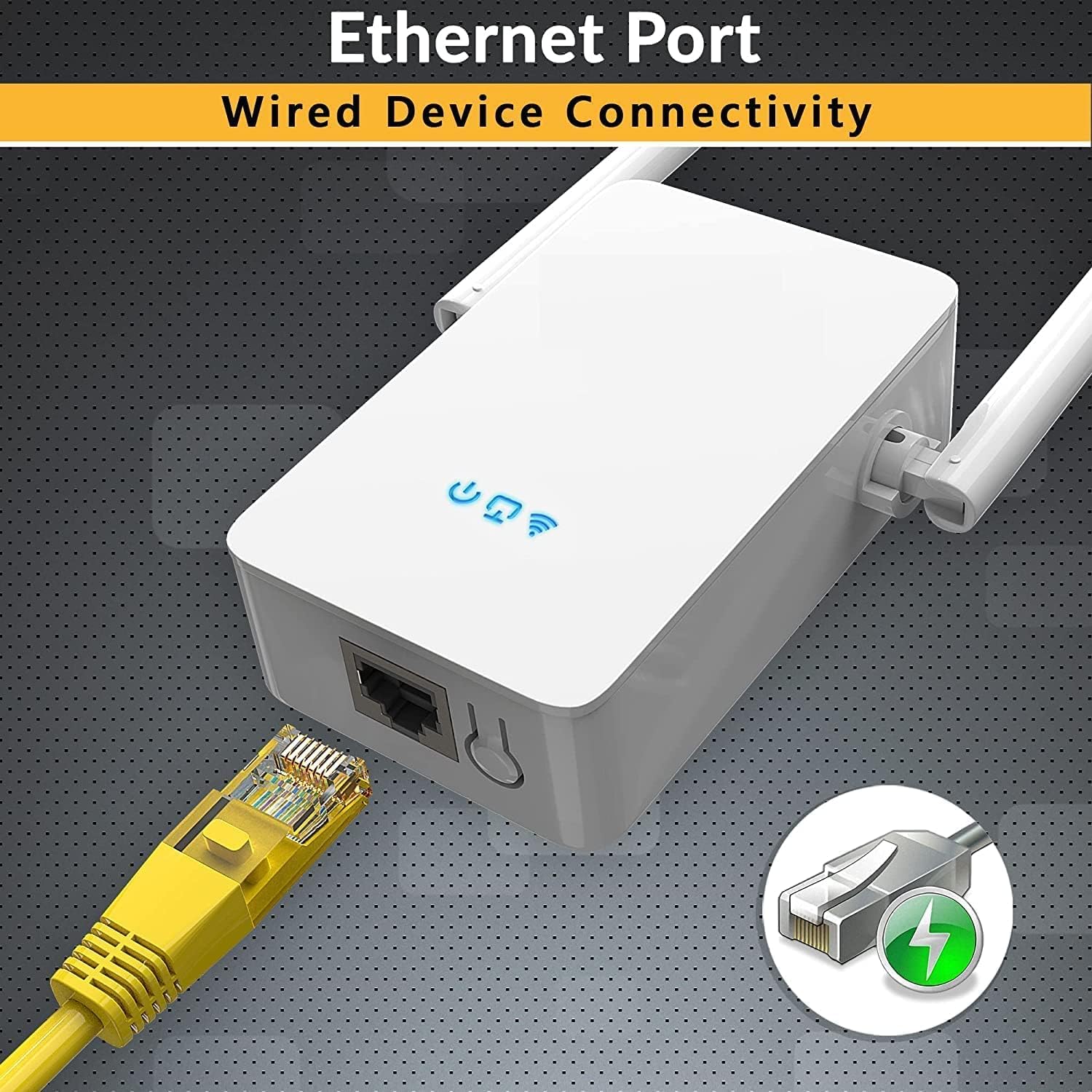
എ വിശദമായി view of the Superboost WiFi Extender's bottom, highlighting the Ethernet port. A yellow Ethernet cable is shown plugged into the port, indicating its wired connectivity capability.
3. സജ്ജീകരണ ഗൈഡ്
3.1. WPS (Wi-Fi Protected Setup) Method
The WPS method is the quickest way to set up your Superboost extender if your router supports WPS.
- Plug the Superboost extender into a power outlet near your existing router.
- Wait for the Power LED on the extender to turn solid blue.
- നിങ്ങളുടെ റൂട്ടറിലെ WPS ബട്ടൺ അമർത്തുക.
- Within 2 minutes, press the WPS button on the Superboost extender.
- The Extender's Wi-Fi LED will blink and then turn solid blue, indicating a successful connection.
- Unplug the extender and relocate it to a desired location within your router's Wi-Fi range, ensuring optimal signal strength.

This image shows the Superboost WiFi Extender plugged into a wall, with an arrow indicating the connection process to a router via the WPS (Wi-Fi Protected Setup) button. A smartphone screen is also visible, suggesting easy configuration.
3.2. Manual Setup Method (Via Web ബ്രൗസർ)
If your router does not support WPS or you prefer manual configuration:
- Plug the Superboost extender into a power outlet near your existing router.
- Connect your computer or mobile device to the extender's default Wi-Fi network (e.g., "Superboost_Ext"). No password is required initially.
- എ തുറക്കുക web browser and enter the default IP address (check the device label or manual for the exact address, commonly 192.168.10.1 or similar).
- Follow the on-screen instructions to log in (default username/password is usually "admin"/"admin").
- Select "Repeater Mode" or your desired mode.
- Scan for available Wi-Fi networks and select your home network.
- Enter your home Wi-Fi password and confirm the settings.
- The extender will restart. Once the Wi-Fi LED is solid blue, the setup is complete.
4 ഓപ്പറേറ്റിംഗ് മോഡുകൾ
The Superboost WiFi Range Extender supports five operating modes to suit various networking needs:
- റിപ്പീറ്റർ മോഡ്: നിലവിലുള്ള ഒരു വയർലെസ് നെറ്റ്വർക്കിന്റെ പരിധി വർദ്ധിപ്പിക്കുന്നു.
- ആക്സസ് പോയിന്റ് (AP) മോഡ്: Transforms a wired network connection into a wireless one.
- Wireless Router Mode: Functions as a primary router, creating a new wireless network.
- ക്ലയൻ്റ് മോഡ്: Allows wired-only devices to connect to a wireless network.
- WISP മോഡ്: Connects to a wireless ISP network and shares the internet connection wirelessly.

A detailed diagram showing how the Superboost WiFi Extender effectively expands wireless coverage across multiple rooms and floors in a home, eliminating dead zones.
5. ഒപ്റ്റിമൽ പ്ലേസ്മെന്റ്
For best performance, consider the following when placing your Superboost extender:
- നിങ്ങളുടെ റൂട്ടറിനും വൈഫൈ ഡെഡ് സോണിനുമിടയിൽ എക്സ്റ്റെൻഡർ പകുതിയായി വയ്ക്കുക.
- Avoid placing it near large metal objects, concrete walls, or appliances that emit electromagnetic noise (e.g., microwaves, cordless phones).
- Ensure it is in a clear line of sight to your router if possible, or at least with minimal obstructions.
- Use the signal indicator lights on the extender (if available) to find the optimal spot with good signal strength from your router.

An illustration demonstrating the Superboost extender's capability to maintain strong signal integrity even when passing through common household obstacles like walls and doors.
6. പരിപാലനം
To ensure the longevity and optimal performance of your Superboost WiFi Range Extender:
- ഉപകരണം വൃത്തിയായും പൊടിയില്ലാതെയും സൂക്ഷിക്കുക. വൃത്തിയാക്കാൻ മൃദുവായതും ഉണങ്ങിയതുമായ തുണി ഉപയോഗിക്കുക.
- തീവ്രമായ ഊഷ്മാവ്, ഈർപ്പം, നേരിട്ടുള്ള സൂര്യപ്രകാശം എന്നിവയിൽ ഉപകരണം തുറന്നുകാട്ടരുത്.
- Avoid blocking the ventilation holes on the device.
- നിർമ്മാതാവിന്റെ ഫേംവെയർ അപ്ഡേറ്റുകൾക്കായി ഇടയ്ക്കിടെ പരിശോധിക്കുക website to ensure the latest features and security enhancements.
- If the device becomes unresponsive, try unplugging it from the power outlet for 10 seconds and then plugging it back in.

ഒരു പൊട്ടിത്തെറിച്ചു view of the Superboost WiFi Extender, revealing its internal components such as the overvoltage protection controller, intelligent WiFi chip, and security encryption module, emphasizing its superior quality and design.
7. പ്രശ്നപരിഹാരം
If you encounter issues with your Superboost WiFi Range Extender, refer to the following common problems and solutions:
- സജ്ജീകരിച്ചതിനുശേഷം ഇന്റർനെറ്റ് ആക്സസ് ഇല്ല:
- Ensure the extender is within range of your main router.
- സജ്ജീകരണ സമയത്ത് നൽകിയ വൈഫൈ പാസ്വേഡ് ശരിയാണോയെന്ന് പരിശോധിക്കുക.
- നിങ്ങളുടെ റൂട്ടറും എക്സ്റ്റെൻഡറും പുനരാരംഭിക്കാൻ ശ്രമിക്കുക.
- If using Repeater mode, ensure your router's Wi-Fi is working correctly.
- കുറഞ്ഞ കണക്ഷൻ വേഗത:
- Relocate the extender closer to your main router.
- മറ്റ് ഇലക്ട്രോണിക് ഉപകരണങ്ങളിൽ നിന്നുള്ള ഇടപെടൽ പരിശോധിക്കുക.
- Ensure your main router is providing adequate speed.
- ആക്സസ് ചെയ്യാൻ കഴിയില്ല Web മാനേജ്മെന്റ് പേജ്:
- Ensure your device is connected to the extender's Wi-Fi network.
- ബ്രൗസറിൽ നൽകിയ ഐപി വിലാസം ശരിയാണോ എന്ന് പരിശോധിക്കുക.
- നിങ്ങളുടെ ബ്രൗസറിന്റെ കാഷെയും കുക്കികളും മായ്ക്കുക, അല്ലെങ്കിൽ മറ്റൊരു ബ്രൗസർ പരീക്ഷിക്കുക.
- WPS സജ്ജീകരണം പരാജയപ്പെട്ടു:
- നിങ്ങളുടെ റൂട്ടർ WPS പിന്തുണയ്ക്കുന്നുണ്ടെന്നും അത് പ്രവർത്തനക്ഷമമാക്കിയിട്ടുണ്ടെന്നും ഉറപ്പാക്കുക.
- Try the manual setup method via web ബ്രൗസർ.
- ലോഗിൻ പാസ്വേഡ് മറന്നുപോയി:
- Perform a factory reset on the extender by pressing and holding the reset button for 5-10 seconds. This will revert all settings to default.
8 സ്പെസിഫിക്കേഷനുകൾ
| ഫീച്ചർ | സ്പെസിഫിക്കേഷൻ |
|---|---|
| മോഡൽ | WFR-N300 |
| ബ്രാൻഡ് | സാങ്കേതികത |
| വയർലെസ് സ്റ്റാൻഡേർഡ് | 802.11a/b/g/n, 802.11abg |
| ആവൃത്തി | 2.4 GHz |
| ഡാറ്റ കൈമാറ്റ നിരക്ക് | സെക്കൻഡിൽ 450 മെഗാബൈറ്റ് വരെ (Mbps) |
| സുരക്ഷാ പ്രോട്ടോക്കോളുകൾ | WEP, WPA, WPA2 |
| തുറമുഖങ്ങൾ | 1 x Ethernet (RJ45) |
| അളവുകൾ | 8 x 4 x 8 സെ.മീ |
| ഭാരം | 100 ഗ്രാം |
| അനുയോജ്യമായ ഉപകരണങ്ങൾ | Router, Wireless Devices, Wired Devices |
9. വാറൻ്റിയും പിന്തുണയും
TECHFACTURE products are designed for reliability and performance. For specific warranty details, please refer to the warranty card included with your product or visit the official TECHFACTURE website. If you require technical assistance or have questions not covered in this manual, please contact TECHFACTURE customer support through their official channels.

A man smiling while looking at his smartphone, with the Superboost WiFi Extender and a WPS button icon in the foreground, illustrating the ease of setup and fast connection.


