1. ആമുഖം
This manual provides essential information for the setup, operation, and maintenance of your YLIMPC M3 i7 Mini PC. Please read this manual thoroughly before using the device to ensure proper functionality and to prevent damage.
2 സുരക്ഷാ വിവരങ്ങൾ
- പവർ അഡാപ്റ്റർ നിങ്ങളുടെ പ്രാദേശിക പവർ സപ്ലൈയുമായി പൊരുത്തപ്പെടുന്നുണ്ടെന്ന് ഉറപ്പാക്കുക.
- ഉപകരണം വെള്ളം, ഈർപ്പം അല്ലെങ്കിൽ തീവ്രമായ താപനില എന്നിവയിൽ തുറന്നുകാട്ടരുത്.
- നേരിട്ട് സൂര്യപ്രകാശത്തിലോ ചൂട് സ്രോതസ്സുകൾക്ക് സമീപമോ ഉപകരണം സ്ഥാപിക്കുന്നത് ഒഴിവാക്കുക.
- സി തുറക്കരുത്.asing unless performing authorized upgrades (e.g., RAM/SSD installation) as described in this manual.
- അമിതമായി ചൂടാകുന്നത് തടയാൻ വെൻ്റിലേഷൻ ഓപ്പണിംഗുകൾ വ്യക്തമായി സൂക്ഷിക്കുക.
- നിർമ്മാതാവ് വ്യക്തമാക്കിയ ആക്സസറികൾ മാത്രം ഉപയോഗിക്കുക.
3. പാക്കേജ് ഉള്ളടക്കം
നിങ്ങളുടെ പാക്കേജിൽ എല്ലാ ഇനങ്ങളും ഉണ്ടെന്ന് ഉറപ്പാക്കുക:
- YLIMPC M3 i7 Mini PC
- പവർ അഡാപ്റ്റർ
- ഉപയോക്തൃ മാനുവൽ (ഈ പ്രമാണം)
- (Optional, depending on bundle): HDMI Cable, VESA Mount, Screws
4. ഉൽപ്പന്നം കഴിഞ്ഞുview
The YLIMPC M3 i7 Mini PC is a compact desktop computer designed for various computing tasks, from office work to 4K media streaming. It features a robust Intel Core i7 10810U processor and versatile connectivity options.
4.1. Front and Rear Panels

ചിത്രം: മുന്നിലും പിന്നിലും views of the YLIMPC M3 Mini PC, highlighting the various ports and power button.
The front panel provides easily accessible ports for common peripherals, while the rear panel houses essential connectivity for displays, network, and power.
ഫ്രണ്ട് പാനൽ പോർട്ടുകൾ:
- USB 3.0 (x3): For connecting USB devices such as keyboards, mice, and external storage.
- യുഎസ്ബി-സി (x1): Versatile port for data transfer.
- 3.5mm Audio Jack (Mic/SPK): For headphones or external speakers and microphone.
- പവർ ബട്ടൺ: ഉപകരണം ഓണാക്കാനോ ഓഫാക്കാനോ.
പിൻ പാനൽ പോർട്ടുകൾ:
- DC 12V പവർ ഇൻപുട്ട്: നൽകിയിരിക്കുന്ന പവർ അഡാപ്റ്റർ ഇവിടെ ബന്ധിപ്പിക്കുക.
- USB 3.0 (x2): Additional ports for USB devices.
- ഡിസ്പ്ലേ പോർട്ട് (ഡിപി): ഒരു ഡിസ്പ്ലേയിലേക്ക് ബന്ധിപ്പിക്കുന്നതിന്.
- എച്ച്ഡിഎംഐ 2.0: ഒരു ഡിസ്പ്ലേയിലേക്ക് ബന്ധിപ്പിക്കുന്നതിന്.
- 2.5Gbps RJ45 Ethernet: വയർഡ് നെറ്റ്വർക്ക് കണക്ഷനായി.

Image: Detailed diagram illustrating the various input/output ports on the YLIMPC M3 Mini PC.
This diagram provides a visual guide to the location and type of each port on the device.
4.2. ആന്തരിക ഘടകങ്ങൾ

Image: A visual representation of the Intel 10th Gen Core i7-10810U processor, highlighting its core specifications.
The YLIMPC M3 is powered by an Intel Core i7 10810U processor, featuring 6 cores and 12 threads, with a maximum turbo frequency of 4.9GHz. It is designed for efficient performance with a 15W CPU power consumption.

ചിത്രം: ആന്തരികം view of the YLIMPC M3 Mini PC, showing the all-metal copper fan for heat dissipation.
The device incorporates an all-metal copper fan for efficient heat dissipation, ensuring stable operation even under load.
5. സജ്ജീകരണ നിർദ്ദേശങ്ങൾ
Follow these steps to set up your YLIMPC M3 Mini PC:
- പെരിഫറലുകൾ ബന്ധിപ്പിക്കുക: Connect your keyboard, mouse, and any other USB devices to the available USB ports on the front or rear panels.
- ഡിസ്പ്ലേ ബന്ധിപ്പിക്കുക: Connect your monitor or TV to either the HDMI or DisplayPort on the rear panel using a compatible cable. For 4K resolution, ensure you use a high-quality HDMI 2.0 or DisplayPort cable.
- നെറ്റ്വർക്ക് ബന്ധിപ്പിക്കുക (ഓപ്ഷണൽ): For a wired internet connection, connect an Ethernet cable from your router or modem to the 2.5Gbps RJ45 Ethernet port on the rear panel. Wireless connectivity (Wi-Fi) will be configured later.
- പവർ ബന്ധിപ്പിക്കുക: Connect the provided power adapter to the DC 12V input port on the rear panel, then plug the adapter into a power outlet.
- പവർ ഓൺ: Press the power button located on the front panel. The device should boot up, and you will see the operating system loading on your connected display.
6. പ്രവർത്തന നിർദ്ദേശങ്ങൾ
6.1. Initial Boot and Windows 11 Pro Setup
Upon first power-on, the system will guide you through the Windows 11 Pro initial setup process. Follow the on-screen prompts to configure language, region, network, user accounts, and other settings.
6.2. നെറ്റ്വർക്ക് കണക്റ്റിവിറ്റി
- വയർഡ് (ഇഥർനെറ്റ്): If an Ethernet cable is connected, the system should automatically detect and connect to the network.
- വയർലെസ് (വൈ-ഫൈ): During Windows setup or via the Windows Settings menu (Settings > Network & internet > Wi-Fi), select your desired Wi-Fi network and enter the password. The device supports 2.4G/5G Wi-Fi.
- ബ്ലൂടൂത്ത്: To connect Bluetooth devices (e.g., headphones, keyboards), go to Windows Settings > Bluetooth & devices, and follow the pairing instructions. The device supports Bluetooth 5.0.
6.3. ഡിസ്പ്ലേ കോൺഫിഗറേഷൻ
The YLIMPC M3 supports dual 4K@60Hz display output via HDMI and DisplayPort.

Image: Illustration of the YLIMPC M3 Mini PC connected to two monitors for a dual-screen display setup.
To configure multiple displays in Windows, right-click on the desktop, select "Display settings," and arrange your displays as needed (Extend, Duplicate, or Show only on 1/2).
6.4. പവർ മാനേജ്മെന്റ്
- പവർ ഓൺ: മുൻ പാനലിലെ പവർ ബട്ടൺ അമർത്തുക.
- ഷട്ട് ഡൗൺ: വിൻഡോസിൽ സ്റ്റാർട്ട് ബട്ടൺ ക്ലിക്ക് ചെയ്യുക, തുടർന്ന് പവർ > ഷട്ട് ഡൗൺ ചെയ്യുക.
- പുനരാരംഭിക്കുക: വിൻഡോസിൽ സ്റ്റാർട്ട് ബട്ടൺ ക്ലിക്ക് ചെയ്യുക, തുടർന്ന് പവർ > റീസ്റ്റാർട്ട് ചെയ്യുക.
- ഉറക്കം: വിൻഡോസിൽ സ്റ്റാർട്ട് ബട്ടൺ ക്ലിക്ക് ചെയ്യുക, തുടർന്ന് പവർ > സ്ലീപ്പ് ക്ലിക്ക് ചെയ്യുക.
7. Memory and Storage Expansion
The YLIMPC M3 Mini PC offers options for upgrading its RAM and storage. This process requires careful handling of internal components.
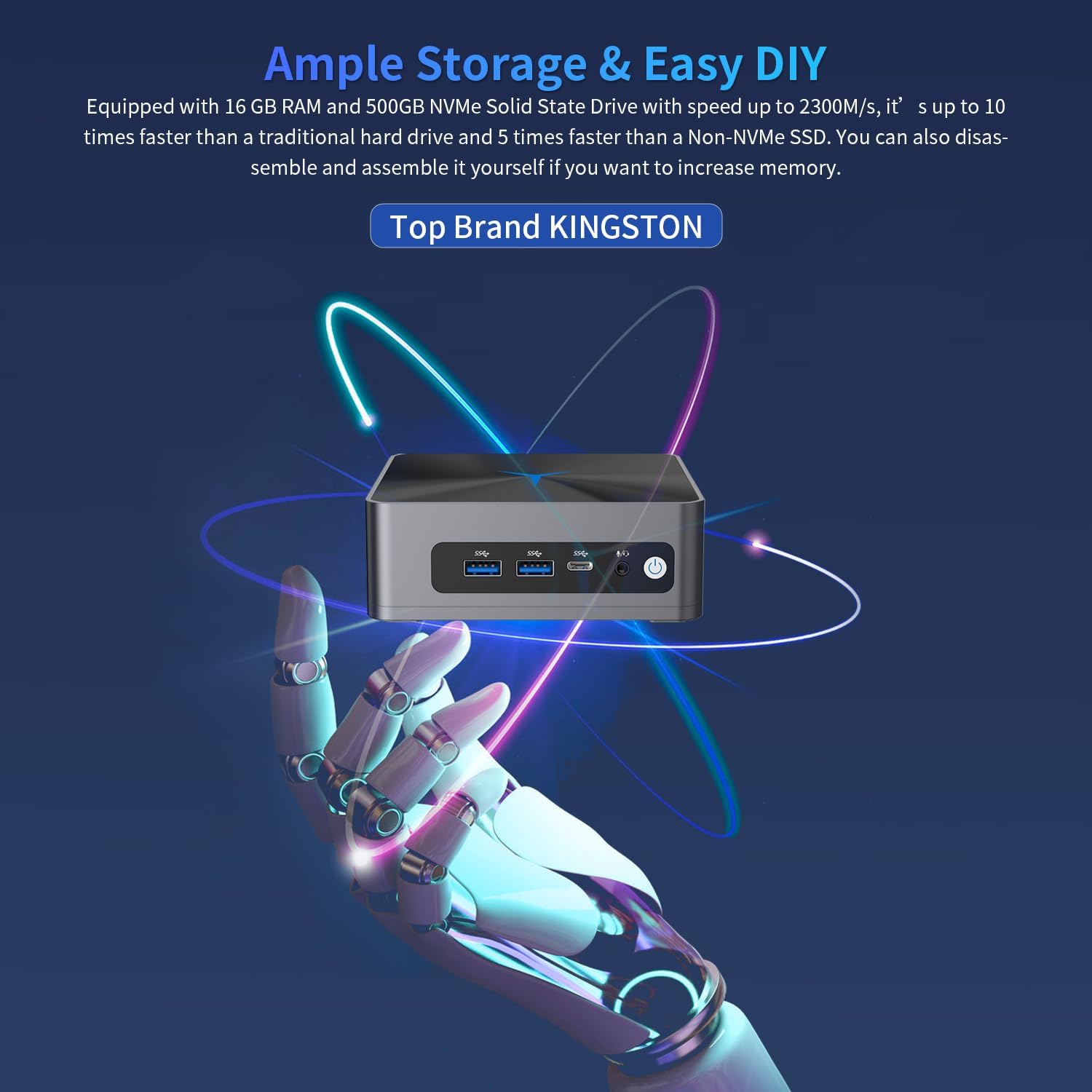
Image: A conceptual image suggesting the ease of upgrading storage and memory in the YLIMPC M3 Mini PC.
The device comes with 16GB RAM and a 500GB NVMe SSD pre-installed. It supports:
- റാം: 2 x SODIMM RAM slots, expandable up to 64GB.
- M.2 SSD: 1 x M.2 2280 SSD slot, expandable up to 8TB.
- 2.5" SSD/HDD: 1 x 2.5" SSD/HDD slot, expandable up to 2TB.
Warning: Opening the device for upgrades should be done with caution. Refer to specific instructions or seek professional assistance if unsure. Ensure the device is powered off and unplugged before performing any internal modifications.
8. പരിപാലനം
- വൃത്തിയാക്കൽ: Use a soft, dry cloth to clean the exterior of the device. Do not use liquid cleaners or aerosols. Keep ventilation openings free of dust.
- സോഫ്റ്റ്വെയർ അപ്ഡേറ്റുകൾ: മികച്ച പ്രകടനവും സുരക്ഷയും ഉറപ്പാക്കാൻ വിൻഡോസ് അപ്ഡേറ്റുകളും ഡ്രൈവർ അപ്ഡേറ്റുകളും പതിവായി പരിശോധിച്ച് ഇൻസ്റ്റാൾ ചെയ്യുക.
- സ്റ്റോറേജ് മാനേജ്മെന്റ്: അനാവശ്യമായത് ഇടയ്ക്കിടെ വൃത്തിയാക്കുക files and applications to maintain system speed.
9. പ്രശ്നപരിഹാരം
| പ്രശ്നം | സാധ്യമായ പരിഹാരം |
|---|---|
| ഡിസ്പ്ലേ ഔട്ട്പുട്ട് ഇല്ല. |
|
| ഉപകരണം പവർ ഓണാക്കുന്നില്ല. |
|
| Wi-Fi or Bluetooth not working. |
|
| സിസ്റ്റം മന്ദഗതിയിലാണ് അല്ലെങ്കിൽ പ്രതികരിക്കുന്നില്ല. |
|
If you encounter issues not listed here or require further assistance, please contact YLIMPC customer support.
10 സ്പെസിഫിക്കേഷനുകൾ
| ഫീച്ചർ | വിശദാംശങ്ങൾ |
|---|---|
| ബ്രാൻഡ് | YLIMPC |
| മോഡൽ | M3 (YPC-M3) |
| ഓപ്പറേറ്റിംഗ് സിസ്റ്റം | Windows 11 Pro 64Bit |
| പ്രോസസ്സർ | Intel Core i7 10810U (6 Cores/12 Threads, 1.1GHz to 4.9GHz) |
| പ്രോസസർ ഗ്രാഫിക്സ് | പത്താം തലമുറ ഇൻ്റൽ പ്രോസസ്സറുകൾക്കുള്ള ഇൻ്റൽ യുഎച്ച്ഡി ഗ്രാഫിക്സ് |
| റാം | 16GB DDR4 SODIMM (Expandable up to 64GB) |
| സംഭരണം | 500GB NVMe SSD (Expandable: M.2 up to 8TB, 2.5" SSD/HDD up to 2TB) |
| വയർലെസ് കണക്റ്റിവിറ്റി | വൈ-ഫൈ 2.4G/5G, ബ്ലൂടൂത്ത് 5.0 |
| ഇഥർനെറ്റ് | 1 x 2.5Gbps RJ45 (Intel i225-V) |
| വീഡിയോ ഔട്ട്പുട്ട് | 1 x HDMI 2.0, 1 x DisplayPort (Supports dual 4K@60Hz) |
| USB പോർട്ടുകൾ | 4 x USB 3.0, 1 x USB-C |
| ഓഡിയോ | 1 x 3.5mm ഓഡിയോ ജാക്ക് |
| ടിപിഎം | TPM 2.0 module onboard |
| അളവുകൾ | 12.5 x 11.33 x 4.19 സെ.മീ |
| ഭാരം | 871 ഗ്രാം |
11. വാറൻ്റിയും പിന്തുണയും
YLIMPC products are covered by a limited warranty. For specific warranty terms and conditions, please refer to the documentation included with your purchase or visit the official YLIMPC webസൈറ്റ്.
For technical support, troubleshooting assistance, or warranty claims, please contact YLIMPC customer service through their official channels. Contact information can typically be found on the product packaging or the YLIMPC webസൈറ്റ്.
Note: If you cannot find the auto power settings in the BIOS, please contact YLIMPC support for assistance.


