1. ആമുഖം
Thank you for choosing the Prechen 23.8 Inch QHD 165Hz Gaming Monitor. This monitor is designed to provide an immersive visual experience with its high resolution, fast refresh rate, and advanced gaming features. This manual will guide you through the setup, operation, and maintenance of your new monitor to ensure optimal performance and longevity.

2 സുരക്ഷാ വിവരങ്ങൾ
നിങ്ങളുടെ മോണിറ്റർ ഉപയോഗിക്കുന്നതിന് മുമ്പ് ദയവായി ഈ സുരക്ഷാ നിർദ്ദേശങ്ങൾ ശ്രദ്ധാപൂർവ്വം വായിക്കുക. ഭാവിയിലെ റഫറൻസിനായി ഈ മാനുവൽ സൂക്ഷിക്കുക.
- തീപിടുത്തമോ ഷോക്കോ മൂലമുള്ള അപകടങ്ങൾ ഒഴിവാക്കാൻ മോണിറ്ററിനെ മഴയിലോ ഈർപ്പത്തിലോ തുറന്നുവെക്കരുത്.
- മോണിറ്റർ തുറക്കരുത് casing. ഉള്ളിൽ ഉപയോക്തൃ-സേവനയോഗ്യമായ ഭാഗങ്ങളൊന്നുമില്ല. എല്ലാ സേവനങ്ങളും യോഗ്യതയുള്ള സേവന ഉദ്യോഗസ്ഥരെ ഏൽപ്പിക്കുക.
- വീഴാതിരിക്കാൻ മോണിറ്റർ ഒരു സ്ഥിരതയുള്ളതും പരന്നതുമായ പ്രതലത്തിൽ വയ്ക്കുക.
- മോണിറ്ററിന് ചുറ്റും ശരിയായ വായുസഞ്ചാരം ഉറപ്പാക്കുക. വായുസഞ്ചാര ദ്വാരങ്ങൾ അടയ്ക്കരുത്.
- മോണിറ്ററിനൊപ്പം നൽകിയിരിക്കുന്ന പവർ അഡാപ്റ്റർ മാത്രം ഉപയോഗിക്കുക.
- ഇടിമിന്നൽ ഉണ്ടാകുമ്പോഴോ ദീർഘനേരം ഉപയോഗിക്കാതിരിക്കുമ്പോഴോ പവർ ഔട്ട്ലെറ്റിൽ നിന്ന് മോണിറ്റർ ഊരിമാറ്റുക.
- Avoid placing the monitor near heat sources such as radiators, heat registers, stoves, or other apparatus (including ampലൈഫയറുകൾ) ചൂട് ഉത്പാദിപ്പിക്കുന്നത്.
3. പാക്കേജ് ഉള്ളടക്കം
നിങ്ങളുടെ പാക്കേജിൽ എല്ലാ ഇനങ്ങളും ഉണ്ടെന്ന് ഉറപ്പാക്കുക:
- Prechen 23.8 Inch QHD 165Hz Gaming Monitor
- മോണിറ്റർ സ്റ്റാൻഡ് (ബേസും കഴുത്തും)
- പവർ അഡാപ്റ്റർ
- HDMI കേബിൾ
- ഡിസ്പ്ലേപോർട്ട് (DP) കേബിൾ
- ഉപയോക്തൃ മാനുവൽ
4. ഉൽപ്പന്നം കഴിഞ്ഞുview
Familiarize yourself with the monitor's components and connection ports.
4.1 പിൻ പാനലും പോർട്ടുകളും

- ഡിസി പവർ ഇൻപുട്ട്: പവർ അഡാപ്റ്റർ ഇവിടെ ബന്ധിപ്പിക്കുക.
- HDMI പോർട്ടുകൾ (x2): Connect to devices using HDMI cables.
- ഡിസ്പ്ലേപോർട്ട് (ഡിപി) ഇൻപുട്ട്: Connect to devices using a DisplayPort cable for higher refresh rates.
- ഓഡിയോ Outട്ട്: ബാഹ്യ സ്പീക്കറുകളോ ഹെഡ്ഫോണുകളോ ബന്ധിപ്പിക്കുക.
- VESA Mount (100x100mm): For mounting the monitor on a wall or monitor arm.
5. സജ്ജീകരണം
5.1 സ്റ്റാൻഡ് കൂട്ടിച്ചേർക്കൽ
- മോണിറ്റർ അതിന്റെ പാക്കേജിംഗിൽ നിന്ന് ശ്രദ്ധാപൂർവ്വം നീക്കംചെയ്യുക.
- മോണിറ്ററിന്റെ പിൻഭാഗത്ത് സ്റ്റാൻഡ് നെക്ക് ഘടിപ്പിക്കുക.
- Attach the stand base to the neck and secure it with the provided screws.
5.2 മോണിറ്റർ ബന്ധിപ്പിക്കുന്നു
- പവർ കണക്ഷൻ: Connect the power adapter to the monitor's DC Power input, then plug the adapter into a power outlet.
- വീഡിയോ കണക്ഷൻ:
- For optimal performance and 165Hz refresh rate, connect your computer to the monitor using the supplied ഡിസ്പ്ലേപോർട്ട് (DP) കേബിൾ.
- Alternatively, use an HDMI കേബിൾ to connect your computer or other devices.
- ഓഡിയോ കണക്ഷൻ (ഓപ്ഷണൽ): നിങ്ങൾക്ക് എക്സ്റ്റേണൽ സ്പീക്കറുകളോ ഹെഡ്ഫോണുകളോ ഉപയോഗിക്കാൻ താൽപ്പര്യമുണ്ടെങ്കിൽ, മോണിറ്ററിലെ ഓഡിയോ ഔട്ട് പോർട്ടിലേക്ക് അവയെ ബന്ധിപ്പിക്കുക.

6. മോണിറ്റർ പ്രവർത്തിപ്പിക്കുക
6.1 പവർ ഓൺ/ഓഫ്
മോണിറ്റർ ഓണാക്കാനോ ഓഫാക്കാനോ അതിൽ സ്ഥിതിചെയ്യുന്ന പവർ ബട്ടൺ അമർത്തുക. പവർ ഇൻഡിക്കേറ്റർ ലൈറ്റ് മോണിറ്ററിന്റെ സ്റ്റാറ്റസ് കാണിക്കും.
6.2 ഓൺ-സ്ക്രീൻ ഡിസ്പ്ലേ (OSD) മെനു
The OSD menu allows you to adjust various monitor settings. Use the control buttons (usually located on the back or bottom right of the monitor) to navigate the menu. Common settings include:
- തെളിച്ചം/തീവ്രത: Adjust the display's luminance.
- വർണ്ണ ക്രമീകരണങ്ങൾ: വർണ്ണ താപനില, ഗാമ, വ്യക്തിഗത RGB ലെവലുകൾ എന്നിവ പരിഷ്കരിക്കുക.
- ഇൻപുട്ട് ഉറവിടം: Manually select between HDMI and DisplayPort inputs.
- ചിത്ര മോഡ്: Select preset display modes (e.g., Standard, Game, Movie).
- ഓഡിയോ: Adjust volume for connected audio devices.
6.3 Adjusting Refresh Rate
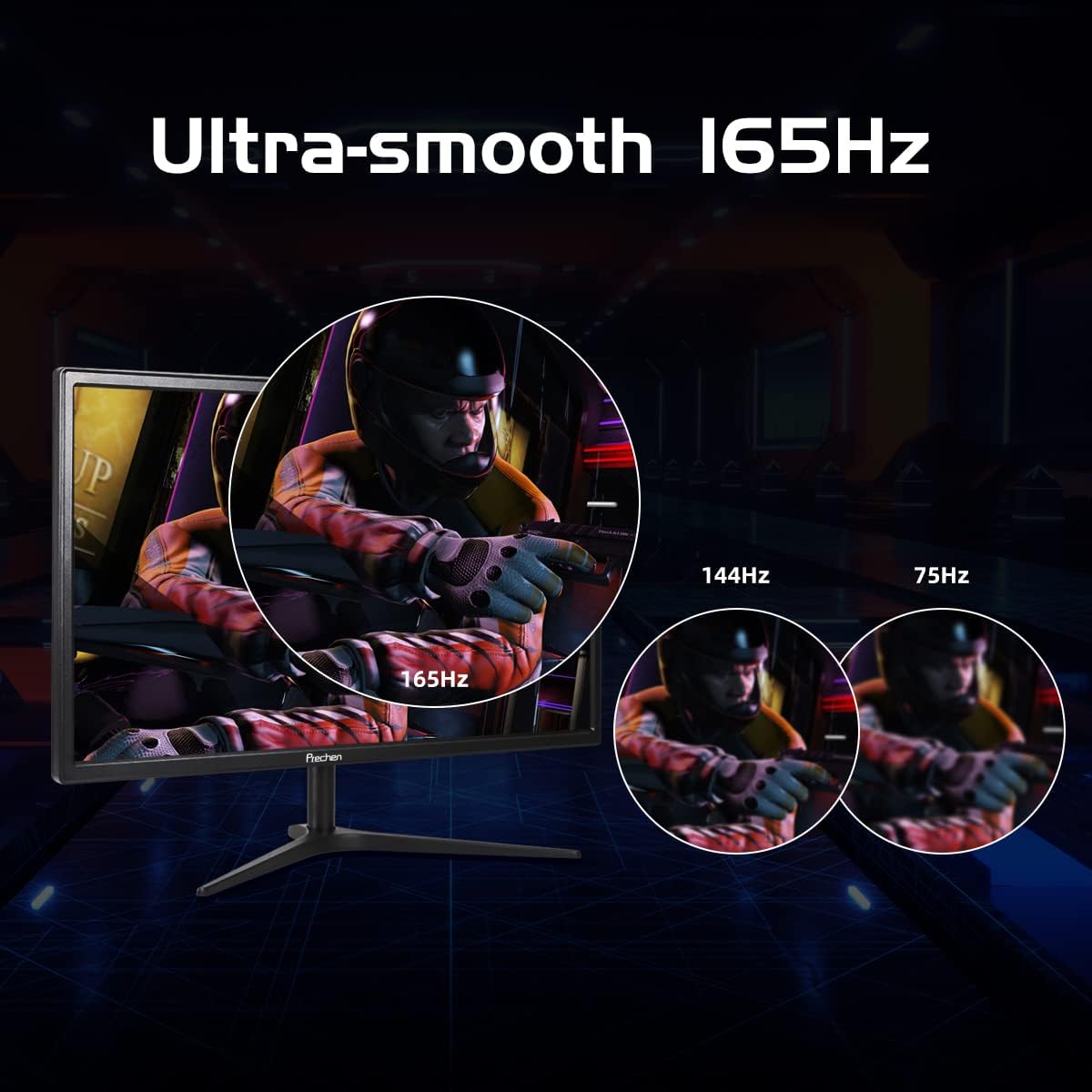
This monitor supports up to 165Hz refresh rate via DisplayPort and 144Hz via HDMI. To set the refresh rate:
- Right-click on your desktop and select പ്രദർശന ക്രമീകരണങ്ങൾ (വിൻഡോസ്) അല്ലെങ്കിൽ സിസ്റ്റം മുൻഗണനകൾ> ഡിസ്പ്ലേകൾ (മാകോസ്).
- നാവിഗേറ്റ് ചെയ്യുക വിപുലമായ ഡിസ്പ്ലേ ക്രമീകരണങ്ങൾ or Display Adapter Properties.
- Select the monitor and choose the desired refresh rate (e.g., 165Hz or 144Hz) from the dropdown menu.
6.4 എഎംഡി ഫ്രീസിങ്ക് പ്രീമിയം
This monitor supports AMD FreeSync Premium technology, which synchronizes the monitor's refresh rate with your GPU's frame rate to eliminate screen tearing and stuttering during gaming.
- Ensure your graphics card is AMD FreeSync compatible and has the latest drivers installed.
- Enable FreeSync in your monitor's OSD menu.
- Enable FreeSync (or Adaptive Sync) in your graphics card's control panel (e.g., AMD Radeon Software).

6.5 നേത്ര പരിചരണ സവിശേഷതകൾ
The monitor includes features designed to reduce eye strain during prolonged use, such as a blue light shift mode. This mode reduces harmful blue light emissions, making viewകൂടുതൽ സൗകര്യപ്രദമാണ്.

7. പരിപാലനം
7.1 മോണിറ്റർ വൃത്തിയാക്കുന്നു
- വൃത്തിയാക്കുന്നതിന് മുമ്പ് എപ്പോഴും മോണിറ്റർ അൺപ്ലഗ് ചെയ്യുക.
- നനവില്ലാത്തതും ലിനില്ലാത്തതുമായ തുണി ചെറുതായി ഉപയോഗിക്കുകampവെള്ളം അല്ലെങ്കിൽ ഉരച്ചിലുകളില്ലാത്ത സ്ക്രീൻ ക്ലീനർ ഉപയോഗിച്ച് നനയ്ക്കുക.
- ക്ലീനർ നേരിട്ട് സ്ക്രീനിൽ സ്പ്രേ ചെയ്യരുത്.
- Avoid using benzene, thinner, ammonia, or abrasive cleaners, as they can damage the monitor.
7.2 സംഭരണം
If storing the monitor for an extended period, place it in its original packaging or a suitable protective container to prevent dust and damage.
8. പ്രശ്നപരിഹാരം
നിങ്ങളുടെ മോണിറ്ററിൽ പ്രശ്നങ്ങൾ നേരിടുകയാണെങ്കിൽ, ദയവായി താഴെ പറയുന്ന പൊതുവായ പ്രശ്നങ്ങളും പരിഹാരങ്ങളും പരിശോധിക്കുക:
| പ്രശ്നം | സാധ്യമായ പരിഹാരം |
|---|---|
| Monitor does not turn on or does not wake from sleep mode. |
|
| No signal or 'Input Not Supported' message. |
|
| Dead pixels or image quality issues (grainy, poor color). |
|
| Brightness appears low. |
|
| Screen tearing or stuttering during gaming. |
|
9 സ്പെസിഫിക്കേഷനുകൾ
Key technical specifications for the Prechen 23.8 Inch QHD 165Hz Gaming Monitor:
| ഫീച്ചർ | സ്പെസിഫിക്കേഷൻ |
|---|---|
| സ്ക്രീൻ വലിപ്പം | 23.8 ഇഞ്ച് |
| റെസലൂഷൻ | QHD (2560 x 1440p) |
| പുതുക്കിയ നിരക്ക് | 165Hz (ഡിസ്പ്ലേ പോർട്ട്), 144Hz (HDMI) |
| പ്രതികരണ സമയം | 2 Milliseconds (GTG) |
| പാനൽ തരം | ഐ.പി.എസ് |
| വർണ്ണ ഗാമറ്റ് | 99% sRGB |
| ഡിസ്പ്ലേ നിറങ്ങൾ | 16.7 ദശലക്ഷം |
| Viewing ആംഗിൾ | 178° (തിരശ്ചീനമായി/ലംബമായി) |
| അഡാപ്റ്റീവ് സമന്വയം | എഎംഡി ഫ്രീസിങ്ക് പ്രീമിയം |
| കണക്റ്റിവിറ്റി | 2x HDMI 1.4, 1x DisplayPort 1.2, 1x Audio Out |
| VESA അനുയോജ്യത | 100 മിമി x 100 മിമി |
| ടിൽറ്റ് അഡ്ജസ്റ്റ്മെൻ്റ് | -5° മുതൽ 15° വരെ |
| ഇനത്തിൻ്റെ ഭാരം | 7.48 പൗണ്ട് |
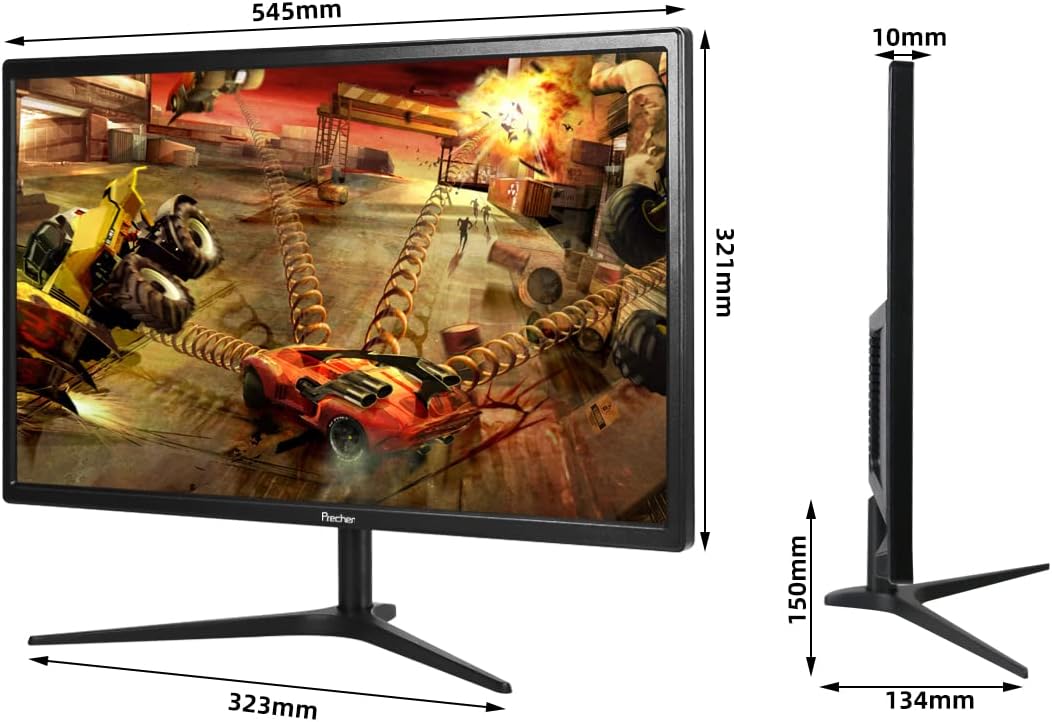
| പാക്കേജ് അളവുകൾ | 24.5 x 15.4 x 4.7 ഇഞ്ച് |


10. വാറൻ്റിയും പിന്തുണയും
Prechen is committed to providing high-quality products and excellent customer service.
- വാറൻ്റി: ഈ ഉൽപ്പന്നം എ 2 Years Unlimited Warranty.
- ഉപഭോക്തൃ പിന്തുണ: ആസ്വദിക്കൂ ആജീവനാന്ത ഉപഭോക്തൃ പിന്തുണ for any inquiries or assistance you may need.
- ആക്സസറികൾ: ഞങ്ങൾ വാഗ്ദാനം ചെയ്യുന്നു സൗജന്യ ആക്സസറികൾ as part of our commitment to customer satisfaction.
For technical support, warranty claims, or general inquiries, please contact Prechen customer service through the official website or your purchase platform. Please have your model number and purchase date ready when contacting support.


