1. ആമുഖം
The GMKtec Mini PC NucBox7 is a compact and powerful desktop computer designed for various applications, including office work, home entertainment, and business use. Pre-installed with Windows 11 Pro, this mini PC offers robust performance with its Intel Pentium Silver N6005 processor, ample memory, and fast storage. Its small form factor and versatile connectivity options make it an ideal solution for users seeking efficiency and flexibility.

ചിത്രം 1: മുൻഭാഗം view of the GMKtec Mini PC NucBox7, showcasing its compact design and illuminated power button.
2 പ്രധാന സവിശേഷതകൾ
- കോംപാക്റ്റ് ഡിസൈൻ: Extremely small footprint, making it suitable for limited desk space or VESA mounting.
- ശക്തമായ പ്രോസസ്സർ: Equipped with an Intel Pentium Silver N6005 processor, offering efficient performance for daily tasks.
- Ample മെമ്മറി & സ്റ്റോറേജ്: Features 16GB DDR4 RAM and a 512GB PCIe SSD, with expandability up to 2TB via M.2 2242 SSD (PCIe/SATA).
- 4K Triple Display Support: Connect up to three 4K monitors simultaneously via three HDMI ports for enhanced productivity.
- ഹൈ-സ്പീഡ് കണക്റ്റിവിറ്റി: Includes Dual 1000M RJ45 Gigabit LAN ports, WiFi 6 (802.11ax) for fast wireless internet, and Bluetooth 5.2 for peripheral connections.
- Pre-installed Operating System: Comes with Windows 11 Pro, ready for immediate use.
- കാര്യക്ഷമമായ തണുപ്പിക്കൽ സംവിധാനം: Designed with a large fan and powerful heat sink to maintain optimal performance and prevent overheating.
- മൾട്ടി-കളർ എൽഇഡി ലൈറ്റുകൾ: Customizable LED lighting adds a personalized touch to the device.
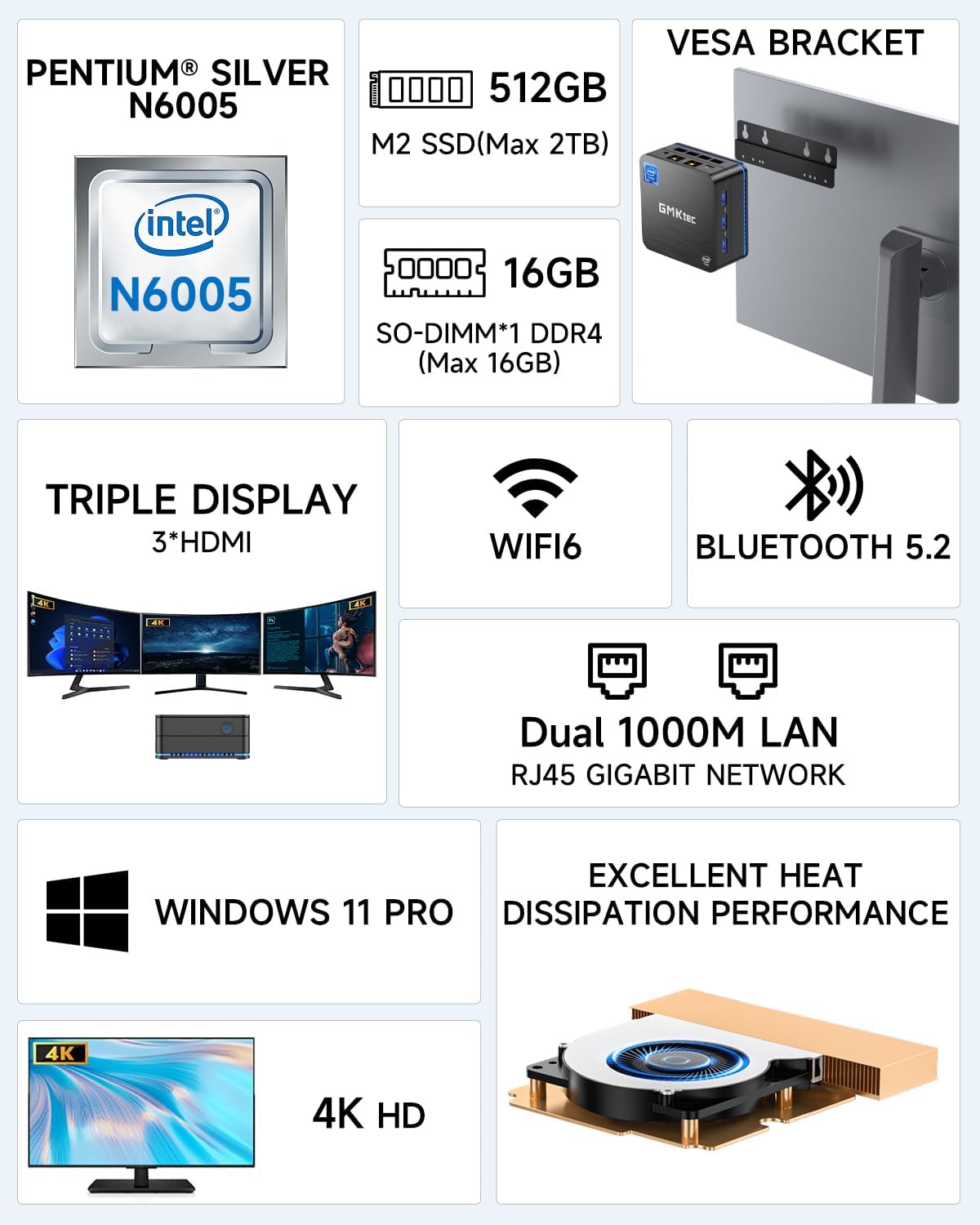
Figure 2: Visual representation of the Mini PC's core features, including CPU, storage, display, and network capabilities.
3. സജ്ജീകരണ ഗൈഡ്
- അൺബോക്സിംഗ്: Carefully remove the Mini PC and all accessories from the packaging. Ensure all components listed in the packing list are present.
- ബന്ധിപ്പിക്കുന്ന പെരിഫറലുകൾ:
- Connect your monitor(s) to the HDMI ports on the Mini PC. This model supports up to three 4K displays.
- ലഭ്യമായ യുഎസ്ബി പോർട്ടുകളിലേക്ക് നിങ്ങളുടെ യുഎസ്ബി കീബോർഡും മൗസും പ്ലഗ് ഇൻ ചെയ്യുക.
- For wired network access, connect an Ethernet cable to one of the Dual LAN ports.
- പവർ ചെയ്യുന്നത്: Connect the power adapter to the Mini PC's DC-in port and then plug it into a power outlet. Press the power button located on the front of the device. The LED light will illuminate.
- പ്രാരംഭ വിൻഡോസ് സജ്ജീകരണം: Follow the on-screen instructions to complete the Windows 11 Pro setup. This typically involves selecting your region, language, connecting to a network (if not wired), and creating a user account.
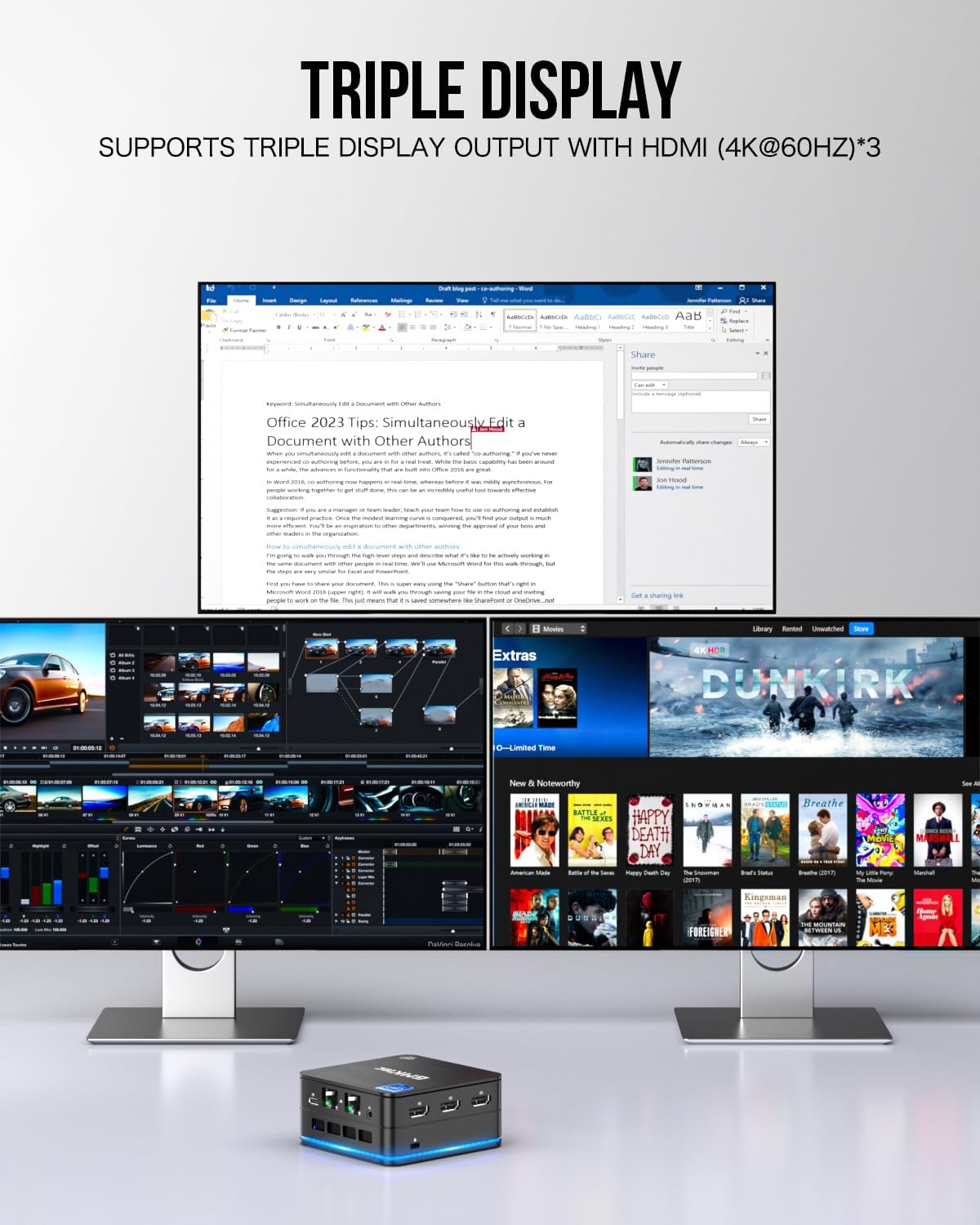
Figure 3: Illustration of the Mini PC supporting a triple display setup, highlighting its multi-monitor capabilities.
4. പ്രവർത്തന നിർദ്ദേശങ്ങൾ
The GMKtec Mini PC is designed for ease of use. Once Windows 11 Pro is set up, you can begin using your computer for various tasks.
- പൊതുവായ ഉപയോഗം: The Mini PC is optimized for light office work, business meetings, home theater setups, digital advertising boards, online education, and point-of-sale systems.
- Triple Display Configuration: To utilize multiple displays, ensure your monitors are connected to the HDMI ports. Windows will automatically detect them. You can configure display settings (extend, duplicate, etc.) by right-clicking on the desktop and selecting 'Display settings'.
- നെറ്റ്വർക്ക് കണക്റ്റിവിറ്റി:
- വയർ: Simply connect an Ethernet cable to one of the two Gigabit LAN ports.
- വയർലെസ്: To connect to Wi-Fi, click the network icon in the taskbar, select your desired network, enter the password, and click 'Connect'. The Mini PC supports WiFi 6 for faster and more stable connections.
- സംഭരണ വിപുലീകരണം: The Mini PC includes an M.2 2242 SSD slot that supports up to 2TB (PCIe/SATA) for additional storage. Refer to the detailed hardware guide for installation instructions.

Figure 4: The compact size of the Mini PC compared to a smartphone, along with examples of its diverse applications.
വീഡിയോ 1: ഒരു ഉദ്യോഗസ്ഥൻview of the GMKtec Mini PC, demonstrating its features and performance capabilities, including various benchmarks and gaming tests.
5. പരിപാലനം
- സോഫ്റ്റ്വെയർ അപ്ഡേറ്റുകൾ: Regularly check for and install Windows updates to ensure system stability and security. Keep your drivers updated for optimal performance.
- ശാരീരിക ശുദ്ധീകരണം: Use a soft, dry cloth to clean the exterior of the Mini PC. For vents, use compressed air to remove dust buildup, which helps maintain the efficient cooling system.
- ചൂട് മാനേജ്മെൻ്റ്: Ensure the Mini PC is placed in a well-ventilated area and that its vents are not obstructed. The efficient cooling system is crucial for sustained performance.
6. പ്രശ്നപരിഹാരം
| ഇഷ്യൂ | സാധ്യമായ കാരണം | പരിഹാരം |
|---|---|---|
| Mini PC does not power on. | Power adapter not connected properly; power outlet issue. | Check power connections. Try a different power outlet. |
| മോണിറ്ററിൽ ഡിസ്പ്ലേ ഇല്ല. | Monitor not connected; incorrect input source; faulty cable. | Ensure HDMI cables are securely connected. Select correct input source on monitor. Try a different cable. |
| No internet connection (Wi-Fi). | Incorrect Wi-Fi password; router issue; Wi-Fi driver issue. | Verify Wi-Fi password. Restart router. Update Wi-Fi drivers. |
| മന്ദഗതിയിലുള്ള പ്രകടനം. | Too many background applications; low storage space; overheating. | Close unnecessary applications. Free up disk space. Ensure proper ventilation. |
7 സ്പെസിഫിക്കേഷനുകൾ
| ഫീച്ചർ | വിശദാംശങ്ങൾ |
|---|---|
| ബ്രാൻഡ് | ജിഎംകെടെക് |
| ഇനം മോഡൽ നമ്പർ | KB7S |
| ഹാർഡ്വെയർ പ്ലാറ്റ്ഫോം | PC |
| ഓപ്പറേറ്റിംഗ് സിസ്റ്റം | വിൻഡോസ് 11 പ്രോ |
| പ്രോസസ്സർ | Intel Pentium Silver N6005 (3.3 GHz) |
| പ്രോസസ്സറുകളുടെ എണ്ണം | 4 |
| റാം | 16 GB GDDR4 |
| ഹാർഡ് ഡ്രൈവ് | 512 GB PCIE x 4 SSD |
| പരമാവധി സ്ക്രീൻ റെസല്യൂഷൻ | 3840 x 2160 പിക്സലുകൾ (4K) |
| ഗ്രാഫിക്സ് ചിപ്സെറ്റ് ബ്രാൻഡ് | Intel (UHD Graphics) |
| വയർലെസ് തരം | 802.11ax (WiFi 6), Bluetooth 5.2 |
| ഇനത്തിൻ്റെ ഭാരം | 1.46 പൗണ്ട് |
| ഉൽപ്പന്ന അളവുകൾ | 3.42 x 3.42 x 1.55 ഇഞ്ച് |
| നിറം | കറുപ്പ് |
8. വാറൻ്റിയും പിന്തുണയും
GMKtec provides a standard manufacturer's warranty for the NucBox7 Mini PC. For detailed warranty terms, conditions, and duration, please refer to the warranty card included in your product packaging or visit the official GMKtec website. For technical support, troubleshooting assistance beyond this manual, or service requests, please contact GMKtec customer support through their official channels.


