1. ആമുഖം
Thank you for choosing the Cherry KW 9100 Slim Wireless Keyboard. This manual provides essential information for setting up, operating, and maintaining your new keyboard. The KW 9100 Slim is designed for both work and home office environments, offering flexible connectivity options and a comfortable typing experience with its silent SX Scissor Mechanism.

ചിത്രം 1.1: മുകളിൽ നിന്ന് താഴേക്ക് view of the Cherry KW 9100 Slim Wireless Keyboard, showcasing അതിന്റെ പൂർണ്ണമായ ലേഔട്ടും മിനുസമാർന്ന രൂപകൽപ്പനയും.
2. പാക്കേജ് ഉള്ളടക്കം
നിങ്ങളുടെ പാക്കേജിൽ എല്ലാ ഇനങ്ങളും ഉണ്ടെന്ന് ദയവായി പരിശോധിക്കുക:
- Cherry KW 9100 Slim Wireless Keyboard
- USB കേബിൾ (USB-A മുതൽ USB-C വരെ)
- USB Receiver (2.4 GHz RF dongle)
- നിർദ്ദേശ മാനുവൽ (ഈ പ്രമാണം)
- Magnetic Support Bar (pre-attached or separate)
3 പ്രധാന സവിശേഷതകൾ
- ഇരട്ട കണക്റ്റിവിറ്റി: Seamlessly switch between wireless RF (2.4 GHz) and Bluetooth transmission modes.
- റീചാർജ് ചെയ്യാവുന്ന ബാറ്ററി: Built-in lithium rechargeable battery with USB-C connection for convenient charging.
- SX Scissor Mechanism: Cherry's proprietary low-profile scissor technology ensures a quiet and precise typing experience.
- Slim and Stable Design: Features a thin profile with a built-in metal plate for maximum stability and rigidity.
- ക്രമീകരിക്കാവുന്ന ടൈപ്പിംഗ് ആംഗിൾ: Includes a removable magnetic support bar for a steeper typing angle preference.
- നില LED-കൾ: Integrated LEDs for CAPS LOCK, NUM, and SCROLL keys.
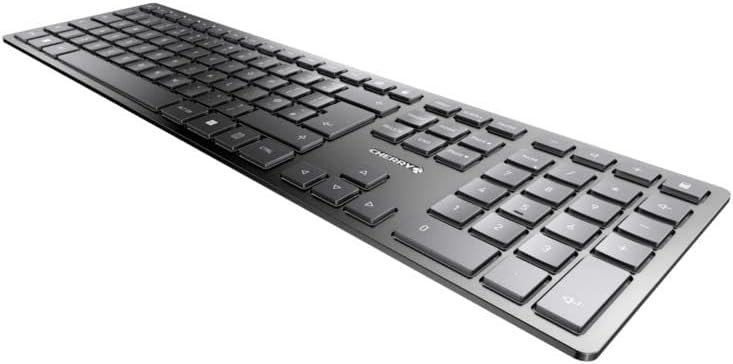
ചിത്രം 3.1: കോണാകൃതിയിലുള്ളത് view highlighting the slim profile and key layout of the keyboard.

ചിത്രം 3.2: ക്ലോസപ്പ് view of the keys, illustrating the low-profile design and quiet SX Scissor Mechanism.
4. സജ്ജീകരണവും കണക്ഷനും
4.1 കീബോർഡ് ചാർജ് ചെയ്യുന്നു
Before first use, it is recommended to fully charge the keyboard.
- Connect the supplied USB-A to USB-C cable to the USB-C port on the keyboard.
- Connect the other end of the cable to a USB-A port on your computer or a compatible USB power adapter.
- The charging indicator LED will illuminate. The keyboard can be used while charging.

Figure 4.1: Location of the USB-C charging port on the Cherry KW 9100 Slim keyboard.
4.2 Connecting via 2.4 GHz RF Wireless
For a stable and fast wireless connection, use the included USB receiver.
- Locate the USB receiver (dongle) in the package.
- നിങ്ങളുടെ കമ്പ്യൂട്ടറിൽ ലഭ്യമായ ഒരു USB-A പോർട്ടിലേക്ക് USB റിസീവർ പ്ലഗ് ചെയ്യുക.
- On the keyboard, locate the connectivity switch (usually on the back or side) and set it to the "RF" or 2.4 GHz icon position.
- The keyboard should automatically connect to your computer.
4.3 ബ്ലൂടൂത്ത് വഴി ബന്ധിപ്പിക്കുന്നു
The keyboard supports Bluetooth connectivity for devices with Bluetooth capabilities.
- On the keyboard, set the connectivity switch to the "Bluetooth" icon position.
- The Bluetooth indicator LED on the keyboard will start blinking, indicating it's in pairing mode.
- നിങ്ങളുടെ കമ്പ്യൂട്ടറിലോ ഉപകരണത്തിലോ, Bluetooth ക്രമീകരണങ്ങൾ തുറക്കുക.
- ഇതിനായി തിരയുക new devices and select "Cherry KW 9100 Slim" from the list.
- ജോടിയാക്കൽ പ്രക്രിയ പൂർത്തിയാക്കാൻ ഏതെങ്കിലും ഓൺ-സ്ക്രീൻ നിർദ്ദേശങ്ങൾ പാലിക്കുക.
4.4 Attaching the Magnetic Support Bar
The keyboard comes with a magnetic support bar that can be attached to adjust the typing angle.
- Locate the magnetic support bar.
- Align the bar with the magnetic strip on the underside of the keyboard.
- The magnets will snap the bar into place, providing an elevated typing angle.
- To remove, simply pull the bar away from the keyboard.

ചിത്രം 4.2: വശം view of the keyboard demonstrating the elevated angle with the magnetic support bar attached.

Figure 4.3: Illustration of how the magnetic support bar attaches to the keyboard's underside.
5. ഓപ്പറേഷൻ
5.1 അടിസ്ഥാന ഉപയോഗം
Once connected, the Cherry KW 9100 Slim functions as a standard keyboard. Type as you normally would.

Figure 5.1: A user demonstrating typing on the Cherry KW 9100 Slim keyboard in an office setting.
5.2 Function Keys (F-Keys)
The F-keys (F1-F12) on the top row may have secondary functions accessible by pressing the Fn key simultaneously. Refer to the keycap legends for specific functions such as media control, volume adjustment, or brightness control.
5.3 സ്റ്റാറ്റസ് എൽ.ഇ.ഡി
The keyboard features indicator LEDs for:
- വലിയക്ഷരം: ക്യാപ്സ് ലോക്ക് സജീവമാകുമ്പോൾ പ്രകാശിക്കുന്നു.
- NUM: നം ലോക്ക് സജീവമാകുമ്പോൾ പ്രകാശിക്കുന്നു.
- സ്ക്രോൾ: Illuminates when Scroll Lock is active.
- Battery/Charging: Indicates charging status or low battery.
6. പരിപാലനം
6.1 കീബോർഡ് വൃത്തിയാക്കൽ
കീബോർഡിന്റെ രൂപഭാവവും പ്രവർത്തനക്ഷമതയും നിലനിർത്താൻ:
- വൃത്തിയാക്കുന്നതിനുമുമ്പ് നിങ്ങളുടെ കമ്പ്യൂട്ടറിൽ നിന്ന് കീബോർഡ് വിച്ഛേദിക്കുക.
- മൃദുവായ, ലിൻ്റ് രഹിത തുണി ഉപയോഗിക്കുകampവെള്ളം അല്ലെങ്കിൽ മൃദുവായ ക്ലീനിംഗ് ലായനി ഉപയോഗിച്ചാണ്.
- അമിതമായ ഈർപ്പം ഒഴിവാക്കുക, ക്ലീനറുകൾ നേരിട്ട് കീബോർഡിൽ തളിക്കരുത്.
- താക്കോലുകൾക്കിടയിലുള്ള പൊടിയും അവശിഷ്ടങ്ങളും ഒഴിവാക്കാൻ, കംപ്രസ് ചെയ്ത വായു ഉപയോഗിക്കുക.
6.2 ബാറ്ററി കെയർ
The built-in rechargeable battery is designed for long life.
- Recharge the keyboard when the battery indicator shows low power.
- ബാറ്ററിയുടെ ആയുസ്സ് വർദ്ധിപ്പിക്കുന്നതിന് ഇടയ്ക്കിടെ പൂർണ്ണമായും ഡിസ്ചാർജ് ചെയ്യുന്നത് ഒഴിവാക്കുക.
- കീബോർഡ് ദീർഘനേരം ഉപയോഗിച്ചിട്ടില്ലെങ്കിൽ തണുത്തതും വരണ്ടതുമായ സ്ഥലത്ത് സൂക്ഷിക്കുക.
7. പ്രശ്നപരിഹാരം
| പ്രശ്നം | സാധ്യമായ കാരണം | പരിഹാരം |
|---|---|---|
| Keyboard not responding (RF) | USB receiver not plugged in; keyboard not in RF mode; low battery. | Ensure USB receiver is securely plugged in. Set keyboard switch to RF mode. Charge the keyboard. Try a different USB port. |
| കീബോർഡ് പ്രതികരിക്കുന്നില്ല (ബ്ലൂടൂത്ത്) | Keyboard not in Bluetooth mode; not paired; out of range; low battery. | Set keyboard switch to Bluetooth mode. Ensure keyboard is paired with the device. Move keyboard closer to the device. Charge the keyboard. |
| കീകൾ ഒട്ടിപ്പിടിക്കുന്നു അല്ലെങ്കിൽ പ്രതികരിക്കുന്നില്ല. | Debris under keys; liquid spill. | Clean the keyboard using compressed air. If liquid spill, disconnect immediately and allow to dry completely before use. Do not attempt to disassemble. |
| ബാറ്ററി ചാർജ് ചെയ്യുന്നില്ല | Faulty USB cable or port; power source issue. | Try a different USB cable and/or USB port. Ensure the power source is active. |
8 സ്പെസിഫിക്കേഷനുകൾ
| ഫീച്ചർ | വിശദാംശങ്ങൾ |
|---|---|
| മോഡൽ നമ്പർ | JK-9100US-2 |
| കണക്റ്റിവിറ്റി | Bluetooth, 2.4 GHz RF (with USB receiver), USB-C (for charging) |
| കീബോർഡ് വിവരണം | Wireless, Full-size |
| Key Mechanism | SX Scissor Mechanism |
| കീകളുടെ എണ്ണം | 108 |
| നിറം | കറുപ്പ് |
| മെറ്റീരിയൽ | Metal (built-in plate) |
| ഇനത്തിൻ്റെ ഭാരം | 1.49 പൗണ്ട് (ഏകദേശം 676 ഗ്രാം) |
| പാക്കേജ് അളവുകൾ | 18.19 x 6.69 x 1.26 ഇഞ്ച് |
| നിർമ്മാതാവ് | ചെറി |
| അനുയോജ്യമായ ഉപകരണങ്ങൾ | PC |
| ശുപാർശ ചെയ്യുന്ന ഉപയോഗങ്ങൾ | Gaming, Office, Work |
9. വാറൻ്റിയും പിന്തുണയും
For warranty information and technical support, please refer to the official Cherry website or contact Cherry customer service. Keep your proof of purchase for warranty claims.
Official Cherry Webസൈറ്റ്: www.cherry.de/en/
കസ്റ്റമർ സർവീസ്: ഔദ്യോഗിക പേജിലെ കോൺടാക്റ്റ് വിഭാഗം കാണുക. webപ്രാദേശിക പിന്തുണ വിശദാംശങ്ങൾക്കായുള്ള സൈറ്റ്.


